































Relive the Glory: Building a Windows XP Computer


Table of Contents
- Introduction
- Choosing the Parts
- 2.1 Power Supply
- 2.2 Hard Drives
- 2.3 Optical Drive
- 2.4 Video Card
- 2.5 Sound Card
- 2.6 CPU
- 2.7 CPU Cooling
- 2.8 Memory
- 2.9 SATA Cables
- 2.10 Motherboard
- Pros and Cons of the Chosen Parts
- Building the Windows XP Computer
- 3.1 CPU and Cooler Installation
- 3.2 Memory Installation
- 3.3 Adding Components to the Case
- 3.4 testing and Troubleshooting
- Pros and Cons of the Building Process
- Installing Windows XP
- 4.1 Using Easy2Boot for Installation
- 4.2 Dealing with Installation Errors
- Driver Installation and Configuration
- 5.1 Using Snappy Driver Installer
- 5.2 Installing Sound Card Drivers
- 5.3 Configuring Audio and Video
- Conclusion
🖥️ Building a Windows XP Computer: Reliving Nostalgia
Are you a die-hard fan of Windows XP? Are you nostalgic for the good old days? If so, join me on a journey as we build a Windows XP computer from scratch. In this article, we will go through the process of choosing the right parts, assembling the computer, installing Windows XP, and configuring the drivers. So, let's dive into the world of nostalgia and relive the glory days of Windows XP!
1. Introduction
Before we embark on this exciting adventure, let's take a moment to understand what we're about to do. Building a Windows XP computer is not just a technical endeavor; it's a journey filled with memories and emotions. Windows XP holds a special place in the hearts of many computer enthusiasts, and by building our own XP machine, we can relive the experience and bask in the nostalgia.
2. Choosing the Parts
To create our Windows XP computer, we need to carefully select each component. Let's take a look at the parts we will be using:
2.1 Power Supply
A reliable power supply is crucial for any computer, and our XP machine is no exception. We have chosen the Sea Sonic modular power supply - a 560-watt powerhouse that will provide ample power for our system.
2.2 Hard Drives
To store our operating system, software, and files, we have opted for two hard drives. A 250GB Seagate drive will be dedicated to the OS and software, while a 500GB Western Digital drive will serve as our storage drive for files and data.
2.3 Optical Drive
No classic computer is complete without an optical drive. We have selected a DVD RW SATA-based drive to read and write optical media.
2.4 Video Card
For graphics processing, we have chosen the NVIDIA GeForce GT 620. While this choice may be controversial, it has proven to be reliable and capable of running any Game on our XP system with ease.
2.5 Sound Card
To enhance our audio experience, we will be using the SoundBlaster X-Fi sound card. This high-quality card, sourced from an old Dell XPS 720, has been working flawlessly on previous XP builds.
2.6 CPU
The heart of our system will be the Intel Core 2 Quad Q9550, clocked at 2.83GHz. This powerful quad-core processor will ensure smooth performance and efficient multitasking.
2.7 CPU Cooling
To keep our CPU running cool, we have invested in the Dynatron cooler. Highly recommended by experts, this cooler offers efficient heat dissipation and ensures stable operation even under heavy loads.
2.8 Memory
For memory, we have chosen 4GB of DDR2 RAM. Although our 32-bit operating system will only utilize 3GB, we have opted for 4GB to future-proof our system.
2.9 SATA Cables
To connect our drives, we will need SATA cables. These reliable cables will ensure fast data transfer between the motherboard and our storage devices.
2.10 Motherboard
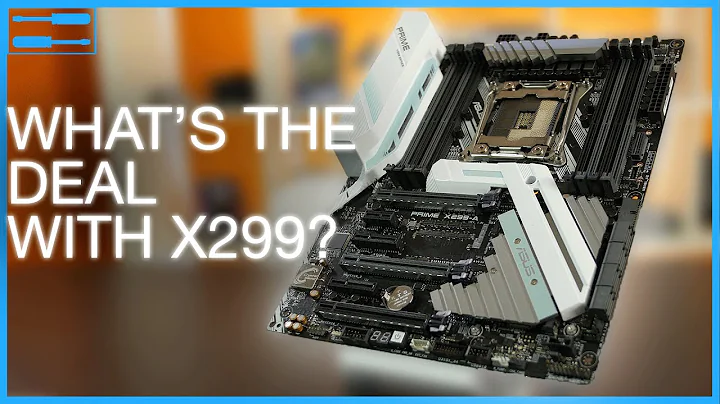
Our choice of motherboard is the Intel DQ45CB Micro ATX. This affordable and feature-rich board offers a Socket 775 for our CPU, onboard audio (which we won't be using), and a legacy-free design with no PS/2 ports.
Pros of the chosen parts:
- Power supply: Sufficient wattage for our system.
- Hard drives: Ample storage capacity for the OS, software, and files.
- Optical drive: Allows us to read and write optical media.
- Video card: Capable of running any game on our XP system.
- Sound card: Enhances audio experience with high-quality sound.
- CPU: Powerful quad-core processor for smooth performance.
- CPU cooling: Efficient heat dissipation for stable operation.
- Memory: Ample RAM for multitasking and future upgradability.
Cons of the chosen parts:
- Lack of VGA connector on the motherboard (requires adapter).
- Limited USB 3.0 connectivity on the case.
- Inability to use front panel audio due to sound card limitations.
3. Building the Windows XP Computer
Now that we have our parts ready, it's time to assemble our Windows XP computer. Let's go through the step-by-step process:
3.1 CPU and Cooler Installation
The first step is to install our CPU and cooler. This can be a nerve-wracking process, as any mishandling can lead to damaged pins and a ruined processor. However, with careful installation, we can ensure a successful CPU installation.
3.2 Memory Installation
After installing the CPU, we move on to installing our memory modules. Although our 32-bit operating system can only utilize 3GB of RAM, we have opted for 4GB for future compatibility.
3.3 Adding Components to the Case
With the CPU and memory installed, we start adding the remaining components to the case. This includes connecting the power supply, hard drives, optical drive, video card, sound card, and other necessary components.
3.4 Testing and Troubleshooting
Once everything is connected, we proceed to test our newly built computer. We check if all the components are functioning correctly and address any issues or errors that may arise during the testing process.
Pros of the building process:
- Exciting and nostalgic experience of assembling a computer from scratch.
- Ability to customize and choose specific components for optimal performance.
- Hands-on learning and troubleshooting opportunities.
Cons of the building process:
- Potential risks of mishandling delicate components.
- Time-consuming and intricate process.
- The possibility of encountering compatibility issues.
4. Installing Windows XP
With our computer built and tested, it's time to install our beloved Windows XP operating system. We will be using Easy2Boot, a flash drive tool that allows us to install any version of Windows XP and includes built-in drivers for AHCI support.
4.1 Using Easy2Boot for Installation
By following the instructions provided with Easy2Boot, we can create a bootable flash drive and configure it to install Windows XP with AHCI support. This eliminates the need for hunting down drivers and ensures a smoother installation process.
4.2 Dealing with Installation Errors
During the installation process, it's not uncommon to encounter errors or issues. However, with patience and troubleshooting, we can overcome these obstacles and successfully complete the installation of Windows XP.
5. Driver Installation and Configuration
Once Windows XP is installed, we move on to installing the necessary drivers for our hardware components. For this task, we will be using Snappy Driver Installer, a tool that simplifies the process by automatically detecting and installing the appropriate drivers.
5.1 Using Snappy Driver Installer
Snappy Driver Installer allows us to quickly and efficiently install the required drivers for our system. By downloading the necessary driver index and selecting the components we want to install, we can ensure that our hardware is properly recognized and functioning optimally.
5.2 Installing Sound Card Drivers
While Snappy Driver Installer covers most drivers, we choose to manually install the sound card drivers from the original installation disk. This ensures compatibility and maximizes the performance of our chosen sound card.
5.3 Configuring Audio and Video
After installing the necessary drivers, it's important to configure the audio and video settings. This includes specifying the audio output device and adjusting display settings to ensure the best visual experience on our Windows XP computer.
6. Conclusion
Congratulations! We have successfully built and set up our Windows XP computer. By embarking on this journey, we have not only created a functional and nostalgic machine but also revived the memories of the golden era of Windows XP. Now, it's time to enjoy the experience, explore the possibilities, and relive the glory days of Windows XP!
Highlights:
- Relive the nostalgia of Windows XP with a custom-built computer.
- Carefully selected parts ensure optimal performance and compatibility.
- Step-by-step guidance on assembling the computer and installing Windows XP.
- Simplified driver installation process for hassle-free setup.
- Enjoy the classic Windows XP experience on a modern, nostalgic machine.
FAQ:
Q: Can I use newer components in my Windows XP build? A: While it's technically possible to use newer components, compatibility may be an issue. It's best to stick with hardware that has proven compatibility with Windows XP.
Q: Why did you choose Windows XP instead of a newer operating system? A: Windows XP holds a special place in the hearts of many enthusiasts due to its simplicity, stability, and nostalgic value. Building a Windows XP computer allows us to recreate that experience.
Q: Can I use this guide to build a Windows XP computer for gaming? A: Absolutely! The components chosen in this guide are capable of running most games compatible with Windows XP. However, keep in mind that newer games may not be supported.
Q: Can I upgrade my Windows XP computer to a newer operating system? A: Yes, it is possible to upgrade to a newer operating system, such as Windows 7 or Windows 10. However, keep in mind that hardware limitations and driver availability may pose challenges.
Resources:


Most people like








































Report
Please select a reason for reporting
- 13 Reasons to Switch from Snapchat to Text Messaging
- 7 Powerful Speech to Text Apps to Boost Productivity
- 10 Best Speech to Text Tools for Effortless Transcription
- 13 Free Tools to Easily Transcribe Audio to Text
- 15 Surprising Ways Google's Speech-to-Text Boosts Productivity
- 7 Best Free Online Audio to Text Transcription Tools
- 9 Tips to Transcribe Speech to Text Faster and Better
- 13 Best Speech to Text Software for Windows 10 in 2023
- 7 Tips for Choosing the Best Transcriber for Audio to Text
- 11 Reasons Why Dragon Speech-to-Text Apps are Game-Changers
- 6 Secrets to Enhance Your Speech to Text Transcription
- 6 Brilliant Ways to Boost Productivity with Talk-to-Text on Your MacBook
- 6 Ways Transcription Software Converts Audio to Text
- 8 Tips to Transcribe Speech to Text Like a Pro
- 6 Reasons IBM Watson Speech to Text is a Game-Changer
- 14 Powerful Ways Talk-to-Text Improves Your Workflow
- 12 Top Windows Speech-to-Text Software for Efficient Transcription
- 12 Game-Changing Benefits of Apple's Speech to Text Technology
- 9 Powerful Use Cases for AWS Speech to Text Technology
- 10 Easy Steps to Transcribe YouTube Videos to Text
- transcription audio en texte
- online audio transcription
- free audio file transcription
- free ai audio transcription
- audio transcription service
- audio transcription online free
- audio transcription free online
- audio to transcription software
- audio and transcript
- ai audio transcription free
- voice recording to text converter
- translate voice recording to text
- record voice to text
- audio recording to text converter
- voice recording and transcription
- chatgpt voice to text
- gmail voice to text
- speech to text reader
- speech to text ai free
- speech to talk
- ChatGPT Knows Ford. It Just Doesn't Quote Ford
- Meshy AI: How to Create 3D Models from Text and Images
- How SEO and Marketing Dashboards Empower Agencies to Drive Results
- How to Use AI Tools to Find Internal Linking Opportunities Across a Business Website
- Discover Your Perfect Haircut with AI Hairstyle Apps
- Free Reputation Calculator Tools: How They're Adapting to Score AI Visibility, Not Just Rankings
- Design Professional Flyers for Free on Your Phone
- Best Free Flyer Maker Apps for Android: Design Like a Pro
- How to Know If Your Business Is Ready for an AI Customer Service Agent
- Revolutionizing Storytelling: From Novels to Screenplays with AI
- Your Business Data Could Be Worth Up to $4M. Find Out Without Uploading a Single File.
- Can an eSIM Plan Save You Time During Travel Setup?
- AI Video Editor Review: A Hands-On Look at Prompt-Based Video Editing
- Keep Characters Consistent Across Scenes With Image-to-Video AI
- How to Convert BTC to HNT
- ProxyWing DuckDuckGo Proxy Review: Plans, Setup and Who It Is For
- ChatGPT Knows Ford. It Just Doesn't Quote Ford
- Automate Lead Generation: A Comprehensive Guide with AI Agents
- Revideo.io: The Future of Reverse Video Search Technology
- Revolutionizing Email Marketing Agency with AI

Copyright ©2026 toolify