































Table of Contents
- Key Points
- Understanding the ACE Workflow and Its Benefits
- Advanced Features
- Step-by-Step Guide: How to Implement the ACE Workflow
- Cephalon Cloud's ComfyUI Pricing (If Applicable)
- Evaluating the ACE Workflow: Pros and Cons
- Use Cases for the ACE Workflow
- Frequently Asked Questions about ACE
- Related Questions and Further Exploration



Understanding the ACE Workflow and Its Benefits
What is the ACE Workflow?
The ACE workflow is a specialized setup within ComfyUI designed to streamline and enhance various image editing tasks. Its core strength lies in its ability to manage complex operations like object replacement, style transfer, and maintaining visual consistency with a minimal set of LoRAs (Low-Rank Adaptation). This efficiency makes it a powerful tool for both novice and experienced users, enabling high-quality image manipulation without the complexity typically associated with such tasks.
Traditional methods of image editing in AI often require numerous LoRAs and intricate node setups, leading to longer processing times and potential inconsistencies. The ACE workflow, however, simplifies this process, allowing users to achieve similar or even superior results with fewer resources and less effort. The focus is on precision and efficiency, making it ideal for tasks that demand high fidelity and consistency.
This workflow excels at enabling 'adaptive content editing', which means modifications are made contextually, preserving the original image's overall style and characteristics. Whether it's transferring a specific style from one image to another, replacing objects while maintaining realistic integration, or ensuring consistent details across multiple edits, ACE provides a robust and user-friendly solution.
Advantages of Using ACE
The ACE workflow offers several key advantages over traditional methods of AI image editing:
- Simplified LoRA Management:
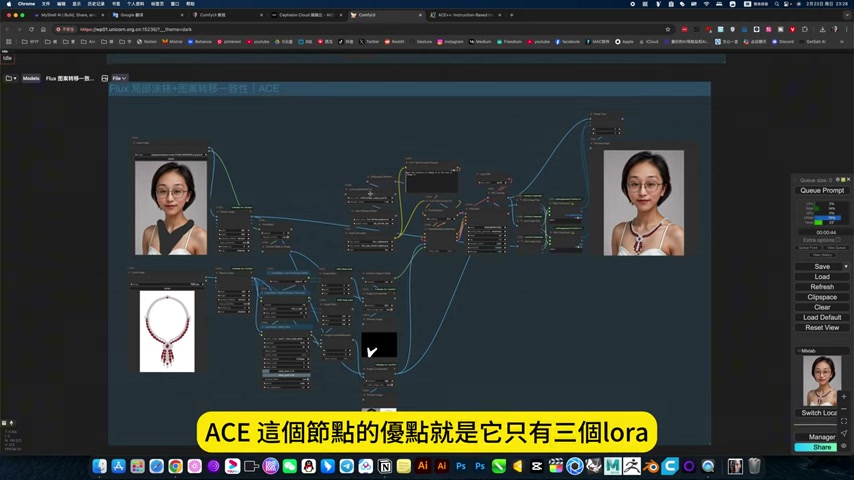
By using only three LoRAs, ACE reduces the complexity of managing numerous adaptation models, leading to a more streamlined workflow. The three LoRAs used are
ACE comfyui_local_lora16 safetensors,ACE comfyui_portrait_lora16 safetensors,ACE comfyui_subject_lora16 safetensors. - Enhanced Precision in Object Transfer: Objects can be seamlessly transferred and integrated into new images with higher precision and fidelity, preserving their original details and characteristics.
- Efficient Style Transfer: Applying styles from one image to another is achieved with greater control and accuracy, resulting in visually cohesive and appealing outputs.
- Improved Image Consistency: Maintaining consistent visual details and styles throughout the editing process ensures professional-grade results.
- Accessibility via Cephalon Cloud: The workflow can be readily accessed and utilized via the Cephalon Cloud online platform, eliminating the need for local setups and installations.
- Versatile Applications: Beyond simple edits, ACE facilitates complex tasks such as logo replacement, object relocation, and style modification, catering to a wide range of creative and practical applications.
These advantages combine to make the ACE workflow an indispensable tool for anyone seeking to harness the power of AI in image editing, without the steep learning curve and resource demands often associated with such technologies.
Advanced Features
Object Replacement
The ACE workflow excels at precisely replacing objects within an image. This feature is especially useful for tasks like replacing logos or altering specific elements while preserving the surrounding details
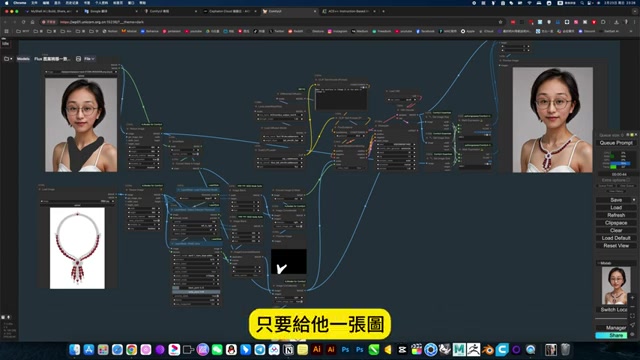
.
Steps:
- Load the initial image and the reference object.
- Use masking tools to define the area for replacement.
- Adjust the editing parameters to ensure seamless integration.
- Run the workflow and review the results.
Style Transfer
Achieving consistent style across multiple images can be challenging, but the ACE workflow simplifies this process. This feature allows users to apply a specific style from one image to another, maintaining visual harmony
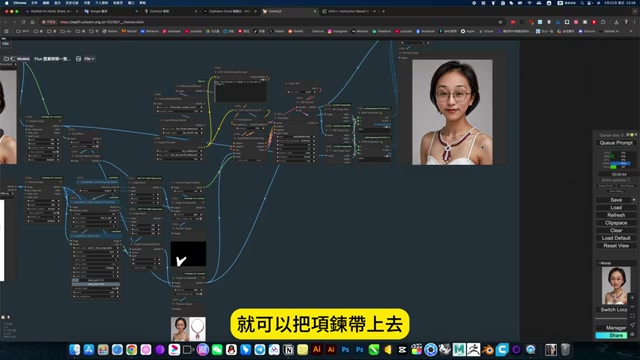
.
Steps:
- Load the base image and the style reference image.
- Adjust the style transfer parameters within the ACE nodes.
- Execute the workflow and refine as needed.
Step-by-Step Guide: How to Implement the ACE Workflow
Accessing the ACE Workflow on Cephalon Cloud
To begin using the ACE workflow, follow these steps:
- Visit Cephalon Cloud: Navigate to the Cephalon Cloud website.
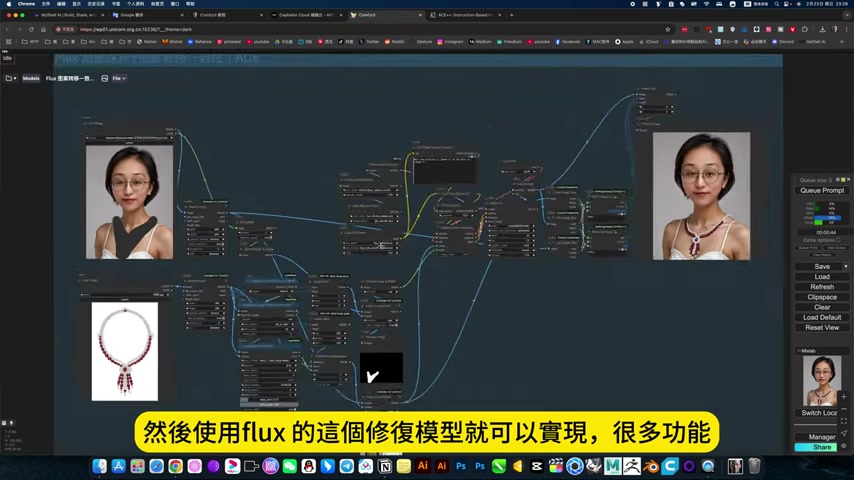
This platform offers a variety of AI Tools, including ComfyUI.
- Launch ComfyUI: Select ComfyUI from the available options to launch the online mirroring service. This eliminates the need for local installations.
- Update to the Latest Version: Ensure that your ComfyUI instance is updated to the latest version for optimal performance and access to the most recent features.
- Open the ACE Workflow: Within ComfyUI, open the ACE workflow. This will load the necessary nodes and settings for streamlined image editing.
Essential Steps for Image Editing with ACE
Once the ACE workflow is loaded, follow these steps to perform various image editing tasks:
-
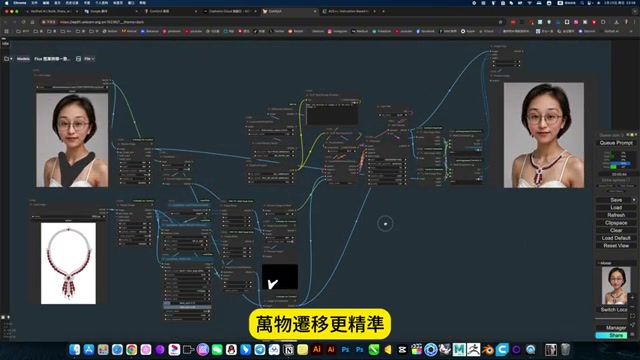
Load Images: Begin by loading the images you wish to edit into the workflow. This includes the base image and any reference images for style transfer or object replacement.
-
Define Editing Parameters:
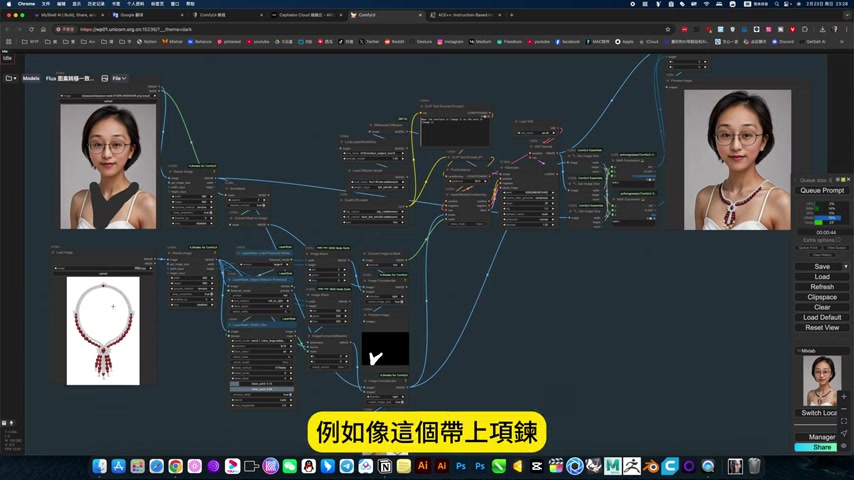
Specify the desired edits by adjusting parameters within the ACE nodes. This includes defining areas for object replacement, style transfer settings, and consistency parameters.
-
Run the Workflow: Execute the workflow by clicking the 'Queue Prompt' button. ComfyUI will process the images based on your defined parameters, applying the ACE workflow to achieve the desired results.
-
Review and Refine: Examine the output images and make any necessary adjustments. The iterative nature of the ACE workflow allows for fine-tuning until the desired outcome is achieved.
By following these steps, you can leverage the power of the ACE workflow to streamline your image editing process and achieve professional-quality results.
Local Deployment Information for ACE Workflow
For users preferring local deployments, the following information is crucial for setting up and utilizing the ACE workflow:
- Local Deployment Details: Those that prefer local deployments can follow instructions on separate notes or the linked resources shown.
- Download Workflow Files: Download the necessary workflow files to mirror the online experience.
- Workflow Components: In ComfyUI there are the video-specific components, style refinement and audio cloning or style components.





Most people like


































Report
Please select a reason for reporting
- 13 Reasons to Switch from Snapchat to Text Messaging
- 7 Powerful Speech to Text Apps to Boost Productivity
- 10 Best Speech to Text Tools for Effortless Transcription
- 13 Free Tools to Easily Transcribe Audio to Text
- 15 Surprising Ways Google's Speech-to-Text Boosts Productivity
- 7 Best Free Online Audio to Text Transcription Tools
- 9 Tips to Transcribe Speech to Text Faster and Better
- 13 Best Speech to Text Software for Windows 10 in 2023
- 7 Tips for Choosing the Best Transcriber for Audio to Text
- 11 Reasons Why Dragon Speech-to-Text Apps are Game-Changers
- 6 Secrets to Enhance Your Speech to Text Transcription
- 6 Brilliant Ways to Boost Productivity with Talk-to-Text on Your MacBook
- 6 Ways Transcription Software Converts Audio to Text
- 8 Tips to Transcribe Speech to Text Like a Pro
- 6 Reasons IBM Watson Speech to Text is a Game-Changer
- 14 Powerful Ways Talk-to-Text Improves Your Workflow
- 12 Top Windows Speech-to-Text Software for Efficient Transcription
- 12 Game-Changing Benefits of Apple's Speech to Text Technology
- 9 Powerful Use Cases for AWS Speech to Text Technology
- 10 Easy Steps to Transcribe YouTube Videos to Text
- transcription audio en texte
- online audio transcription
- free audio file transcription
- free ai audio transcription
- audio transcription service
- audio transcription online free
- audio transcription free online
- audio to transcription software
- audio and transcript
- ai audio transcription free
- voice recording to text converter
- translate voice recording to text
- record voice to text
- audio recording to text converter
- voice recording and transcription
- chatgpt voice to text
- gmail voice to text
- speech to text reader
- speech to text ai free
- speech to talk
- Meshy AI: How to Create 3D Models from Text and Images
- How SEO and Marketing Dashboards Empower Agencies to Drive Results
- How to Use AI Tools to Find Internal Linking Opportunities Across a Business Website
- Discover Your Perfect Haircut with AI Hairstyle Apps
- Free Reputation Calculator Tools: How They're Adapting to Score AI Visibility, Not Just Rankings
- Design Professional Flyers for Free on Your Phone
- Best Free Flyer Maker Apps for Android: Design Like a Pro
- How to Know If Your Business Is Ready for an AI Customer Service Agent
- Revolutionizing Storytelling: From Novels to Screenplays with AI
- Create Engaging Animated Explainer Videos with a Free AI Tool
- Automate Lead Generation: A Comprehensive Guide with AI Agents
- Revideo.io: The Future of Reverse Video Search Technology
- Revolutionizing Email Marketing Agency with AI
- Breaking the Character Drift Dilemma: A Practical Test of Smart Shot
- Meshy AI: How to Create 3D Models from Text and Images
- ASOMobile Helps Teams Benchmark App Store Screenshots Against Competitors
- How to Match LMS Software With Your Organization's Training Plan
- How to Convert BTC to HNT
- Unleashing the Power of AI: Cognizant's Roadmap for Transformation
- Frame to Video Review: A Practical Look at Turning Two Still Frames Into Motion

Copyright ©2026 toolify