































Table of Contents
- Key Points
- AI Article Writing with PostSaint
- Bulk Post Importing with PostSaint
- Step-by-Step Guide to Using PostSaint
- PostSaint Pricing
- Advantages and Disadvantages of Using PostSaint
- Key Features of PostSaint
- Use Cases for PostSaint
- Frequently Asked Questions
- Related Questions



AI Article Writing with PostSaint
How to Generate Text Using GPT-3
PostSaint harnesses the power of OpenAI's GPT-3 to create compelling article content. To get started, simply enter your post title or Prompt directly into the PostSaint interface within WordPress. The beauty of this system lies in its simplicity and flexibility. You're not just limited to basic titles; you can provide detailed prompts to guide the AI in generating the kind of content you need.
PostSaint provides a range of optional parameters to further refine the AI's writing. You can specify things like writing style, tone, and even include keywords to ensure the generated article aligns perfectly with your content strategy. If you have favorite writing instructions that you use frequently, PostSaint allows you to save these as default settings, saving you time and ensuring consistency across your content.
Writing Style and Tone: PostSaint offers a number of recommended writing styles and tones that can be quickly selected to your preferences for each article generated. You can set the tone for example to Formal, Neutral, Assertive, Cheerful, Humorous, Inspirational, Sarcastic, Skeptical, Optimistic, Worried, Curious, Surprised, Encouraging, or Disappointed.
Once you've entered your title, prompt, and any optional parameters, simply click the 'Generate Text' button. PostSaint then communicates with GPT-3, which will analyze your input and generate unique article text in just a few seconds.
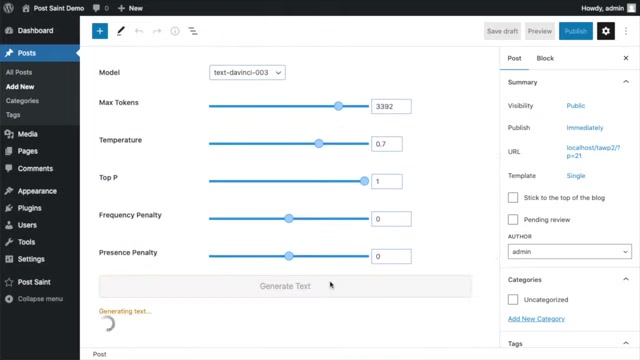
The resulting article is displayed within the PostSaint interface, allowing you to preview it before adding it to your WordPress post.
Customizing OpenAI Parameters: PostSaint grants you fine-grained control over the AI by letting you adjust a bunch of OpenAI parameters. The model used can be adjusted, as well as the max tokens (to limit article length), temperature (for randomness), and frequency/presence penalties (to penalize repetition of certain words).
Once returned, you may preview your text and copy to the post content. This ensures you have full control over the final output and can make any necessary edits before publishing. To copy the text, just click the 'Copy to Post Content' button and the generated article will be seamlessly integrated into your WordPress post editor.
Bulk Post Importing with PostSaint
Streamlining Content Creation with Bulk Importing
For content creators managing multiple websites or needing to publish a high volume of articles, PostSaint offers a powerful bulk post importing feature. This allows you to upload a CSV or text file containing article titles, prompts, and other relevant data, and PostSaint will automatically generate unique posts for each entry in the file.
Preparing Your Data File: To use the bulk import feature, you'll need to create a CSV or text file with your article data. This file should include columns for:
- Title: The title of the article.
- Prompt: The prompt for the AI to use when generating the article content.
- Featured Image Prompt: The prompt for the AI to use when generating the featured image.
| Title | Prompt | Featured Image Prompt |
|---|---|---|
| Top 5 Vacation Towns in the US for a Family | A family friendly destination in the USA | family playing on the beach in California |
| Americas Most Scenic Road Trips | Car driving on the highway between mountains with sunset | car driving on the highway between mountains |
| Top 5 Honeymoon Destinations in Europe | Couple in love in Santorini, Greece | Couple in love in Santorini |
| 5 Ways to Save Money When Booking a Flight | Airliner landing on a tropical island | Airliner landing on a tropical island in 60s Flat illustration style |
| 10 Tips For First-Time Cruise Travel | Cruise ship swimming pool lounge area | Cruise ship swimming pool lounge area in 60s Flat illustration style |
| Top 5 Spring Break Destination for College Students | College students partying on the beach in Miami | College students partying on the beach in Miami in 60s Flat |
PostSaint’s bulk import post tool can read a CSV or text file of data and write a unique post for each line, along with a generated featured image.
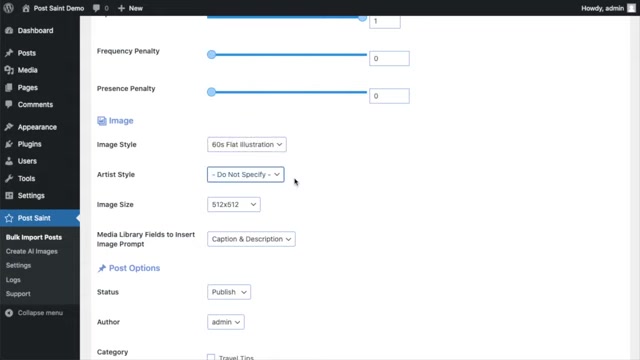
Pasted data or a URL can also be used to specify a data file. Select the correct field order for this file, which has two fields: a title and image prompt.
Configuring Bulk Import Settings: Before uploading your data file, PostSaint provides a range of settings to customize the bulk import process. These settings include:
- Field Separator: Specifies the character used to separate fields in your data file (e.g., comma, tab, etc.).
- Field Order: Defines the order of the fields in your data file (e.g., Title, Prompt, Featured Image Prompt).
Writing instruction Presets: Presets can again be used to help write your prompts. Spintax is also allowed to multiply your post count even more quickly.
The image creation options can be set to an image and artist style. Post options along with categories and tags for all posts to have applied can be set here.
The image prompts will be saved in the alt text, captions, and descriptions. The bulk import process will now begin.
Initiating the Bulk Import: Once you've configured the settings, simply upload your data file and click the 'Start New Bulk Posting' button. PostSaint will then process the file, generating unique posts for each entry. As each post is created, a response returns with a new post title, while a featured image is generated after about 15 seconds. A log entry is conveniently created for later review, of your bulk and single posts in addition to API calls and results data. The prompts used to generate each image are inserted in the captions and description fields which can be displayed in different themes.
This feature significantly speeds up the content creation process, allowing you to publish a large number of high-quality articles in a fraction of the time it would take to create them manually.





Most people like



































Report
Please select a reason for reporting
- 13 Reasons to Switch from Snapchat to Text Messaging
- 7 Powerful Speech to Text Apps to Boost Productivity
- 10 Best Speech to Text Tools for Effortless Transcription
- 13 Free Tools to Easily Transcribe Audio to Text
- 15 Surprising Ways Google's Speech-to-Text Boosts Productivity
- 7 Best Free Online Audio to Text Transcription Tools
- 9 Tips to Transcribe Speech to Text Faster and Better
- 13 Best Speech to Text Software for Windows 10 in 2023
- 7 Tips for Choosing the Best Transcriber for Audio to Text
- 11 Reasons Why Dragon Speech-to-Text Apps are Game-Changers
- 6 Secrets to Enhance Your Speech to Text Transcription
- 6 Brilliant Ways to Boost Productivity with Talk-to-Text on Your MacBook
- 6 Ways Transcription Software Converts Audio to Text
- 8 Tips to Transcribe Speech to Text Like a Pro
- 6 Reasons IBM Watson Speech to Text is a Game-Changer
- 14 Powerful Ways Talk-to-Text Improves Your Workflow
- 12 Top Windows Speech-to-Text Software for Efficient Transcription
- 12 Game-Changing Benefits of Apple's Speech to Text Technology
- 9 Powerful Use Cases for AWS Speech to Text Technology
- 10 Easy Steps to Transcribe YouTube Videos to Text
- transcription audio en texte
- online audio transcription
- free audio file transcription
- free ai audio transcription
- audio transcription service
- audio transcription online free
- audio transcription free online
- audio to transcription software
- audio and transcript
- ai audio transcription free
- voice recording to text converter
- translate voice recording to text
- record voice to text
- audio recording to text converter
- voice recording and transcription
- chatgpt voice to text
- gmail voice to text
- speech to text reader
- speech to text ai free
- speech to talk
- Meshy AI: How to Create 3D Models from Text and Images
- How SEO and Marketing Dashboards Empower Agencies to Drive Results
- How to Use AI Tools to Find Internal Linking Opportunities Across a Business Website
- Discover Your Perfect Haircut with AI Hairstyle Apps
- Free Reputation Calculator Tools: How They're Adapting to Score AI Visibility, Not Just Rankings
- Design Professional Flyers for Free on Your Phone
- Best Free Flyer Maker Apps for Android: Design Like a Pro
- How to Know If Your Business Is Ready for an AI Customer Service Agent
- Revolutionizing Storytelling: From Novels to Screenplays with AI
- Create Engaging Animated Explainer Videos with a Free AI Tool
- Revideo.io: The Future of Reverse Video Search Technology
- Revolutionize Learning: Discover Quizzes AI for Engaging Interactive Quizzes
- Revolutionizing Email Marketing Agency with AI
- Breaking the Character Drift Dilemma: A Practical Test of Smart Shot
- Meshy AI: How to Create 3D Models from Text and Images
- ASOMobile Helps Teams Benchmark App Store Screenshots Against Competitors
- How to Match LMS Software With Your Organization's Training Plan
- How to Convert BTC to HNT
- Unleashing the Power of AI: Cognizant's Roadmap for Transformation
- Frame to Video Review: A Practical Look at Turning Two Still Frames Into Motion

Copyright ©2026 toolify