






















AI Video Editing: Changing Video Backgrounds with Python

Updated on Apr 12,2025

Table of Contents

Artificial intelligence (AI) and machine learning (ML) are transforming various industries, and video editing is no exception. Changing the background of a video, once a complex task requiring specialized tools and expertise, can now be achieved with relative ease using Python and AI-driven libraries. This article provides a comprehensive guide on how to change video backgrounds using Python, making it accessible for both beginners and experienced programmers.

Key Points

Import necessary Python libraries like pixellib and pylab.

Use pre-trained models for background removal and replacement.

Implement Python functions to process video frames efficiently.

Change video backgrounds by detecting and segmenting people in the video.

Understand the impact of machine computing power and video size on processing times.

Enhance video content using AI video editing techniques for improved visuals.

Understanding AI-Powered Video Background Changes

What is AI Video Editing?

AI video editing involves using artificial intelligence techniques to automate and enhance various aspects of video production. Traditional video editing can be time-consuming and require a high level of manual effort, but AI can streamline these processes, making video editing more efficient and accessible. AI algorithms can handle tasks such as object detection, motion tracking, color correction, and background replacement, significantly reducing the time and resources needed to create high-quality videos. The use of AI ensures greater precision and opens up new creative possibilities that were previously difficult to achieve.

Key components of AI in video editing include:

  • Automated Scene Detection: Automatically identifies scene changes, making navigation easier.
  • Object Recognition: Detects and classifies objects within the video frames.

  • Motion Tracking: Follows the movement of specific objects, useful for applying effects or annotations.

  • Background Removal: Removes or replaces the background in a video, the primary focus of this article.

  • Content-Aware Editing: Analyzes video content to make intelligent editing suggestions.

AI video editing is evolving rapidly, driven by advancements in machine learning and the increasing availability of powerful computing resources. This trend is empowering content creators, marketers, and filmmakers to produce captivating videos with greater ease and speed. By automating repetitive tasks and providing intelligent suggestions, AI helps editors focus on the creative aspects of video production, resulting in more engaging and visually stunning content.

The integration of AI in video editing is not just about automating tasks; it is also about enhancing creativity. AI algorithms can generate unique visual effects, improve video quality, and even create entire videos from scratch based on user-defined parameters. This level of automation and enhancement opens up new possibilities for storytelling and visual communication.

Ultimately, AI video editing is democratizing the video production process, making it accessible to a wider audience. Whether you are a professional editor or a hobbyist, AI Tools can help you create impressive videos that stand out from the crowd.

Why Change Video Backgrounds?

Changing video backgrounds has numerous applications across various fields. In professional settings, it allows for greater creative control and flexibility in video production. In personal use, it can add a fun and engaging element to video content. Here are some reasons why changing video backgrounds is increasingly popular:

  • Creative Flexibility: Replacing a mundane background with a visually appealing one can significantly enhance the overall impact of a video.
    Whether it's adding a tropical beach scene to a business presentation or creating a fantasy world for a short film, changing backgrounds offers limitless creative possibilities.

  • Professionalism: Presenting a polished and professional appearance is essential for businesses. By using virtual backgrounds, you can maintain a consistent and professional look, regardless of the actual environment. This is particularly useful for remote workers who may not have a dedicated office space.
  • Privacy: Changing video backgrounds can protect the privacy of your surroundings. This is important for personal videos or professional meetings where you might not want to reveal your location or personal details.
  • Cost-Effectiveness: Shooting videos on location can be expensive due to travel costs, location fees, and logistical challenges. Changing backgrounds virtually eliminates these expenses, making video production more affordable.
  • Engagement: A visually interesting background can capture and maintain viewers' attention. This is particularly valuable for educational videos, marketing content, and social media posts, where engagement is critical.

The ability to change video backgrounds also opens up new avenues for storytelling. By manipulating the visual context, you can create different moods, emphasize key themes, and transport viewers to new and exciting worlds. This level of control over the visual environment can significantly enhance the narrative power of video content.

Moreover, changing video backgrounds is becoming increasingly important for creating accessible content. By providing options for background replacement, you can cater to viewers with different preferences and needs, ensuring that your videos are engaging and inclusive for everyone.

In summary, changing video backgrounds is a versatile and powerful technique that can enhance the creative, professional, and engaging aspects of video content. As AI technology continues to evolve, the possibilities for background manipulation will only continue to expand, offering new and exciting opportunities for video production.

Additional Tips for Optimizing Video Background Changes

Enhancing Results with Pre- and Post-Processing

While the core steps outlined above provide a solid foundation for changing video backgrounds, several additional tips can help you optimize the results and achieve even better outcomes. These tips involve both pre-processing steps to prepare your video and background image, as well as post-processing techniques to refine the final output.

  • Choose High-Quality Input: The quality of your input video and background image directly impacts the quality of the final output. Use high-resolution video and images to ensure sharp and clear results. Avoid using low-resolution media, as it can lead to pixelation and other visual artifacts.
  • Ensure Proper Lighting: Good lighting is essential for accurate object detection and segmentation. Ensure that your input video is well-lit, with consistent lighting across all frames. Avoid videos with harsh shadows or uneven lighting, as they can interfere with the background replacement process.
  • Select a Suitable Background: The background image should complement the subject in your video. Choose a background that is visually appealing and does not distract from the main content. Consider the color palette, composition, and overall aesthetic of the background image to ensure a harmonious Blend with the subject.
  • Adjust the Frame Rate: The frame rate of your output video can impact the smoothness and Clarity of the motion. Experiment with different frame rates to find the optimal setting for your specific video. A frame rate of 30 FPS is generally recommended for smooth video playback.
  • Apply Post-Processing Effects: After changing the background, consider applying post-processing effects to further enhance the video. This can include color correction, sharpening, and noise reduction. These effects can help to blend the subject and background seamlessly and create a polished final product.
  • Use a Green Screen (Optional): While not strictly necessary, using a green screen can significantly improve the accuracy of the background replacement. A green screen provides a uniform and easily detectable background, making it easier for the AI model to segment the subject. If you have access to a green screen, consider using it for optimal results.

By following these additional tips, you can optimize the video background replacement process and create professional-quality videos that stand out from the crowd. Experiment with different settings and techniques to find what works best for your specific video content.

Step-by-Step Guide to Changing Video Backgrounds with Python

Install the Necessary Libraries

First, you need to install the required Python libraries. Pixellib is the core library for background removal, while other libraries like OpenCV (cv2) are useful for video processing. Open your terminal or command Prompt and run the following commands:

pip install pixellib
pip install opencv-python
pip install pillow

These commands will download and install Pixellib, OpenCV, and Pillow, ensuring that you have all the necessary tools for video editing. It's crucial to verify that these libraries are installed correctly before moving on to the next steps. Once installed, you can import these libraries into your Python script.

Also, ensure that you have the correct version of Python installed. This guide is designed to work with Python 3.6 or higher. Using older versions of Python may result in compatibility issues and errors. If you don't have Python installed, download it from the official Python website and follow the installation instructions.

After installing the libraries, it's a good practice to test them to ensure they are functioning correctly. Open a Python interpreter and try importing the libraries:

import pixellib
import cv2
from PIL import Image

print("Libraries installed successfully!")

If the libraries are imported without any errors, it means that they are installed correctly and you can proceed with the video editing process. If you encounter any errors during the import, double-check the installation steps and make sure that all dependencies are installed correctly. Troubleshooting library installations can be challenging, but it's a crucial step to ensure that your Python environment is set up properly for AI video editing.

Import Required Modules

Next, import the necessary modules from the installed libraries into your Python script. This involves importing the pixellib module for background removal and cv2 for video handling, and rcParams from pylab. Here's the code to import the modules:

from pixellib.tune_bg import alter_bg
from pylab import rcParams
import cv2

This code imports the alter_bg class from the pixellib.tune_bg module, which is essential for changing the video background. It also imports the cv2 module, which provides functions for capturing, reading, and writing video frames.

The rcParams module from pylab is used to set the figure size for the output video. Setting the figure size helps in maintaining the quality and resolution of the video during processing. It’s important to import these modules at the beginning of your script to make them available for use throughout the code.

If you encounter any errors during the import process, it may indicate that the libraries were not installed correctly or that there is a problem with your Python environment. Double-check the installation steps and ensure that all dependencies are installed correctly. Additionally, verify that the syntax in your import statements is correct.

Once the modules are successfully imported, you can proceed with loading the pre-trained model and preparing your video for background replacement. This step is crucial to ensure that your script has access to all the necessary functions and classes for AI video editing.

Load the Pre-Trained Model

To change the background of a video, you need a pre-trained model that can accurately identify and segment people in the video frames. Pixellib provides a model that can be loaded as follows:

vid_change_bg = alter_bg(model_type = "pb")
vid_change_bg.load_pascalvoc_model("path_to_your_model/xception_pascalvoc.pb")

Replace "path_to_your_model/xception_pascalvoc.pb" with the actual path to your downloaded Xception Pascal VOC model. The model type is specified as "pb" because the model is in Protocol Buffer format.

Downloading and placing the pre-trained model in the correct directory is a crucial step. The model file, usually named xception_pascalvoc.pb, can be downloaded from trusted sources such as the Pixellib GitHub repository or other AI model repositories. Ensure that you download the correct version of the model that is compatible with your Pixellib version.

If the model fails to load, double-check the path to the model file. An incorrect path is a common cause of loading errors. Additionally, verify that the model file is not corrupted and that it is in the correct format (.pb). Loading the model successfully is essential for the background replacement process to work effectively.

After loading the model, you can proceed to the next step, which involves specifying the input video file and the background image that you want to use. This will set up the necessary parameters for the background replacement process.

Define Input and Output Video Paths

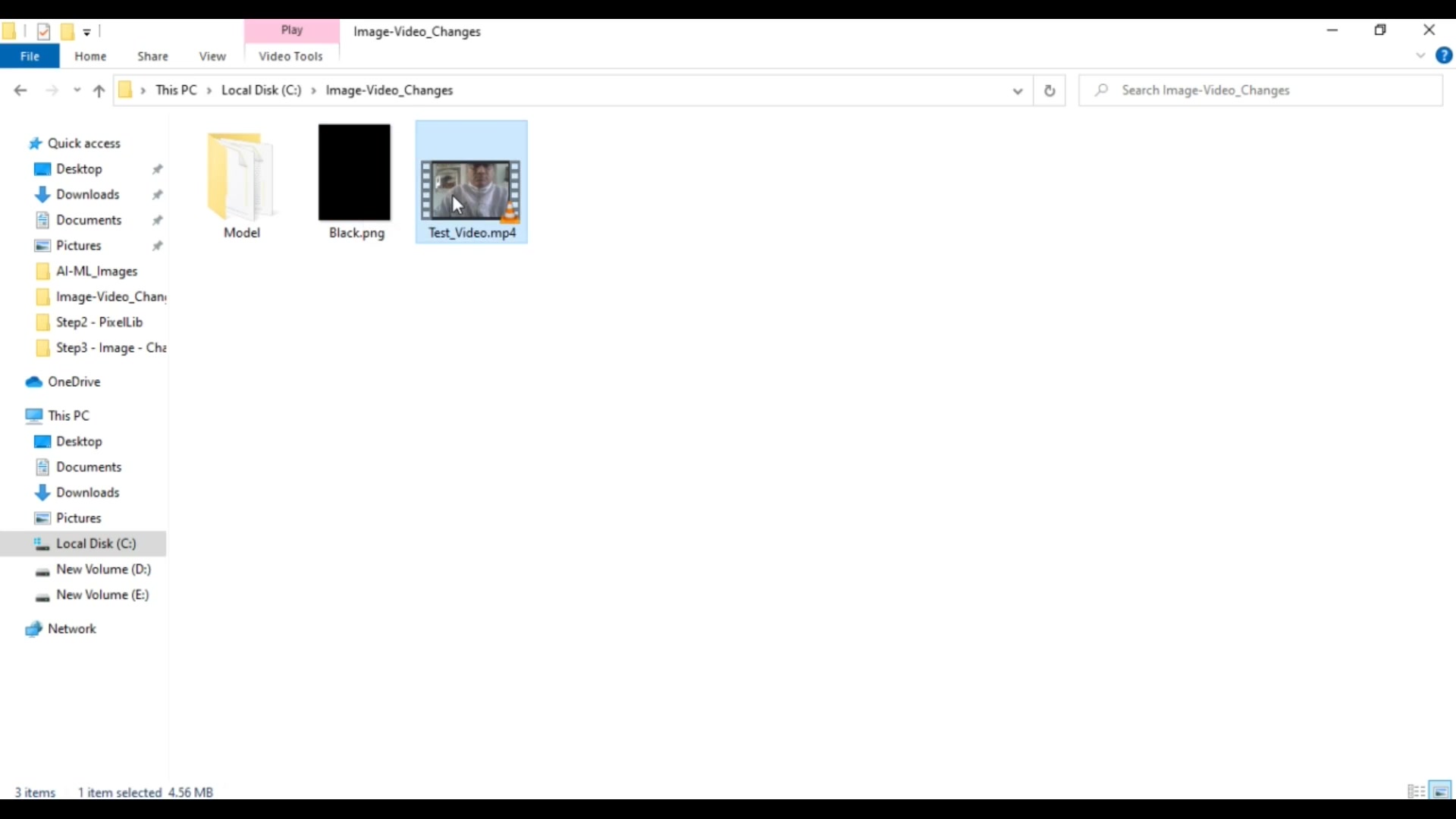
Define the paths for the input video file and the background image that you want to use. Also, specify the output video file path where the modified video will be saved:

vidFile = "input_video.mp4"
bg_Img = "background.png"
output_video_name = "output_video.mp4"

Replace "input_video.mp4" with the path to your input video file, "background.png" with the path to your background image, and "output_video.mp4" with the desired name for the output video file.

Ensure that the input video file and the background image are in the correct formats. Common video formats include MP4, AVI, and MOV, while common image formats include PNG, JPG, and JPEG. Using unsupported formats may result in errors during the video editing process.

It's also important to verify that the paths to the input video file and the background image are correct. An incorrect path is a common cause of loading errors. Double-check the file names and the directory structure to ensure that the paths are accurate.

Moreover, specify the directory where the output video file will be saved. This can be done by including the directory path in the output video name. For example, if you want to save the output video in a directory named "output_videos", the output video name would be "output_videos/output_video.mp4".

Defining the input and output video paths correctly is a crucial step to ensure that the video editing process works smoothly and that the modified video is saved in the desired location.

Change the Video Background

Finally, use the change_video_bg function to replace the background. Specify the video file, background image, frames per Second (FPS), output video name, and detection parameter:

vid_change_bg.change_video_bg(vidFile, bg_Img, frames_per_second=30, output_video_name=output_video_name, detect = "person")

This code calls the change_video_bg function from the alter_bg class to replace the background in the input video. The function takes several parameters:

  • vidFile: The path to the input video file.
  • bg_Img: The path to the background image.
  • frames_per_second: The desired frame rate for the output video. A frame rate of 30 FPS is a common standard for smooth video playback.
  • output_video_name: The name of the output video file.
  • detect: Specifies the object to detect and segment. In this case, it is set to "person" to detect and segment people in the video frames.

The change_video_bg function processes each frame of the input video, identifies and segments the people in the frame, and replaces the background with the specified background image. This process is repeated for all frames in the video, resulting in a modified video with the new background.

It's important to choose the appropriate frame rate for the output video. A higher frame rate will result in a smoother video, but it will also increase the processing time and the file size. A frame rate of 30 FPS is generally considered a good balance between video quality and file size.

Moreover, ensure that the detect parameter is set correctly. This parameter specifies the object that the pre-trained model should detect and segment. Setting the detect parameter to "person" is suitable for videos where the main subject is a person. However, if the video features other objects or subjects, you may need to adjust the detect parameter accordingly.

By following these steps, you can change the background of a video using Python and Pixellib. The AI-powered background replacement process is efficient and accurate, allowing you to create visually stunning videos with ease. Experiment with different background images and settings to achieve the desired effect and enhance the overall impact of your video content.

Pricing

Pricing and Accessibility

The primary libraries used, such as pixellib, opencv-python, and pillow, are open-source, offering cost-effective video editing solutions. Pre-trained models like Xception Pascal VOC are also typically available at no cost, further reducing expenses. This affordability makes AI-powered video background replacement accessible to a broad audience. To leverage these free resources, users need to ensure their development environment is correctly set up, including Python and the required packages. Paid software can offer convenience and advanced support, but using open-source tools allows individual creators and organizations to efficiently perform video editing tasks without significant financial investment.

Advantages and Disadvantages

👍 Pros

Cost-effective with open-source libraries.

Enhances creative flexibility.

Supports a range of practical applications.

Improves video privacy.

👎 Cons

Requires sufficient computing power.

Results depend on input quality.

May not be suitable for all video types.

Pre-trained model may not perfectly fit custom use-cases.

Core Features

Key Capabilities

The core features of this method involve automated background replacement using AI. Object detection and segmentation enable the system to precisely identify foreground elements (such as people) from the background. Pre-trained models enhance accuracy, reducing the need for manual adjustments. The framework supports batch processing, facilitating efficient handling of multiple video files. These features allow seamless integration of custom backgrounds, improving video appeal and utility for various applications.

Use Cases

Practical Applications

AI-powered video background changes find applications in several areas. E-learning platforms use it to customize educational videos, enhancing learner engagement with tailored environments. In marketing, virtual backgrounds help maintain brand consistency across promotional content. Content creators on platforms like YouTube and TikTok employ background replacement to boost visual appeal. Additionally, it supports enhanced privacy in video conferencing, allowing users to mask real-world locations. These diverse use cases illustrate the versatility of the method across diverse content creation and communication fields.

Frequently Asked Questions

What pre-trained model is needed to change the background of a video?
To change the background of a video, you need a pre-trained model such as the Xception Pascal VOC model, which can accurately identify and segment people in the video frames. Ensure you download the correct version of the model that is compatible with your Pixellib version.
How long does the execution of the code take?
The execution time of the code varies based on several factors, including your machine's computing power, the video size, and the complexity of the pre-trained model. Processing videos with higher resolutions and larger file sizes will generally take longer.

Related Questions

Are there any alternatives to Pixellib for AI video editing?
Yes, there are several alternatives to Pixellib for AI video editing. Some popular options include: OpenCV: A comprehensive library for computer vision and image processing that can be used for various video editing tasks. TensorFlow: An open-source machine learning framework that provides tools and resources for building and training custom AI models for video editing. PyTorch: Another popular machine learning framework that offers flexibility and ease of use for developing AI-powered video editing applications. Adobe After Effects: A professional video editing software that incorporates AI features for automated tasks and enhanced creativity. DaVinci Resolve: A video editing software that includes AI tools for tasks such as facial recognition, object tracking, and color correction.

Most people like













