































Table of Contents
- Key Points
- AI-Driven Dashboard Creation: A New Era
- Exploring AI Tools for Dashboard Creation
- Power BI for Business Analytics Course(Optional)
- Pros and Cons of AI-Powered Dashboard Creation
- FAQ
- Related Questions


Exploring AI Tools for Dashboard Creation
Bricks AI: Instant Dashboard Generation
Bricks AI is an ai spreadsheet tool designed to build reports and dashboards quickly. It allows users to import data and visualize it in seconds without requiring coding or manual chart creation. This no-code approach democratizes data analysis, making it accessible to a wider audience.
Key Features of Bricks AI:
-
Automated Dashboard Creation: Import data, describe what you want to build, and let Bricks AI visualize your data using AI.

-
Interactive Visualizations: Create fully interactive dashboards with just a few clicks.
-
User-Friendly Interface: No coding required; the intuitive interface makes it easy for anyone to generate insights from data.
How to Use Bricks AI:
- Navigate to the Bricks AI Website and sign up for a free account.
- Click on 'Create with AI' and select 'Reports & Dashboards'.
- Upload your data file (supports XLSX and CSV formats).
- Bricks AI automatically generates a dashboard with various visualizations and insights.
- Customize the dashboard by changing chart types, titles, and data ranges as needed.
- Save the board to finalize your dashboard.
Bricks AI provides a quick and easy way to generate interactive dashboards without manual effort. It's particularly useful for users who need fast insights from data and want to avoid the complexities of traditional data visualization tools. The platform automatically generates charts and analyses, saving time and effort in data exploration and presentation.
Claude: Prompt-Based Dashboard Suggestions
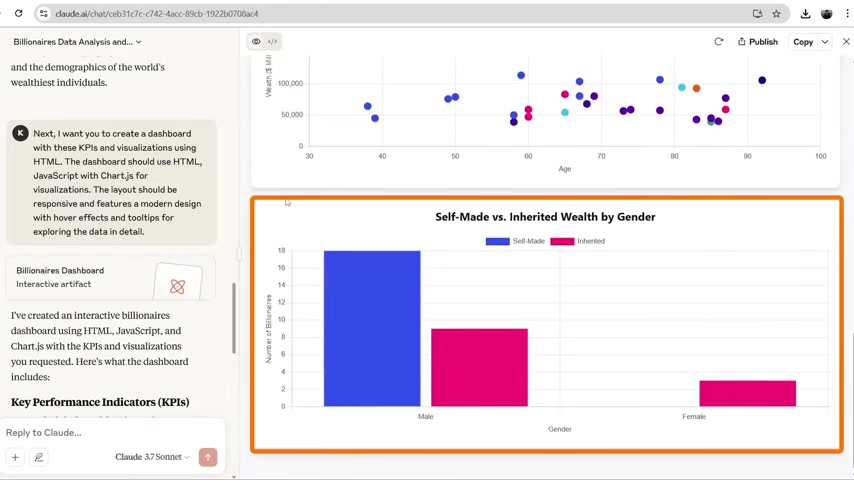
Claude is a general-purpose AI Tool similar to ChatGPT that can suggest KPIs and visualizations for dashboard creation. Unlike Bricks AI, Claude requires specific prompts and doesn't generate dashboards automatically; it provides suggestions and insights based on the data provided.
Using Claude for Dashboard Creation:
-
Convert your data into CSV format for easier uploading.
-
Upload the CSV file to Claude.
-
Provide a detailed Prompt specifying the type of analysis and visualizations you want (e.g., 'Analyze this data and suggest 2 KPIs and 4 visuals to create a world billionaires dashboard').
-
Claude will suggest KPIs and visualizations.
-
Use the suggestions to create a dashboard manually using tools like HTML, JavaScript, and Chart.js.
Claude offers a more hands-on approach to dashboard creation, requiring users to implement the suggested visualizations themselves. This method is suitable for those who want AI assistance but prefer to maintain control over the design and implementation process. While it may not be as quick as Bricks AI, it allows for greater customization and a deeper understanding of the data.
ChatGPT: Generating Dashboard Code
ChatGPT is a versatile AI tool that can generate code for creating dashboards. While it doesn't offer a direct dashboard creation interface, it can provide a code framework that users can then implement using other tools. This approach requires some technical knowledge but allows for a high degree of customization.
Creating Dashboards with ChatGPT:
- Convert your data into CSV format.
- Upload the CSV file to ChatGPT.
- Provide a prompt asking ChatGPT to generate dashboard code using HTML, JavaScript, and Chart.js.
- Review the generated code for accuracy and relevance.
- Download the code as an HTML file.
- Open the HTML file in a web browser to view the dashboard.
This method can be time-consuming and technically demanding, but it provides a customizable solution for users who want to leverage AI for dashboard creation and have the skills to implement the code.
Microsoft Copilot: AI Assistance in Excel
Microsoft Copilot is an AI assistant integrated into various Microsoft applications, including Excel. It aims to simplify data analysis and dashboard creation by providing AI-driven suggestions and insights directly within the familiar Excel interface.
Leveraging Copilot in Excel:
- Ensure you have a paid version of Excel with Copilot enabled.
- Open your data in Excel.
- Activate Copilot and provide a prompt similar to those used with Claude (e.g., 'Analyze this data and suggest 2 KPIs and 4 visuals to create a world billionaires dashboard').
- Review Copilot's suggestions for KPIs and visualizations.
- Copilot might encounter issues, but it can offer manual steps for creating the dashboard in Excel.
Copilot is still developing, and its dashboard creation capabilities may not always be seamless. However, its integration within Excel and potential for AI-driven insights make it a promising tool for data analysis and visualization.
Manual Dashboard Creation with Power BI
While AI Tools offer speed and automation, creating dashboards manually using software like Power BI provides the most control and customization. Power BI is a powerful business intelligence tool that enables users to import data, transform it, and create interactive visualizations.
Key Steps for Manual Dashboard Creation in Power BI:
- Data Cleaning and Transformation: Clean and transform the imported data using Power BI's Power Query Editor.
- Data Visualization: Create charts, graphs, and other visuals using Power BI's visualization tools.
- Formulas and Calculations: Use DAX (Data Analysis Expressions) to create formulas and calculations for advanced data analysis.
- Real-World Scenarios: Practice with case studies to create dashboards for various business scenarios (e.g., P&L dashboard for Nike, restaurant operations dashboard for McDonald's).
Power BI remains the gold standard for professional-grade dashboards, offering extensive features and customization options. While it requires more time and skill than AI-powered tools, it provides unparalleled control over the design and functionality of your dashboards. With 97% of Fortune 500 companies using Power BI, it's clear to understand the reason why Power BI is the market leader.





Most people like


































Report
Please select a reason for reporting
- 13 Reasons to Switch from Snapchat to Text Messaging
- 7 Powerful Speech to Text Apps to Boost Productivity
- 10 Best Speech to Text Tools for Effortless Transcription
- 13 Free Tools to Easily Transcribe Audio to Text
- 15 Surprising Ways Google's Speech-to-Text Boosts Productivity
- 7 Best Free Online Audio to Text Transcription Tools
- 9 Tips to Transcribe Speech to Text Faster and Better
- 13 Best Speech to Text Software for Windows 10 in 2023
- 7 Tips for Choosing the Best Transcriber for Audio to Text
- 11 Reasons Why Dragon Speech-to-Text Apps are Game-Changers
- 6 Secrets to Enhance Your Speech to Text Transcription
- 6 Brilliant Ways to Boost Productivity with Talk-to-Text on Your MacBook
- 6 Ways Transcription Software Converts Audio to Text
- 8 Tips to Transcribe Speech to Text Like a Pro
- 6 Reasons IBM Watson Speech to Text is a Game-Changer
- 14 Powerful Ways Talk-to-Text Improves Your Workflow
- 12 Top Windows Speech-to-Text Software for Efficient Transcription
- 12 Game-Changing Benefits of Apple's Speech to Text Technology
- 9 Powerful Use Cases for AWS Speech to Text Technology
- 10 Easy Steps to Transcribe YouTube Videos to Text
- transcription audio en texte
- online audio transcription
- free audio file transcription
- free ai audio transcription
- audio transcription service
- audio transcription online free
- audio transcription free online
- audio to transcription software
- audio and transcript
- ai audio transcription free
- voice recording to text converter
- translate voice recording to text
- record voice to text
- audio recording to text converter
- voice recording and transcription
- chatgpt voice to text
- gmail voice to text
- speech to text reader
- speech to text ai free
- speech to talk
- ChatGPT Knows Ford. It Just Doesn't Quote Ford
- Meshy AI: How to Create 3D Models from Text and Images
- How SEO and Marketing Dashboards Empower Agencies to Drive Results
- How to Use AI Tools to Find Internal Linking Opportunities Across a Business Website
- Discover Your Perfect Haircut with AI Hairstyle Apps
- Free Reputation Calculator Tools: How They're Adapting to Score AI Visibility, Not Just Rankings
- Design Professional Flyers for Free on Your Phone
- Best Free Flyer Maker Apps for Android: Design Like a Pro
- How to Know If Your Business Is Ready for an AI Customer Service Agent
- Revolutionizing Storytelling: From Novels to Screenplays with AI
- Your Business Data Could Be Worth Up to $4M. Find Out Without Uploading a Single File.
- Can an eSIM Plan Save You Time During Travel Setup?
- AI Video Editor Review: A Hands-On Look at Prompt-Based Video Editing
- Keep Characters Consistent Across Scenes With Image-to-Video AI
- How to Convert BTC to HNT
- ProxyWing DuckDuckGo Proxy Review: Plans, Setup and Who It Is For
- ChatGPT Knows Ford. It Just Doesn't Quote Ford
- Automate Lead Generation: A Comprehensive Guide with AI Agents
- Revideo.io: The Future of Reverse Video Search Technology
- Revolutionizing Email Marketing Agency with AI

Copyright ©2026 toolify