































Table of Contents
- Key Points
- Getting Started with Beautiful.ai
- Crafting Your First Presentation: A Step-by-Step Guide
- Beautiful.ai Pricing: Free vs Paid
- Evaluating Beautiful.ai: Weighing the Pros and Cons
- Beautiful.ai's Key Features for Effortless Presentations
- Unlocking Presentation Potential: Beautiful.ai Use Cases
- Frequently Asked Questions About Beautiful.ai
- Explore Related Questions and Considerations


Getting Started with Beautiful.ai
Creating Your Account and Exploring the Interface
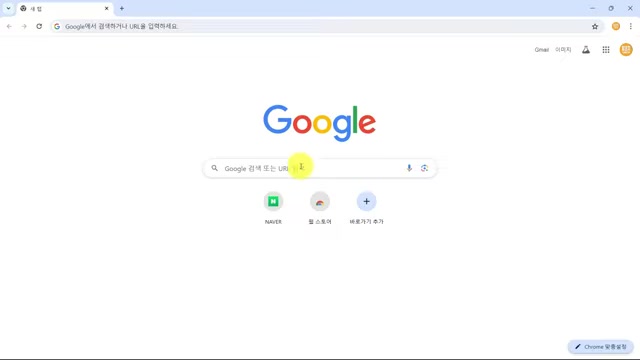
The first step to unlocking the power of Beautiful.ai is creating an account. Head over to their website and sign up for free.
Don't worry about needing a credit card just yet, as the free version provides ample opportunity to explore the platform's core features. Once you're signed up, you'll land on the main dashboard, the central hub for all your presentation activities. The dashboard is designed for ease of navigation, allowing you to access recent presentations, create new ones, and manage your projects efficiently. On the left side of your screen, there’s 'My Presentations', where you can see options for All Presentations, Recent Presentations, Created by Me, or Share with Me. Clicking recent presentations makes your recent one appears in the main part of the screen.
Navigating the Interface
- Create Presentation: This is the primary button to start a new presentation.
- All Presentations: Provides access to all of your saved presentations.
- Recent Presentations: Provides access to your recently presentation.
- Account Options: Located on the right side, this where you can manage your account setting and upgrade information.
- Help Resources: Available throughout the interface, offering assistance and guidance as needed.
The interface will help you to build professional document with ease.
Understanding Beautiful.ai's Core Functionality
Beautiful.ai differentiates itself from traditional presentation software by emphasizing intuitive content insertion. Unlike tools focused on automated template creation, Beautiful.ai emphasizes content insertion.
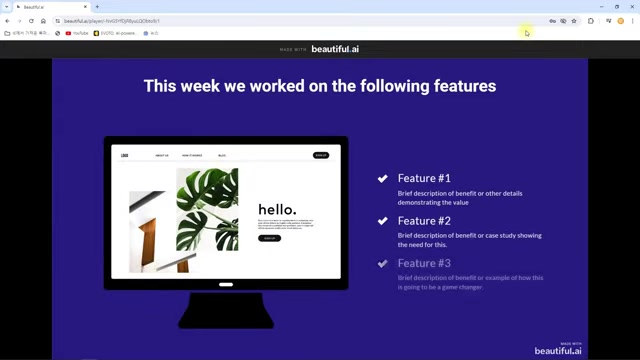
Here’s a look at some key functionalities:
- Smart Slides: These pre-designed slides adapt automatically to your content, ensuring visual consistency and impact.
- Intuitive Editing Tools: Customize text, images, and layouts with ease using drag-and-drop functionality and simple controls.
- Data Visualization: Create charts and graphs directly within your presentation to effectively present data and insights.
- Sharing and Collaboration: Share your presentations with public links for easy access, or invite collaborators for seamless teamwork.
By concentrating on a simpler, easier flow for content entry and editing, users can produce stunning documents a lot faster than they could with older methods. You can use their interface to help simplify your workflow.
Crafting Your First Presentation: A Step-by-Step Guide
Step 1: Initiating a new presentation
From the homepage, click on the “Create Presentation” option.
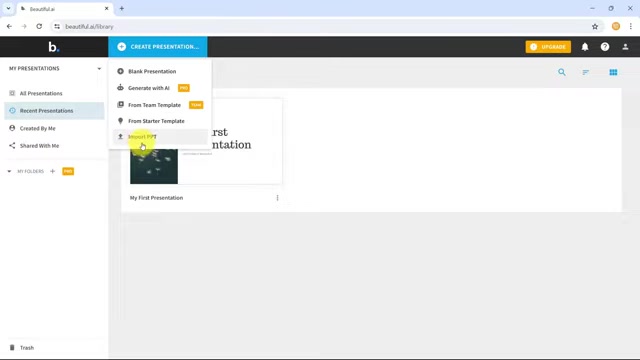
You can select between four options to begin a new presentation:
- Blank Presentation: This gives you ultimate design flexibility.
- Generate with AI: This option utilizes AI to generate presentation components based on your Prompt (Pro Plan Required).
- From Team Template: For team users, this option will have team templates for collaboration.
- From Starter Template: Use professionally curated templates for ease and time-saving.
- Import PPT: Option to import Powerpoint presentations for more dynamic editing tools.
You may need to refresh or reload Beautiful.ai so that it won’t try to charge your account. Once reloaded, you can begin to create your presentation.
Step 2: Selecting Starter Templates
Choose the “From Starter Template” option. When you open the Starter Templates option, a range of professionally curated templates will appear.
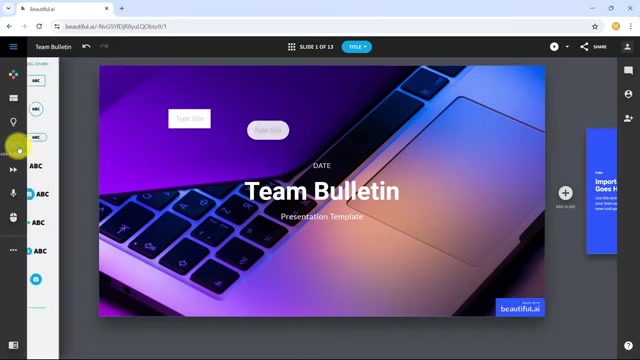
Each template is designed for a specific purpose, ensuring visual consistency and a professional look. Some of the many template options include:
- Startup Templates
- Presentation Makeovers
- Marketing Templates
- Sales Templates
- Creative Templates
- My Training Templates
- Business Templates
To preview each template, hover your mouse over the image to see what’s inside before deciding which one to use.
Step 3: Customizing Your Presentation
Once you decide what theme and template to use, you can edit each of the elements found on it.
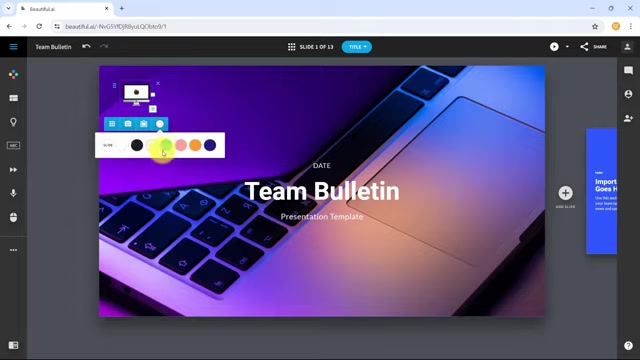
From the color palette, to the slide composition, all the way down to element information, you have the keys to customize as you please.
Customizing Colors
Click the Palette icon found on the left of the screen. Once you have the colors you like for your presentation, feel free to implement other key features.
Adding text
When you open the Add Element icon, you can add any text you would like to add in any format you like.
Step 4: Working with Charts
If you wanted to add a chart or graph to help show what you are talking about, Beautiful.ai makes it easy. Click Add Slide, and select “Data & Chart Slides.”
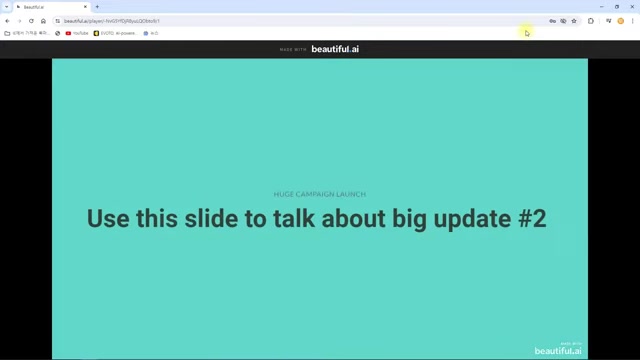
Now you have a slide that is easy to edit and visually attractive. Import your own data with theImport Chart icon, and the graphs will match the colors you chose previously.
Step 5: Setting Presentation Settings
With all of your editing complete, you can move onto presentation settings. Set the stage, and then view how your changes can impact the final product. Check the transitions of your presentation before you show it to your investors! Once you are happy with everything, you can move onto sharing it with your team. All you need to do is click the Share button, make it a public file, copy the link and send it to them!








Most people like





























Report
Please select a reason for reporting
- 13 Reasons to Switch from Snapchat to Text Messaging
- 7 Powerful Speech to Text Apps to Boost Productivity
- 10 Best Speech to Text Tools for Effortless Transcription
- 13 Free Tools to Easily Transcribe Audio to Text
- 15 Surprising Ways Google's Speech-to-Text Boosts Productivity
- 7 Best Free Online Audio to Text Transcription Tools
- 9 Tips to Transcribe Speech to Text Faster and Better
- 13 Best Speech to Text Software for Windows 10 in 2023
- 7 Tips for Choosing the Best Transcriber for Audio to Text
- 11 Reasons Why Dragon Speech-to-Text Apps are Game-Changers
- 6 Secrets to Enhance Your Speech to Text Transcription
- 6 Brilliant Ways to Boost Productivity with Talk-to-Text on Your MacBook
- 6 Ways Transcription Software Converts Audio to Text
- 8 Tips to Transcribe Speech to Text Like a Pro
- 6 Reasons IBM Watson Speech to Text is a Game-Changer
- 14 Powerful Ways Talk-to-Text Improves Your Workflow
- 12 Top Windows Speech-to-Text Software for Efficient Transcription
- 12 Game-Changing Benefits of Apple's Speech to Text Technology
- 9 Powerful Use Cases for AWS Speech to Text Technology
- 10 Easy Steps to Transcribe YouTube Videos to Text
- transcription audio en texte
- online audio transcription
- free audio file transcription
- free ai audio transcription
- audio transcription service
- audio transcription online free
- audio transcription free online
- audio to transcription software
- audio and transcript
- ai audio transcription free
- voice recording to text converter
- translate voice recording to text
- record voice to text
- audio recording to text converter
- voice recording and transcription
- chatgpt voice to text
- gmail voice to text
- speech to text reader
- speech to text ai free
- speech to talk
- Design Professional Flyers for Free on Your Phone
- Best Free Flyer Maker Apps for Android: Design Like a Pro
- How to Know If Your Business Is Ready for an AI Customer Service Agent
- Revolutionizing Storytelling: From Novels to Screenplays with AI
- Create Engaging Animated Explainer Videos with a Free AI Tool
- Stop Multi-Subscribing: Benchmark Top AI Visual Models in One Canvas
- Best Seedance 2.5 API Provider: Every Price on the Market, Checked at Source
- AI OnlyFans: How to Generate $30,000/Month (Legally)
- Transform Your Script into an Engaging Video with AI Video Maker!
- AI Marketing Automation: A Comprehensive Guide for Small Businesses
- Design Professional Flyers for Free on Your Phone
- Best Free Flyer Maker Apps for Android: Design Like a Pro
- Unleash Creativity: AI Coloring Pages with ColoringBook.ai
- Generate Stunning AI Photos with Google Gemini: A Guide
- Boost Your Etsy Sales with Stunning Digital Invitations!
- Revolutionize Your Etsy Listing with AI Text Generator
- Create Coloring Pages with AI: A Bing AI Tutorial
- Photo Lab App: Transform Your Photos with Stunning AI Effects
- Effortless Design: Rewriting Text with Microsoft Designer's AI
- Create & Sell Kids' Coloring Books with AI - KDP Guide

Copyright ©2026 toolify