































Table of Contents
- Key Points
- Creating a Financial Agent with LangGraph
- Adding a User Interface with Gradio
- How to Use Your Financial Agent
- Financial Agent with LangGraph: Pros and Cons
- FAQ
- Related Questions



Creating a Financial Agent with LangGraph
Introduction to Financial Agents and LangGraph
A financial agent is an AI-powered tool that can automate financial tasks such as gathering information, analyzing data, and generating reports. These agents can be incredibly helpful for investors, analysts, and anyone who needs to stay on top of the market.

LangGraph is a framework designed for building conversational AI applications. It allows developers to create complex, multi-step workflows where different components of the AI system can interact and collaborate. LangGraph simplifies the development process by providing a modular and extensible architecture.
This Tutorial focuses on building a financial agent capable of:
- Checking stock prices: Retrieving current stock prices for a given company.
- Getting the latest news: Accessing recent news articles related to a specific company.
- Accessing financial reports: Obtaining detailed financial reports, such as income statements, balance sheets, and cash flow statements.
- Getting historical prices: Tracking historical price data for a company's stock.
Setting Up Your Development Environment
Before diving into the code, it's essential to set up your development environment. This involves installing the necessary software and libraries, and configuring your API keys.
-
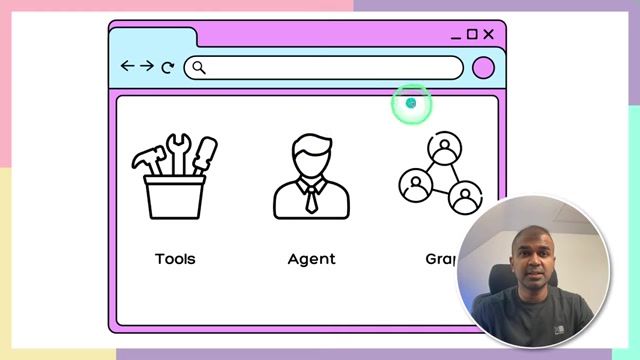
Install Anaconda: If you haven't already, download and install Anaconda, a popular Python distribution that includes conda, a package and environment management system. Anaconda can be downloaded from the Anaconda website.
-
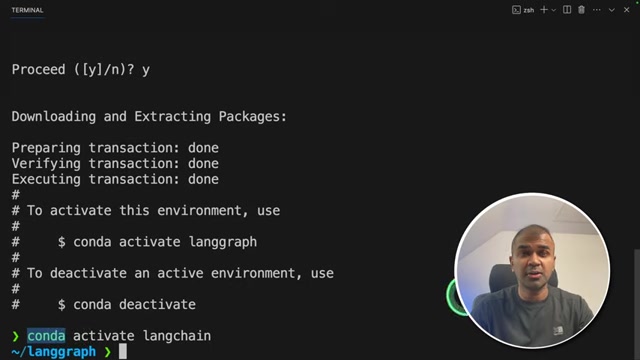
Create a Conda Environment: Use conda to create a virtual environment for your LangGraph project. This helps isolate your project's dependencies from other projects on your system.
conda create -n langgraph python=3.11
conda activate langgraph
This command creates an environment named 'langgraph' with Python 3.11.
-
Install Required Packages: Install the necessary Python packages using pip:
pip install langgraph langchain langchain_openai langchainhub polygon-api-client gradioThis command installs LangGraph, Langchain, OpenAI integration, Langchain Hub, Polygon API client, and Gradio.
-
Set Up API Keys: To access financial data, you'll need API keys from OpenAI and Polygon. Sign up for free accounts on their respective websites and obtain your API keys. Then, set these keys as environment variables:
export OPENAI_API_KEY=YOUR_OPENAI_API_KEY
export POLYGON_API_KEY=YOUR_POLYGON_API_KEY
Replace
YOUR_OPENAI_API_KEYandYOUR_POLYGON_API_KEYwith your actual API keys. Polygon is the API service providing financial information.
Building the Financial Agent: Step-by-Step
Now, let's start building the financial agent. This process involves several key steps:
-
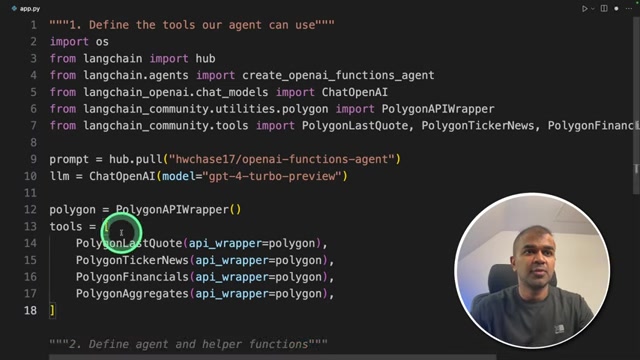
Defining the Tools: The first step is to define the tools our agent can use. These tools will be responsible for fetching financial data from external sources.
import os
from langchain import hub
from langchain.agents import create_openai_functions_agent
from langchain_openai import ChatOpenAI
from langchain_community.utilities.polygon import PolygonAPIWrapper
from langchain_community.tools import PolygonLastQuote, PolygonTickerNews, PolygonFinancials, PolygonAggregates

prompt = hub.pull("hwchase17/openai-functions-agent")
llm = ChatOpenAI(model="gpt-4-turbo-preview")
polygon = PolygonAPIWrapper()
tools = [
    PolygonLastQuote(api_wrapper=polygon),
    PolygonTickerNews(api_wrapper=polygon),
    PolygonFinancials(api_wrapper=polygon),
    PolygonAggregates(api_wrapper=polygon)
]
Here, we import the necessary libraries and define the tools our agent will use:
PolygonLastQuote,PolygonTickerNews,PolygonFinancials, andPolygonAggregates. These tools leverage the Polygon API to retrieve real-time stock quotes, news articles, financial statements, and aggregated data. The code imports the required modules and sets up the prompt template from LangChain Hub, which can be found at hwchase17/openai-functions-agent. This Prompt template defines the system message and user input structure for the AI agent.- os: Provides a way of using operating system dependent functionality.
- langchain: Framework for developing applications powered by language models.
- hub: Langchain Hub for accessing pre-built prompts and chains.
- create_openai_functions_agent: Utility to create an OpenAI functions agent.
- ChatOpenAI: Integrates OpenAI's chat models.
- PolygonAPIWrapper: Wrapper for the Polygon.io API.
- PolygonLastQuote: Tool to fetch the last quote of a stock.
- PolygonTickerNews: Tool to fetch news about a ticker.
- PolygonFinancials: Tool to retrieve financial data for a ticker.
- PolygonAggregates: Tool to aggregate data for a ticker.
-
Defining the Agent: Now, we define the agent itself. This involves specifying the language model, tools, and prompt template that the agent will use.
from langchain_core.runnables import RunnablePassThrough
from langchain_core.agents import AgentFinish

agent_runnable = create_openai_functions_agent(llm, tools, prompt)
agent = RunnablePassThrough.assign(agent_outcome=agent_runnable)

def execute_tools(data):
    agent_action = data.pop("agent_outcome")
    tool_to_use = {t.name: t for t in tools}[agent_action.tool]
    observation = tool_to_use.invoke(agent_action.tool_input)
    data["intermediate_steps"].append((agent_action, observation))
    return data

def should_continue(data):
    if isinstance(data["agent_outcome"], AgentFinish):
        return "exit"
    else:
        return "continue"
This section defines the agent's behavior and how it interacts with the tools. The
create_openai_functions_agentfunction creates an agent that uses OpenAI's function-calling capability.RunnablePassThroughassigns the agent's outcome for processing. Theexecute_toolsfunction is responsible for executing the tools based on the agent's decisions. Theshould_continuefunction determines whether the agent should continue its workflow or exit, based on whether a final answer has been reached. -
Defining the LangGraph: LangGraph uses graphs to define the flow of execution. We will add our agent and tools as nodes in the graph and define the transitions between them.
from langgraph.graph import END, Graph

workflow = Graph()
workflow.add_node("agent", agent)
workflow.add_node("tools", execute_tools)
workflow.set_entry_point("agent")
workflow.add_conditional_edges(
    "agent",
    should_continue,
    {
        "continue": "tools",
        "exit": END
    }
)
workflow.add_edge("tools", "agent")
chain = workflow.compile()
The LangGraph part involves constructing the graph that dictates how the agent and tools interact. Nodes are added for the agent and the tools execution. An entry point is set to begin with the agent. Conditional edges are defined to determine whether the agent should continue to use tools or exit. A standard edge connects the tools back to the agent, creating a loop.
Theshould_continuefunction defines the logic that will be used to determine which conditional edge to go down. If theagent_outcomedata instance isAgentFinish, then exit, else continue to the tools. Theadd_conditional_edgesuse the agent for the step and theshould_continueto choose which route it’s going to take between the continue and the tools. If it requires tools, it executes, otherwise it exits. This ensures the tool's output should be sent to the agent. -
Running the Agent: With the graph defined, we can now run the agent and get a response.
result = chain.invoke({"input": "What has been ABNB's daily closing price between March 7, 2024 and March 14, 2024?", "intermediate_steps": []})
output = result["agent_outcome"].return_values["output"]
print(output)
This code invokes the LangGraph chain and asks for ABNB’s daily closing price between the specified dates. This invokes function provides the financial summary. The agent and the tool will get the output from the large language model. The Large Language Models need to get the stock price and return the real-time stock price value. The data then returns.
Adding a User Interface with Gradio
Creating the Gradio Interface
To make our financial agent more accessible, we can create a user interface using Gradio. Gradio provides a simple way to build and share machine learning interfaces.
```python
import gradio as gr

def get_abnb_closing_prices(input_text):
    result = chain.invoke({"input": input_text, "intermediate_steps": []})
    output = result["agent_outcome"].return_values["output"]
    return output

iface = gr.Interface(
    fn=get_abnb_closing_prices,
    inputs=gr.Textbox(lines=2, placeholder="Enter your query here..."),
    outputs=gr.Markdown(),
    title="Financial Agent",
    description="Financial Data Explorer: Leveraging Advanced API Tools for Market Insights"
)
iface.launch()
```
Here, we define the financial agent function taking the input text, running it to get the details. Now using the Gradio Interface which gives a textbox with input text and Markdown which gives the actual result. Finally, launching the interface will give the website result. This code snippet creates a Gradio interface with a textbox for user input and a markdown output for displaying the results. This enables users to interact with the financial agent through a web-based interface.





Most people like



































Report
Please select a reason for reporting
- 13 Reasons to Switch from Snapchat to Text Messaging
- 7 Powerful Speech to Text Apps to Boost Productivity
- 10 Best Speech to Text Tools for Effortless Transcription
- 13 Free Tools to Easily Transcribe Audio to Text
- 15 Surprising Ways Google's Speech-to-Text Boosts Productivity
- 7 Best Free Online Audio to Text Transcription Tools
- 9 Tips to Transcribe Speech to Text Faster and Better
- 13 Best Speech to Text Software for Windows 10 in 2023
- 7 Tips for Choosing the Best Transcriber for Audio to Text
- 11 Reasons Why Dragon Speech-to-Text Apps are Game-Changers
- 6 Secrets to Enhance Your Speech to Text Transcription
- 6 Brilliant Ways to Boost Productivity with Talk-to-Text on Your MacBook
- 6 Ways Transcription Software Converts Audio to Text
- 8 Tips to Transcribe Speech to Text Like a Pro
- 6 Reasons IBM Watson Speech to Text is a Game-Changer
- 14 Powerful Ways Talk-to-Text Improves Your Workflow
- 12 Top Windows Speech-to-Text Software for Efficient Transcription
- 12 Game-Changing Benefits of Apple's Speech to Text Technology
- 9 Powerful Use Cases for AWS Speech to Text Technology
- 10 Easy Steps to Transcribe YouTube Videos to Text
- transcription audio en texte
- online audio transcription
- free audio file transcription
- free ai audio transcription
- audio transcription service
- audio transcription online free
- audio transcription free online
- audio to transcription software
- audio and transcript
- ai audio transcription free
- voice recording to text converter
- translate voice recording to text
- record voice to text
- audio recording to text converter
- voice recording and transcription
- chatgpt voice to text
- gmail voice to text
- speech to text reader
- speech to text ai free
- speech to talk
- Meshy AI: How to Create 3D Models from Text and Images
- How SEO and Marketing Dashboards Empower Agencies to Drive Results
- How to Use AI Tools to Find Internal Linking Opportunities Across a Business Website
- Discover Your Perfect Haircut with AI Hairstyle Apps
- Free Reputation Calculator Tools: How They're Adapting to Score AI Visibility, Not Just Rankings
- Design Professional Flyers for Free on Your Phone
- Best Free Flyer Maker Apps for Android: Design Like a Pro
- How to Know If Your Business Is Ready for an AI Customer Service Agent
- Revolutionizing Storytelling: From Novels to Screenplays with AI
- Create Engaging Animated Explainer Videos with a Free AI Tool
- Meshy AI: How to Create 3D Models from Text and Images
- ASOMobile Helps Teams Benchmark App Store Screenshots Against Competitors
- How to Match LMS Software With Your Organization's Training Plan
- Revolutionizing Email Marketing Agency with AI
- How to Convert BTC to HNT
- Unleashing the Power of AI: Cognizant's Roadmap for Transformation
- Frame to Video Review: A Practical Look at Turning Two Still Frames Into Motion
- NVIDIA NIM: Revolutionizing Supply Chain Data Analysis with AI
- Top AI Tools That Help Brands Stand Out Offline (Not Just Online)
- Top 5 Cold Email Software: Maximize Your Outreach in 2025

Copyright ©2026 toolify