































Table of Contents
- Key Points
- Unlocking the Power of Canva AI for Presentations
- Using Prompts Effectively
- Enhancing Your Presentation with Canva AI Tools
- Understanding Canva Pricing Plans
- Weighing the Advantages and Limitations
- Frequently Asked Questions About Canva AI



Unlocking the Power of Canva AI for Presentations
Introduction to Canva's AI Features
Canva has integrated artificial intelligence to streamline the presentation design process. These features are designed to assist with both content creation and visual elements, ultimately saving time and enabling users to produce high-quality presentations even with limited design experience. Canva's AI Tools can help you create the visual layout of your presentation and even help you write content to avoid starting from scratch. No more staring at a blank canvas! These tools aim to give you a head start on design and content creation. Several distinct AI features are particularly helpful. These features offer varied utilities, to increase the overall presentation design workflow.
- Magic Design: This feature instantly generates presentation drafts based on a simple text description.
- Magic Write: An ai writing assistant helps improve titles and refine text content. This is a Canva Pro feature.
- Text to Image: Creates unique images from text prompts, unavailable in the standard Canva library.
- AI-Powered Layout Suggestions: Offers intelligent suggestions for slide layouts to optimize visual appeal and content flow.
Creating a Presentation with Magic Design
Magic Design is a Game-changer for rapid presentation creation. This tool allows you to generate a complete presentation draft simply by inputting a brief description of your topic.
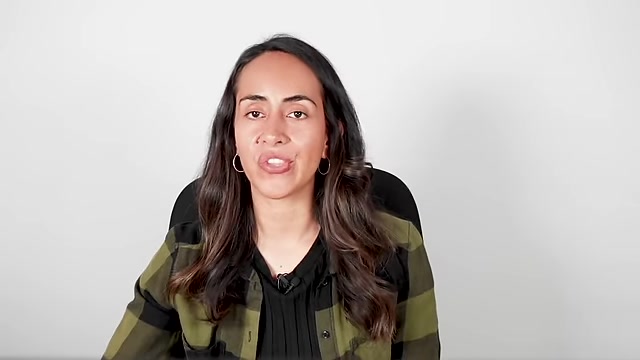
Here's how to use it:
- Navigate to Canva.com and choose 'Presentation (16:9)' format. Note: Magic Design is currently only available with the 16:9 format. Using other sizes may not allow access to it
- On the left-hand side of the screen, a panel should appear that says, Magic Design. This is the Canva's AI.
- Type a description of your desired presentation in the Prompt box. Be as specific as possible for better results.
- Press Enter. Canva's AI will generate multiple presentation templates based on your prompt.
- Select the template style that best suits your needs and preferences. You can then fine-tune the design by adding your own touch.
This quick and efficient method provides a solid foundation for your presentation, reducing initial design time.
Enhancing Your Presentation with Canva AI Tools
Perfecting Your Titles with Magic Write
Magic Write, a feature available with Canva Pro, can significantly enhance the quality and impact of your presentation titles. Magic Write, unlike Magic Design, can be accessed with other presentation sizes.
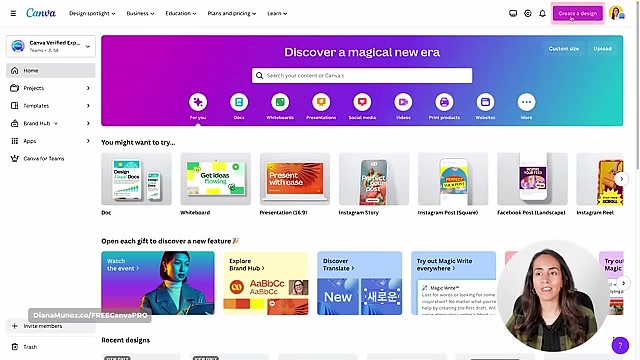
Here's how:
- Select the presentation deck in which to change the presentation title
- Select Canva Assistant button, and choose “Edit with Magic Write”
- Add a prompt describing the tone and desired outcome of your title, and then hit 'Enter'.
Magic Write is designed to make your titles more concise, engaging, and relevant to your audience. If you feel the first attempt didn't result in an ideal outcome, you can simply regenerate different iterations using different text prompts until you obtain the perfect title!
Adding Original Images Using Text to Image
Canva’s Text to Image app lets you create custom visuals that perfectly align with your content, which is helpful if you are looking for a creative asset that is not already present on the website. This AI power tool helps to make you become highly descriptive, to really achieve the outcome you desire. Here's how:
-
Go to the Apps section on the left-hand side of the Canva editor.
-
Search for “Text to Image” and select the app.
-
Type a descriptive prompt for the image you want to generate. Include details about the subject, style, and setting to guide the AI. Refer to Ronnie's Tutorial, to create some of the best AI text prompts!
-
Select the style of photo you would like displayed. There are various aspect ratios and options.
-
Click "Create your image". Canva will generate unique images based on your prompt.
-
Select the image you desire and then place within the slide and frame, so the image can be displayed.
Adding Animations to Your Canva AI Presentation
Animation is useful for emphasizing ideas or concepts, as well as transitions from slide to slide. To add animations on each presentation, simply select the Animate button, and test the various options for combinations, basic animation and exaggerated animations. Be sure to use wisely and in moderation. By applying these actions to each individual page, you can draw extra attention to your key points.







Most people like


































Report
Please select a reason for reporting
- 13 Reasons to Switch from Snapchat to Text Messaging
- 7 Powerful Speech to Text Apps to Boost Productivity
- 10 Best Speech to Text Tools for Effortless Transcription
- 13 Free Tools to Easily Transcribe Audio to Text
- 15 Surprising Ways Google's Speech-to-Text Boosts Productivity
- 7 Best Free Online Audio to Text Transcription Tools
- 9 Tips to Transcribe Speech to Text Faster and Better
- 13 Best Speech to Text Software for Windows 10 in 2023
- 7 Tips for Choosing the Best Transcriber for Audio to Text
- 11 Reasons Why Dragon Speech-to-Text Apps are Game-Changers
- 6 Secrets to Enhance Your Speech to Text Transcription
- 6 Brilliant Ways to Boost Productivity with Talk-to-Text on Your MacBook
- 6 Ways Transcription Software Converts Audio to Text
- 8 Tips to Transcribe Speech to Text Like a Pro
- 6 Reasons IBM Watson Speech to Text is a Game-Changer
- 14 Powerful Ways Talk-to-Text Improves Your Workflow
- 12 Top Windows Speech-to-Text Software for Efficient Transcription
- 12 Game-Changing Benefits of Apple's Speech to Text Technology
- 9 Powerful Use Cases for AWS Speech to Text Technology
- 10 Easy Steps to Transcribe YouTube Videos to Text
- transcription audio en texte
- online audio transcription
- free audio file transcription
- free ai audio transcription
- audio transcription service
- audio transcription online free
- audio transcription free online
- audio to transcription software
- audio and transcript
- ai audio transcription free
- voice recording to text converter
- translate voice recording to text
- record voice to text
- audio recording to text converter
- voice recording and transcription
- chatgpt voice to text
- gmail voice to text
- speech to text reader
- speech to text ai free
- speech to talk
- How SEO and Marketing Dashboards Empower Agencies to Drive Results
- How to Use AI Tools to Find Internal Linking Opportunities Across a Business Website
- Discover Your Perfect Haircut with AI Hairstyle Apps
- Free Reputation Calculator Tools: How They're Adapting to Score AI Visibility, Not Just Rankings
- Design Professional Flyers for Free on Your Phone
- Best Free Flyer Maker Apps for Android: Design Like a Pro
- How to Know If Your Business Is Ready for an AI Customer Service Agent
- Revolutionizing Storytelling: From Novels to Screenplays with AI
- Create Engaging Animated Explainer Videos with a Free AI Tool
- Stop Multi-Subscribing: Benchmark Top AI Visual Models in One Canvas
- ASOMobile Helps Teams Benchmark App Store Screenshots Against Competitors
- How to Match LMS Software With Your Organization's Training Plan
- Revolutionizing Email Marketing Agency with AI
- How to Convert BTC to HNT
- Unleashing the Power of AI: Cognizant's Roadmap for Transformation
- Frame to Video Review: A Practical Look at Turning Two Still Frames Into Motion
- NVIDIA NIM: Revolutionizing Supply Chain Data Analysis with AI
- Top AI Tools That Help Brands Stand Out Offline (Not Just Online)
- Top 5 Cold Email Software: Maximize Your Outreach in 2025
- Magic School AI: Revolutionizing Quiz & Assessment Generation

Copyright ©2026 toolify