































Table of Contents
- Key Points
- Unlocking the Power of Canva Magic Design
- Exploring Different Design Options with Magic Design
- Downloading and Sharing Your Canva Presentation
- Canva Pricing Plans: Free vs. Pro
- Weighing the Benefits and Drawbacks of Canva Magic Design
- Frequently Asked Questions about Canva Magic Design
- Related Questions


Unlocking the Power of Canva Magic Design
What is Canva Magic Design?
Canva Magic Design is an AI-powered tool that transforms simple text prompts into complete presentation templates.
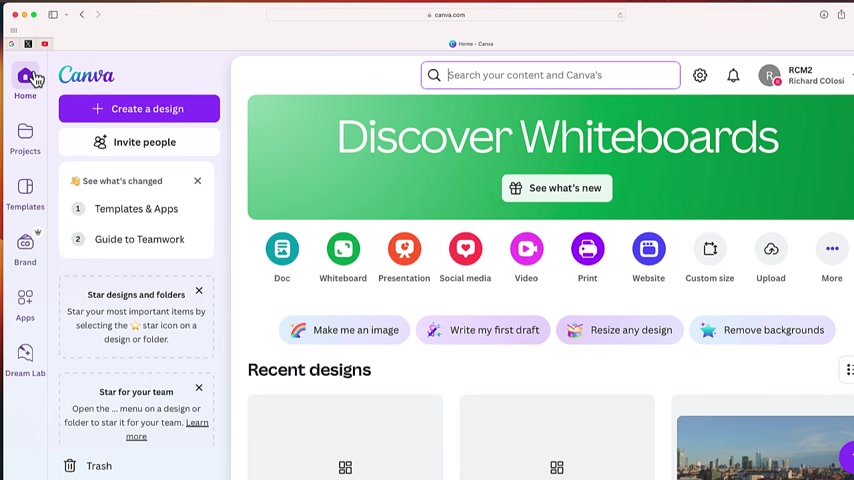
This feature is designed to assist users in quickly generating visually appealing and well-structured presentations without the need for extensive design skills. It considers the user's input and suggests relevant layouts, color schemes, and imagery to create a cohesive and engaging presentation. By leveraging the power of AI, Canva simplifies the presentation creation process, allowing users to focus on content delivery rather than getting bogged down in design complexities.
To truly understand its significance, it's important to recognize the evolution of Canva itself. From its inception, Canva aimed to democratize design, providing intuitive tools for individuals and businesses to create professional-quality graphics. Magic Design is a natural extension of this mission, pushing the boundaries of accessibility and efficiency in design.
The key value proposition of Canva Magic Design lies in its ability to provide a starting point – or even a finished product – with minimal input from the user. This is particularly beneficial for those who:
- Lack design expertise
- Are short on time
- Need inspiration for presentation layouts
- Want to maintain a consistent brand aesthetic without extensive manual adjustments.
In essence, Canva Magic Design is a powerful ally in the quest for effective and visually striking communication. The feature automates many of the tedious and time-consuming aspects of design, paving the way for creativity and impactful storytelling.
Accessing Canva Magic Design: A Pro Feature
It’s crucial to understand that Canva Magic Design is a Canva Pro feature.
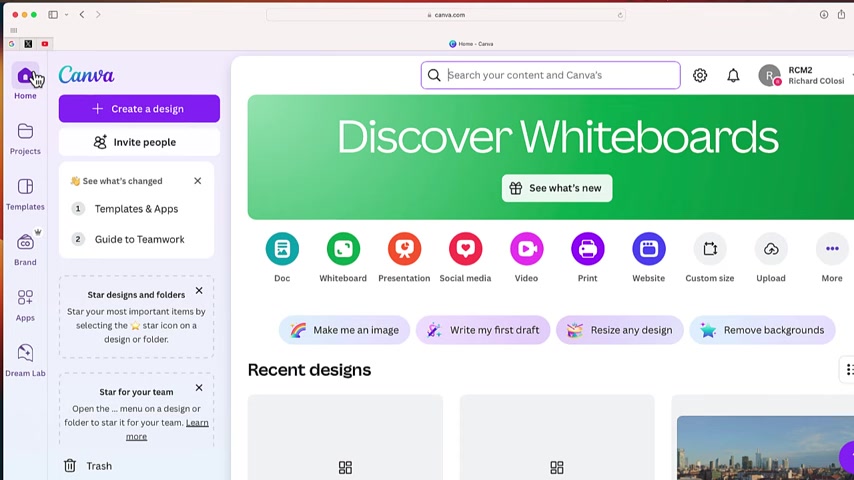
This means that while Canva offers a free version with a range of functionalities, accessing the AI-powered Magic Design requires a subscription to Canva Pro.
Canva Pro provides several benefits beyond Magic Design, including:
- Unlimited access to premium templates and design elements.
- The ability to create and maintain brand kits.
- Team collaboration features.
- Expanded storage for assets.
The decision to make Magic Design a Pro feature reflects Canva’s strategy to offer advanced capabilities to its paying users while still providing value in its free tier. For users who frequently create presentations or require access to a wider range of design resources, the Canva Pro subscription often proves to be a worthwhile investment.
However, this also means that individuals or organizations operating solely on the free version of Canva will not be able to directly utilize Magic Design. They can still benefit from Canva's extensive library of pre-designed templates and manual design tools, but the AI-powered automation remains exclusive to Pro subscribers.
How to Use Canva Magic Design to Create Presentations
Using Canva Magic Design is a straightforward process that involves a few simple steps:
- Start a new presentation: From the Canva homepage, click on the 'Presentation' icon.
- Locate the Design Tab: Ensure that the 'Design' tab is selected on the left-hand side of the screen.
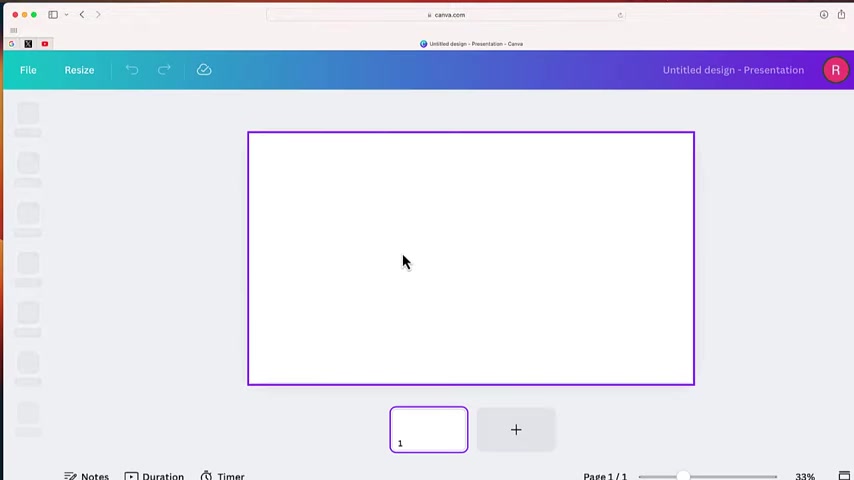
This tab is where you will find all the templates, layouts and styles options, you will also be able to enter the Prompt for the Magic Design.
- Enter Your Prompt: In the search bar at the top of the 'Design' tab, enter a detailed description of the presentation you want to create. Be as specific as possible to ensure the AI generates relevant suggestions. For example, 'Create a 10-slide presentation offering advice for content creators on YouTube'.
- Explore the AI-Generated Options: Once you enter your prompt, Canva’s Magic Design will generate several presentation templates based on your description. Browse through the options and select the one that best aligns with your vision.
- Customize the Presentation: After selecting a template, you can fully customize it to match your brand or specific requirements. Modify the text, replace images, adjust colors, and rearrange elements as needed.
- Download or Share: Once you're satisfied with your presentation, you can download it in various formats (e.g., PDF, PPTX) or share it directly from Canva. You can also share a public link of your presentation. These include video presentations and standard PDF presentations for easy export.
It’s important to note that while Magic Design can generate a complete presentation, the results may require some manual tweaking to ensure accuracy and relevance. The AI is a powerful tool, but it’s not a substitute for human oversight and creativity.
Customizing AI-Generated Content
While Canva Magic Design generates a first draft of a presentation, it's designed to be flexible and customizable. Users are encouraged to personalize the AI-generated content to match their specific needs and preferences.
Here are some ways to customize the presentation:
- Text Editing: Modify the text on each slide to ensure it accurately reflects your message. You can change the Font, size, color, and formatting.
- Image Replacement: Swap out the AI-generated images with your own photos or illustrations. Canva provides access to a vast library of stock images, or you can upload your own.
- Color Adjustments: Change the color scheme to align with your brand or preferred aesthetic.
- Layout Modifications: Rearrange the elements on each slide to create a more visually appealing and engaging layout.
- Adding/Removing Slides: Add additional slides to expand on specific topics or remove slides that are not relevant.
By taking the time to customize the AI-generated content, you can create a presentation that is both visually stunning and highly effective in communicating your message. The goal is to use Magic Design as a starting point and then infuse your own creativity and expertise to create a truly unique and impactful presentation.
Exploring Different Design Options with Magic Design
Iterating on Designs for the Perfect Fit
Canva Magic Design understands that the first AI generated result may not always be perfect. The AI will offer several design options for each prompt.
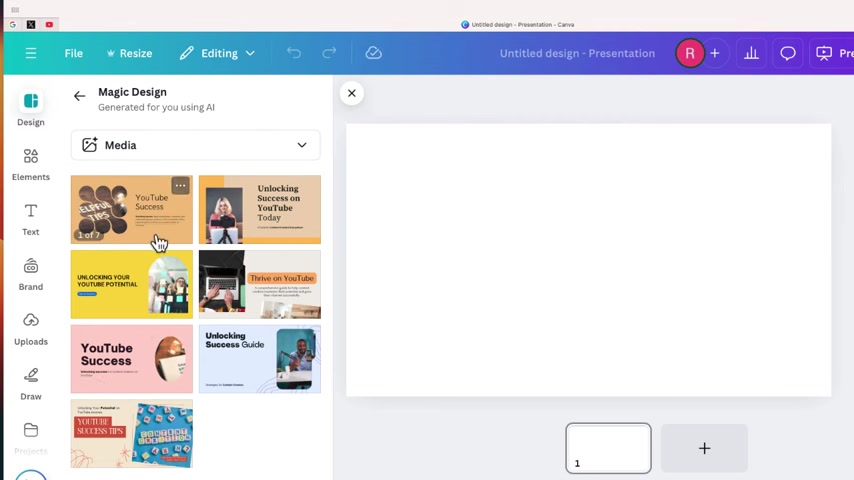
Once you've entered the first prompt, Canva provides you with various design options, usually around two to seven different slides templates that you can select to create your presentations, based on which one is relevant to the prompt that you entered. This is very useful to get the presentation that you want as the Magic Design gives multiple options for you to select from. It is a simple process of selecting the design type that you want, personalizing it and then publishing it for public view. Keep in mind that the suggestions will not always be accurate or relevant to the prompt, you can change and personalize it with text editing, layout modifications and changing the color adjustments.
To find the design type that you want, you should use appropriate and direct prompts. The AI works by the prompt so if the prompt is vague the presentation may not be exactly what you want. It is therefore key to be specific with your prompt to get the presentations that is closest to what you want.
You can also add additional elements into the slides, such as stock photos, illustrations, videos and much more. If you do not find what you are looking for in the library, you can also upload your own personal images into Canva.
Canva Pricing Plans: Free vs. Pro
Choosing the Right Plan for Your Needs
Canva offers a free plan and a Pro plan, each catering to different user needs and budgets. The free plan provides access to a limited selection of templates, design elements, and storage space.
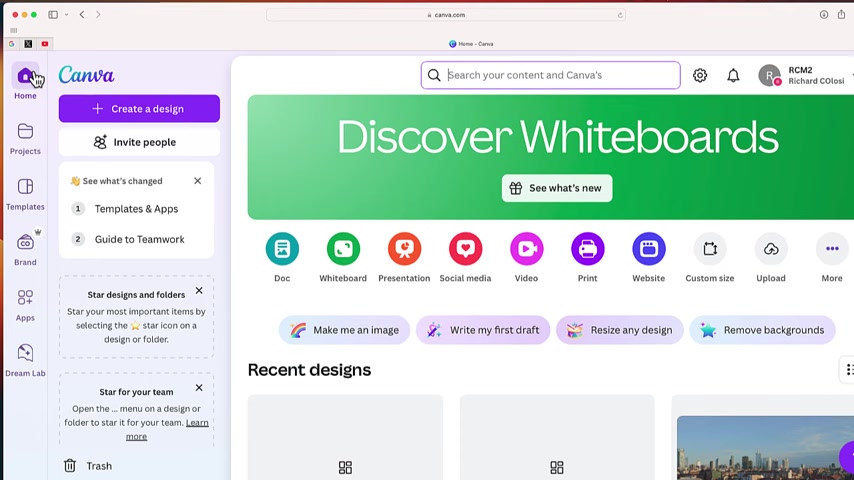
While it's a great option for casual users or those just starting out, it lacks the advanced features and unlimited access offered in the Pro plan. As discussed, the Magic Design is one of the features that is not present in the free version.
| Feature | Free Plan | Pro Plan |
|---|---|---|
| Templates and Design Elements | Limited selection | Unlimited access to premium templates, photos, graphics, and videos |
| Brand Kit | Not available | Ability to create and manage multiple brand kits |
| Storage Space | Limited storage | Expanded storage for your assets |
| Team Collaboration | Basic features | Advanced collaboration features, including team templates and shared folders |
| Magic Design | Not available | Access to AI-powered Magic Design |
The Pro plan is ideal for professionals, businesses, and educators who require frequent access to a wide range of design resources and advanced features. The subscription fee is typically billed monthly or annually, with the annual option offering a significant discount. As mentioned the pro version is required to access the Magic Design feature.
Ultimately, the choice between the free and Pro plans depends on your individual needs and usage patterns. If you find yourself regularly relying on Canva for your design needs, the Pro plan is likely the more cost-effective and beneficial option.


Most people like




































Report
Please select a reason for reporting
- 13 Reasons to Switch from Snapchat to Text Messaging
- 7 Powerful Speech to Text Apps to Boost Productivity
- 10 Best Speech to Text Tools for Effortless Transcription
- 13 Free Tools to Easily Transcribe Audio to Text
- 15 Surprising Ways Google's Speech-to-Text Boosts Productivity
- 7 Best Free Online Audio to Text Transcription Tools
- 9 Tips to Transcribe Speech to Text Faster and Better
- 13 Best Speech to Text Software for Windows 10 in 2023
- 7 Tips for Choosing the Best Transcriber for Audio to Text
- 11 Reasons Why Dragon Speech-to-Text Apps are Game-Changers
- 6 Secrets to Enhance Your Speech to Text Transcription
- 6 Brilliant Ways to Boost Productivity with Talk-to-Text on Your MacBook
- 6 Ways Transcription Software Converts Audio to Text
- 8 Tips to Transcribe Speech to Text Like a Pro
- 6 Reasons IBM Watson Speech to Text is a Game-Changer
- 14 Powerful Ways Talk-to-Text Improves Your Workflow
- 12 Top Windows Speech-to-Text Software for Efficient Transcription
- 12 Game-Changing Benefits of Apple's Speech to Text Technology
- 9 Powerful Use Cases for AWS Speech to Text Technology
- 10 Easy Steps to Transcribe YouTube Videos to Text
- transcription audio en texte
- online audio transcription
- free audio file transcription
- free ai audio transcription
- audio transcription service
- audio transcription online free
- audio transcription free online
- audio to transcription software
- audio and transcript
- ai audio transcription free
- voice recording to text converter
- translate voice recording to text
- record voice to text
- audio recording to text converter
- voice recording and transcription
- chatgpt voice to text
- gmail voice to text
- speech to text reader
- speech to text ai free
- speech to talk
- ChatGPT Knows Ford. It Just Doesn't Quote Ford
- Meshy AI: How to Create 3D Models from Text and Images
- How SEO and Marketing Dashboards Empower Agencies to Drive Results
- How to Use AI Tools to Find Internal Linking Opportunities Across a Business Website
- Discover Your Perfect Haircut with AI Hairstyle Apps
- Free Reputation Calculator Tools: How They're Adapting to Score AI Visibility, Not Just Rankings
- Design Professional Flyers for Free on Your Phone
- Best Free Flyer Maker Apps for Android: Design Like a Pro
- How to Know If Your Business Is Ready for an AI Customer Service Agent
- Revolutionizing Storytelling: From Novels to Screenplays with AI
- ProxyWing DuckDuckGo Proxy Review: Plans, Setup and Who It Is For
- ChatGPT Knows Ford. It Just Doesn't Quote Ford
- Automate Lead Generation: A Comprehensive Guide with AI Agents
- Revideo.io: The Future of Reverse Video Search Technology
- Revolutionizing Email Marketing Agency with AI
- Breaking the Character Drift Dilemma: A Practical Test of Smart Shot
- Meshy AI: How to Create 3D Models from Text and Images
- ASOMobile Helps Teams Benchmark App Store Screenshots Against Competitors
- How to Match LMS Software With Your Organization's Training Plan
- How to Convert BTC to HNT

Copyright ©2026 toolify