































Table of Contents
- Key Points
- Getting Started with ChatGPT and Spreadsheets
- Practical Application: Analyzing Newsletter Data with ChatGPT
- How to Use ChatGPT with Google Sheets
- Pros and Cons
- FAQ
- Related Questions



Getting Started with ChatGPT and Spreadsheets
Prerequisites for Spreadsheet Automation with AI
Before diving into spreadsheet automation with AI, it’s essential to have the right tools in place. Start by subscribing to ChatGPT Plus, a paid plan that unlocks advanced features and plugins.
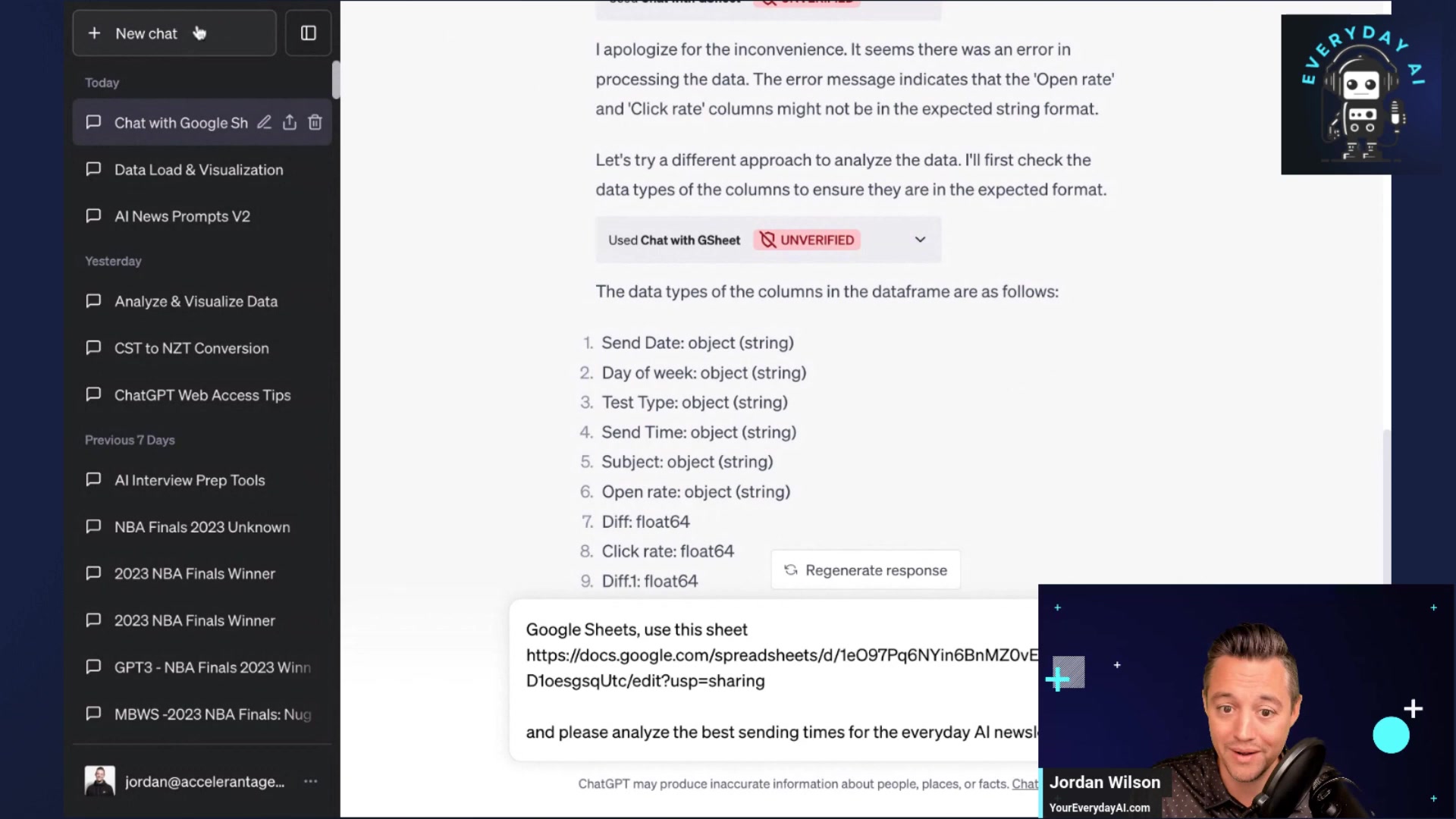
This subscription is required to access the necessary plugins for spreadsheet integration. It provides a more capable model with better creative and analytical skills.
Installing the 'Chat with GSheet' Plugin for AI Integration
The next crucial step is installing the 'Chat with GSheet' plugin. This plugin acts as the bridge between ChatGPT and your Google Sheets, enabling seamless data transfer and analysis. Here's a step-by-step guide:
- Navigate to Plugins:
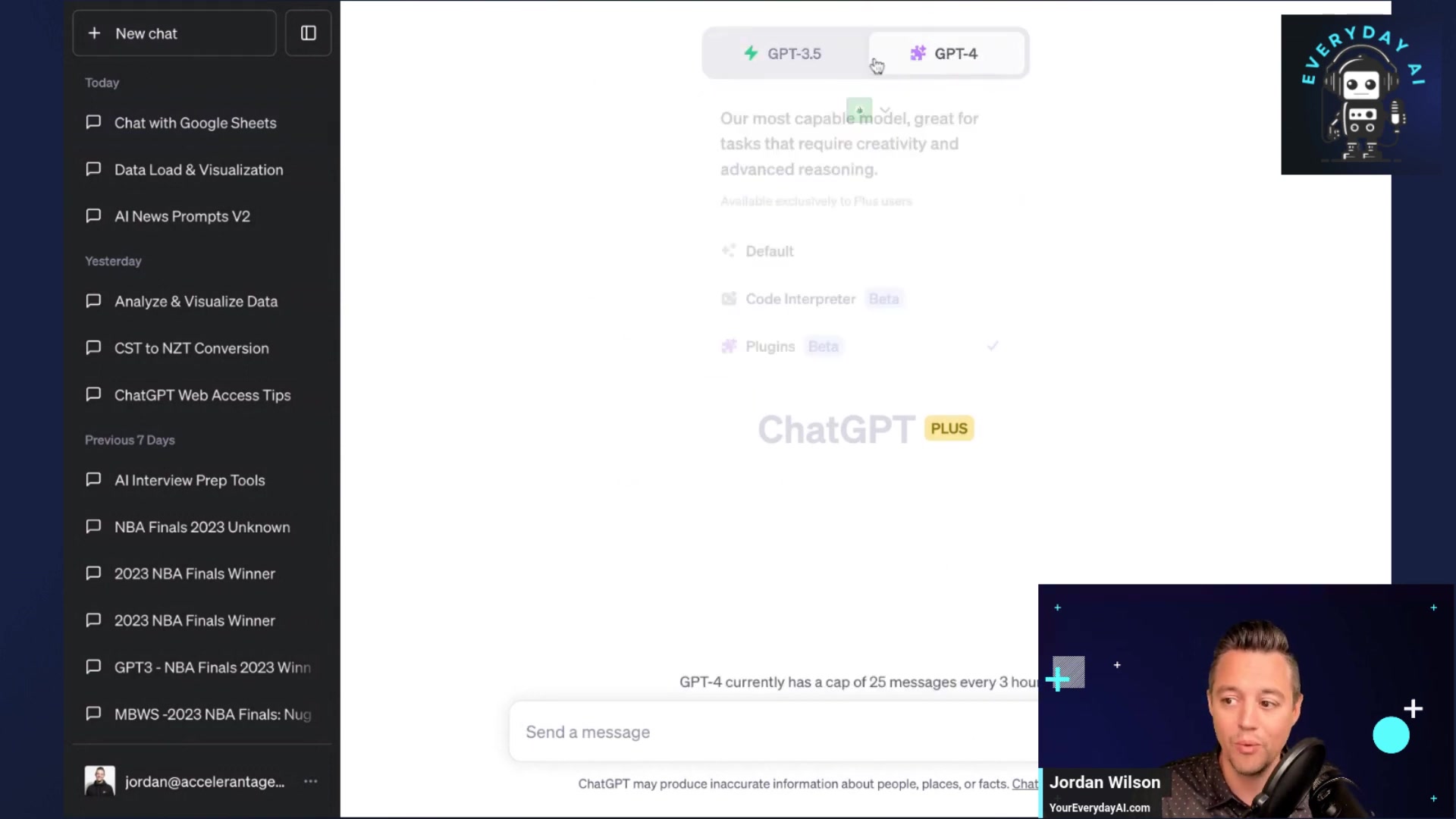
Within ChatGPT, hover over GPT-4 and select the plugins option.
- Access the Plugin Store: Click on the Plugin store to access the available plugins.
- Search and Install: Use the search bar to find Chat with GSheet. Click install to add the plugin to your ChatGPT workspace.
- Enable the Plugin: After installation, ensure the plugin is enabled by checking the box next to Chat with GSheet.
With these steps, ChatGPT can interact and analyze the data inside a Google Sheet document.
Configuring Google Sheets for ChatGPT Access
To enable ChatGPT to access your Google Sheets data, you need to adjust the sharing settings. By default, Google Sheets might restrict access to protect your data. Here’s how to configure the settings:
- Open Your Google Sheet: Access the Google Sheet you intend to analyze with ChatGPT.
- Click Share:
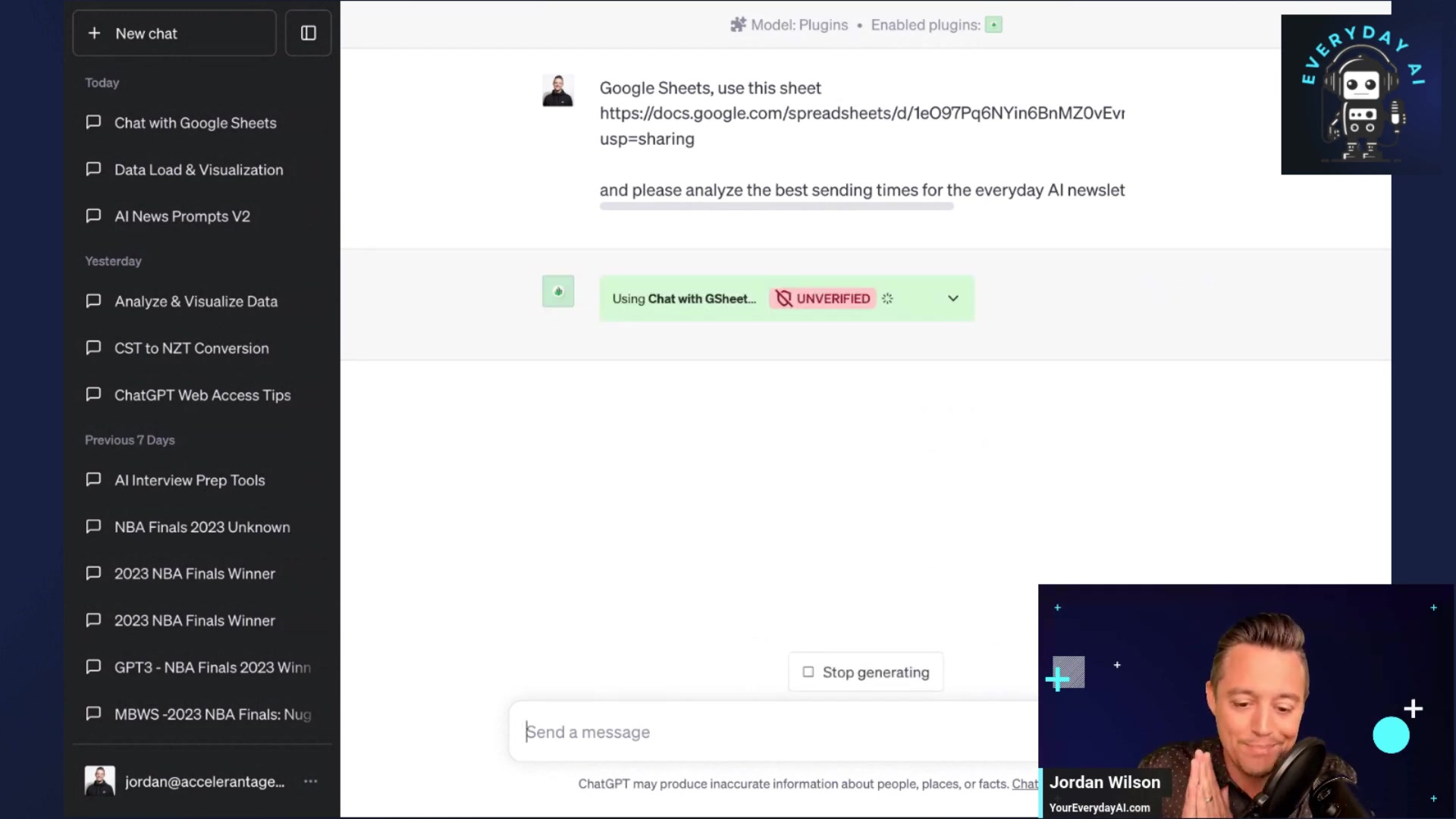
In the top-right corner, click on the Share button.
- Adjust Permissions: Under General access, change the setting from Restricted to Anyone with the link. This ensures that ChatGPT can view the data.
- Copy the Link: Once the permissions are set, copy the shareable link.
By setting the appropriate sharing settings and permissions, ChatGPT can seamlessly access and analyze your spreadsheet data.
Practical Application: Analyzing Newsletter Data with ChatGPT
Step-by-Step Process of Data Analysis using the GSheet Plugin
Once you have set up ChatGPT and shared your google sheets, you can have ChatGPT parse your data in real time.
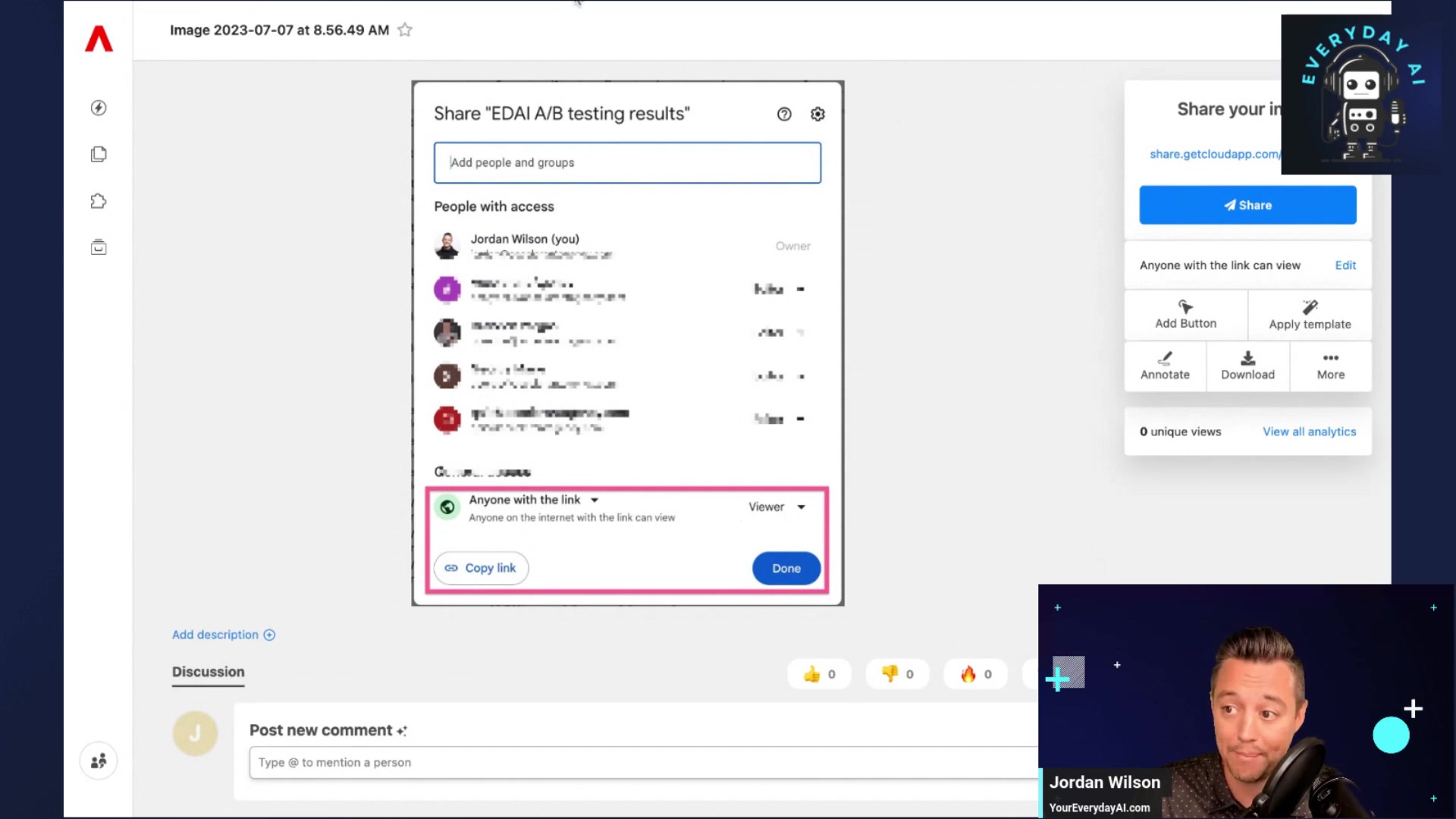
The first step is linking ChatGPT to your Google Sheet by providing the URL. This can be done with the proper prompts:
- Initiate the Chat: Open ChatGPT with the Chat with GSheet plugin enabled.
- Specify Using the Sheet: Type the following message: Google Sheets, use this sheet followed by the copied link to your Google Sheet.
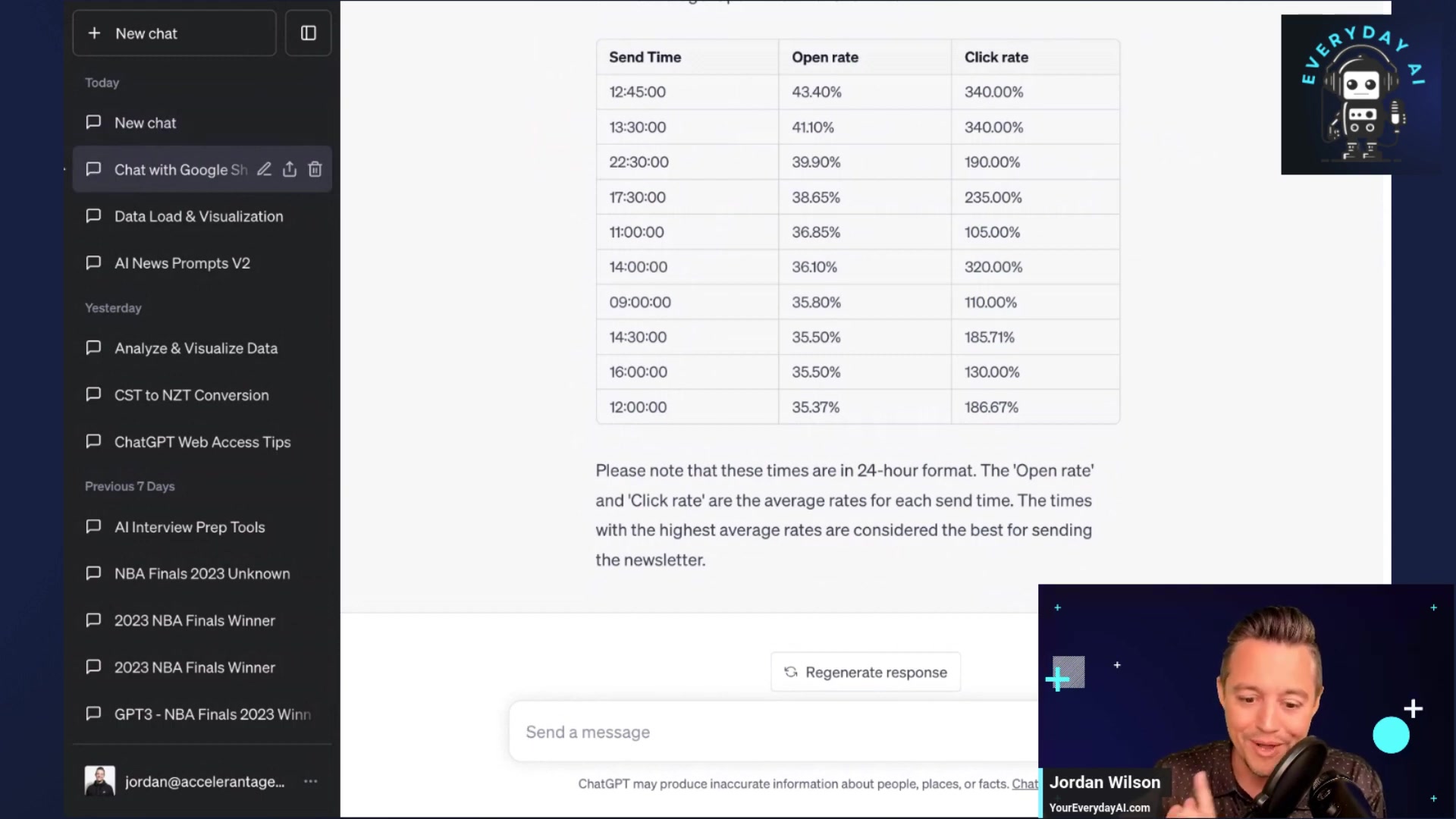
- Request Analysis: Ask ChatGPT to analyze the data. For instance: Please analyze the best sending times for the everyday ai Newsletter.
Now you can sit back and watch how ChatGPT analyzes your spreadsheet.
Evaluating ChatGPT's Analytical Output and Prompts
As ChatGPT processes the data, it's crucial to verify its interpretations. Review the column names and data types that ChatGPT identifies to ensure accuracy. You can also ask more complex and follow up questions to help refine the analysis of your Gsheet data.
Be sure to evaluate the results by:
- Check the data types of columns to verify that ChatGPT has identified them correctly.
- Ask for specific insights, such as the best day of the week for Newsletter open rates.
- Provide additional context, if needed, for more targeted analysis.
By refining prompts and evaluating its work, you guide ChatGPT to extract the most valuable and pertinent insights from your data.
How to Use ChatGPT with Google Sheets
Analyzing A/B Testing Results
ChatGPT can quickly process A/B testing data from spreadsheets to identify winning strategies. By providing the sheet and asking targeted questions, users can understand which variations perform best based on metrics like click-through rates or conversion rates.
Optimizing Marketing Campaigns
Spreadsheets often contain data related to marketing campaign performance, like ad spend, impressions, and conversions. ChatGPT can analyze this data to uncover trends and optimize marketing spend.
By identifying high-performing channels and strategies, businesses can allocate resources effectively and improve ROI.
Improving Customer Satisfaction
Customer feedback, often stored in spreadsheets, can be a goldmine for improving customer satisfaction. With ChatGPT, businesses can quickly analyze sentiment, identify recurring issues, and prioritize improvement efforts.





Most people like




































Report
Please select a reason for reporting
- 13 Reasons to Switch from Snapchat to Text Messaging
- 7 Powerful Speech to Text Apps to Boost Productivity
- 10 Best Speech to Text Tools for Effortless Transcription
- 13 Free Tools to Easily Transcribe Audio to Text
- 15 Surprising Ways Google's Speech-to-Text Boosts Productivity
- 7 Best Free Online Audio to Text Transcription Tools
- 9 Tips to Transcribe Speech to Text Faster and Better
- 13 Best Speech to Text Software for Windows 10 in 2023
- 7 Tips for Choosing the Best Transcriber for Audio to Text
- 11 Reasons Why Dragon Speech-to-Text Apps are Game-Changers
- 6 Secrets to Enhance Your Speech to Text Transcription
- 6 Brilliant Ways to Boost Productivity with Talk-to-Text on Your MacBook
- 6 Ways Transcription Software Converts Audio to Text
- 8 Tips to Transcribe Speech to Text Like a Pro
- 6 Reasons IBM Watson Speech to Text is a Game-Changer
- 14 Powerful Ways Talk-to-Text Improves Your Workflow
- 12 Top Windows Speech-to-Text Software for Efficient Transcription
- 12 Game-Changing Benefits of Apple's Speech to Text Technology
- 9 Powerful Use Cases for AWS Speech to Text Technology
- 10 Easy Steps to Transcribe YouTube Videos to Text
- transcription audio en texte
- online audio transcription
- free audio file transcription
- free ai audio transcription
- audio transcription service
- audio transcription online free
- audio transcription free online
- audio to transcription software
- audio and transcript
- ai audio transcription free
- voice recording to text converter
- translate voice recording to text
- record voice to text
- audio recording to text converter
- voice recording and transcription
- chatgpt voice to text
- gmail voice to text
- speech to text reader
- speech to text ai free
- speech to talk
- How SEO and Marketing Dashboards Empower Agencies to Drive Results
- How to Use AI Tools to Find Internal Linking Opportunities Across a Business Website
- Discover Your Perfect Haircut with AI Hairstyle Apps
- Free Reputation Calculator Tools: How They're Adapting to Score AI Visibility, Not Just Rankings
- Design Professional Flyers for Free on Your Phone
- Best Free Flyer Maker Apps for Android: Design Like a Pro
- How to Know If Your Business Is Ready for an AI Customer Service Agent
- Revolutionizing Storytelling: From Novels to Screenplays with AI
- Create Engaging Animated Explainer Videos with a Free AI Tool
- Stop Multi-Subscribing: Benchmark Top AI Visual Models in One Canvas
- 7 Top AI-Powered Database Assistant Platforms
- An Objective Look at Modern Web-Based Visual Modifications
- My Honest Experience with VideoAI: The Secret Weapon for Creators Who Need Character Voices
- 5 Data Problems That Stall AI Projects in Financial Compliance
- The Future of Smart Glasses: Explained & Assembling Guide
- DeepL Translator: The AI-Powered Translation Tool
- AI Video Upscaling: Top Tools Compared for Enhanced Quality
- Bridging the Gap: How One Indie Developer Solved the "Art Asset Nightmare" Using AI Style Transfer
- How I Direct Consistent AI Clips: A Hands-On Guide to Multi-Model Generation
- My Honest Review of VideoAI: The Ultimate Character Voice Generator I've Been Using Lately

Copyright ©2026 toolify