































Table of Contents
- Key Points
- Transforming Digital Text into Handwriting with Python
- Diving Deeper into the text_to_handwriting Function
- Practical Applications: Use Cases for Text to Handwriting Conversion
- Pricing
- Pros and Cons of Using pywhatkit for Text to Handwriting Conversion
- Core Features
- Use Cases
- FAQ
- Related Questions



Transforming Digital Text into Handwriting with Python
Why Convert Text to Handwriting?
In a world dominated by digital communication, the Charm and authenticity of handwritten text stand out. Converting text to Handwriting adds a personal touch that can be particularly impactful in various scenarios.
- Personalized Notes and Greetings: Handwritten notes convey a sense of care and effort that Typed messages often lack. Converting text to handwriting allows you to create personalized greeting cards, thank-you notes, or invitations that leave a lasting impression.
- Educational Assignments: Students can use this technique to submit assignments that mimic handwritten work, adding a unique Flair to their submissions. This can be especially useful for subjects where neat handwriting is appreciated.
- Artistic and Creative Projects: The ability to generate handwritten text opens up possibilities for artistic projects, such as creating vintage-style posters, personalized artwork, or unique digital calligraphy.
- Professional Documents: Adding a handwritten signature or annotation to professional documents can enhance their authenticity and create a more personal connection with clients or colleagues.
By bridging the gap between digital convenience and the human touch, converting text to handwriting offers a versatile solution for a wide range of applications.
Introducing pywhatkit: A Python Library for Automation
The pywhatkit library simplifies several tasks through Python, including sending WhatsApp messages, performing Google searches, and, most importantly for our purpose, converting text to handwriting. It’s designed to be user-friendly, abstracting away much of the complexity involved in these processes.
This makes it an excellent choice for beginners and experienced programmers alike looking for quick solutions to automate tasks. pywhatkit is an invaluable tool for anyone looking to automate text conversion into a visually appealing handwritten format. This article will cover pywhatkit and its implementation in detail.
Here's why pywhatkit is a great choice for text to handwriting conversion:
- Simplicity: With just a few lines of code, you can transform your text into a handwritten image.
- Versatility: While text to handwriting conversion is our focus,
pywhatkitoffers many other useful features. - Ease of Installation: Installing
pywhatkitis straightforward using pip, Python’s Package installer.
Setting Up Your Environment for Python and pywhatkit
Before diving into the code, ensure your environment is properly set up with Python and the necessary libraries.
- Install Python: If you don’t have Python installed, download it from the official Python website. Follow the installation instructions for your operating system. It is recommended you use a version of Python above 3.6.
-
Install
pywhatkit: Open your terminal or command Prompt and use pip to installpywhatkit. Run the following command:pip install pywhatkitThis command downloads and installs
pywhatkitand any dependencies it requires.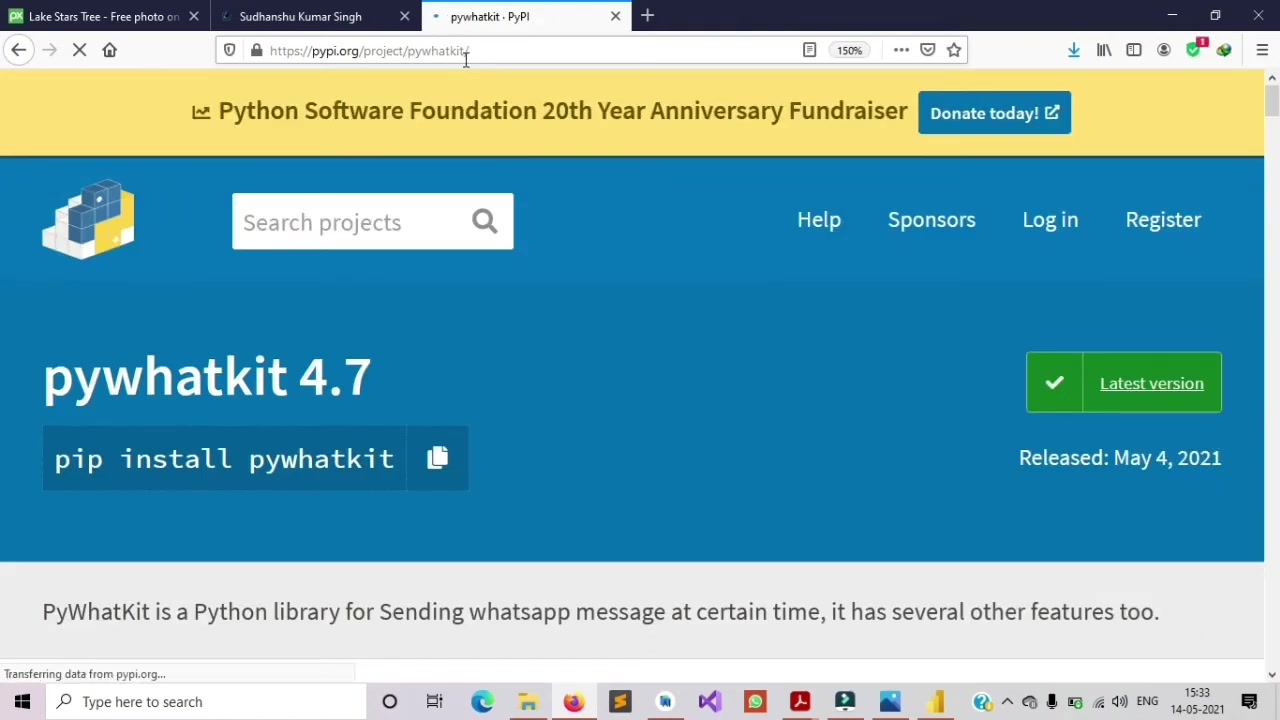
Once the installation is complete, you’re ready to start converting text to handwriting.
By ensuring Python and pywhatkit are properly installed, you can proceed with the next steps of converting text to handwriting seamlessly.
Step-by-Step Guide: Converting Text to Handwriting with Python
Converting text to a handwritten image with Python and pywhatkit involves a few simple steps. Follow this guide to transform your digital text into a handwritten masterpiece.
Step 1: Import the pywhatkit Library
Start by importing the pywhatkit library into your Python script. This allows you to access the text-to-handwriting conversion function.
import pywhatkit as kitStep 2: Convert Text to Handwriting
Use the text_to_handwriting() function to convert your text into a handwritten image. Provide the text you want to convert as a STRING, and optionally specify the output file name and color.
kit.text_to_handwriting("PyWhatKit is a Python library with various helpful features. It is an easy to use library which does not requires you to do some additional setup.", save_to='pywhatkit.png', rgb=[0, 0, 255])In this example:
"PyWhatKit is a Python library with various helpful features. It is an easy to use library which does not requires you to do some additional setup."is the text you want to convert.save_to='pywhatkit.png'specifies the file name for the output image.
The image will be saved as 'pywhatkit.png' in the same directory as your Python script.
rgb=[0, 0, 255]sets the color of the handwriting to blue. You can customize the color by changing the RGB values.
Step 3: Run the Script
Execute your Python script. The script will generate a PNG image with the converted text in a handwritten style. You can then open and use this image as needed.
Step 4: Locate the Output Image
Check the directory where your Python script is located. You should find the generated PNG image ('pywhatkit.png' in our example) containing the handwritten text. Now that the image is created, check the specified location for its creation.
By following these steps, you can easily convert text to a handwritten image using Python and pywhatkit, adding a personal touch to your digital documents.
Diving Deeper into the text_to_handwriting Function
Understanding the Function Parameters
The text_to_handwriting function in pywhatkit offers several customizable parameters that allow you to fine-tune the output. Understanding these parameters can help you create the exact handwritten style you desire.
string: This is the required parameter that specifies the text you want to convert. It should be a string containing the content you wish to transform into a handwritten image.save_to: This optional parameter defines the file name and format of the output image. By default, the image is saved as a PNG file, but you can specify a different file name if needed. For example,save_to='my_note.png'.rgb: This optional parameter allows you to set the color of the handwriting.
The color is specified as a list of three RGB values, each ranging from 0 to 255. For example,
rgb=[255, 0, 0]sets the color to red. If this parameter is omitted, the default color is black.
Here’s a breakdown of common RGB color values:
| Color | RGB Value |
|---|---|
| Black | [0, 0, 0] |
| White | [255, 255, 255] |
| Red | [255, 0, 0] |
| Green | [0, 255, 0] |
| Blue | [0, 0, 255] |
| Yellow | [255, 255, 0] |
| Cyan | [0, 255, 255] |
| Magenta | [255, 0, 255] |
By adjusting these parameters, you can create a variety of handwritten styles to suit different needs and preferences. For instance, you can create vintage-style notes with sepia tones or modern-looking annotations with vibrant colors.
Customizing the Output: Color and File Name
One of the key advantages of using pywhatkit is the ability to customize the output of the handwritten image. You can change the color of the handwriting and the file name to match your specific requirements. Let's explore how to do this.
Changing the Handwriting Color
The rgb parameter in the text_to_handwriting function allows you to specify the color of the handwriting. The color is defined using RGB (Red, Green, Blue) values, each ranging from 0 to 255. You can experiment with different RGB values to achieve the desired color.
For example, to set the handwriting color to green, use the following code:
import pywhatkit as kit

kit.text_to_handwriting("Hello, this is a green handwritten note!", save_to='green_note.png', rgb=[0, 255, 0])
Changing the File Name
You can also customize the file name of the output image using the save_to parameter. This allows you to organize your handwritten images more effectively.
For example, to save the handwritten image as 'custom_note.png', use the following code:
import pywhatkit as kit

kit.text_to_handwriting("This is a custom handwritten note!", save_to='custom_note.png', rgb=[0, 0, 0])
By combining these customization options, you can create handwritten images that perfectly match your desired style and organization.







Most people like






























Report
Please select a reason for reporting
- 13 Reasons to Switch from Snapchat to Text Messaging
- 7 Powerful Speech to Text Apps to Boost Productivity
- 10 Best Speech to Text Tools for Effortless Transcription
- 13 Free Tools to Easily Transcribe Audio to Text
- 15 Surprising Ways Google's Speech-to-Text Boosts Productivity
- 7 Best Free Online Audio to Text Transcription Tools
- 9 Tips to Transcribe Speech to Text Faster and Better
- 13 Best Speech to Text Software for Windows 10 in 2023
- 7 Tips for Choosing the Best Transcriber for Audio to Text
- 11 Reasons Why Dragon Speech-to-Text Apps are Game-Changers
- 6 Secrets to Enhance Your Speech to Text Transcription
- 6 Brilliant Ways to Boost Productivity with Talk-to-Text on Your MacBook
- 6 Ways Transcription Software Converts Audio to Text
- 8 Tips to Transcribe Speech to Text Like a Pro
- 6 Reasons IBM Watson Speech to Text is a Game-Changer
- 14 Powerful Ways Talk-to-Text Improves Your Workflow
- 12 Top Windows Speech-to-Text Software for Efficient Transcription
- 12 Game-Changing Benefits of Apple's Speech to Text Technology
- 9 Powerful Use Cases for AWS Speech to Text Technology
- 10 Easy Steps to Transcribe YouTube Videos to Text
- transcription audio en texte
- online audio transcription
- free audio file transcription
- free ai audio transcription
- audio transcription service
- audio transcription online free
- audio transcription free online
- audio to transcription software
- audio and transcript
- ai audio transcription free
- voice recording to text converter
- translate voice recording to text
- record voice to text
- audio recording to text converter
- voice recording and transcription
- chatgpt voice to text
- gmail voice to text
- speech to text reader
- speech to text ai free
- speech to talk
- How SEO and Marketing Dashboards Empower Agencies to Drive Results
- How to Use AI Tools to Find Internal Linking Opportunities Across a Business Website
- Discover Your Perfect Haircut with AI Hairstyle Apps
- Free Reputation Calculator Tools: How They're Adapting to Score AI Visibility, Not Just Rankings
- Design Professional Flyers for Free on Your Phone
- Best Free Flyer Maker Apps for Android: Design Like a Pro
- How to Know If Your Business Is Ready for an AI Customer Service Agent
- Revolutionizing Storytelling: From Novels to Screenplays with AI
- Create Engaging Animated Explainer Videos with a Free AI Tool
- Stop Multi-Subscribing: Benchmark Top AI Visual Models in One Canvas
- Frame to Video Review: A Practical Look at Turning Two Still Frames Into Motion
- NVIDIA NIM: Revolutionizing Supply Chain Data Analysis with AI
- Top AI Tools That Help Brands Stand Out Offline (Not Just Online)
- Top 5 Cold Email Software: Maximize Your Outreach in 2025
- Magic School AI: Revolutionizing Quiz & Assessment Generation
- Create Your Own Email Bot and Automate Your Email Tasks
- Beyond Pure Prompts: Optimizing Production with 'Text With Reference' Generation
- Stop Using Boring TTS: My Honest Deep Dive Into VideoAI and the Hunt for the Perfect Custom Voices
- AI & Elections: Defending Democracy Against Misinformation
- Navigating Political Discourse: AI, Deepfakes, and Reality Checks

Copyright ©2026 toolify