































Table of Contents
- Key Points
- Getting Started with Text-to-Handwriting Conversion
- Tips and Troubleshooting
- Step-by-step Guide: Converting Text to Handwriting with Python and PyWhatKit
- PyWhatKit: Weighing the Pros and Cons
- Use Cases
- FAQ
- Related Questions



Getting Started with Text-to-Handwriting Conversion
What is PyWhatKit?
PyWhatKit is a Python library that offers a range of helpful functions, including the ability to convert text into a format resembling handwriting. This tool is perfect for those who want to add a personal and unique touch to their digital communications. Whether you're creating custom greeting cards, preparing study notes, or simply want to try something new, PyWhatKit simplifies the process. It automates the conversion and outputs a PNG image of the handwritten text, which you can then use as needed. The real power of PyWhatKit lies in its ease of use; with just a few lines of code, you can transform plain text into an engaging visual representation.
Installation of PyWhatKit
Before you can start converting text to Handwriting, you'll need to install the PyWhatKit library. Open your command Prompt or terminal and use pip, the Python Package installer, to install PyWhatKit. The command is straightforward:
pip install pywhatkit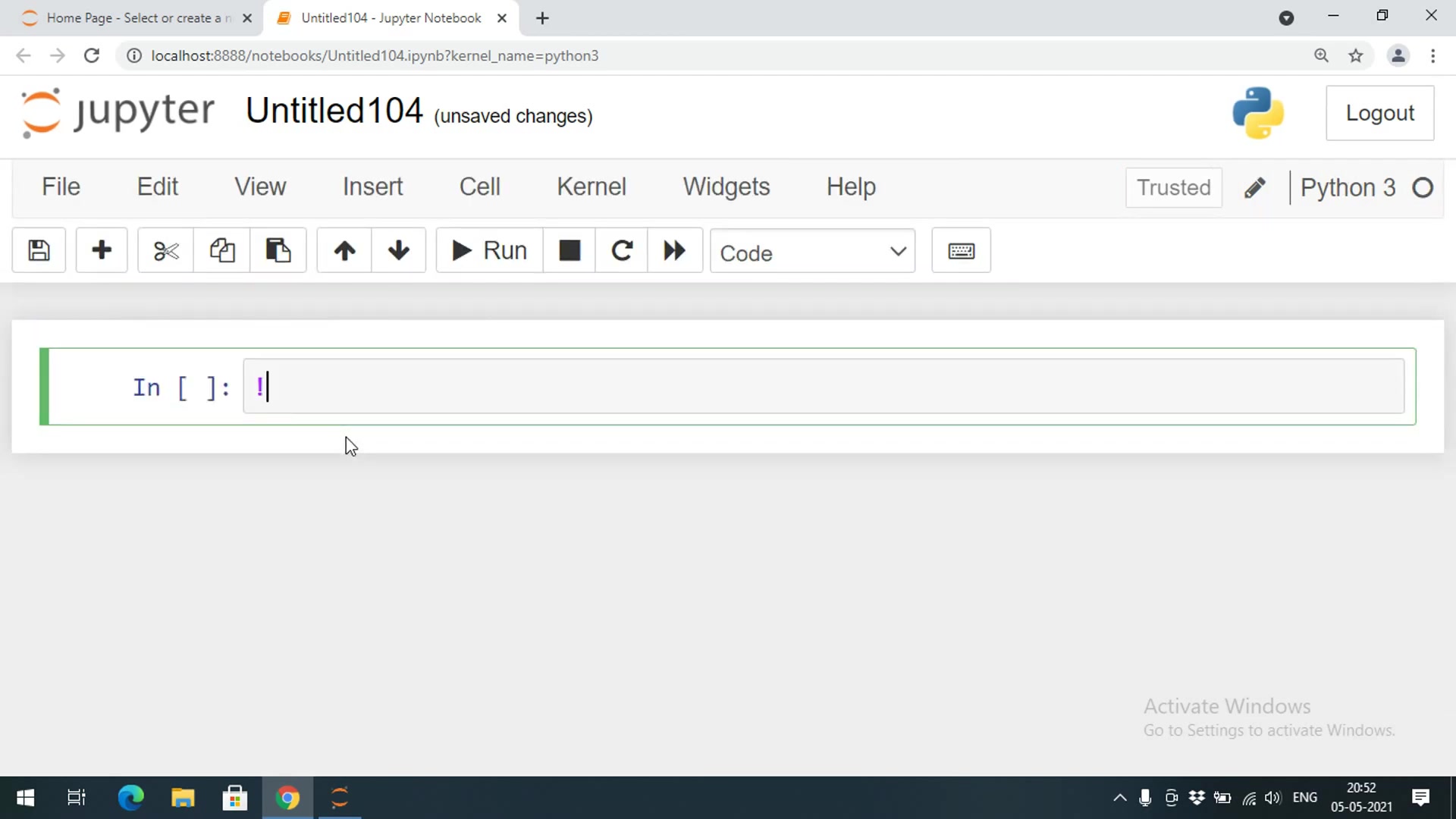
This command will download and install PyWhatKit along with its dependencies. Make sure you have Python installed on your system before running this command. Once the installation is complete, you can verify it by importing PyWhatKit in your Python script. If no errors occur during the import, it means the installation was successful.
It's important to note that you might need to upgrade pip to the latest version for the installation to work smoothly. You can upgrade pip using the following command:
pip install --upgrade pipOnce PyWhatKit is successfully installed, you're ready to move on to the next step, which is using its text-to-handwriting conversion feature.
Importing PyWhatKit in Python
After installing PyWhatKit, the next step is to import the library into your Python script. This will allow you to access all the functions provided by PyWhatKit, including the text-to-handwriting converter. The import statement is simple:
import pywhatkit as pwk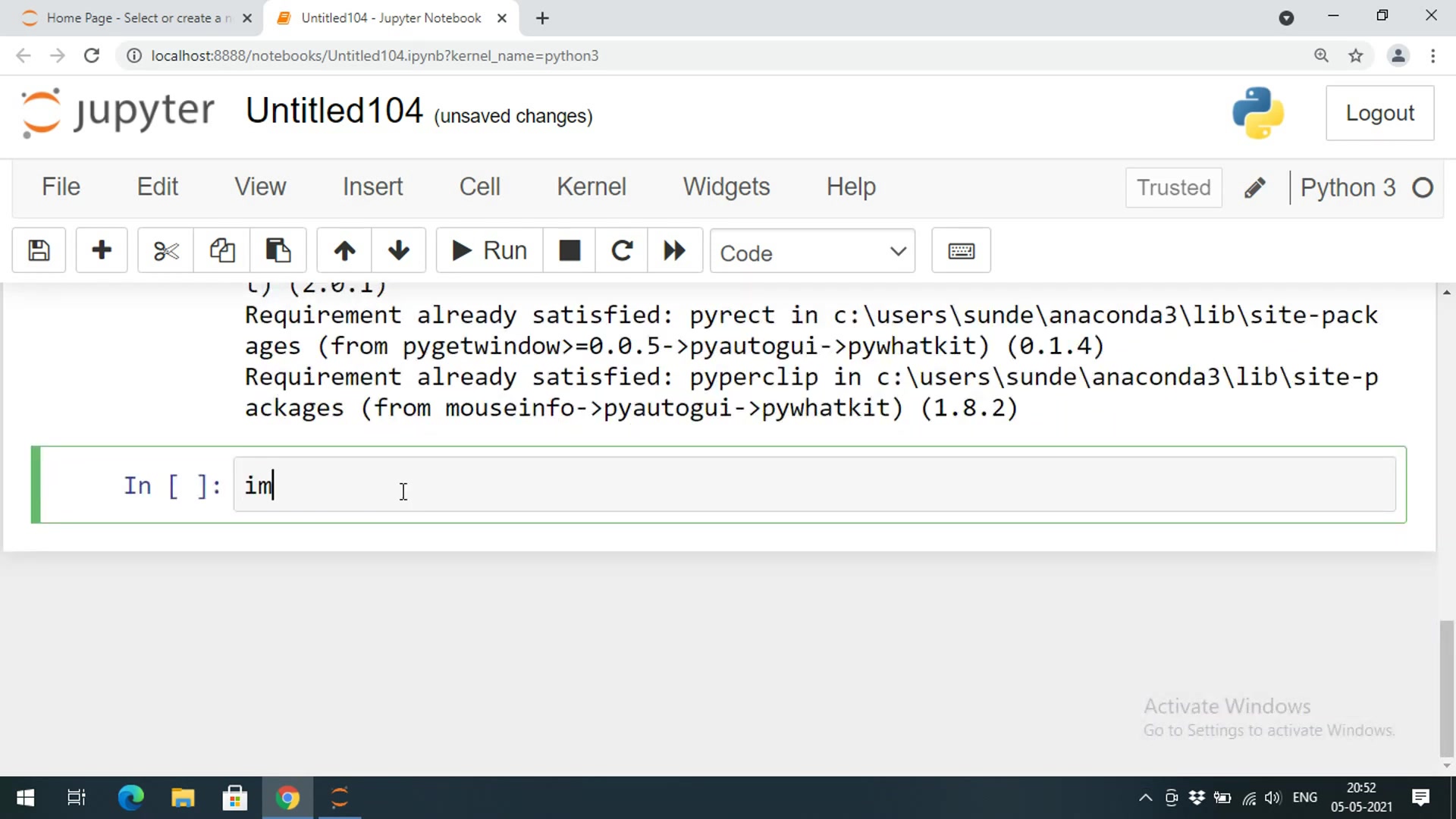
Here, we import PyWhatKit and assign it an alias pwk. This is a common practice in Python to make the code more concise and readable. Now you can use pwk to call PyWhatKit functions. It is good practice to test the import right after you include the line in your script to ensure the code works. Using the alias can save on the length of your code later. Keep in mind, though, that the alias is optional and you can call the functions by directly using pywhatkit.
Using the text_to_handwriting Method
The core of this Tutorial lies in the text_to_handwriting method provided by PyWhatKit. This function takes text input and converts it into a PNG image that resembles handwriting. The method has several parameters that allow you to customize the output:
- Text: The text you want to convert. This can be a STRING literal or a variable containing the text.
- Save to: The file path where you want to save the output PNG image. You must include the filename and the
.pngextension. - RGB Color: An optional parameter that specifies the color of the handwriting. It should be a tuple containing three integer values representing the red, green, and blue components of the color. If omitted, the default color is black.
Here's a basic example of how to use the text_to_handwriting method:
import pywhatkit as pwk

text = "Hello, world! This is handwritten text."
path_to_img = "output.png"

pwk.text_to_handwriting(text, path_to_img)
In this example, the text "Hello, world! This is handwritten text." will be converted into a handwritten style image and saved as output.png in the current directory.
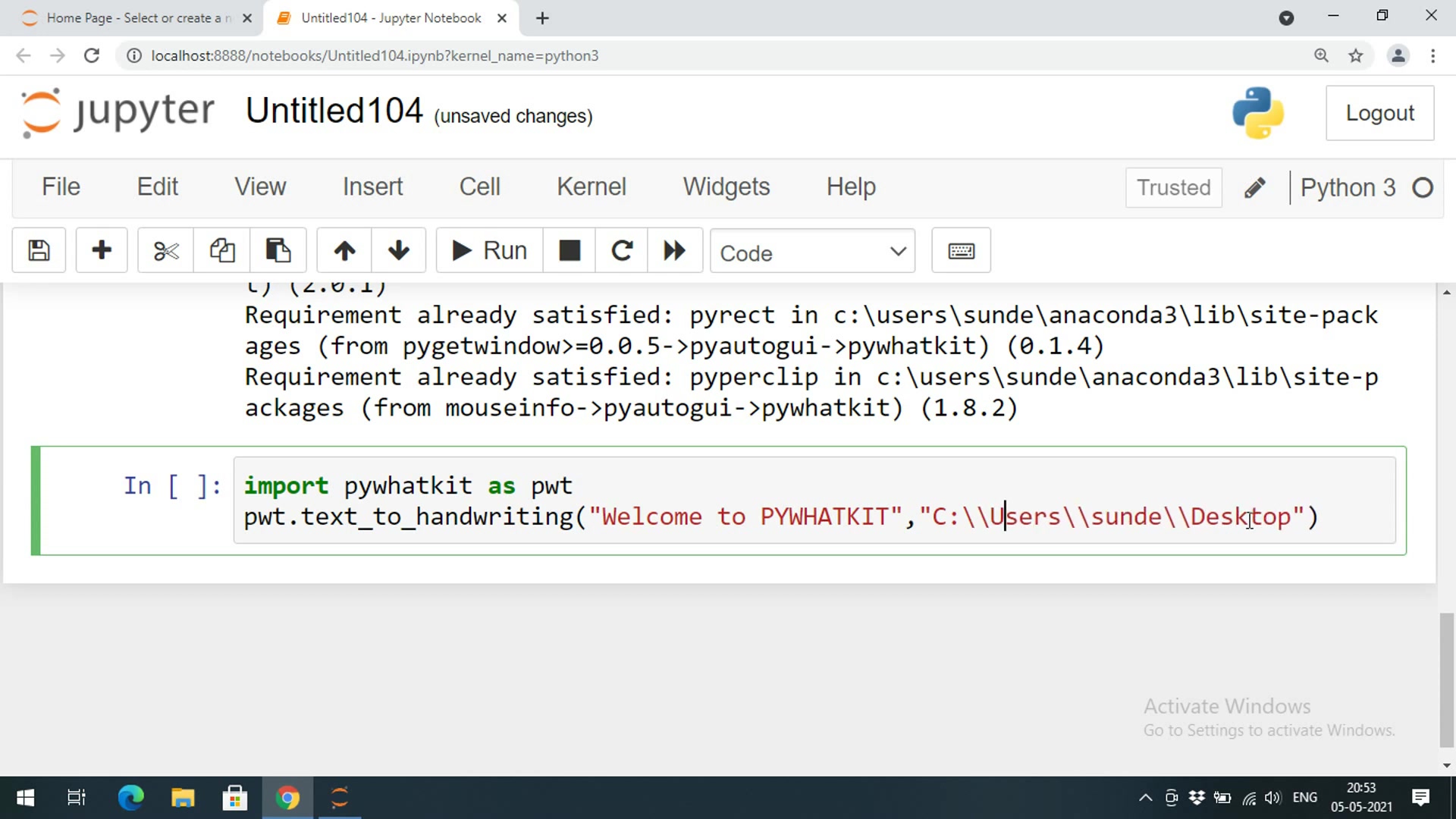
The path_to_img parameter must have double backslashes. If you are on a Mac or Linux, you can replace the backslash with a forward slash. Now let's move to the next section.
Customizing the Handwriting Color
One of the neat features of the text_to_handwriting method is the ability to customize the color of the handwriting. This can be done by providing an RGB tuple as the third parameter. An RGB tuple consists of three values:
- Red (R): An integer between 0 and 255 representing the intensity of red.
- Green (G): An integer between 0 and 255 representing the intensity of green.
- Blue (B): An integer between 0 and 255 representing the intensity of blue.
To specify the color, you need to provide a tuple with these three values. For example, to create blue handwriting, you would use (0, 0, 255). Here's an example:
import pywhatkit as pwk

text = "This is blue handwritten text."
path_to_img = "blue_output.png"
rgb = (0, 0, 255)  # Blue color

pwk.text_to_handwriting(text, path_to_img, rgb)
In this example, the text will be converted into blue handwriting and saved as blue_output.png.
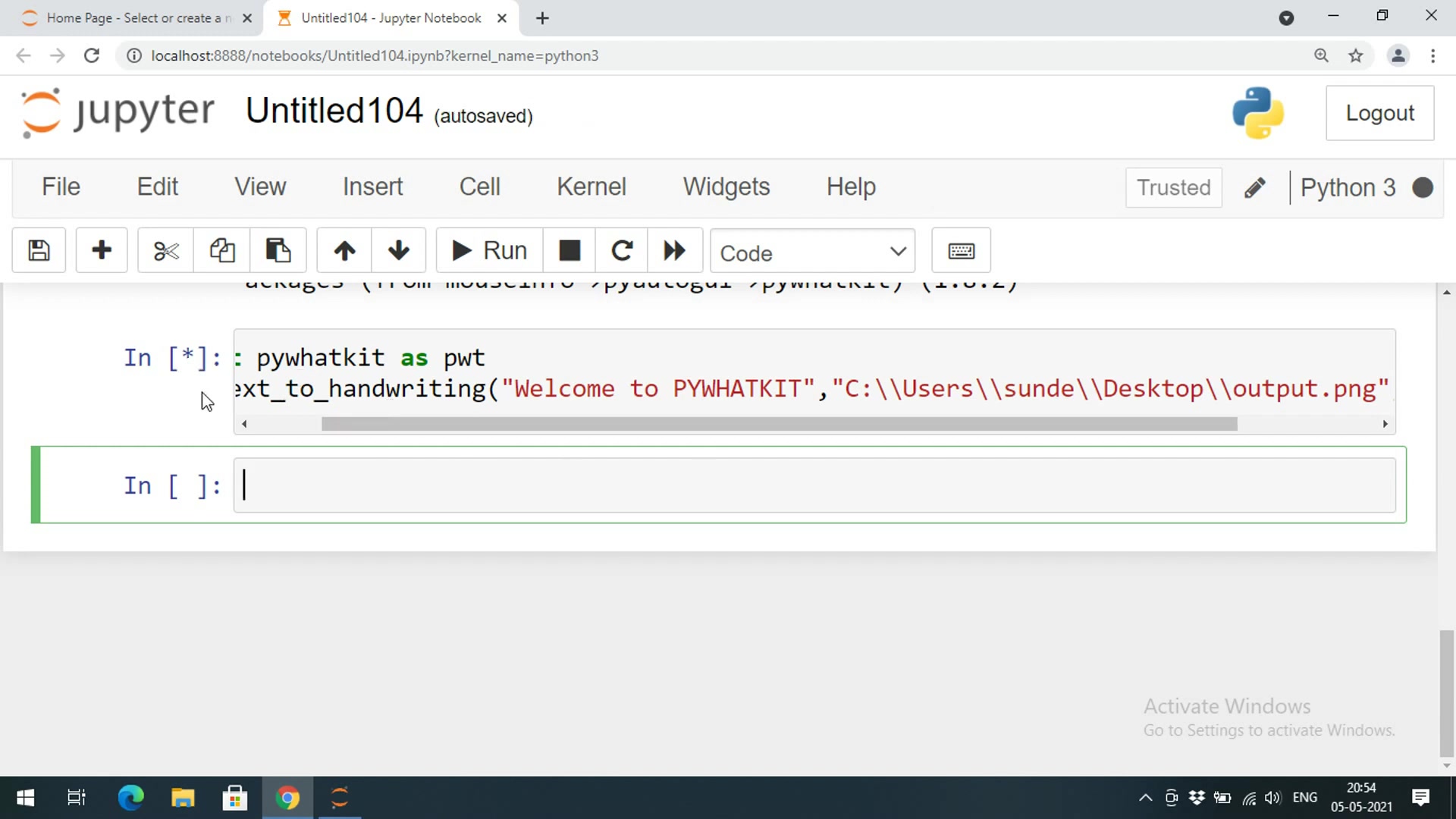
You can experiment with different RGB values to achieve your desired color. If the RGB values are all zero, the writing appears black. When all values are maximized to 255, the picture is blank.
Reading Text from a File
In many cases, you might want to convert text from an existing file into handwritten style. PyWhatKit also supports reading text from a file. First, you need to open the file and read its contents. Then, you can pass the content to the text_to_handwriting method.
Here's an example:
import pywhatkit as pwk

file_path = "sample.txt"
with open(file_path, 'r') as file:
    text = file.read()

path_to_img = "file_output.png"
rgb = (20, 10, 0)

pwk.text_to_handwriting(text, path_to_img, rgb)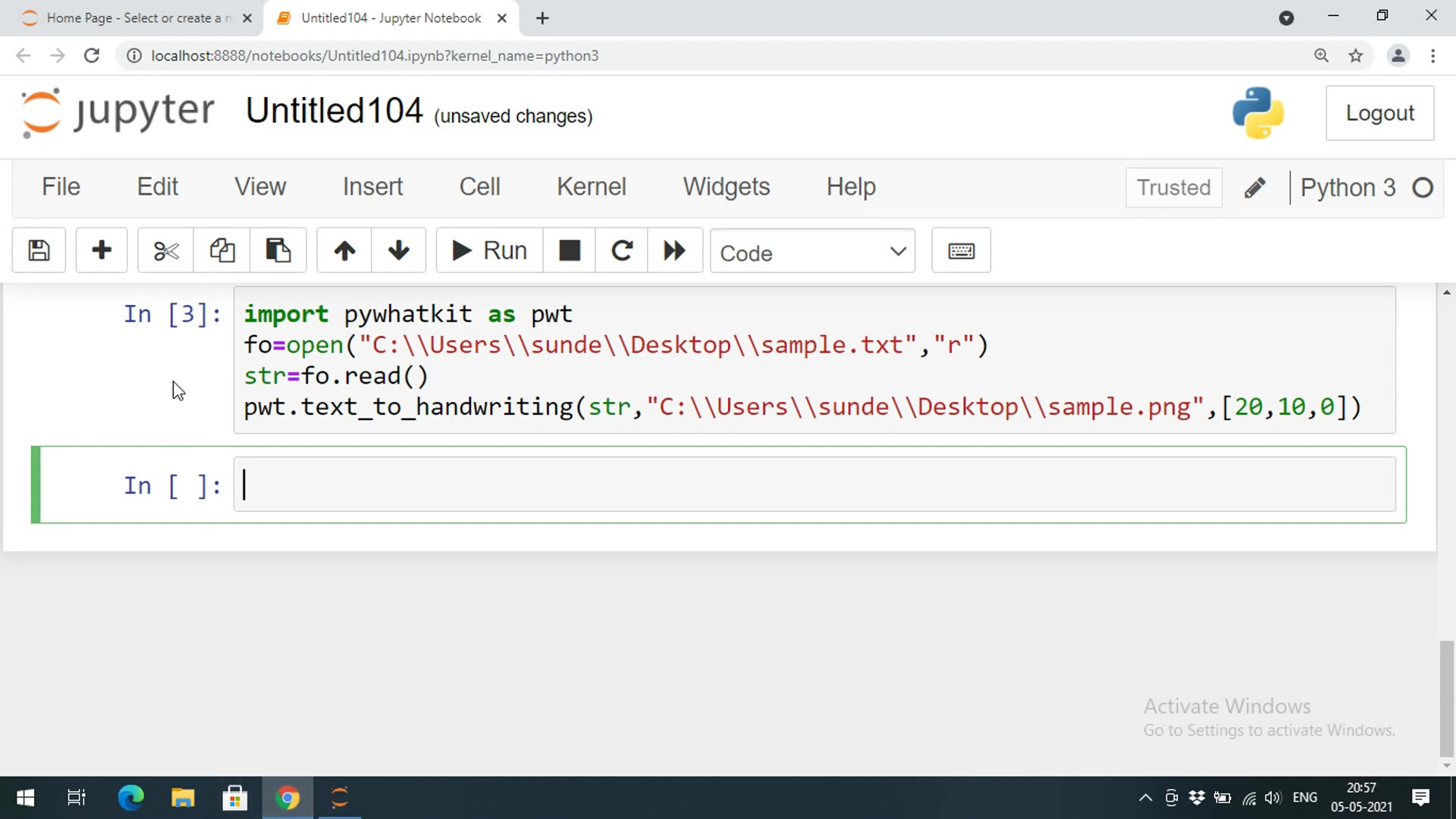
In this example, the code opens the file sample.txt in read mode, reads its contents, and stores it in the text variable. It then passes the text to the text_to_handwriting method, which converts it into handwritten style and saves it as file_output.png with a customized color. As always, pay attention to whether you are using forward or backward slashes. Make sure to import pywhatkit before opening the file path and reading the data.


Most people like




































Report
Please select a reason for reporting
- 13 Reasons to Switch from Snapchat to Text Messaging
- 7 Powerful Speech to Text Apps to Boost Productivity
- 10 Best Speech to Text Tools for Effortless Transcription
- 13 Free Tools to Easily Transcribe Audio to Text
- 15 Surprising Ways Google's Speech-to-Text Boosts Productivity
- 7 Best Free Online Audio to Text Transcription Tools
- 9 Tips to Transcribe Speech to Text Faster and Better
- 13 Best Speech to Text Software for Windows 10 in 2023
- 7 Tips for Choosing the Best Transcriber for Audio to Text
- 11 Reasons Why Dragon Speech-to-Text Apps are Game-Changers
- 6 Secrets to Enhance Your Speech to Text Transcription
- 6 Brilliant Ways to Boost Productivity with Talk-to-Text on Your MacBook
- 6 Ways Transcription Software Converts Audio to Text
- 8 Tips to Transcribe Speech to Text Like a Pro
- 6 Reasons IBM Watson Speech to Text is a Game-Changer
- 14 Powerful Ways Talk-to-Text Improves Your Workflow
- 12 Top Windows Speech-to-Text Software for Efficient Transcription
- 12 Game-Changing Benefits of Apple's Speech to Text Technology
- 9 Powerful Use Cases for AWS Speech to Text Technology
- 10 Easy Steps to Transcribe YouTube Videos to Text
- transcription audio en texte
- online audio transcription
- free audio file transcription
- free ai audio transcription
- audio transcription service
- audio transcription online free
- audio transcription free online
- audio to transcription software
- audio and transcript
- ai audio transcription free
- voice recording to text converter
- translate voice recording to text
- record voice to text
- audio recording to text converter
- voice recording and transcription
- chatgpt voice to text
- gmail voice to text
- speech to text reader
- speech to text ai free
- speech to talk
- ChatGPT Knows Ford. It Just Doesn't Quote Ford
- Meshy AI: How to Create 3D Models from Text and Images
- How SEO and Marketing Dashboards Empower Agencies to Drive Results
- How to Use AI Tools to Find Internal Linking Opportunities Across a Business Website
- Discover Your Perfect Haircut with AI Hairstyle Apps
- Free Reputation Calculator Tools: How They're Adapting to Score AI Visibility, Not Just Rankings
- Design Professional Flyers for Free on Your Phone
- Best Free Flyer Maker Apps for Android: Design Like a Pro
- How to Know If Your Business Is Ready for an AI Customer Service Agent
- Revolutionizing Storytelling: From Novels to Screenplays with AI
- Keep Characters Consistent Across Scenes With Image-to-Video AI
- How to Convert BTC to HNT
- ProxyWing DuckDuckGo Proxy Review: Plans, Setup and Who It Is For
- ChatGPT Knows Ford. It Just Doesn't Quote Ford
- Automate Lead Generation: A Comprehensive Guide with AI Agents
- Revideo.io: The Future of Reverse Video Search Technology
- Revolutionizing Email Marketing Agency with AI
- Breaking the Character Drift Dilemma: A Practical Test of Smart Shot
- Meshy AI: How to Create 3D Models from Text and Images
- ASOMobile Helps Teams Benchmark App Store Screenshots Against Competitors

Copyright ©2026 toolify