































Table of Contents
- Key Points
- Introduction to Animation with ChatGPT
- Tips for Improving Animation Quality
- Step-by-Step Guide to Creating Animations with ChatGPT
- Pros and Cons of Using ChatGPT for Animation
- Frequently Asked Questions
- Related Questions


Introduction to Animation with ChatGPT
Unlocking Animation Potential with AI
The world of animation has seen a significant shift with the introduction of AI-powered tools. ChatGPT, developed by OpenAI, is one such tool that can generate 2D character animation sprite sheets and even create animation sequences.
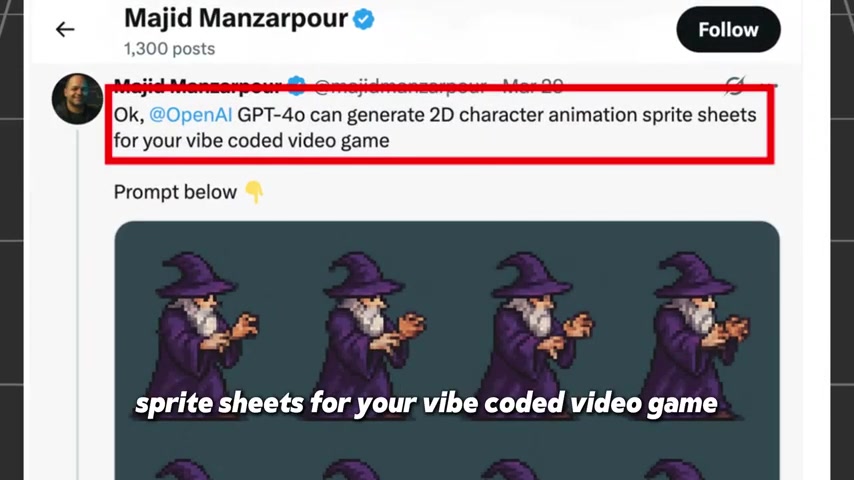
This capability is especially useful for indie Game developers or anyone looking to create simple yet engaging animations without extensive artistic skills. The key is to understand how to Prompt ChatGPT effectively to get the desired results. By combining AI with traditional animation techniques, creators can significantly reduce production time and increase creative output.
One of the most exciting developments is the accessibility this brings to creating visual content. Individuals who previously felt barred from creating animations due to a lack of technical expertise can now explore their ideas more freely. The AI takes on much of the heavy lifting, allowing users to focus on storytelling and design.
Moreover, the speed at which these animations can be produced unlocks iterative possibilities. Different versions of the same animation can be easily created by tweaking prompts, and creators are no longer bound by the slower pace of manual edits. This means a more experimental and optimized approach to animation.
In short, ChatGPT has opened up new creative avenues for animation, making it an accessible and efficient process for a broader audience.
What You'll Need to Get Started
Before diving into the animation process, it's essential to have the right tools and resources. Here's what you'll need to get started:
- ChatGPT Account: Access to ChatGPT-4o or a similar AI model capable of generating images.
- Image Prompting Skills: An understanding of how to write detailed image prompts to guide the AI.
- Image Cropping Tool: A tool to crop the generated images into individual animation frames.
- GIF Maker: A tool to convert the image sequence into an animated GIF.
Having these tools ready will ensure a smooth and efficient animation creation process. A stable internet connection is crucial for accessing ChatGPT and online image editing tools. Moreover, having a clear idea of the animation you want to create will help you craft more effective image prompts and streamline the entire workflow.
Tips for Improving Animation Quality
Detailed Prompts for Animation Success
Creating detailed prompts is essential for enhancing the quality and consistency of your animations. The more specific you are in describing the desired character, actions, and style, the better the AI can generate coherent frames. Let's look at some strategies to refine your prompts.
- Character Description: Provide a thorough description of your character's appearance, including details like clothing, hair style, and facial features. For example:
A young woman with short brown hair, wearing a red t-shirt and jeans, smiling. - Action Specification: Clearly define the actions taking place in each frame. Break down complex movements into smaller, incremental steps. For instance:
A young woman waving her hand, starting with her arm at her side and gradually raising it until her hand is above her head. - Art Style Preferences: Indicate the desired art style, such as Pixel Art, cartoon, or anime. This helps ChatGPT align its output with your creative vision:
Pixel art style, a wizard casting a spell with intricate hand motions, showing the sequence from preparing the spell to firing it.
Using these techniques, you can create prompts that yield more detailed, accurate, and consistent results, improving the overall quality of your animations. Keep testing and modifying your prompts to achieve the exact style and actions you want.
Achieving Continuous Animation Frames
Achieving continuous animation frames relies heavily on the details of your image prompt.
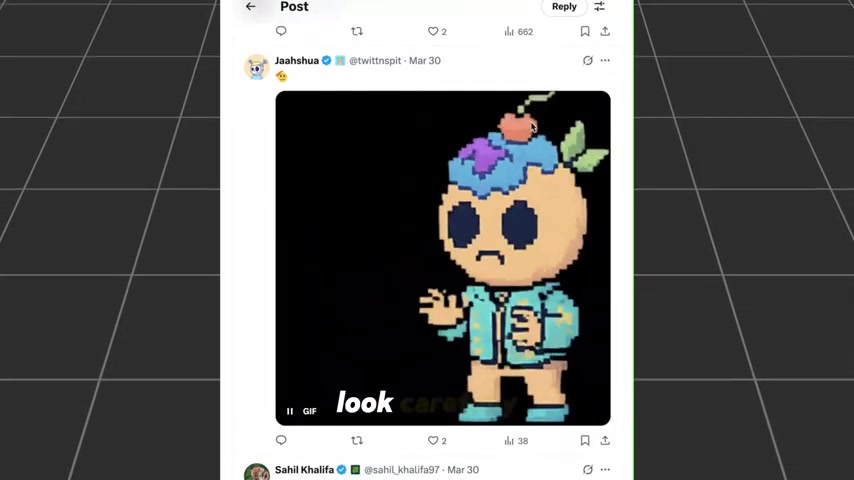
The goal is to ensure smooth transitions between each frame, avoiding abrupt changes in appearance or setting. Here are some tactics to achieve seamless animation sequences:
- Focus on Incremental Changes: Encourage gradual changes from one frame to the next. For instance, if your character is walking, prompt for small steps and slight variations in arm and leg position.
- Consistent Camera Angle: Keep the camera angle and perspective consistent across frames. This prevents jarring shifts in viewpoint that can disrupt the flow of the animation.
- Lighting and Color Harmony: Specify consistent lighting and color schemes to maintain a cohesive visual experience. For example, use descriptions like “soft, natural lighting” or “warm color palette.”
- Test and Iterate: Always review the generated frames and adjust the prompts as necessary. Identify any inconsistencies and refine the prompts to ensure greater uniformity.
By incorporating these considerations into your prompting strategy, you'll find that ChatGPT is more adept at creating animations with continuous, visually pleasing sequences. This methodical approach can result in much smoother and more convincing animated results.
Refining Animation with Image Editing Software
Image editing software can significantly enhance the final output.
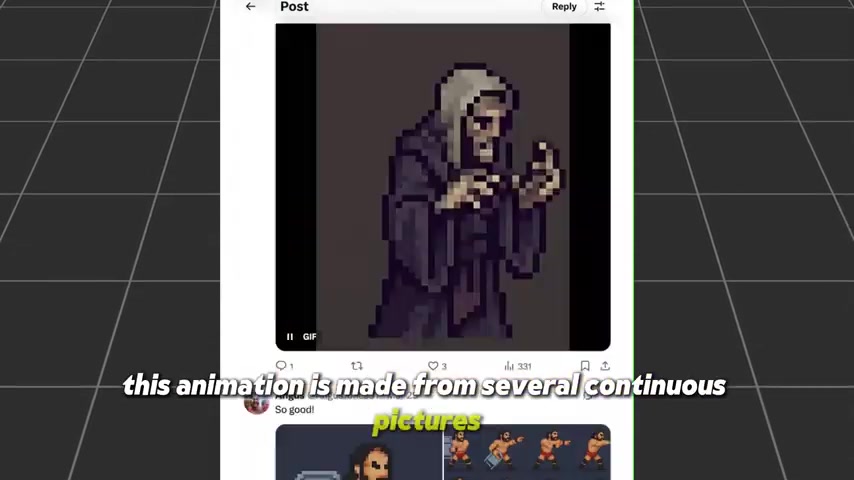
Even with well-crafted prompts and continuous frames, there might still be subtle differences that require manual adjustments. Here are some touch-up techniques to consider:
- Color Correction: Adjust the colors to ensure uniform consistency across frames. Subtle tweaks to brightness, contrast, and saturation can have a big impact.
- Detail Consistency: Check for any variations in character details, such as stray lines or inconsistent shading. Use tools like the clone stamp or healing brush to correct these imperfections.
- Frame Alignment: Precisely align each frame to prevent jittery movements. Subtle shifts in positioning can be corrected using the move tool.
- Adding Effects: Include additional effects such as motion blur or particle effects to add depth and visual interest. These enhancements can make your animation stand out and look more polished.
Popular image editing software like Adobe Photoshop and GIMP offer a wide array of tools and features that allow for extensive refinement. Remember that these enhancements, while time-consuming, can dramatically improve the quality and visual appeal of your final animation.
Step-by-Step Guide to Creating Animations with ChatGPT
Step 1: Writing an Image Prompt
The first step in creating animations with ChatGPT is writing an effective image prompt.
This prompt should clearly describe the image you want to generate, keeping in mind the need for consistency and continuity across frames. To create a smooth animation, each frame must maintain a similar style and character appearance.
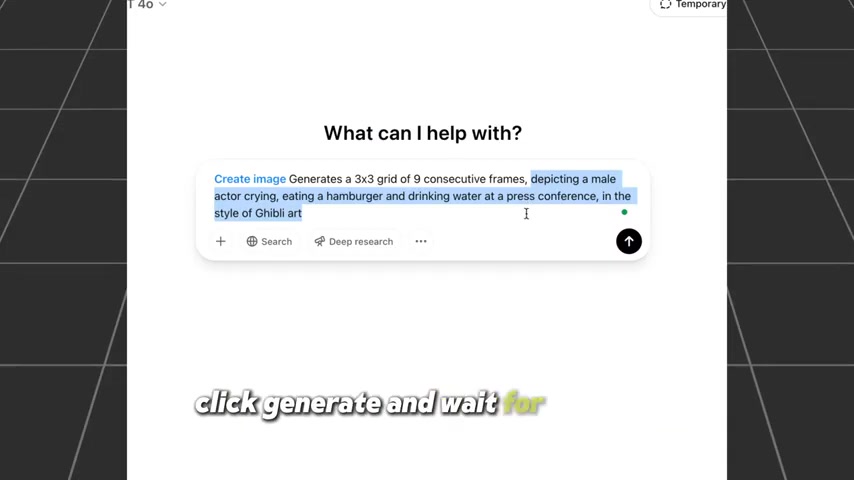
To start, head to ChatGPT and log in. You'll want to use the 'Create Image' function. Now, the magic happens! Just add 'Generate a 3x3 grid of 9 consecutive frames' in front of your prompt. This ensures that ChatGPT will generate a grid of images suitable for creating an animation sequence. For example, you could write:
Generate a 3x3 grid of 9 consecutive frames, depicting a male actor crying, eating a hamburger, and drinking water at a press conference, in the style of Ghibli art.Here are some tips for writing effective image prompts:
- Be Specific: Clearly describe the character, setting, and action you want to depict.
- Maintain Consistency: Use consistent language and descriptions to ensure the AI generates similar images across frames.
- Specify the Style: Mention the desired art style, such as 'pixel art' or 'Ghibli art'.
By following these tips, you can create image prompts that result in high-quality, consistent animation frames.
Remember that the more detailed your prompt, the more coherent and consistent the animation will be. This iterative process might require some experimentation, but with each attempt, you’ll refine your prompting skills and get closer to the desired animation.
Step 2: Cropping the Image into Individual Frames
After generating the image grid, the next step is to crop the image into individual frames.
This involves separating each image from the grid so that it can be used as a single frame in the animation. While you could manually crop each image using an image editing software, there are online tools that can automate this process.
One such tool is MiniWebTool's Image Splitter ( miniwebtool.com/image-splitter/). This tool allows you to upload an image and specify the number of horizontal and vertical splits you want to make. It then automatically crops the image into individual frames, which you can download as a ZIP file.
Here’s how to use MiniWebTool’s Image Splitter:
- Go to miniwebtool.com/image-splitter/.
- Upload the image grid generated by ChatGPT.
- Set the number of horizontal and vertical splits to match the grid (e.g., 3x3).
- Click 'Split Image'.
- Download all the images as a ZIP file.
Once you have downloaded the ZIP file, extract the individual image frames. These frames are now ready to be used in the animation process.
Using MiniWebTool significantly reduces the time and effort required to crop the images. This streamlined process ensures that you can quickly move on to the next step of creating your animation.
Step 3: Turning the Images into a GIF
With the individual image frames cropped and ready, the final step is to turn them into an animated GIF.
This involves using a GIF maker tool to combine the images into a single animated file. Several online GIF makers are available, each offering different features and options.
MiniWebTool also offers a GIF Maker tool (miniwebtool.com/gif-maker/) that you can use to create animated GIFs. Here’s how to use it:
- Go to miniwebtool.com/gif-maker/.
- Upload the individual image frames.
- Adjust the delay (frame rate) to control the animation speed.
- Adjust the quality and size according to the your needs.
- Click 'Make GIF'.
- Download the animated GIF.
The frame rate (delay) determines how quickly the images transition from one to the next. A lower delay results in a faster animation, while a higher delay results in a slower animation. Adjust the frame rate to achieve the desired animation speed.
Other reputable and useful GIF makers include:
- GIPHY: A popular platform for creating and sharing GIFs.
- Ezgif: A simple and easy-to-use online GIF maker.
- Imgur: A well-known image hosting site that also offers GIF creation tools.
Experiment with different GIF makers and settings to achieve the best results. Once you’re satisfied with the animation, download the GIF and share it with the world!


Most people like





































Report
Please select a reason for reporting
- 13 Reasons to Switch from Snapchat to Text Messaging
- 7 Powerful Speech to Text Apps to Boost Productivity
- 10 Best Speech to Text Tools for Effortless Transcription
- 13 Free Tools to Easily Transcribe Audio to Text
- 15 Surprising Ways Google's Speech-to-Text Boosts Productivity
- 7 Best Free Online Audio to Text Transcription Tools
- 9 Tips to Transcribe Speech to Text Faster and Better
- 13 Best Speech to Text Software for Windows 10 in 2023
- 7 Tips for Choosing the Best Transcriber for Audio to Text
- 11 Reasons Why Dragon Speech-to-Text Apps are Game-Changers
- 6 Secrets to Enhance Your Speech to Text Transcription
- 6 Brilliant Ways to Boost Productivity with Talk-to-Text on Your MacBook
- 6 Ways Transcription Software Converts Audio to Text
- 8 Tips to Transcribe Speech to Text Like a Pro
- 6 Reasons IBM Watson Speech to Text is a Game-Changer
- 14 Powerful Ways Talk-to-Text Improves Your Workflow
- 12 Top Windows Speech-to-Text Software for Efficient Transcription
- 12 Game-Changing Benefits of Apple's Speech to Text Technology
- 9 Powerful Use Cases for AWS Speech to Text Technology
- 10 Easy Steps to Transcribe YouTube Videos to Text
- transcription audio en texte
- online audio transcription
- free audio file transcription
- free ai audio transcription
- audio transcription service
- audio transcription online free
- audio transcription free online
- audio to transcription software
- audio and transcript
- ai audio transcription free
- voice recording to text converter
- translate voice recording to text
- record voice to text
- audio recording to text converter
- voice recording and transcription
- chatgpt voice to text
- gmail voice to text
- speech to text reader
- speech to text ai free
- speech to talk
- ChatGPT Knows Ford. It Just Doesn't Quote Ford
- Meshy AI: How to Create 3D Models from Text and Images
- How SEO and Marketing Dashboards Empower Agencies to Drive Results
- How to Use AI Tools to Find Internal Linking Opportunities Across a Business Website
- Discover Your Perfect Haircut with AI Hairstyle Apps
- Free Reputation Calculator Tools: How They're Adapting to Score AI Visibility, Not Just Rankings
- Design Professional Flyers for Free on Your Phone
- Best Free Flyer Maker Apps for Android: Design Like a Pro
- How to Know If Your Business Is Ready for an AI Customer Service Agent
- Revolutionizing Storytelling: From Novels to Screenplays with AI
- Your Business Data Could Be Worth Up to $4M. Find Out Without Uploading a Single File.
- Can an eSIM Plan Save You Time During Travel Setup?
- AI Video Editor Review: A Hands-On Look at Prompt-Based Video Editing
- Keep Characters Consistent Across Scenes With Image-to-Video AI
- How to Convert BTC to HNT
- ProxyWing DuckDuckGo Proxy Review: Plans, Setup and Who It Is For
- ChatGPT Knows Ford. It Just Doesn't Quote Ford
- Automate Lead Generation: A Comprehensive Guide with AI Agents
- Revideo.io: The Future of Reverse Video Search Technology
- Revolutionizing Email Marketing Agency with AI

Copyright ©2026 toolify