































Table of Contents
- Key Points
- Setting Up Your Procreate Canvas for Seamless Patterns
- Getting Creative With Scallop Designs in Procreate: Beyond Templates
- Pricing for Procreate Pattern Brushes & Resources
- Pros and Cons of Using Procreate for Pattern Design
- Core Features of Procreate for Pattern Design
- Use Cases for Procreate Seamless Patterns
- FAQ
- Related Questions



Setting Up Your Procreate Canvas for Seamless Patterns
Choosing the Right Canvas Size
The foundation of a great pattern is a well-prepared canvas. When creating seamless Patterns in Procreate, the Dimensions of your canvas are critical. A square canvas is generally recommended for creating repeats, since they tile easily.
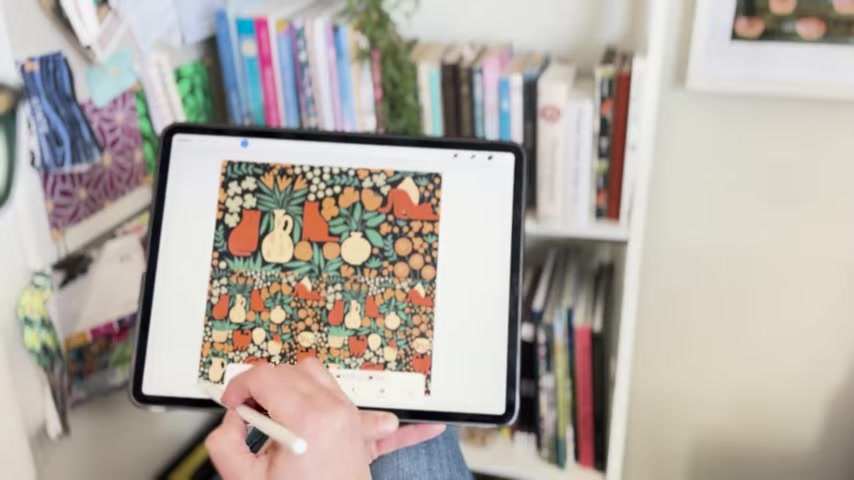
Here's how to set up your canvas:
- Dimensions: For high-resolution patterns suitable for print, start with a canvas size of 3600 x 3600 pixels.
- This translates to a 12x12 inch canvas at 300 DPI (dots per inch), a standard resolution for print.
- Alternative Size: You can also use 3000 x 3000 pixels, resulting in a 10x10 inch canvas at 300 DPI. Choose the size that best suits your needs and the complexity of your design.
- DPI (Dots Per Inch): Set your DPI to 300. This ensures that your pattern will look crisp and clear when printed on Fabric, wallpaper, or other surfaces.
By starting with the right canvas, you ensure your seamless pattern will Scale effectively and maintain high quality across various applications. Remember, the key is to begin with a square format to facilitate easy tiling.
Importing and Preparing Pattern Templates
Procreate's brush functionality allows designers to import template shapes, guiding design layout. These pattern templates act as guides.
To leverage pattern templates:
- Navigate to Your Brush Library:
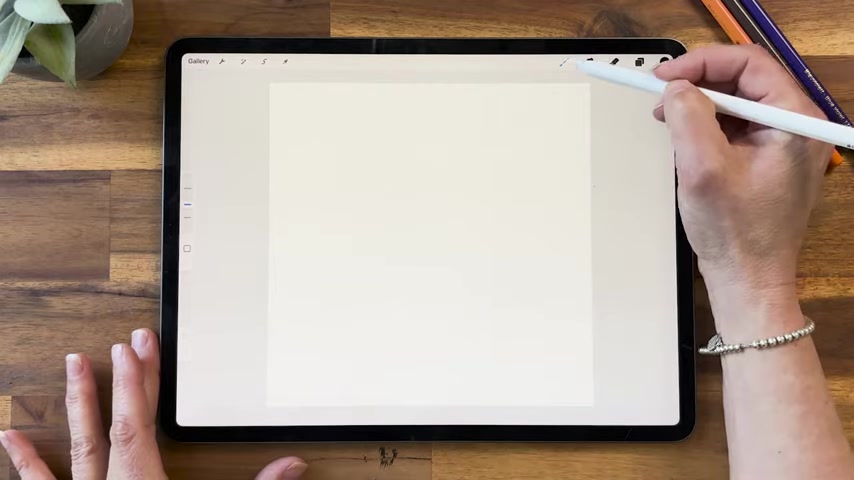
This is where all your Procreate brushes live.
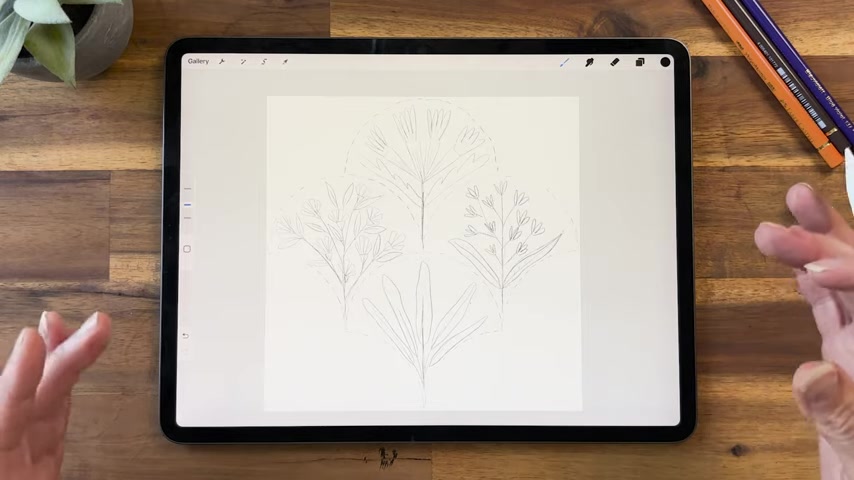
- Select Your Desired Template: Procreate offers a variety of templates such as diamond, Persian, Peacock, Ogee, Scallops, Star. Select the one that corresponds to the design concept you want to explore. For this guide, we’re focusing on a scallop layout.
- Using Template as a Guide: The template isn't meant to be the design, but rather help map out Where To place elements of your designs. It's intended as a sketch so that the design will naturally repeat in a seamless manor.
- Customize Opacity: Adjust the layer opacity to allow for design sketch to come through and ensure its easy for designing. Then be sure to lock the layer, preventing accidental moving, drawing or otherwise editing the template layer.
- Fit to Canvas: Scale you template to fill the canvas to establish the proper design space to work in. Make sure the move tool is set to uniform for scaling.
Experiment with various templates as you progress to explore different pattern styles and develop a workflow. Once again, these templates are not meant to be designs, but rather sketch maps to Aide in proper structure.
Getting Creative With Scallop Designs in Procreate: Beyond Templates
Sketching and Layering: Building Your Pattern
Once you’ve set up your canvas and imported the template, it’s time to start sketching your design. Layering and blending modes are helpful.
Here’s how:
- Create a New Layer:
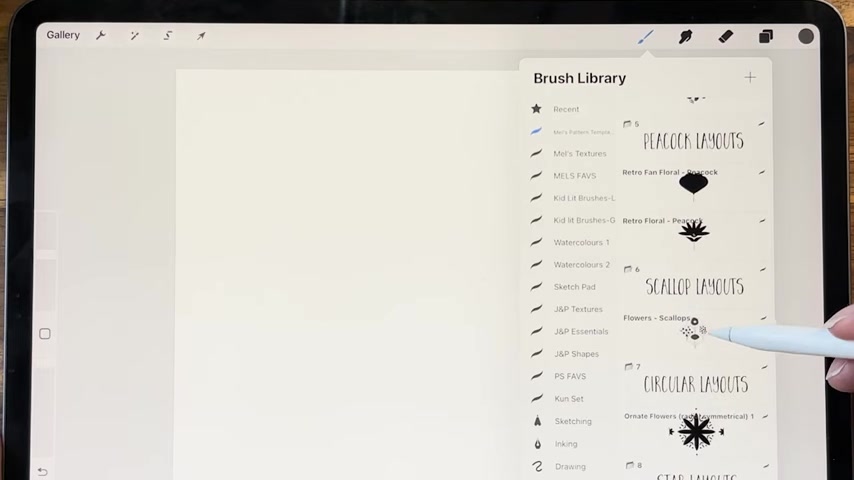
Add a new layer below the template to ensure the template Shape is above your design elements.
- Sketch Your Elements: Sketch in a darker color with your favorite brush, while using the template above to Outline your drawing.
- Experiment with Layer Opacity: Adjust the opacity of your brush strokes.
- Sketch Variations: Consider sketching different elements in each scallop to add variation to the design.
This is when the design really takes shape. Feel free to pause during this process and continue to move around your quadrant, as this will make your art feel fuller and more dynamic.
Testing your Design For Repeating Tiles
With seamless patterns, testing that your design flows naturally is key. Procreate makes this process pretty easy:
- Hide the Background: Turn off the background color layer.
- Duplicate the Design Layer: Make at least four copies of your design layer.
- Move the Copied Tiles: Shift the designs from your main quadrant to each of the corners, making sure to follow Procreate's on screen recommendations (Snapping will automatically be enabled.)
- Merge and Erase: Merge the copied quadrants to erase any center connection markers.
- Adjust if needed: Turn back on your original quadrant and see which areas still need to be touched up.
- Create Multiple Sizes:
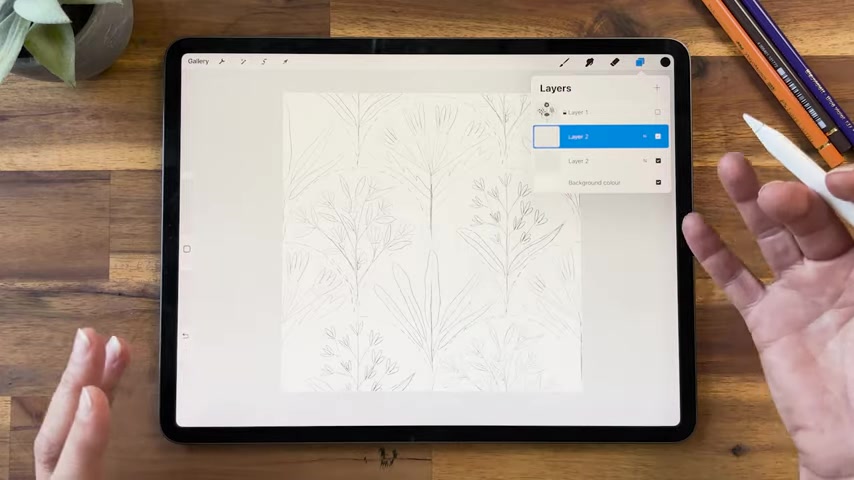
Now to export to other canvases, make another copy and shrink it from corners, making sure to maintain original aspect ration.
Testing is an essential step to ensure the seamlessness of your design!
Use Cases for Procreate Seamless Patterns
Where Can You Apply Your Procreate Patterns?
Procreate’s seamless patterns open doors to many creative and commercial applications. Here are a few:
- Fabric Design:
Print designs onto fabric.
- Wallpaper Creation: Design repeating patterns to create wallpaper.
- Print-on-Demand Products: Integrate patterns into print-on-demand sites, such as Spoonflower, for products like mugs and apparel.
These applications mean creators can expand their revenue streams, while Procreate helps to unlock these possibilities.





Most people like




































Report
Please select a reason for reporting
- 13 Reasons to Switch from Snapchat to Text Messaging
- 7 Powerful Speech to Text Apps to Boost Productivity
- 10 Best Speech to Text Tools for Effortless Transcription
- 13 Free Tools to Easily Transcribe Audio to Text
- 15 Surprising Ways Google's Speech-to-Text Boosts Productivity
- 7 Best Free Online Audio to Text Transcription Tools
- 9 Tips to Transcribe Speech to Text Faster and Better
- 13 Best Speech to Text Software for Windows 10 in 2023
- 7 Tips for Choosing the Best Transcriber for Audio to Text
- 11 Reasons Why Dragon Speech-to-Text Apps are Game-Changers
- 6 Secrets to Enhance Your Speech to Text Transcription
- 6 Brilliant Ways to Boost Productivity with Talk-to-Text on Your MacBook
- 6 Ways Transcription Software Converts Audio to Text
- 8 Tips to Transcribe Speech to Text Like a Pro
- 6 Reasons IBM Watson Speech to Text is a Game-Changer
- 14 Powerful Ways Talk-to-Text Improves Your Workflow
- 12 Top Windows Speech-to-Text Software for Efficient Transcription
- 12 Game-Changing Benefits of Apple's Speech to Text Technology
- 9 Powerful Use Cases for AWS Speech to Text Technology
- 10 Easy Steps to Transcribe YouTube Videos to Text
- transcription audio en texte
- online audio transcription
- free audio file transcription
- free ai audio transcription
- audio transcription service
- audio transcription online free
- audio transcription free online
- audio to transcription software
- audio and transcript
- ai audio transcription free
- voice recording to text converter
- translate voice recording to text
- record voice to text
- audio recording to text converter
- voice recording and transcription
- chatgpt voice to text
- gmail voice to text
- speech to text reader
- speech to text ai free
- speech to talk
- How SEO and Marketing Dashboards Empower Agencies to Drive Results
- How to Use AI Tools to Find Internal Linking Opportunities Across a Business Website
- Discover Your Perfect Haircut with AI Hairstyle Apps
- Free Reputation Calculator Tools: How They're Adapting to Score AI Visibility, Not Just Rankings
- Design Professional Flyers for Free on Your Phone
- Best Free Flyer Maker Apps for Android: Design Like a Pro
- How to Know If Your Business Is Ready for an AI Customer Service Agent
- Revolutionizing Storytelling: From Novels to Screenplays with AI
- Create Engaging Animated Explainer Videos with a Free AI Tool
- Stop Multi-Subscribing: Benchmark Top AI Visual Models in One Canvas
- Revolutionize Learning: Discover Quizzes AI for Engaging Interactive Quizzes
- From AI-Generated to Audience-Ready: How Quillbot Humanize AI Is Changing the Content Editing Process
- Building an AI Writing Stack in 2026: LLMs, Detectors, and Humanizers
- 7 Top AI-Powered Database Assistant Platforms
- An Objective Look at Modern Web-Based Visual Modifications
- My Honest Experience with VideoAI: The Secret Weapon for Creators Who Need Character Voices
- 5 Data Problems That Stall AI Projects in Financial Compliance
- The Future of Smart Glasses: Explained & Assembling Guide
- DeepL Translator: The AI-Powered Translation Tool
- AI Video Upscaling: Top Tools Compared for Enhanced Quality

Copyright ©2026 toolify