































Table of Contents
- Key Points
- Crafting Consistent Characters: A ComfyUI Workflow
- Optimizing Character Generation
- How to Use
- Pricing
- Pros and Cons of Character Generation With ComfyUI
- Core Features
- Use Cases
- FAQ
- Related Questions



Crafting Consistent Characters: A ComfyUI Workflow
Understanding the Foundation: ControlNet and Preprocessors
Creating a compelling and believable character across multiple images hinges on a few key elements: maintaining consistent poses, facial features, and overall style. This is where ComfyUI and its powerful tools come into play. Two fundamental components, ControlNet and preprocessors, are indispensable for achieving this consistency.
ControlNet enables you to guide the image generation process by providing structural cues, allowing for precise control over the pose and composition of your character. Think of it as a digital puppeteer, ensuring your character strikes the same pose in every scene.
Preprocessing steps are the key that extract valuable data from an image, which can be outline or a depth map. This extraction serves as the bedrock for generating subsequent images with a high degree of structural fidelity. By leveraging this structural data as input to the image creation, you can retain consistency across multiple iterations. For instance, extracting the character's outline will be useful.
Different preprocessors are designed to extract different types of data. Some focus on edges, others on depth, and yet others on semantic segmentation. Choosing the right preprocessor depends on the specific aspects of consistency you wish to emphasize.
Deep Dive: ControlNet and Image Data Control
The workflow is anchored in two key components: an image used to extract data with a AIO Aux Preprocessor and ControlNet. Let's explore how these pieces integrate to provide you with image control and ensure consistency.
The AIO Aux Preprocessor lets you pick from different ways to extract information from a photo. With this, ControlNet gets what it needs to set up the key elements.
Without ControlNet, you'll be creating a face and some vague shapes, but with it, these shapes match your idea, giving the AI a goal to follow. There are plenty of workflows already set up to do this basic task.
To use this you will need:
- The Load Image Node.
- AIO Aux Preprocessor Node.
- Preview Image Node.
- Load ControlNet Model.
- Apply ControlNet Node.
To build this process, it helps to understand the purpose. If this is followed, it simplifies the rest of the workflow process.
Creating Character Sheet
Character sheets in AI image generation require thoughtful description, and a single snapshot may not suffice to meet the needs of this. Three poses are a great way to show off important qualities of a character.
To build a character sheet with flux workflow requires that multiple images of characters are compiled into one. There is only one load image node, yet multiple images appear in the final character. Three main components of this process are listed below.
- The image you want to make a character sheet from.
- A workflow to do so
- Knowledge of the key values that can be adjusted.
If creating the main workflow, remember these points:
- Make sure you use all three views: interior, side, and posterior.
- That every image is in a plain white background.
- That all the different types of angles follow the same specific style.
Optimizing Character Generation
PULID to maintain character identity
To maintain identity, add PULID workflow. A PULID is meant to focus on maintaining identity, allowing an Al to recreate certain characters. To achieve this, it loads the face that needs to be identified and is used instead of CLIP or the Control Net. When using PULID, a separate set of needs is required, as it will often override all other settings. This workflow is an important alternative to explore if character consistency is an issue. The parameters should be used to adjust the identity.
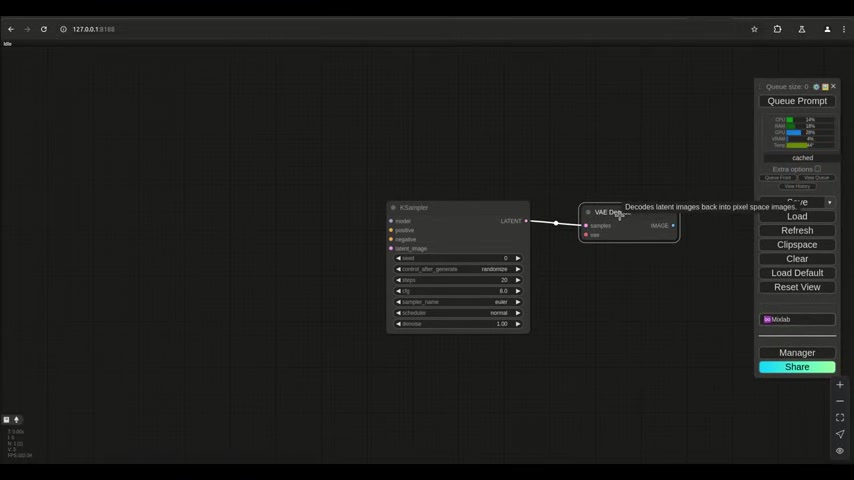
This tool is necessary for character creation. PULID Flux enhanced requires these nodes.
- An image node.
- The Load InsightFace(PULID Flux) Node.
- Apply PULID Flux.
- Load EVA Clip(PULID Flux).
There is no right or wrong approach to using PULID. It can be used as part of pre-processing or as another workflow entirely. By loading a new set of weights and adding the insight face, Al models can determine faces from almost any animation, cartoon, or rendering. In the past, faces were required to be photorealistic, but with PULID insight flux, faces no longer need to be human. PULID works by identifying a face and adjusting any image to match that identity, but in most cases, PULID is used as an alternative to pre-processing and ControlNets.
PULID workflow does not require descriptions or reference to face elements, it simply adjusts and replaces any face it generates. This is best used when all other methods fail to correctly recreate an image. In many ways, PULID is more about maintaining identity than creating an image. It can work on pre-existing images and will attempt to force any face in it to resemble the identity provided.
It is also possible to create new identities with PULID, but it may require more computing power than is available on a local computer.
Understanding Flux Settings
When using a flux workflow, these are the basic values that can be adjusted. One of the most important is the overall strength of the image's outcome. While all models and safe tensors are different, it is vital to learn how to tune them to specific values. Keep in mind that changing just one parameter can impact all outcomes. These parameters can include details on the subjects from the last result.
- Denoise.
- Weight.
- Fusion.
Enhancing Image Details
It is easy to change the quality, speed and the style of output. By adding an Upscale Latent By to your system, the image is more easily defined.
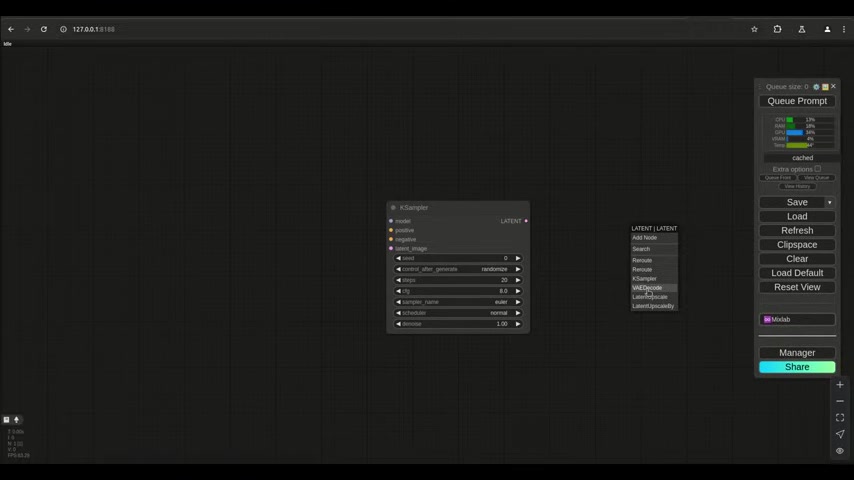
It also requires some adjustment for parameters such as: the scaling method and a value for the scale. Changing them will create different outcomes. Most importantly, upscaling may require additional parameters to be adjusted in the model.





Most people like



































Report
Please select a reason for reporting
- 13 Reasons to Switch from Snapchat to Text Messaging
- 7 Powerful Speech to Text Apps to Boost Productivity
- 10 Best Speech to Text Tools for Effortless Transcription
- 13 Free Tools to Easily Transcribe Audio to Text
- 15 Surprising Ways Google's Speech-to-Text Boosts Productivity
- 7 Best Free Online Audio to Text Transcription Tools
- 9 Tips to Transcribe Speech to Text Faster and Better
- 13 Best Speech to Text Software for Windows 10 in 2023
- 7 Tips for Choosing the Best Transcriber for Audio to Text
- 11 Reasons Why Dragon Speech-to-Text Apps are Game-Changers
- 6 Secrets to Enhance Your Speech to Text Transcription
- 6 Brilliant Ways to Boost Productivity with Talk-to-Text on Your MacBook
- 6 Ways Transcription Software Converts Audio to Text
- 8 Tips to Transcribe Speech to Text Like a Pro
- 6 Reasons IBM Watson Speech to Text is a Game-Changer
- 14 Powerful Ways Talk-to-Text Improves Your Workflow
- 12 Top Windows Speech-to-Text Software for Efficient Transcription
- 12 Game-Changing Benefits of Apple's Speech to Text Technology
- 9 Powerful Use Cases for AWS Speech to Text Technology
- 10 Easy Steps to Transcribe YouTube Videos to Text
- transcription audio en texte
- online audio transcription
- free audio file transcription
- free ai audio transcription
- audio transcription service
- audio transcription online free
- audio transcription free online
- audio to transcription software
- audio and transcript
- ai audio transcription free
- voice recording to text converter
- translate voice recording to text
- record voice to text
- audio recording to text converter
- voice recording and transcription
- chatgpt voice to text
- gmail voice to text
- speech to text reader
- speech to text ai free
- speech to talk
- Meshy AI: How to Create 3D Models from Text and Images
- How SEO and Marketing Dashboards Empower Agencies to Drive Results
- How to Use AI Tools to Find Internal Linking Opportunities Across a Business Website
- Discover Your Perfect Haircut with AI Hairstyle Apps
- Free Reputation Calculator Tools: How They're Adapting to Score AI Visibility, Not Just Rankings
- Design Professional Flyers for Free on Your Phone
- Best Free Flyer Maker Apps for Android: Design Like a Pro
- How to Know If Your Business Is Ready for an AI Customer Service Agent
- Revolutionizing Storytelling: From Novels to Screenplays with AI
- Create Engaging Animated Explainer Videos with a Free AI Tool
- Automate Lead Generation: A Comprehensive Guide with AI Agents
- Revideo.io: The Future of Reverse Video Search Technology
- Revolutionize Learning: Discover Quizzes AI for Engaging Interactive Quizzes
- Revolutionizing Email Marketing Agency with AI
- Breaking the Character Drift Dilemma: A Practical Test of Smart Shot
- Meshy AI: How to Create 3D Models from Text and Images
- ASOMobile Helps Teams Benchmark App Store Screenshots Against Competitors
- How to Match LMS Software With Your Organization's Training Plan
- How to Convert BTC to HNT
- Unleashing the Power of AI: Cognizant's Roadmap for Transformation

Copyright ©2026 toolify