































Table of Contents
- Key Points
- Introduction to Mashup Creation with DJ.Studio
- Advanced Techniques for Vocal Alignment
- Step-by-Step Guide to Creating a Mashup
- DJ.Studio Pricing: Find the Plan That Fits Your Needs
- DJ.Studio Pros and Cons
- DJ.Studio Core Features: Unleash Your Mixing Potential
- DJ.Studio Use Cases: From Home Mixing to Professional Gigs
- Frequently Asked Questions About DJ.Studio
- Related Questions About Mashup Creation


Advanced Techniques for Vocal Alignment
Utilizing AI Beatgrids for Perfect Vocal Timing
DJ.Studio's AI beatgrid technology is a Game-changer for mashup creation.
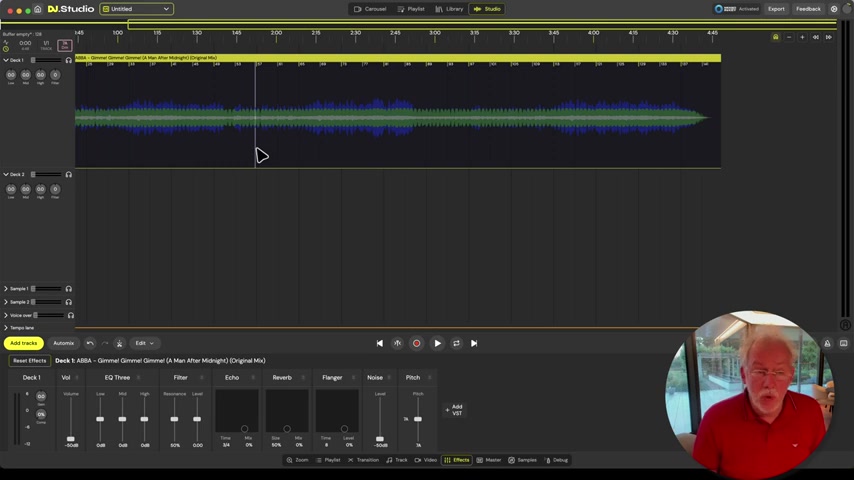
It analyzes tracks to identify and align beats, ensuring smooth transitions and perfect vocal timing. This is especially useful for older tracks where beatgrids may be less precise.
AI beatgrids automatically correct for variations in tempo, making it easier to blend tracks from different eras. If a track has tempo fluctuations, the AI beatgrid dynamically adjusts, keeping everything synchronized. This feature significantly reduces the manual effort required to create professional-sounding mashups.
Benefits of Using AI Beatgrids:
- Automatic Synchronization: Effortlessly aligns beats for smooth transitions.
- Tempo Correction: Dynamically adjusts for tempo fluctuations in older tracks.
- Precision Vocal Timing: Ensures vocals are perfectly Synced with instrumental tracks.
- Time Saving: Reduces manual adjustments and fine-tuning.
Consider this Scenario: You want to mash up a classic rock track with a modern electronic beat. The rock track might have slight variations in tempo due to it being played live, but DJ.Studio's AI beatgrid can adapt to those changes. The tool provides a stable foundation for the new mix by locking everything in, and allowing for complex changes.
Manual Beatgrid Adjustments: Fine-Tuning When AI Isn't Enough
While DJ.Studio's AI beatgrids are usually spot-on, some tracks may require manual adjustments. Manual adjustments come in handy if a track has complex tempo changes or unconventional time signatures. DJ.Studio offers a range of tools to fine-tune beatgrids, ensuring every beat is perfectly aligned.
Manual adjustments involves setting anchor points at key moments in the track. These points serve as references for the software, allowing it to warp and align the beatgrid accordingly. You can adjust individual beats, tempo sections, and overall track timing to create a seamless mix.
Techniques for Manual Beatgrid Adjustments:
- Set Anchor Points: Place markers at key moments in the track to serve as timing references.
- Adjust Individual Beats: Fine-tune the position of individual beats for perfect alignment.
- Warp Tempo Sections: Correct tempo variations by adjusting sections of the beatgrid.
Manual adjustments lets you create complex tracks that don't work with AI, thus creating a highly specialized workflow.
Step-by-Step Guide to Creating a Mashup
Step 1: Importing Tracks into DJ.Studio
Begin by importing the tracks you want to use in your mashup.
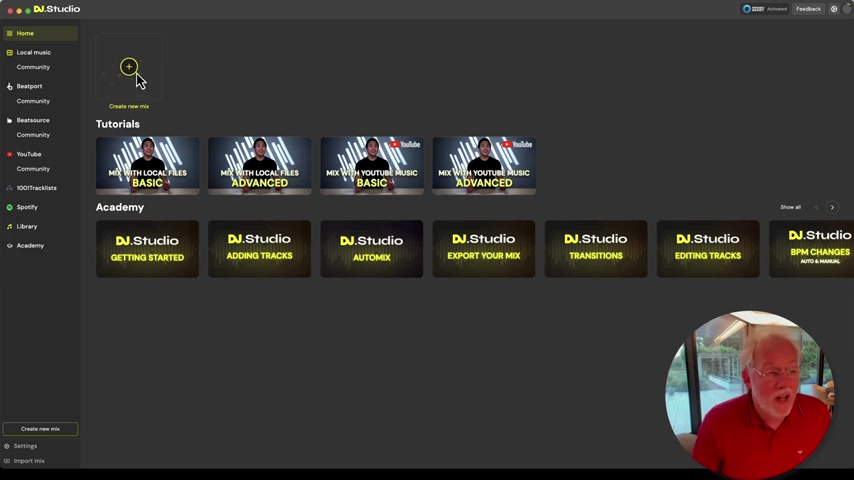
DJ.Studio supports various file formats, including MP3, WAV, and FLAC. You can also import tracks directly from Beatport and BeatSource, providing a wide range of options.
To import tracks, simply drag and drop them into the track selection area. DJ.Studio automatically analyzes each track, identifying key information such as tempo, key, and beatgrid. This initial analysis sets the stage for seamless mixing and alignment.
Steps to Import Tracks:
- Open DJ.Studio: Launch the software and navigate to the track selection area.
- Drag and drop files: Drag your desired music files into the designated area.
- Import from Beatport/BeatSource: Connect to your Beatport or BeatSource account and import tracks directly.
- Verify analysis: Ensure DJ.Studio correctly analyzes each track's tempo, key, and beatgrid.
Step 2: Correcting and Setting Beatgrids
Once your tracks are imported, the next step is to ensure their beatgrids are accurate. DJ.Studio's AI beatgrid feature usually does a good job automatically, but manual adjustments may be necessary, especially for older tracks.
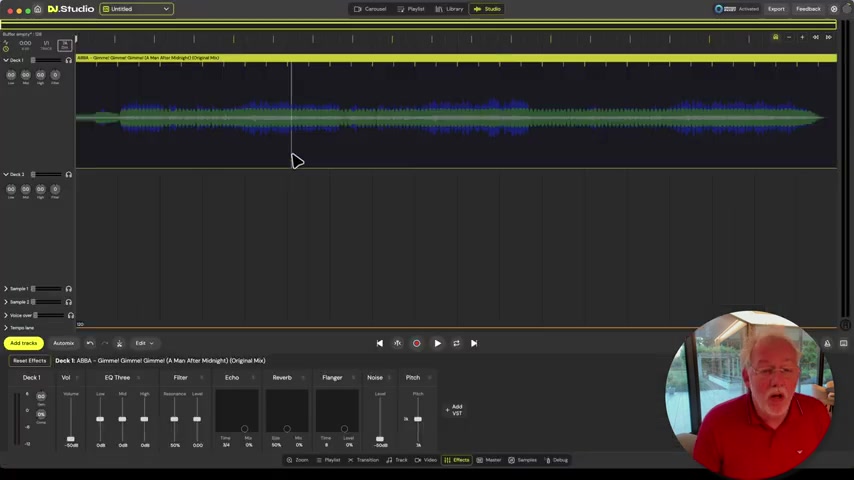
Accurate beatgrids are essential for smooth transitions and perfect vocal alignment.
To correct beatgrids, zoom in on the waveform and visually inspect the beat markers. If the markers are misaligned, use the manual adjustment tools to reposition them. Set anchor points at key moments in the track, and adjust individual beats as needed. Listen carefully to ensure everything is perfectly synced.
Steps to Correct Beatgrids:
- Zoom in on waveform: Visually inspect the beat markers.
- Adjust beat markers: Reposition misaligned markers using manual adjustment tools.
- Set anchor points: Place markers at key moments in the track.
- Fine-tune timing: Adjust individual beats and tempo sections for perfect sync.
- Listen carefully: Verify that the beatgrid is accurately aligned.
Step 3: Splitting Tracks for Acapella and Instrumental Mixing
A creative technique for making mashups involves splitting tracks into acapella (vocal) and instrumental versions. This allows you to mix vocals from one track with the instrumental from another, creating unique and dynamic blends. DJ.Studio simplifies this process with its acapella and instrumental splitting feature.
To split a track, right-click on it and select the option to split into acapella and instrumental versions.
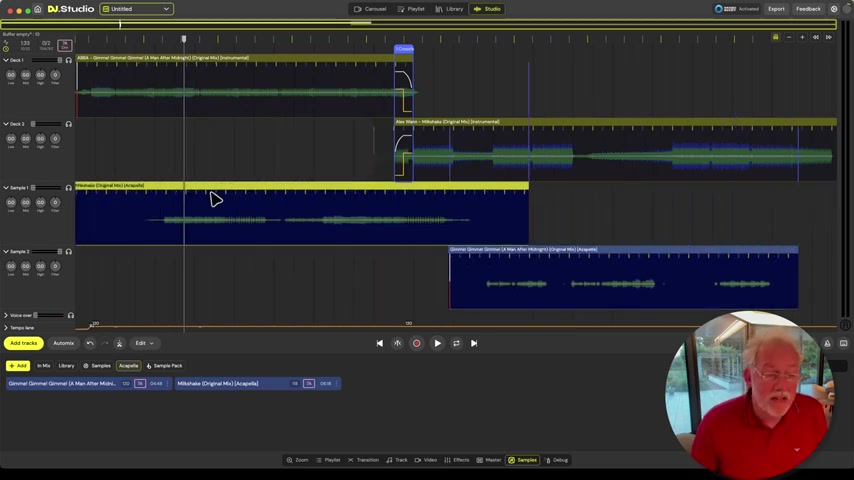
DJ.Studio analyzes the track and extracts the vocals, creating two separate tracks. You can then mix these tracks independently, adjusting levels and effects to achieve the desired sound.
Steps to Split Tracks:
- Right-click on track: Select the track you want to split.
- Choose split option: Select the option to split into acapella and instrumental versions.
- Adjust levels: Mix the vocal and instrumental tracks independently.
- Add effects: Enhance each track with effects like reverb, echo, and compression.
Step 4: Mixing and Arranging Your Mashup
With your tracks imported, beatgrids corrected, and tracks split into acapella and instrumental versions, you're ready to start mixing. DJ.Studio offers a user-friendly interface for arranging tracks and creating seamless transitions. Use the drag-and-drop functionality to position tracks in the timeline, and adjust levels to create a balanced mix.
Experiment with different effects to add flavor and excitement to your mashup. DJ.Studio offers a range of effects, including reverb, echo, filter, and flanger. Use these effects sparingly to enhance the music without overwhelming it. Pay attention to transitions between tracks, using smooth fades or creative cuts to keep the mix engaging.
Tips for Mixing and Arranging:
- Arrange tracks in timeline: Use drag-and-drop to position tracks in the desired order.
- Adjust levels: Create a balanced mix with proper volume levels.
- Use effects sparingly: Enhance the music without overwhelming it.
- Create smooth transitions: Use fades or cuts to transition between tracks.
- Listen critically: Continuously evaluate the mix and make adjustments as needed.
Step 5: Exporting Your Mashup for Sharing
Once you're satisfied with your mashup, it's time to export it for sharing. DJ.Studio offers various export options, including MP3, WAV, and video formats. Choose the format that best suits your needs, and adjust the settings to optimize for sound quality and file size.
Before exporting, double-check your mix to ensure everything sounds perfect. Listen for any unwanted artifacts, imbalances, or timing issues, and make final adjustments as needed. When you're ready, select the export option and let DJ.Studio render your mashup.
Steps to Export Your Mashup:
- Double-check mix: Ensure everything sounds perfect.
- Select export option: Choose your desired file format (MP3, WAV, or video).
- Adjust settings: Optimize for sound quality and file size.
- Render mashup: Let DJ.Studio process and export your mix.
- Share your creation: Distribute your mashup on social media, streaming platforms, or DJ sets.








Most people like






























Report
Please select a reason for reporting
- 13 Reasons to Switch from Snapchat to Text Messaging
- 7 Powerful Speech to Text Apps to Boost Productivity
- 10 Best Speech to Text Tools for Effortless Transcription
- 13 Free Tools to Easily Transcribe Audio to Text
- 15 Surprising Ways Google's Speech-to-Text Boosts Productivity
- 7 Best Free Online Audio to Text Transcription Tools
- 9 Tips to Transcribe Speech to Text Faster and Better
- 13 Best Speech to Text Software for Windows 10 in 2023
- 7 Tips for Choosing the Best Transcriber for Audio to Text
- 11 Reasons Why Dragon Speech-to-Text Apps are Game-Changers
- 6 Secrets to Enhance Your Speech to Text Transcription
- 6 Brilliant Ways to Boost Productivity with Talk-to-Text on Your MacBook
- 6 Ways Transcription Software Converts Audio to Text
- 8 Tips to Transcribe Speech to Text Like a Pro
- 6 Reasons IBM Watson Speech to Text is a Game-Changer
- 14 Powerful Ways Talk-to-Text Improves Your Workflow
- 12 Top Windows Speech-to-Text Software for Efficient Transcription
- 12 Game-Changing Benefits of Apple's Speech to Text Technology
- 9 Powerful Use Cases for AWS Speech to Text Technology
- 10 Easy Steps to Transcribe YouTube Videos to Text
- transcription audio en texte
- online audio transcription
- free audio file transcription
- free ai audio transcription
- audio transcription service
- audio transcription online free
- audio transcription free online
- audio to transcription software
- audio and transcript
- ai audio transcription free
- voice recording to text converter
- translate voice recording to text
- record voice to text
- audio recording to text converter
- voice recording and transcription
- chatgpt voice to text
- gmail voice to text
- speech to text reader
- speech to text ai free
- speech to talk
- How SEO and Marketing Dashboards Empower Agencies to Drive Results
- How to Use AI Tools to Find Internal Linking Opportunities Across a Business Website
- Discover Your Perfect Haircut with AI Hairstyle Apps
- Free Reputation Calculator Tools: How They're Adapting to Score AI Visibility, Not Just Rankings
- Design Professional Flyers for Free on Your Phone
- Best Free Flyer Maker Apps for Android: Design Like a Pro
- How to Know If Your Business Is Ready for an AI Customer Service Agent
- Revolutionizing Storytelling: From Novels to Screenplays with AI
- Create Engaging Animated Explainer Videos with a Free AI Tool
- Stop Multi-Subscribing: Benchmark Top AI Visual Models in One Canvas
- ASOMobile Helps Teams Benchmark App Store Screenshots Against Competitors
- How to Match LMS Software With Your Organization's Training Plan
- Revolutionizing Email Marketing Agency with AI
- How to Convert BTC to HNT
- Unleashing the Power of AI: Cognizant's Roadmap for Transformation
- Frame to Video Review: A Practical Look at Turning Two Still Frames Into Motion
- NVIDIA NIM: Revolutionizing Supply Chain Data Analysis with AI
- Top AI Tools That Help Brands Stand Out Offline (Not Just Online)
- Top 5 Cold Email Software: Maximize Your Outreach in 2025
- Magic School AI: Revolutionizing Quiz & Assessment Generation

Copyright ©2026 toolify