































Table of Contents
- Key Points
- Introduction to Ghostwriter's Chapter Studio
- Leveraging Chapter Studio Features for Optimal Results
- How to Navigate and Utilize the Chapter Studio
- Frequently Asked Questions About Ghostwriter Chapter Studio
- Related Questions



Introduction to Ghostwriter's Chapter Studio
Crafting High-Quality Nonfiction Chapters
Ghostwriter Chapter Studio is designed to help you create high-quality nonfiction chapters for your book. It functions as an AI-driven tool that makes the writing process more accessible and efficient. If you have an idea for a book but struggle with the actual writing, this tool can assist you in developing each chapter with ease. The goal is to help you produce valuable content that resonates with your audience.

Chapter Studio offers a range of features designed to make chapter creation straightforward. The aim is to assist you in producing content that will deeply connect with and reassure your audience while ensuring it accurately reflects your unique voice and brand. Let’s delve into the key aspects of this powerful tool.
Exploring the Chapter Studio Interface
Upon entering the Chapter Studio, you'll find yourself in an intuitive and user-friendly environment. The interface is designed to guide you through the process, starting with selecting a template. The Listicle-Style template, in particular, is highlighted as a means of simplifying complex topics by breaking them down into easy-to-understand points in a list format.
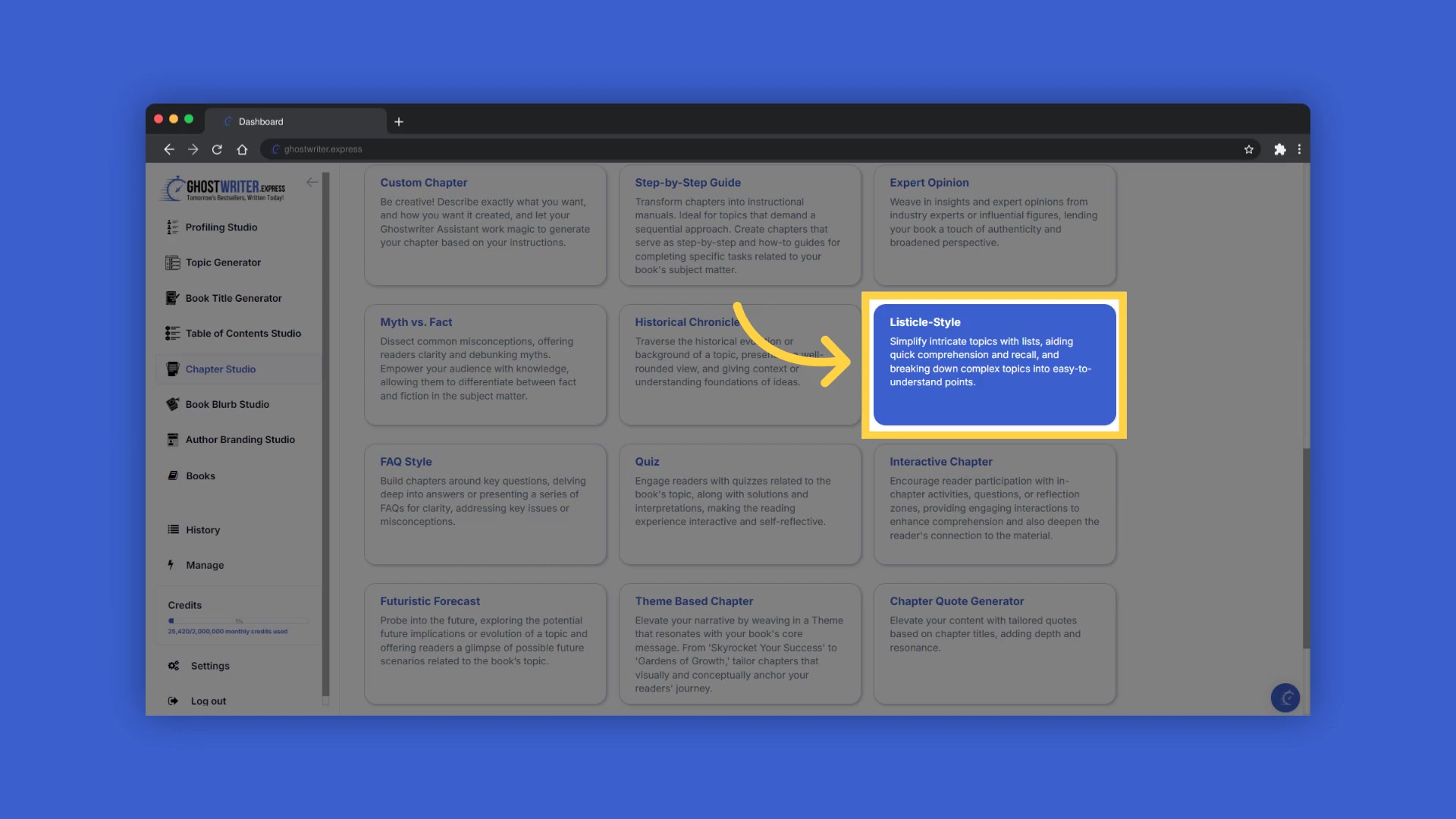
This approach enhances quick comprehension and recall by presenting information in clearly marked sections, making intricate subjects more accessible to the reader. Each list item is designed to stand out, providing a concise and Memorable breakdown of the topic. The Listicle-Style template aids quick comprehension and recall by organizing information into clearly marked sections. Each item stands out to provide a concise breakdown of topics, helping readers grasp and remember key points.
How to Navigate and Utilize the Chapter Studio
Accessing the Chapter Studio
After you create your book within Ghostwriter, your table of contents will appear on the right side of the screen whenever your book is selected. This interface allows you to craft and add content to your chapters and subchapters. You can create new chapters or edit existing ones directly from this view. If you haven’t yet started your book, you can click the “Create New” button in the book builder. Clicking "Generate" will take you to the book title generator to help craft and add titles.
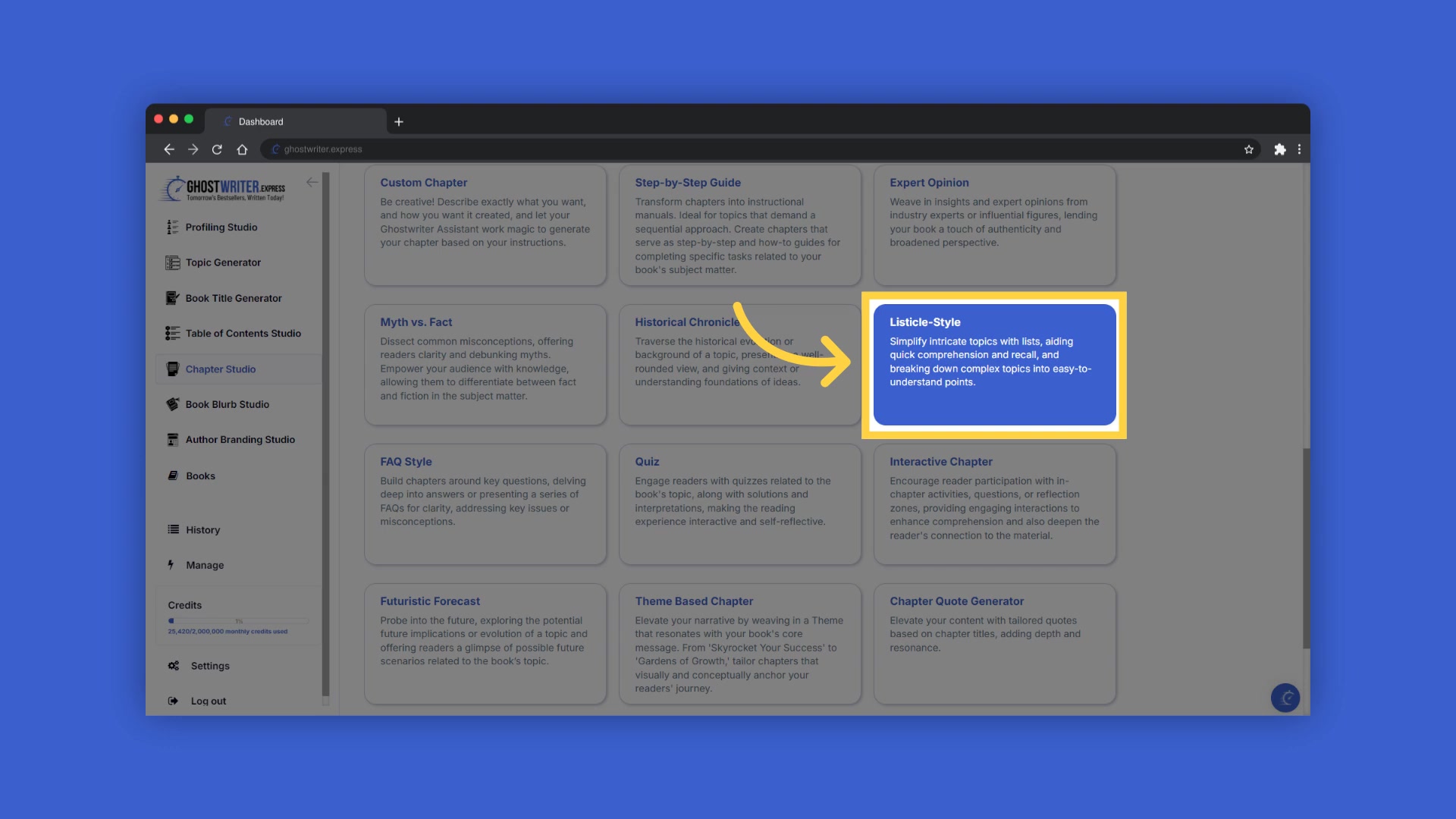
After adding your titles, the next step is to follow the prompts within the book builder, systematically creating and adding your table of contents. This process ultimately redirects you back to the Chapter Studio, where you can begin adding content to your chapters.
Selecting and Customizing Templates
Begin by clicking on the template name to open a dropdown menu. From here, you can select and change between different templates within the Chapter Studio, tailoring each chapter to best suit your content. If you need any assistance, click the Tutorial button for guidance. You can select the blue tooltip beside each field name for explanations and examples. These provide insights into the type of information required for each field, ensuring you create content that resonates with your target audience.
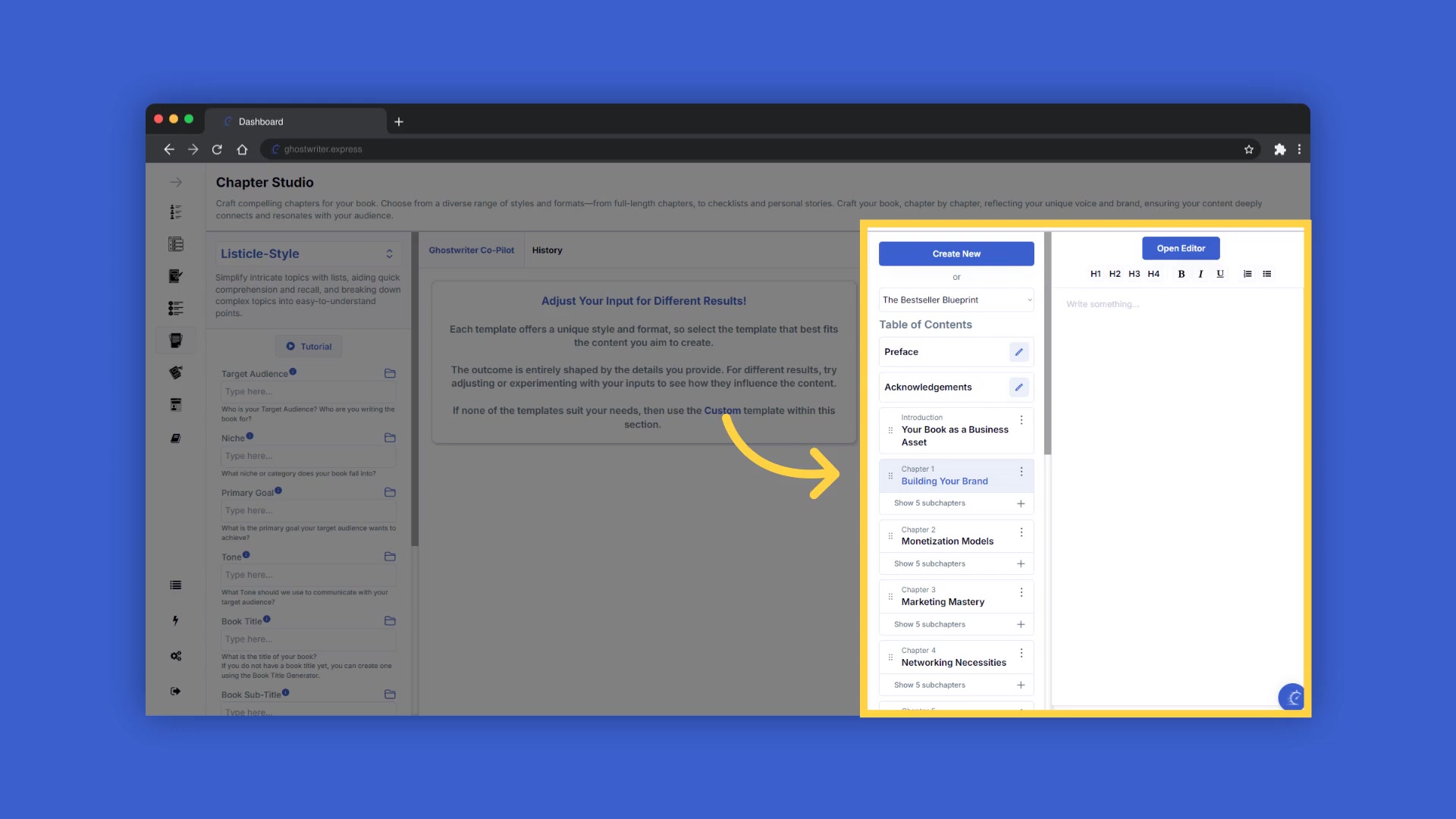
Each template offers a unique style and format, so selecting the template that best fits the content you aim to create is essential. Remember, each template offers its unique style and format, and changing templates will change the content and style of the generated output. All content that you have generated will be stored in history.
Generating and Managing Chapter Content
After adding information to a field, a folder will appear on the right, containing a history of the last ten entries in that field. This feature allows you to easily reselect previously entered information, saving you time and effort. Enter the required information to generate the content for your chapter. You can then highlight and copy the chapter and subchapter titles from the table of contents to paste them into the corresponding fields on the left.
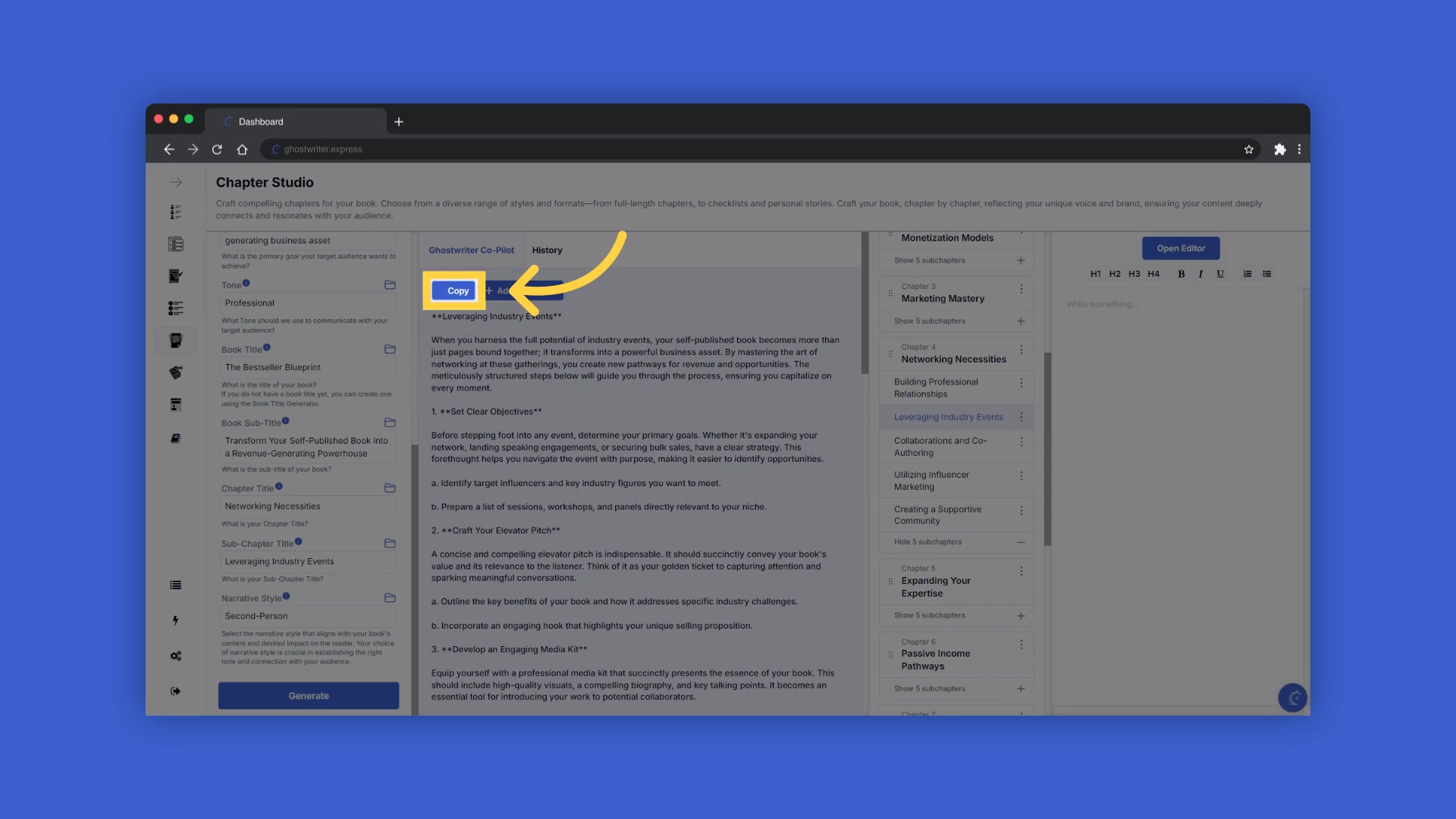
After the content is generated, click "Copy" to duplicate it. This enables you to paste the content into a document on your device for further editing. If you reach your monthly book export limit, copying allows you to keep generating content and manually add updates to an already exported document. You can also view all previously generated content through the history button.
Adding Content to Chapters and Utilizing Full-Screen Editing Mode
To add content to a chapter, highlight the chapter or subchapter title by clicking on it. Ensure the selected title is highlighted in the table of contents on the right before clicking "Add to Chapter." Allow a few seconds for the content to transfer and automatically add it into the chapter. With the content added, you can click into the chapter editor on the far right to edit, or open the book editor for full-screen editing mode. You can also rename or delete chapters using the three dots to the right of the title.
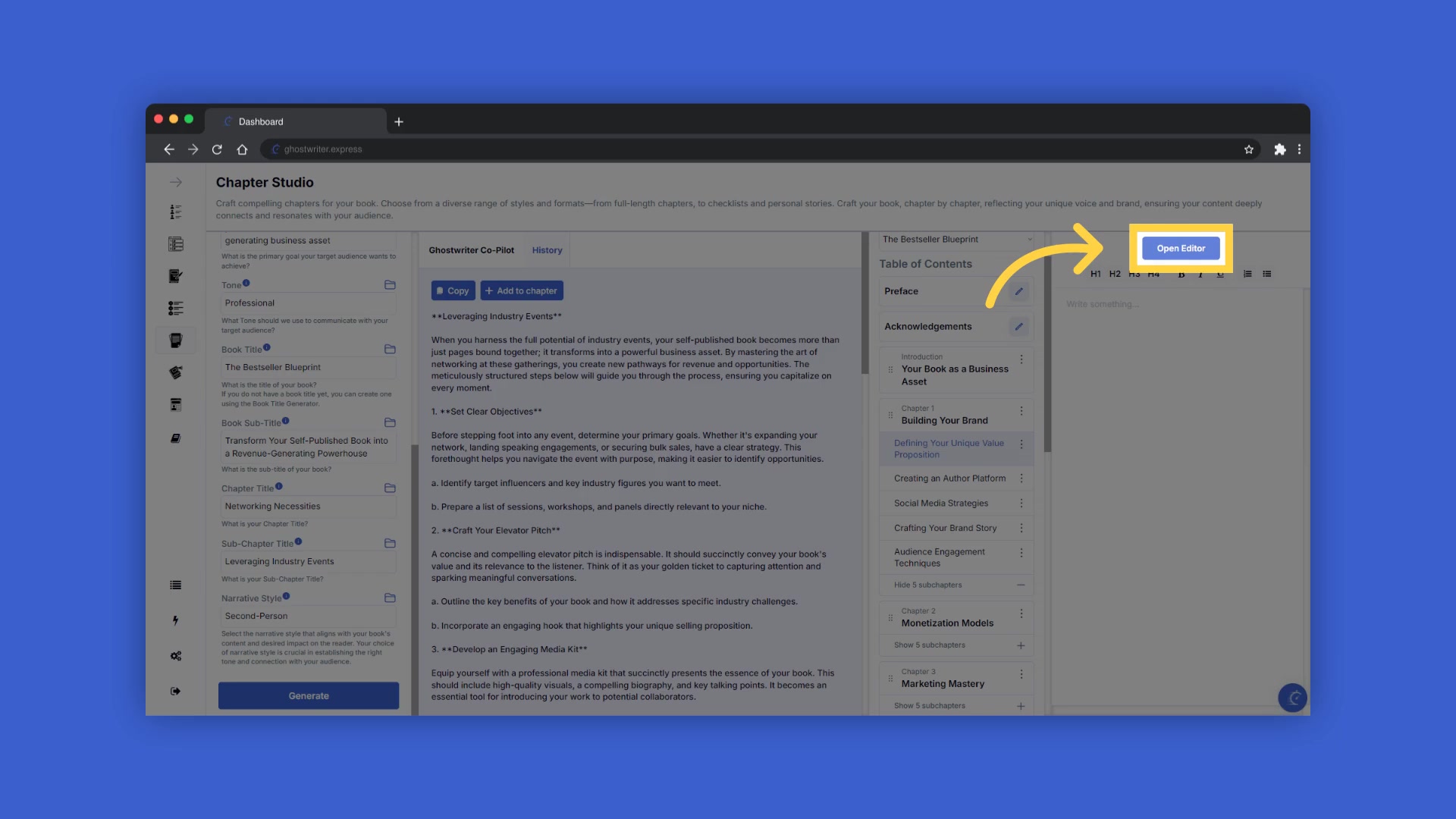
While in full-screen editing mode, click on your book title or book Subtitle to make changes. Remember to use the close editor function to return to the book builder. Within the full-screen mode, you can directly edit and modify generated text for a personalized touch. Ensure you properly format the book and all its content.





Most people like


































Report
Please select a reason for reporting
- 13 Reasons to Switch from Snapchat to Text Messaging
- 7 Powerful Speech to Text Apps to Boost Productivity
- 10 Best Speech to Text Tools for Effortless Transcription
- 13 Free Tools to Easily Transcribe Audio to Text
- 15 Surprising Ways Google's Speech-to-Text Boosts Productivity
- 7 Best Free Online Audio to Text Transcription Tools
- 9 Tips to Transcribe Speech to Text Faster and Better
- 13 Best Speech to Text Software for Windows 10 in 2023
- 7 Tips for Choosing the Best Transcriber for Audio to Text
- 11 Reasons Why Dragon Speech-to-Text Apps are Game-Changers
- 6 Secrets to Enhance Your Speech to Text Transcription
- 6 Brilliant Ways to Boost Productivity with Talk-to-Text on Your MacBook
- 6 Ways Transcription Software Converts Audio to Text
- 8 Tips to Transcribe Speech to Text Like a Pro
- 6 Reasons IBM Watson Speech to Text is a Game-Changer
- 14 Powerful Ways Talk-to-Text Improves Your Workflow
- 12 Top Windows Speech-to-Text Software for Efficient Transcription
- 12 Game-Changing Benefits of Apple's Speech to Text Technology
- 9 Powerful Use Cases for AWS Speech to Text Technology
- 10 Easy Steps to Transcribe YouTube Videos to Text
- transcription audio en texte
- online audio transcription
- free audio file transcription
- free ai audio transcription
- audio transcription service
- audio transcription online free
- audio transcription free online
- audio to transcription software
- audio and transcript
- ai audio transcription free
- voice recording to text converter
- translate voice recording to text
- record voice to text
- audio recording to text converter
- voice recording and transcription
- chatgpt voice to text
- gmail voice to text
- speech to text reader
- speech to text ai free
- speech to talk
- ChatGPT Knows Ford. It Just Doesn't Quote Ford
- Meshy AI: How to Create 3D Models from Text and Images
- How SEO and Marketing Dashboards Empower Agencies to Drive Results
- How to Use AI Tools to Find Internal Linking Opportunities Across a Business Website
- Discover Your Perfect Haircut with AI Hairstyle Apps
- Free Reputation Calculator Tools: How They're Adapting to Score AI Visibility, Not Just Rankings
- Design Professional Flyers for Free on Your Phone
- Best Free Flyer Maker Apps for Android: Design Like a Pro
- How to Know If Your Business Is Ready for an AI Customer Service Agent
- Revolutionizing Storytelling: From Novels to Screenplays with AI
- Your Business Data Could Be Worth Up to $4M. Find Out Without Uploading a Single File.
- Can an eSIM Plan Save You Time During Travel Setup?
- AI Video Editor Review: A Hands-On Look at Prompt-Based Video Editing
- Keep Characters Consistent Across Scenes With Image-to-Video AI
- How to Convert BTC to HNT
- ProxyWing DuckDuckGo Proxy Review: Plans, Setup and Who It Is For
- ChatGPT Knows Ford. It Just Doesn't Quote Ford
- Automate Lead Generation: A Comprehensive Guide with AI Agents
- Revideo.io: The Future of Reverse Video Search Technology
- Revolutionizing Email Marketing Agency with AI

Copyright ©2026 toolify