































Table of Contents
- Key Points
- Revolutionizing Presentation Creation with Alayna AI
- Maximize Alayna AI's Potential: Advanced Features and Customization
- Step-by-Step Guide: Creating Your First AI-Powered Presentation
- Advantages and Disadvantages of Alayna AI for Google Slides
- Frequently Asked Questions
- Related Questions



Revolutionizing Presentation Creation with Alayna AI
The Time-Saving Solution for Educators
Are you an educator who spends countless hours creating lesson plans and presentations using Google Slides? If so, you're likely looking for ways to streamline the process and save valuable time. Alayna AI for Google Slides is designed to do just that – transforming the way educators create presentations. It's a free AI Tool that helps you turn hours into minutes, making lesson planning more efficient and enjoyable.
Alayna AI offers educators a suite of tools designed to make lesson creation faster and more effective. From lesson planning to creating slideshows, Alayna's AI Tools save countless hours for educators and schools. This allows teachers to focus more on teaching and less on administrative tasks.
The Google Slides AI generator by Alayna is an innovative tool that integrates directly into your Google Slides environment. No more struggling with templates or spending hours searching for the perfect layout; Alayna AI simplifies the entire process. This AI tool for educators is designed to reduce the workload and enhance the quality of presentations, benefiting both teachers and students.
Getting Started with Alayna AI for Google Slides
The first step is to install the Alayna AI Slides Generator. The link to the site is in the description below. Once you are on the Alayna webpage, you can simply click on the 'Install AI Slides Generator' button.
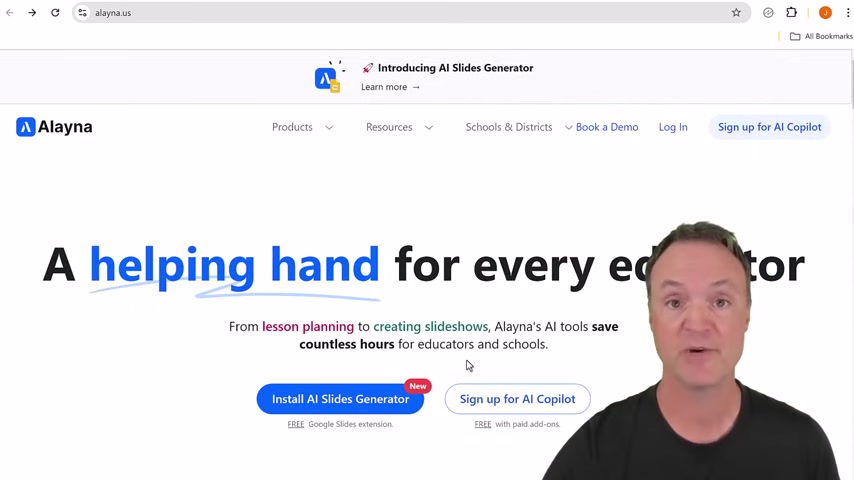
This action will redirect you to the Google Workspace Marketplace, where you can install the Alayna AI add-on for Google Slides.
After clicking install, you need to authorize Alayna AI to access your Google account and Slides. Once the installation is complete, Alayna AI seamlessly integrates into your Google Slides environment. To access Alayna AI, open a new or existing Google Slides presentation. Look for 'Extensions' in the top menu, and you’ll see 'Alayna AI for Google Slides' listed there. Click on it, then select 'Create a presentation with Alayna AI'.
This will open a sidebar where you can input your topic and Prompt. Alayna AI’s interface is straightforward, ensuring a smooth experience for all users. Whether you're tech-savvy or new to AI, you'll find it easy to navigate.
Creating Engaging Presentations: A Step-by-Step Guide
Once you have Alayna AI installed and opened within Google Slides, you are ready to start creating presentations. Here’s how to make the most of this tool:
- Define Your Topic:
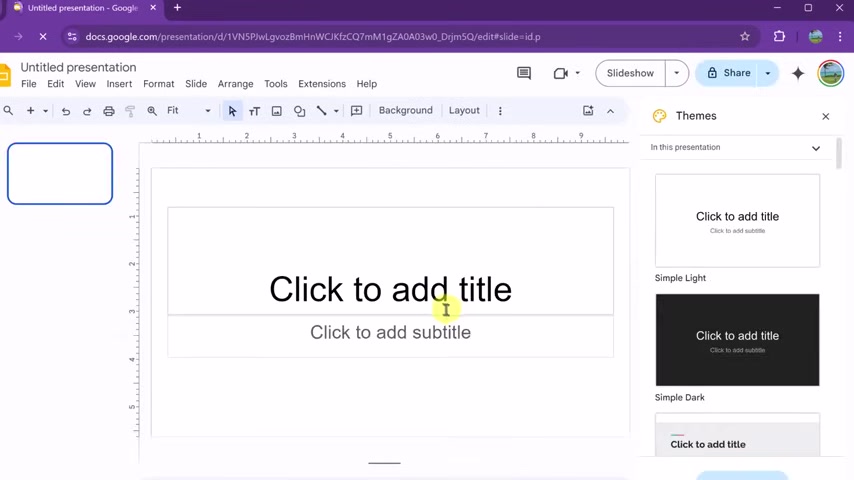
In the Alayna AI sidebar, you'll see a field labeled 'Your Topic'. Enter the main subject of your presentation here. For example, if you're teaching a class on effective communication, you might enter “Effective Presentations”.
-
Craft Your Prompt: The prompt section is where you provide Alayna AI with detailed instructions. The more specific your instructions, the better the results. Consider including the grade level, subject, objectives, and any specific standards you want to cover. For example, you might write:
'Generate a slideshow to teach Grade 6 students how to give presentations they'll be proud of. Consider: Age-appropriate language and visuals, a mix of information and fun activities, examples they can connect with, and perhaps a section on different types of presentations (oral, show-and-tell, etc.)'
- Customize Presentation Settings: Choose whether you want Alayna AI to generate the entire presentation based on your topic and prompt or create it slide by slide. If you opt for the latter, you’ll have more control over the content of each slide. You can also add attachments like notes or documents to further guide the AI.
- Advanced Options: Explore the advanced settings to fine-tune your presentation: Enable web research mode to allow the AI to pull in current information, select the output length (short, medium, or long), turn on copyright-free images, and include speaker notes for each slide. Save your preferences for future use.
- Select a Theme: Choose from a variety of pre-designed themes to give your presentation a polished look. You can always change the theme later if you're not satisfied with your initial choice.
- Generate Your Presentation: Click the 'Create Presentation' button and wait for Alayna AI to work its magic. This process usually takes about a minute or two. Once completed, your presentation will open in Google Slides, ready for your review and customization.
- Customize and Refine: Review the generated slides, and make any necessary edits. Adjust the text size, replace images, add transitions, and tweak the layout to your liking. Google Slides offers a wide range of tools to help you personalize your presentation further.






Most people like





























Report
Please select a reason for reporting
- 13 Reasons to Switch from Snapchat to Text Messaging
- 7 Powerful Speech to Text Apps to Boost Productivity
- 10 Best Speech to Text Tools for Effortless Transcription
- 13 Free Tools to Easily Transcribe Audio to Text
- 15 Surprising Ways Google's Speech-to-Text Boosts Productivity
- 7 Best Free Online Audio to Text Transcription Tools
- 9 Tips to Transcribe Speech to Text Faster and Better
- 13 Best Speech to Text Software for Windows 10 in 2023
- 7 Tips for Choosing the Best Transcriber for Audio to Text
- 11 Reasons Why Dragon Speech-to-Text Apps are Game-Changers
- 6 Secrets to Enhance Your Speech to Text Transcription
- 6 Brilliant Ways to Boost Productivity with Talk-to-Text on Your MacBook
- 6 Ways Transcription Software Converts Audio to Text
- 8 Tips to Transcribe Speech to Text Like a Pro
- 6 Reasons IBM Watson Speech to Text is a Game-Changer
- 14 Powerful Ways Talk-to-Text Improves Your Workflow
- 12 Top Windows Speech-to-Text Software for Efficient Transcription
- 12 Game-Changing Benefits of Apple's Speech to Text Technology
- 9 Powerful Use Cases for AWS Speech to Text Technology
- 10 Easy Steps to Transcribe YouTube Videos to Text
- transcription audio en texte
- online audio transcription
- free audio file transcription
- free ai audio transcription
- audio transcription service
- audio transcription online free
- audio transcription free online
- audio to transcription software
- audio and transcript
- ai audio transcription free
- voice recording to text converter
- translate voice recording to text
- record voice to text
- audio recording to text converter
- voice recording and transcription
- chatgpt voice to text
- gmail voice to text
- speech to text reader
- speech to text ai free
- speech to talk
- Meshy AI: How to Create 3D Models from Text and Images
- How SEO and Marketing Dashboards Empower Agencies to Drive Results
- How to Use AI Tools to Find Internal Linking Opportunities Across a Business Website
- Discover Your Perfect Haircut with AI Hairstyle Apps
- Free Reputation Calculator Tools: How They're Adapting to Score AI Visibility, Not Just Rankings
- Design Professional Flyers for Free on Your Phone
- Best Free Flyer Maker Apps for Android: Design Like a Pro
- How to Know If Your Business Is Ready for an AI Customer Service Agent
- Revolutionizing Storytelling: From Novels to Screenplays with AI
- Create Engaging Animated Explainer Videos with a Free AI Tool
- Meshy AI: How to Create 3D Models from Text and Images
- ASOMobile Helps Teams Benchmark App Store Screenshots Against Competitors
- How to Match LMS Software With Your Organization's Training Plan
- Revolutionizing Email Marketing Agency with AI
- How to Convert BTC to HNT
- Unleashing the Power of AI: Cognizant's Roadmap for Transformation
- Frame to Video Review: A Practical Look at Turning Two Still Frames Into Motion
- NVIDIA NIM: Revolutionizing Supply Chain Data Analysis with AI
- Top AI Tools That Help Brands Stand Out Offline (Not Just Online)
- Top 5 Cold Email Software: Maximize Your Outreach in 2025

Copyright ©2026 toolify