































Table of Contents
- Key Points
- Unlocking the Power of AI Image Editing
- Advanced Image Editing Techniques with Envato
- How to Get Started with Envato Image Edit
- Envato Subscription Plans
- Pros and Cons of Using Envato's Image Edit Tool
- Key Features of Envato's Image Edit Tool
- Creative Use Cases for Envato's Image Edit Tool
- Frequently Asked Questions
- Related Questions


Unlocking the Power of AI Image Editing
The Problem with Imperfect Photos
Have you ever captured what seemed like the perfect photo, only to realize something in the background completely ruins it?
Or perhaps your photo didn’t quite match your vision because you didn’t have the resources to make it happen? It’s a common frustration for photographers and content creators alike. Traditional photo editing software can be complex and time-consuming, often requiring advanced skills to achieve professional results. This is where AI-powered image editing tools come into play. These tools offer a streamlined and intuitive approach to enhancing your photos, regardless of your skill level.
AI image editing is revolutionizing the way we approach Photography. By automating many of the tedious and complex tasks, AI enables users to focus on creativity and visual storytelling. Features like automatic background removal, intelligent object selection, and AI-powered enhancements make it easier than ever to achieve stunning results. Whether you're a seasoned professional or just starting, AI image editing tools can help you unlock the full potential of your photos.
The integration of AI not only simplifies the editing process but also opens up new creative possibilities. With tools like Google’s Nano Banana, users can generate backgrounds that perfectly complement the subject of their photo, ensuring a cohesive and visually appealing result. The ability to seamlessly replace backgrounds and remove unwanted elements allows for greater control over the final image, making it easier to achieve your artistic vision.
Introducing Envato's AI Image Edit Tool
Envato offers a suite of AI-powered tools designed to help you transform ordinary images into extraordinary visuals.
Their Image Edit tool is particularly useful for tasks like removing and replacing backgrounds, making it easier than ever to create professional-level compositions. This tool includes a range of features that cater to both beginners and experienced users, ensuring that everyone can achieve the results they desire.
Envato's Image Edit tool provides several options to kickstart your editing process. You can generate a new photo from scratch using ImageGen, browse Envato’s stock photo library, or upload your own image. This flexibility allows you to tailor your workflow to your specific needs, whether you're starting with a blank canvas or refining an existing photo. The integration of these various resources within a single platform streamlines the entire editing process, saving you time and effort.
One of the standout features of Envato’s Image Edit tool is its ease of use. With just a few clicks, you can remove the original background of your photo and replace it with something entirely new. This capability is especially useful for creating marketing materials, social media posts, and other visual content where a clean and polished look is essential. The intuitive interface and AI-powered automation make it accessible to users of all skill levels.
Why Choose Envato for Image Editing?
Choosing the right image editing tool can significantly impact the quality and efficiency of your work. Envato stands out for its comprehensive suite of AI-powered features, seamless integration with stock photo resources, and user-friendly interface. Whether you’re looking to remove backgrounds, enhance image quality, or generate new visuals, Envato provides the tools you need to succeed.
Envato goes beyond basic image editing with features like Google’s Nano Banana, which enables intelligent background generation. This tool analyzes your image and creates background options that perfectly complement the subject, ensuring a cohesive and visually appealing result. The ability to generate multiple background options allows you to explore different creative possibilities and find the perfect fit for your vision.
Additionally, Envato’s Image Edit tool offers precise selection tools for fine-tuning your edits. If you need to make adjustments to the automatic selections, you can use the brush tool to add or subtract areas, ensuring that every detail is just right. This level of control, combined with AI-powered automation, makes Envato a powerful and versatile choice for image editing.
Advanced Image Editing Techniques with Envato
Removing and Replacing Backgrounds: A Step-by-Step Guide
Removing and replacing backgrounds is a fundamental technique in image editing, and Envato's Image Edit tool makes it easier than ever. Here's a step-by-step guide to help you get started:
-
Upload Your Image: Begin by uploading the image you want to edit to Envato’s Image Edit tool. You can either upload your own photo or choose one from Envato’s stock photo library.
-
Remove the Original Background:
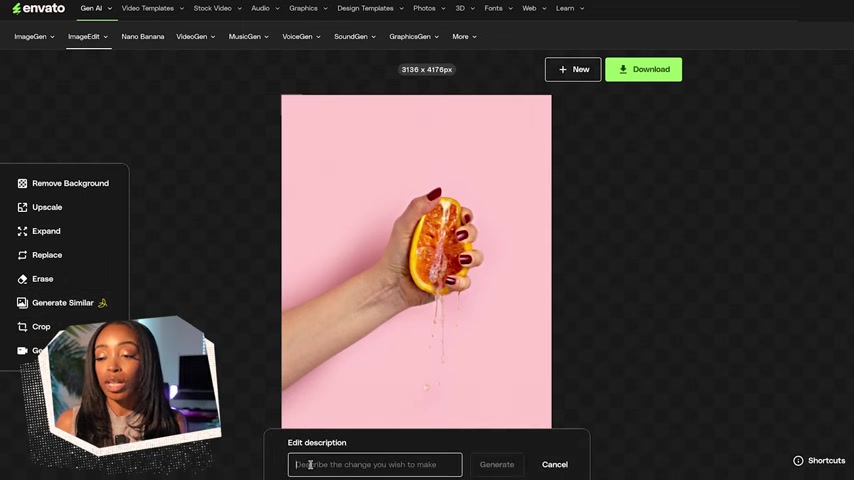
In the toolbar, click on the 'Remove Background' option. Envato's AI will automatically detect and remove the background, leaving you with a clean cutout of the subject. The AI does a great job of preserving all the other details in the photo.
-
Fine-Tune the Selection: If you need to refine the selection, use the brush tool to add or subtract areas. This ensures that the cutout is as precise as possible.
-
Generate a New Background: Use the 'Generate Similar' tool, powered by Google’s Nano Banana, to create new background options. Enter a Prompt describing the type of background you want, and Envato will generate multiple options.
-
Select Your Preferred Background: Browse the generated backgrounds and choose the one that best complements your subject. Envato’s AI will automatically adjust the shadows, lighting, and color temperature to ensure a natural look.
-
Erase Unwanted Elements: If there are any unwanted elements in the new background, use the erase tool to remove them. This allows you to create a clean and polished final image.
-
Download Your Edited Image: Once you're satisfied with the results, download your edited image and use it for your project.
This process showcases the seamless integration of AI-powered features within Envato’s Image Edit tool, making it accessible to users of all skill levels. By following these steps, you can transform ordinary photos into stunning visuals with ease.
Utilizing the Erase Tool for Perfecting Your Images
The erase tool is an invaluable asset in any image editor's toolkit, allowing for the removal of distracting elements or imperfections from an image. In Envato's Image Edit, the erase tool is both intuitive and powerful, enhancing the overall quality of your images. You can use the erase tool to paint over those areas and add a prompt to ensure it's doing exactly what you're thinking.
Key Benefits of Using the Erase Tool:
- Removal of Distracting Elements: Easily eliminate unwanted objects, blemishes, or text that detract from the main subject. This helps maintain focus and ensures the viewer's attention is directed where you intend.
- Seamless Integration with Backgrounds: When integrating new backgrounds, the erase tool smooths transitions, blending elements for a more natural and believable composition. This ensures that replaced backgrounds don't appear artificially layered.
- Precise Detail Work: For intricate tasks, the erase tool offers adjustable brush sizes, allowing precise adjustments to delicate areas. This is crucial when working around fine edges or minute details within the image.
Envato’s Image Edit ensures you have complete control over your image, from initial background removal to final touch-ups. By leveraging the erase tool, you can create visually stunning images.
How to Get Started with Envato Image Edit
Accessing Envato's Image Edit Tool
To begin using Envato’s Image Edit tool, you'll first need an Envato subscription. Once you're subscribed, follow these steps:
-
Navigate to Envato's Homepage: Log in to your Envato account and go to the homepage.
-
Find the 'Gen AI' Section: Look for the 'Gen AI' tab in the navigation menu.
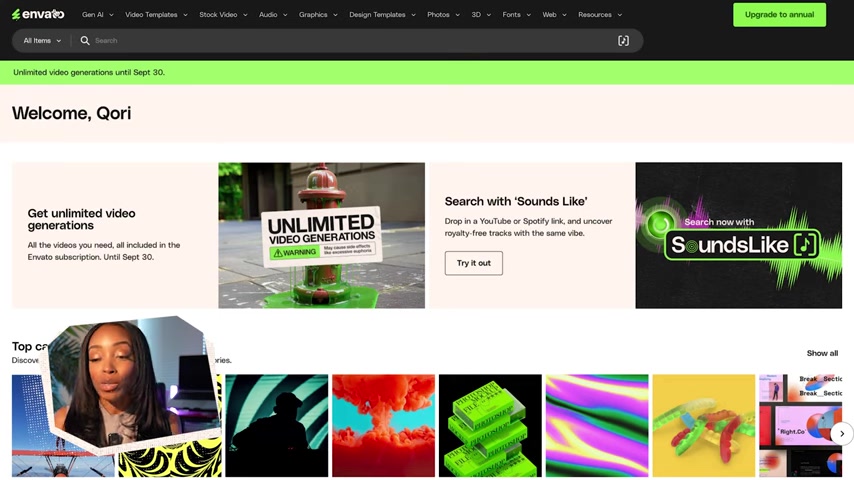
Click on it to reveal a dropdown menu with various AI Tools.
-
Select 'ImageEdit': From the dropdown menu, choose 'ImageEdit'. This will take you to the Image Edit tool's interface.
-
Choose Your Starting Point: On the Image Edit page, you'll have three options: 'Upload Image', 'Generate', and 'Explore Library'.
- Upload Image: Upload your own photo from your computer.
- Generate: Create a new image from scratch using AI with ImageGen.
- Explore Library: Browse Envato’s stock photo library to find an image to edit.
Once you've selected your starting point, you can begin using the various tools to edit your image. The intuitive interface and AI-powered features make it easy to achieve professional results, regardless of your skill level.
Key Features of Envato's Image Edit Tool
Exploring the Powerful Capabilities
Envato’s Image Edit tool is packed with features designed to streamline your workflow and enhance your image editing capabilities. Here’s a closer look at some of the key features:
- Remove Background:
Easily remove the background from any image with AI-powered automatic detection.
- Upscale: Increase the resolution of your images while maintaining quality.
- Expand: Expand the canvas of your image and fill the new space with AI-generated content.
- Replace: Replace specific elements in your image with AI-generated alternatives.
- Erase: Remove unwanted objects or imperfections from your image.
- Generate Similar: Create new background options that complement your subject.
- Crop: Adjust the composition of your image with precise cropping tools.
- Generate Video: Turn your static image into a dynamic video.
These features, combined with Envato's seamless integration of stock photo resources, make the Image Edit tool a versatile and powerful choice for image editing.


Most people like





































Report
Please select a reason for reporting
- 13 Reasons to Switch from Snapchat to Text Messaging
- 7 Powerful Speech to Text Apps to Boost Productivity
- 10 Best Speech to Text Tools for Effortless Transcription
- 13 Free Tools to Easily Transcribe Audio to Text
- 15 Surprising Ways Google's Speech-to-Text Boosts Productivity
- 7 Best Free Online Audio to Text Transcription Tools
- 9 Tips to Transcribe Speech to Text Faster and Better
- 13 Best Speech to Text Software for Windows 10 in 2023
- 7 Tips for Choosing the Best Transcriber for Audio to Text
- 11 Reasons Why Dragon Speech-to-Text Apps are Game-Changers
- 6 Secrets to Enhance Your Speech to Text Transcription
- 6 Brilliant Ways to Boost Productivity with Talk-to-Text on Your MacBook
- 6 Ways Transcription Software Converts Audio to Text
- 8 Tips to Transcribe Speech to Text Like a Pro
- 6 Reasons IBM Watson Speech to Text is a Game-Changer
- 14 Powerful Ways Talk-to-Text Improves Your Workflow
- 12 Top Windows Speech-to-Text Software for Efficient Transcription
- 12 Game-Changing Benefits of Apple's Speech to Text Technology
- 9 Powerful Use Cases for AWS Speech to Text Technology
- 10 Easy Steps to Transcribe YouTube Videos to Text
- transcription audio en texte
- online audio transcription
- free audio file transcription
- free ai audio transcription
- audio transcription service
- audio transcription online free
- audio transcription free online
- audio to transcription software
- audio and transcript
- ai audio transcription free
- voice recording to text converter
- translate voice recording to text
- record voice to text
- audio recording to text converter
- voice recording and transcription
- chatgpt voice to text
- gmail voice to text
- speech to text reader
- speech to text ai free
- speech to talk
- ChatGPT Knows Ford. It Just Doesn't Quote Ford
- Meshy AI: How to Create 3D Models from Text and Images
- How SEO and Marketing Dashboards Empower Agencies to Drive Results
- How to Use AI Tools to Find Internal Linking Opportunities Across a Business Website
- Discover Your Perfect Haircut with AI Hairstyle Apps
- Free Reputation Calculator Tools: How They're Adapting to Score AI Visibility, Not Just Rankings
- Design Professional Flyers for Free on Your Phone
- Best Free Flyer Maker Apps for Android: Design Like a Pro
- How to Know If Your Business Is Ready for an AI Customer Service Agent
- Revolutionizing Storytelling: From Novels to Screenplays with AI
- Your Business Data Could Be Worth Up to $4M. Find Out Without Uploading a Single File.
- Can an eSIM Plan Save You Time During Travel Setup?
- AI Video Editor Review: A Hands-On Look at Prompt-Based Video Editing
- Keep Characters Consistent Across Scenes With Image-to-Video AI
- How to Convert BTC to HNT
- ProxyWing DuckDuckGo Proxy Review: Plans, Setup and Who It Is For
- ChatGPT Knows Ford. It Just Doesn't Quote Ford
- Automate Lead Generation: A Comprehensive Guide with AI Agents
- Revideo.io: The Future of Reverse Video Search Technology
- Revolutionizing Email Marketing Agency with AI

Copyright ©2026 toolify