































Table of Contents
- Key Points
- Introducing Pixelcut.ai and the Magic Eraser
- PixelCut: 3 Examples for the best object removal
- Step-by-Step Guide to Using Pixelcut.ai's Magic Eraser
- Pros and Cons of Using Pixelcut.ai's Magic Eraser
- Real-World Use Cases for Pixelcut.ai's Magic Eraser
- FAQ
- Related Questions



Introducing Pixelcut.ai and the Magic Eraser
What is Pixelcut.ai?
Pixelcut.ai is an AI-powered editing tool designed to simplify photo editing for everyone, regardless of their technical expertise. It offers a range of features, including background removal, image upscaling, and the focus of this Tutorial, the Magic Eraser. Pixelcut.ai empowers users to create stunning visuals quickly and efficiently, making it an ideal solution for both professional and personal use. It is particularly useful for e-commerce businesses looking to enhance their product photos, social media managers aiming for eye-catching content, and individuals seeking to improve their personal photo collections.
Pixelcut.ai truly democratizes the photo editing process, bringing powerful capabilities to your fingertips without the steep learning curve associated with traditional software. The Magic Eraser is the focus of this discussion, designed for simple object removal in your images.
The Power of the Magic Eraser
The Magic Eraser is Pixelcut.ai's dedicated feature for object removal. It leverages AI algorithms to intelligently identify and remove unwanted elements from your images. Unlike traditional photo editing techniques that can be time-consuming and require precision, the Magic Eraser automates much of the process.

It analyzes the surrounding area and seamlessly fills in the space left by the removed object, resulting in a natural-looking image.
The Magic Eraser can be used to remove various types of objects, including people, distractions, and blemishes. Its ease of use makes it accessible to anyone, even those with limited photo editing experience. Whether you're refining product photos, cleaning up landscapes, or perfecting portraits, the Magic Eraser offers a quick and effective solution.
Step-by-Step Guide to Using Pixelcut.ai's Magic Eraser
Step 1: Accessing Pixelcut.ai
First, navigate to the Pixelcut.AI Website. Use any Search Engine and search for 'Pixelcut'. Pixelcut.ai offers a range of AI Tools for photo editing, and the Magic Eraser is a highlight.
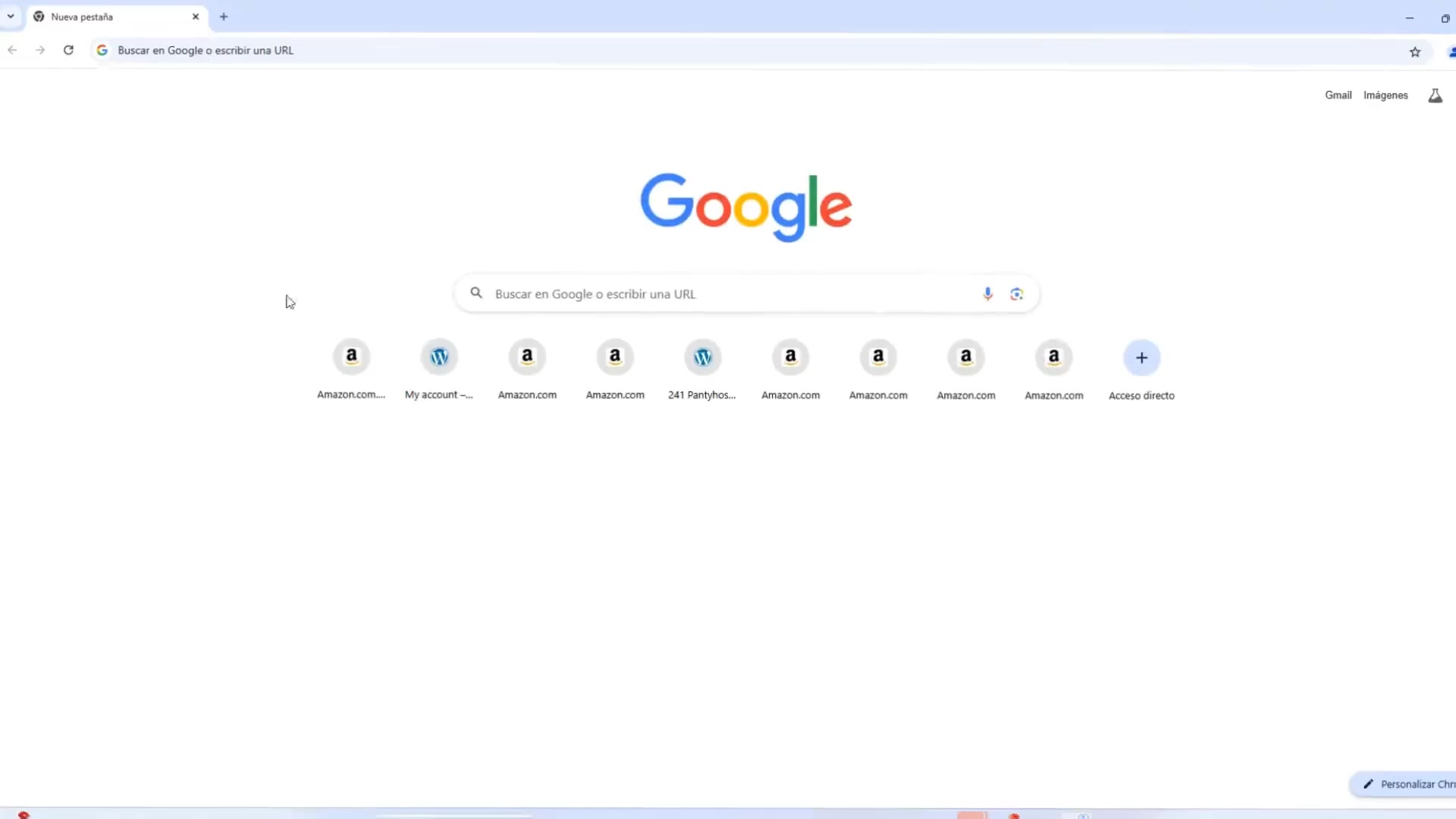
This tool allows you to seamlessly remove objects from your images, enhancing their overall appeal.
Step 2: Logging In or Signing Up
If you already have an account, click on the 'Log In' button. If you're a new user, you'll need to sign up. The registration process is straightforward and typically involves providing your email address and creating a password. Pixelcut.ai may also offer options to sign up using your Google or Apple account for added convenience.
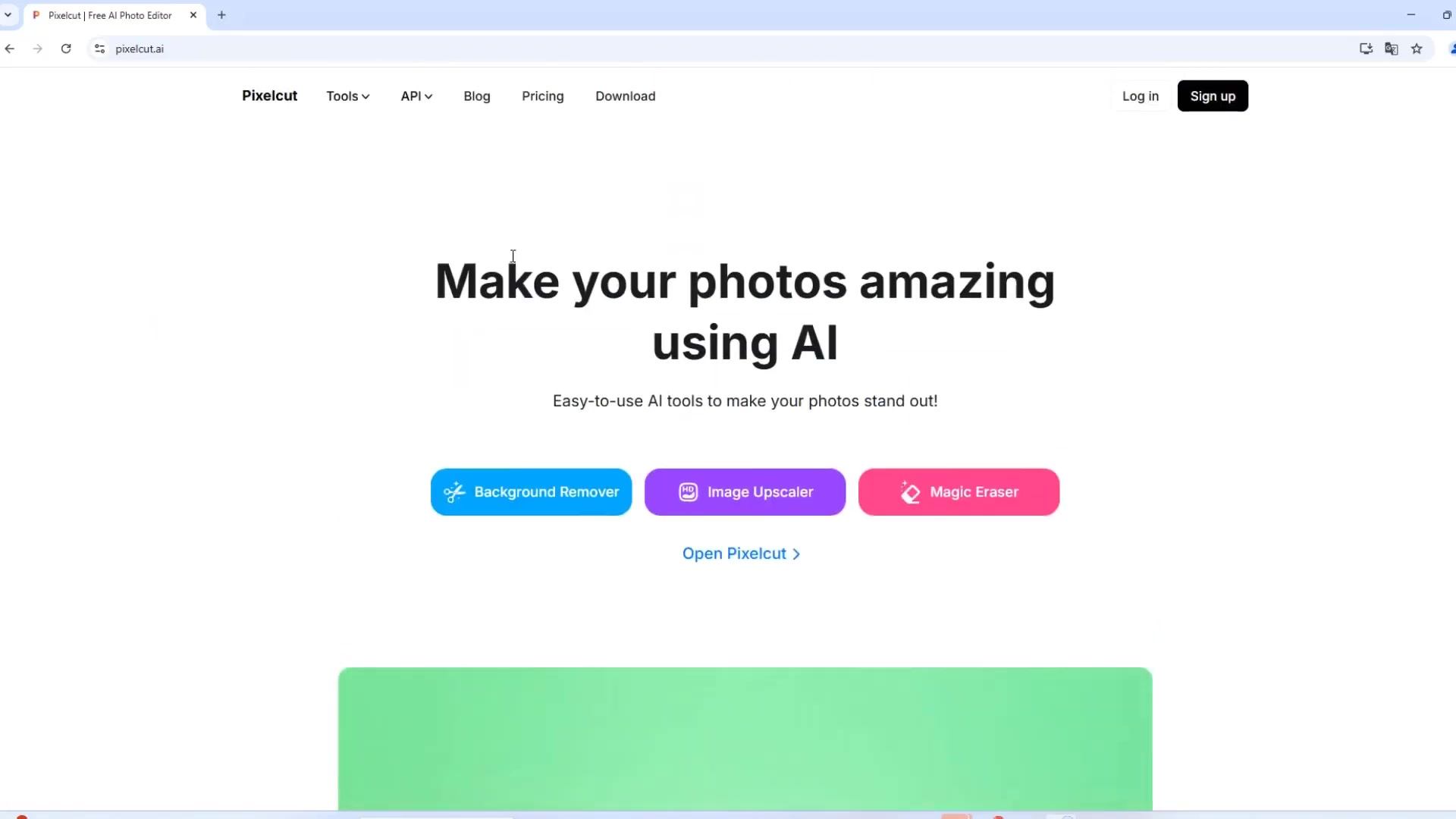
Step 3: Navigating to the Magic Eraser
Once logged in, you'll be directed to the Pixelcut.ai dashboard. Here, look for the 'Magic Eraser' tool. It's usually prominently displayed among the other available features. Click on it to access the object removal interface.

Step 4: Uploading Your Image
In the Magic Eraser interface, you'll find an 'Upload Image' button or a drag-and-drop area. Select the image you want to edit from your computer or device. Pixelcut.ai supports various image formats, including JPG, PNG, and more.

Step 5: Using the Brush Tool
Once your image is uploaded, you'll see it displayed in the editing area. On the left side of the screen, you'll find the brush tool. Use this tool to highlight the object you want to remove. Adjust the brush size to match the size of the object for more accurate selection.

Simply click and drag the brush over the object, ensuring that the entire object is covered.
Step 6: Erasing the Object
After you've highlighted the object, click the 'Erase' button. Pixelcut.ai's AI will analyze the selected area and seamlessly remove the object from the image. The algorithm will fill in the space with surrounding textures and colors to create a natural-looking result.
Step 7: Downloading Your Edited Image
Once the object is removed, you can preview the edited image. If you're satisfied with the result, click the 'Download' button to save the image to your computer or device. Pixelcut.ai may offer different download options, such as different file formats or resolutions.
Real-World Use Cases for Pixelcut.ai's Magic Eraser
Removing People from Scenic Photos
Imagine you have a beautiful landscape photo, but there are tourists in the background.

Using Pixelcut.ai's Magic Eraser, you can easily remove these people and create a pristine image of the scenery. Simply upload the photo, use the brush tool to highlight the people, and click 'Erase'. The AI will seamlessly fill in the background, creating a flawless landscape.
Cleaning Up Product Photos for E-commerce
In e-commerce, high-quality product photos are essential for driving sales.
If your product photos have unwanted objects or distractions, the Magic Eraser can help. Remove clutter, blemishes, or other imperfections to create clean and professional product images that attract customers.
Perfecting Social Media Content
Social media content needs to be visually appealing to capture attention.

Use the Magic Eraser to remove distractions from your social media photos, ensuring that your message is clear and impactful. Whether it's a stray object in the background or a blemish on a model's face, the Magic Eraser can help you create perfect social media visuals.
Enhancing Personal Photos
Even for personal photos, the Magic Eraser can be a valuable tool. Remove unwanted elements from your family photos, vacation pictures, or other cherished memories.

The Magic Eraser helps you preserve and enhance your personal photo collection, creating timeless images that you'll treasure for years to come.





Most people like


































Report
Please select a reason for reporting
- 13 Reasons to Switch from Snapchat to Text Messaging
- 7 Powerful Speech to Text Apps to Boost Productivity
- 10 Best Speech to Text Tools for Effortless Transcription
- 13 Free Tools to Easily Transcribe Audio to Text
- 15 Surprising Ways Google's Speech-to-Text Boosts Productivity
- 7 Best Free Online Audio to Text Transcription Tools
- 9 Tips to Transcribe Speech to Text Faster and Better
- 13 Best Speech to Text Software for Windows 10 in 2023
- 7 Tips for Choosing the Best Transcriber for Audio to Text
- 11 Reasons Why Dragon Speech-to-Text Apps are Game-Changers
- 6 Secrets to Enhance Your Speech to Text Transcription
- 6 Brilliant Ways to Boost Productivity with Talk-to-Text on Your MacBook
- 6 Ways Transcription Software Converts Audio to Text
- 8 Tips to Transcribe Speech to Text Like a Pro
- 6 Reasons IBM Watson Speech to Text is a Game-Changer
- 14 Powerful Ways Talk-to-Text Improves Your Workflow
- 12 Top Windows Speech-to-Text Software for Efficient Transcription
- 12 Game-Changing Benefits of Apple's Speech to Text Technology
- 9 Powerful Use Cases for AWS Speech to Text Technology
- 10 Easy Steps to Transcribe YouTube Videos to Text
- transcription audio en texte
- online audio transcription
- free audio file transcription
- free ai audio transcription
- audio transcription service
- audio transcription online free
- audio transcription free online
- audio to transcription software
- audio and transcript
- ai audio transcription free
- voice recording to text converter
- translate voice recording to text
- record voice to text
- audio recording to text converter
- voice recording and transcription
- chatgpt voice to text
- gmail voice to text
- speech to text reader
- speech to text ai free
- speech to talk
- Meshy AI: How to Create 3D Models from Text and Images
- How SEO and Marketing Dashboards Empower Agencies to Drive Results
- How to Use AI Tools to Find Internal Linking Opportunities Across a Business Website
- Discover Your Perfect Haircut with AI Hairstyle Apps
- Free Reputation Calculator Tools: How They're Adapting to Score AI Visibility, Not Just Rankings
- Design Professional Flyers for Free on Your Phone
- Best Free Flyer Maker Apps for Android: Design Like a Pro
- How to Know If Your Business Is Ready for an AI Customer Service Agent
- Revolutionizing Storytelling: From Novels to Screenplays with AI
- Create Engaging Animated Explainer Videos with a Free AI Tool
- Automate Lead Generation: A Comprehensive Guide with AI Agents
- Revideo.io: The Future of Reverse Video Search Technology
- Revolutionizing Email Marketing Agency with AI
- Breaking the Character Drift Dilemma: A Practical Test of Smart Shot
- Meshy AI: How to Create 3D Models from Text and Images
- ASOMobile Helps Teams Benchmark App Store Screenshots Against Competitors
- How to Match LMS Software With Your Organization's Training Plan
- How to Convert BTC to HNT
- Unleashing the Power of AI: Cognizant's Roadmap for Transformation
- Frame to Video Review: A Practical Look at Turning Two Still Frames Into Motion

Copyright ©2026 toolify