






















Effortlessly Remove Image Backgrounds with Python: A Simple Guide

Updated on May 22,2025

Table of Contents

Removing backgrounds from images can be a tedious task, often requiring complex software and specialized skills. What if you could accomplish this with a simple Python program in just a few lines of code? This comprehensive guide will show you how to create a program that leverages the power of Python and AI to effortlessly cut out the main object and remove the background from any image. You'll be amazed by the results and how easy it is to achieve professional-looking outcomes.

Key Points

Learn how to install necessary Python libraries: EasyGUI and Rembg.

Discover how to write a Python script to remove backgrounds from images.

Understand how to use EasyGUI for a user-friendly file selection.

Explore the AI-powered background removal capabilities of Rembg.

Achieve professional-looking image editing results with minimal code.

Setting Up Your Python Environment for Background Removal

Installing Essential Libraries

Before diving into the code, we need to install two critical Python libraries: EasyGUI and Rembg. These libraries will provide the tools we need to create a user-friendly interface and perform the background removal. EasyGUI will allow you to select an image from your local computer, and Rembg will do the actual task of removing the background from the image using AI. You can install these libraries using the 'pip install' command in your terminal or command Prompt.

First, install EasyGUI by typing:

pip install easygui

Next, install Rembg by typing:

pip install rembg

It is very important to have these libraries installed before proceeding with coding. PIL (Pillow) library might be pre-installed on your system, if not you can install it using:

pip install Pillow

Importing Libraries into Your Python Script

Once the libraries are installed, you need to import them into your Python script. This allows you to access the functions and features provided by these libraries. Start by importing the 'remove' function from the 'rembg' library. This function is the core of our background removal process. Also import the EasyGui library, and image library form PIL(pillow), which helps with image file support. Add the following lines of code to your script:

from rembg import remove
import easygui
from PIL import Image

These import statements make the necessary functions available for our background removal script. This will allow Python to access the function of EasyGui, remove image background via rembg and use image format support from PIL.

Coding the Background Removal Script

Defining File Paths

The first step in our script is to define variables that will hold the paths to our input and output files. Instead of hardcoding these paths, we'll use EasyGUI to create a file selection dialog, allowing the user to choose the image they want to process. This makes our script more flexible and user-friendly.
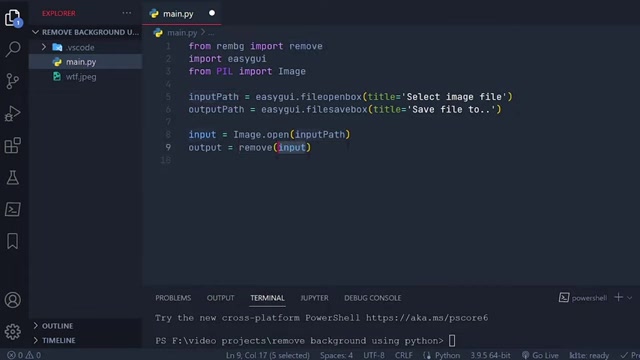
We use easygui.fileopenbox to popup a GUI open file window. Add the following lines of code to your script:

inputPath = easygui.fileopenbox(title='Select image file')
outputPath = easygui.filesavebox(title='Save file to...')

The 'inputPath' variable will store the path to the image selected by the user. The 'outputPath' variable will store the path where the user wants to save the processed image. The title will show on the upper left side of the window, it is used as a simple notification to tell users what to do.

Using the fileopenbox and filesavebox functions from EasyGUI ensures that users can easily select files from anywhere on their computer without having to manually enter the file paths.

Removing the Background and Saving the Image

Now that we have the input and output paths, we can proceed with the background removal process. We'll use the 'remove' function from the 'rembg' library to remove the background from the image. First, we have to open the image using 'Image.open'. Then we can call 'remove' function, so the main object will be cut from background. Add the following lines of code to your script:

input = Image.open(inputPath)
output = remove(input)

After removing the background, we need to save the processed image to the specified output path. When you save the image, you need to specify the path where you want to save the image, so the program knows Where To save the output. Use the 'output.save' function to save the image. Here is the syntax:

output.save(outputPath)

Important Note: the output format here would be PNG , so make sure that you enter the correct format when you type the name of the output in EasyGui window, to avoid errors and unexpected problems.

These lines of code perform the actual background removal and save the processed image to the specified location.

Full Code and Execution

Here’s the complete code:

from rembg import remove
import easygui
from PIL import Image

inputPath = easygui.fileopenbox(title='Select image file')
outputPath = easygui.filesavebox(title='Save file to...')

input = Image.open(inputPath)
output = remove(input)
output.save(outputPath)

Once your script is ready, run it to see the magic happen. First, you will see a window, prompting you to choose an image. Then another window will popup, let you choose where to save it, and what name to use. After you have chosen everything, press save, and you will see the result on your local file. This script provides a simple yet powerful way to remove backgrounds from images using Python.

Step-by-Step Guide: Removing Image Backgrounds

Step 1: Install the Required Libraries

First, make sure you have Python installed on your system. Then, open your terminal and type the following commands to install the necessary libraries:

pip install easygui
pip install rembg
pip install Pillow

This step ensures that your Python environment has all the tools needed to run the script.

Step 2: Create a Python Script

Create a new Python file (e.g., 'remove_background.py') and paste the code we previously discussed. This file will contain the instructions for removing backgrounds from images.

Step 3: Run the Script

Open your terminal, navigate to the directory containing your Python script, and run the script using the command:

python remove_background.py

This command executes your Python script, initiating the background removal process.

Step 4: Select an Image

A file selection dialog will appear, prompting you to choose an image from your computer. Navigate to the image you want to process and select it. EasyGUI makes this process straightforward and user-friendly.

Step 5: Specify the Output Path

After selecting the image, another dialog will appear, asking you to specify where you want to save the processed image. Choose a location and enter a name for the output file. Ensure that the file extension is '.png' to preserve transparency.

Step 6: Check the Results

Once you have specified the output path, the script will run and remove the background from the image. Check the specified location to see the results. The processed image will have a transparent background, allowing you to use it in various projects. Usually the result are pretty good. If the background and the main object is hard to distinguish, then the result may not be so good.

Pros and Cons of Using This Python Script for Background Removal

👍 Pros

Simple and Easy to Use: The script is straightforward and requires minimal coding knowledge.

AI-Powered Accuracy: Rembg utilizes AI to provide accurate background removal results.

User-Friendly Interface: EasyGUI provides a graphical interface for selecting files.

Local Processing: Background removal is performed locally, ensuring privacy and efficiency.

Cost-Effective: The script is free to use, saving you money on commercial software or APIs.

👎 Cons

Accuracy Limitations: The accuracy may vary depending on the complexity of the image.

Dependency on Libraries: The script requires EasyGUI and Rembg to be installed.

Limited Customization: The script offers limited customization options compared to commercial software.

Potential for Artifacts: The background removal process may introduce artifacts or imperfections in the image.

Processing Time: The background removal process may take some time, especially for high-resolution images.

Frequently Asked Questions

Can I use this script with any image format?
Yes, you can use this script with any image format that Pillow supports, such as JPEG, PNG, and GIF. Make sure to have the Pillow library installed and imported in your script to handle various image formats.
Is Rembg accurate in removing backgrounds?
Rembg uses AI to accurately remove backgrounds from images. However, the accuracy may vary depending on the complexity of the image. Images with clear separation between the foreground and background will yield better results.
Can I automate this process for multiple images?
Yes, you can automate this process for multiple images by modifying the script to loop through a directory of images and process each one individually. This can be useful for batch processing.
Do I need an internet connection to use Rembg?
No, Rembg does not require an internet connection to remove backgrounds from images. It performs the background removal locally on your computer, ensuring privacy and efficiency.
Is EasyGUI necessary for this script?
No, EasyGUI is not strictly necessary, but it makes the script more user-friendly by providing a graphical interface for selecting files. You can replace EasyGUI with manual file path input if desired.

Related Questions

What are the best practices for choosing images for background removal?
To achieve the best results when removing backgrounds from images, consider the following best practices: Choose images with clear separation between the foreground and background. Images with distinct color and texture differences between the subject and the background tend to produce more accurate results. Avoid images with complex backgrounds. Intricate or cluttered backgrounds can confuse the AI algorithm, leading to imperfect background removal. Use high-resolution images. Higher resolution images provide more detail, allowing the AI to better identify and separate the subject from the background. Ensure good lighting. Properly lit images enhance the contrast between the subject and background, improving the accuracy of background removal. Crop the image appropriately. Cropping the image to focus on the subject can help the AI algorithm prioritize the most important elements for background removal. Following these best practices can significantly improve the quality of background removal, resulting in professional-looking images.
How can I improve the accuracy of background removal with Rembg?
If you're not satisfied with the initial results of background removal with Rembg, there are several techniques you can use to improve the accuracy: Pre-process the image. Before running the script, use image editing software to enhance the contrast and clarity of the image. This can help the AI algorithm better distinguish between the subject and background. Use a mask. Create a mask that manually defines the subject and background regions. This can provide the AI algorithm with additional guidance and improve accuracy. Adjust the threshold. Rembg may have a threshold parameter that controls the sensitivity of background removal. Experiment with different threshold values to fine-tune the results. Post-process the image. After running the script, use image editing software to clean up any remaining artifacts or imperfections. This can help you achieve a polished, professional look. By combining these techniques, you can significantly improve the accuracy of background removal with Rembg, ensuring that your images look their best.
Are there any alternative Python libraries for background removal?
While Rembg is a powerful and easy-to-use library for background removal, there are several alternative Python libraries that you can explore: BackgroundRemover: This library is another popular choice for background removal. It offers a range of features and customization options, allowing you to fine-tune the results. Remove.bg API: This is a commercial API that provides high-quality background removal services. It offers a free tier for limited use, with paid plans for larger volumes. Clipping Magic API: Similar to Remove.bg, this is another commercial API that provides background removal services. It offers a range of features and customization options, including edge refinement and shadow effects. OpenCV: This is a comprehensive computer vision library that can be used for a variety of image processing tasks, including background removal. It requires more coding expertise but offers greater flexibility and control. Choosing the right library depends on your specific needs and technical expertise. Rembg is a good starting point for simple background removal tasks, while the other options offer more advanced features and customization.

Most people like












