































Table of Contents
- Key Points
- Understanding the iPhone's Object Removal Tool
- Alternative object remover apps: PhotoDirector and TouchRetouch
- Step-by-Step Guide: Removing Objects with the Cleanup Tool
- Pricing
- Pros and Cons of Using the iPhone's Cleanup Tool
- Core Features of iPhone's Cleanup Tool
- Versatile Use Cases for the Object Removal Tool
- Frequently Asked Questions About iPhone Object Removal
- Related Questions on Photo Editing



Understanding the iPhone's Object Removal Tool
What is the iPhone's Cleanup Tool?
The iPhone's Cleanup tool is a feature integrated into the Photos app that enables you to remove unwanted objects or people from your photos
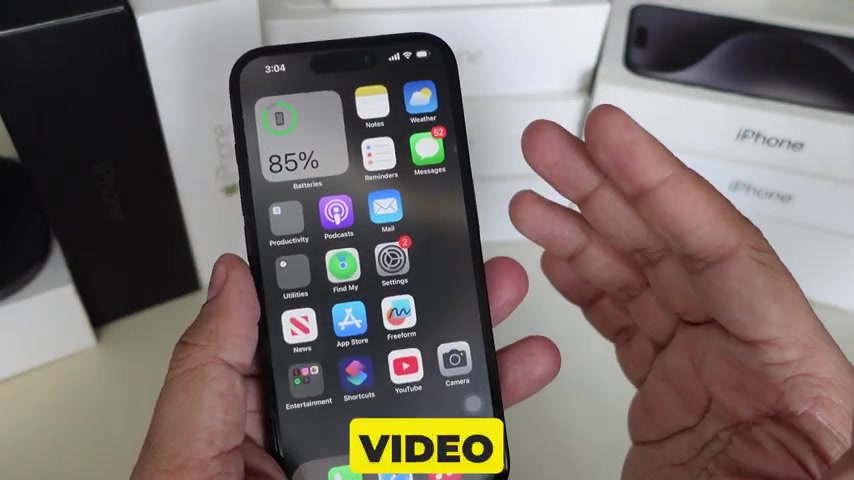
. It uses advanced image processing and artificial intelligence (AI) to seamlessly fill in the space where the object was, making it appear as if it was never there. This feature is incredibly convenient for quickly improving your photos without having to rely on external photo editing software or complex techniques. It's designed to be user-friendly, allowing anyone to achieve professional-looking results with minimal effort.
This feature is particularly useful for situations where you can't physically remove an object during the photo capture. Whether it's a stray tourist in a landscape shot, a power line across a scenic view, or an unwanted item in a product photo, the Cleanup tool can eliminate these distractions. The AI analyzes the surrounding pixels and intelligently generates a natural-looking background to replace the removed object, blending it smoothly with the rest of the image. The effectiveness of the tool depends on the complexity of the background and the size of the object being removed; simpler backgrounds typically yield better results.
The Cleanup tool is an excellent addition to the iPhone's suite of photo editing capabilities, providing a quick and effective way to refine your images directly on your device. While other apps offer similar functionality, having it built into the native Photos app offers unmatched convenience and accessibility. This means you don't need to download any extra software or learn a new interface – it's all right there at your fingertips. For casual users and Photography enthusiasts alike, the Cleanup tool enhances the overall photo-taking experience and makes it easier than ever to create stunning visuals. The best part is that it allows you to make edits nondestructively. The original photo is saved in the background in case you want to revert to it at any time.
iPhone Models and iOS Compatibility for the Cleanup Tool
The availability of the Cleanup tool is primarily limited to newer iPhone models running the latest versions of iOS
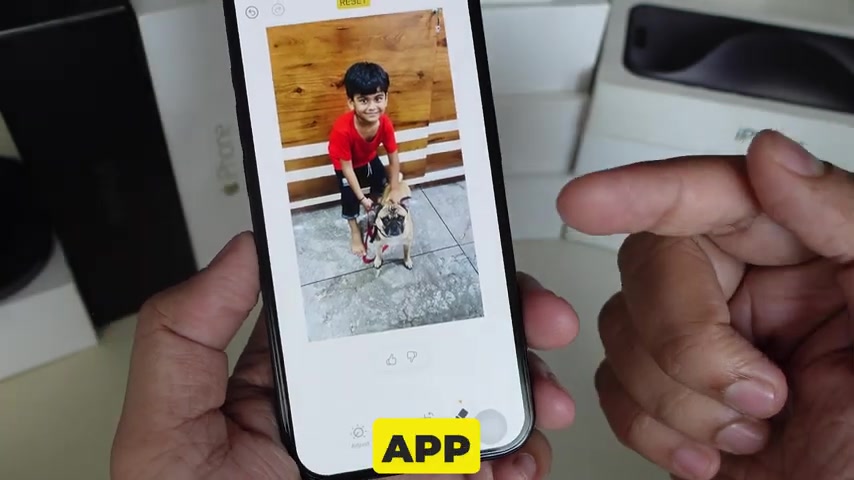
. As Mentioned, compatibility starts with the iPhone 15 Pro and iPhone 15 Pro Max. This functionality extends to future models such as the iPhone 16, iPhone 16 Plus, iPhone 16 Pro, and iPhone 16 Pro Max. These models benefit from more powerful processors and enhanced AI capabilities, which are essential for the Cleanup tool to function effectively.
To ensure you have access to the Cleanup tool, your iPhone must be running iOS 18.1 or later. Apple regularly updates iOS to include new features, performance improvements, and security enhancements. Keeping your device updated ensures you can take full advantage of the latest functionalities, including the Cleanup tool. If you have an older iPhone model, unfortunately, you won't be able to use the built-in Cleanup tool. However, this doesn't mean you're out of options. Several third-party photo editing apps offer similar object removal features, which we'll explore later in this article. These apps can often provide comparable results, albeit with a slightly different user experience.
It's important to note that even on compatible iPhones, the performance of the Cleanup tool can vary depending on the complexity of the image and the size of the object being removed. More complex images with intricate backgrounds may take longer to process, and the results may not always be perfect. In such cases, you may need to experiment with different techniques or try a third-party app that offers more advanced editing capabilities. Despite these limitations, the built-in Cleanup tool is a valuable resource for quickly enhancing your photos directly on your iPhone.
Step-by-Step Guide: Removing Objects with the Cleanup Tool
Step 1: Open the Photos App and Select Your Image
The first step is to open the Photos app on your iPhone and select the image you want to edit
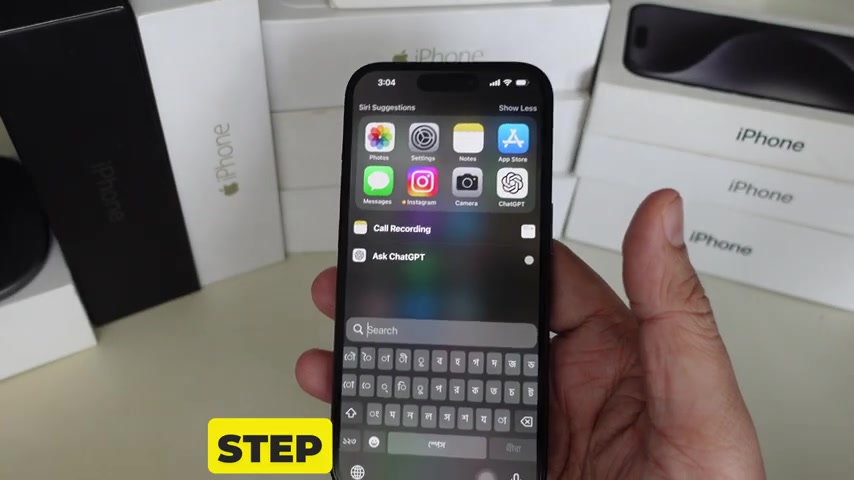
. Scroll through your library to find the photo containing the unwanted object. Once you've located it, tap on the image to open it in full-screen mode. This will give you a clear view of the photo and allow you to assess the object you want to remove.
It's important to choose an image that has good overall quality and resolution. The Cleanup tool works best on images with sufficient detail and Clarity, as this allows the AI to more accurately analyze the surrounding pixels and generate a seamless background. Also, consider the complexity of the background. Images with simple, uniform backgrounds tend to yield better results than those with intricate Patterns or textures. However, even with challenging backgrounds, the Cleanup tool can often produce surprisingly effective results.
Take a moment to zoom in on the object you want to remove and examine its surroundings. This will help you plan your approach and determine the best way to use the Cleanup tool. In some cases, you may need to make multiple passes with the tool to achieve the desired result, especially if the object is large or has complex edges. By carefully assessing the image beforehand, you can increase your chances of success and avoid any unwanted artifacts or distortions.
Step 2: Access the Editing Options
With your chosen image open, tap the Edit button
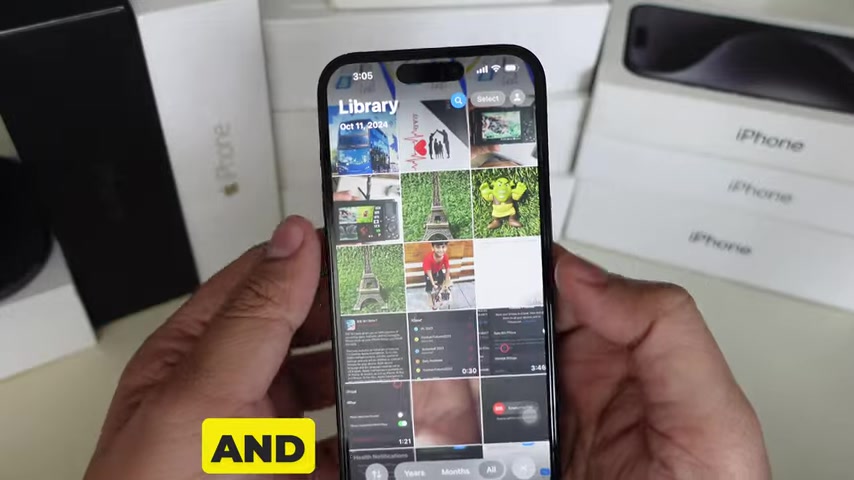
. The Edit button is typically located in the top-right corner of the screen. Tapping this button will bring up the various photo editing tools available in the Photos app. These tools allow you to adjust aspects such as exposure, contrast, color, and sharpness. It also has cropping functions and the ability to add filters and make a variety of other changes.
Take a quick look at the available editing options before proceeding. This will give you an idea of the other adjustments you can make to enhance your photo after removing the unwanted object. In some cases, you may want to crop the image to better frame the subject or adjust the exposure to improve the overall lighting. However, for now, our focus is on accessing the Cleanup tool to remove the distracting element from the scene.
The Photos app offers a robust set of editing tools, making it a versatile platform for enhancing your images directly on your iPhone. While dedicated photo editing software may offer more advanced capabilities, the built-in tools are more than sufficient for most common editing tasks. The key is to experiment with the different options and find what works best for your specific needs. With a little practice, you can achieve professional-looking results without ever having to leave the Photos app.
Step 3: Find and Select the Cleanup Tool
Within the editing options, look for the Cleanup tool
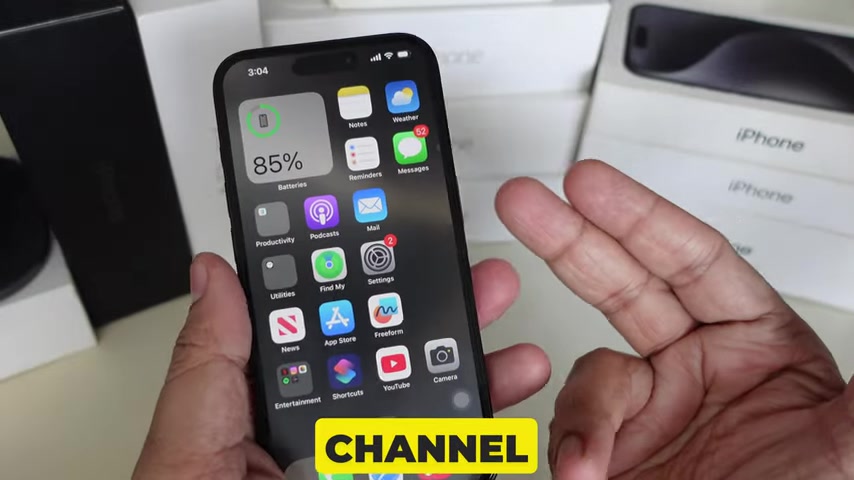
. This tool is usually represented by an icon that resembles an eraser. It is typically located in the bottom toolbar among the other editing features such as Adjust, Filters and Crop.
If you don't see the Cleanup tool, make sure you're using a compatible iPhone model and that your device is running iOS 18.1 or later. As mentioned earlier, the Cleanup tool is only available on newer iPhones with the latest software updates. If you have an older iPhone, you won't be able to access the built-in Cleanup tool, but you can still use third-party apps to achieve similar results.
Once you've located the Cleanup tool, tap on its icon to activate it. This will prepare the tool for object removal. You'll likely see a small brush icon appear on the screen, which you can use to select the object you want to erase. Take a moment to familiarize yourself with the tool's interface and settings before proceeding. Some Cleanup tools offer options for adjusting the brush size or feathering the edges, which can help you achieve more precise and natural-looking results. Experiment with these settings to find what works best for your specific image and object.
Step 4: Erase the Unwanted Object
Now that the Cleanup tool is active, use your finger to brush over the object you want to remove
. As you brush, the tool will highlight the area you're selecting for removal. Try to be as precise as possible, especially around the edges of the object. The more accurately you select the object, the better the AI will be able to fill in the background seamlessly. In some cases, you may need to zoom in on the image to get a closer view and make more accurate selections.
If you accidentally select too much of the image, don't worry! Most Cleanup tools offer an undo or erase function that allows you to remove your selections. Simply tap on the undo button or switch to the erase mode and brush over the area you want to restore. This gives you the flexibility to correct any mistakes and refine your selections until you're satisfied with the result.
For larger objects, you may need to make multiple passes with the Cleanup tool to completely remove them. Start by outlining the object and then fill in the interior with the brush. This can help you avoid leaving any unwanted artifacts or distortions in the final image. Also, consider the complexity of the background. If the object is surrounded by intricate patterns or textures, it may take more effort to achieve a seamless removal. In such cases, you may need to experiment with different brush sizes and feathering settings to get the best possible results.
Step 5: Save Your Changes
Once you're happy with the object removal, tap the Done button to save your changes
. The Photos app will process the image and apply the Cleanup tool's effects. The time it takes to process the image will depend on the complexity of the image and the size of the object you removed. Once the processing is complete, you'll be able to view the final result.
Take a moment to examine the image and make sure you're satisfied with the outcome. If you Notice any unwanted artifacts or distortions, you can always go back and make further adjustments. The Photos app allows you to undo and redo your edits as many times as you like, giving you complete control over the final result.
After saving your changes, you can share the image with your friends and family or use it for any other purpose you desire. The Cleanup tool makes it easy to create stunning photos that are free of distractions, allowing you to focus on the beauty of the scene. With a little practice, you can master the art of object removal and enhance your photography skills to a whole new level.





Most people like





































Report
Please select a reason for reporting
- 13 Reasons to Switch from Snapchat to Text Messaging
- 7 Powerful Speech to Text Apps to Boost Productivity
- 10 Best Speech to Text Tools for Effortless Transcription
- 13 Free Tools to Easily Transcribe Audio to Text
- 15 Surprising Ways Google's Speech-to-Text Boosts Productivity
- 7 Best Free Online Audio to Text Transcription Tools
- 9 Tips to Transcribe Speech to Text Faster and Better
- 13 Best Speech to Text Software for Windows 10 in 2023
- 7 Tips for Choosing the Best Transcriber for Audio to Text
- 11 Reasons Why Dragon Speech-to-Text Apps are Game-Changers
- 6 Secrets to Enhance Your Speech to Text Transcription
- 6 Brilliant Ways to Boost Productivity with Talk-to-Text on Your MacBook
- 6 Ways Transcription Software Converts Audio to Text
- 8 Tips to Transcribe Speech to Text Like a Pro
- 6 Reasons IBM Watson Speech to Text is a Game-Changer
- 14 Powerful Ways Talk-to-Text Improves Your Workflow
- 12 Top Windows Speech-to-Text Software for Efficient Transcription
- 12 Game-Changing Benefits of Apple's Speech to Text Technology
- 9 Powerful Use Cases for AWS Speech to Text Technology
- 10 Easy Steps to Transcribe YouTube Videos to Text
- transcription audio en texte
- online audio transcription
- free audio file transcription
- free ai audio transcription
- audio transcription service
- audio transcription online free
- audio transcription free online
- audio to transcription software
- audio and transcript
- ai audio transcription free
- voice recording to text converter
- translate voice recording to text
- record voice to text
- audio recording to text converter
- voice recording and transcription
- chatgpt voice to text
- gmail voice to text
- speech to text reader
- speech to text ai free
- speech to talk
- Meshy AI: How to Create 3D Models from Text and Images
- How SEO and Marketing Dashboards Empower Agencies to Drive Results
- How to Use AI Tools to Find Internal Linking Opportunities Across a Business Website
- Discover Your Perfect Haircut with AI Hairstyle Apps
- Free Reputation Calculator Tools: How They're Adapting to Score AI Visibility, Not Just Rankings
- Design Professional Flyers for Free on Your Phone
- Best Free Flyer Maker Apps for Android: Design Like a Pro
- How to Know If Your Business Is Ready for an AI Customer Service Agent
- Revolutionizing Storytelling: From Novels to Screenplays with AI
- Create Engaging Animated Explainer Videos with a Free AI Tool
- Automate Lead Generation: A Comprehensive Guide with AI Agents
- Revideo.io: The Future of Reverse Video Search Technology
- Revolutionizing Email Marketing Agency with AI
- Breaking the Character Drift Dilemma: A Practical Test of Smart Shot
- Meshy AI: How to Create 3D Models from Text and Images
- ASOMobile Helps Teams Benchmark App Store Screenshots Against Competitors
- How to Match LMS Software With Your Organization's Training Plan
- How to Convert BTC to HNT
- Unleashing the Power of AI: Cognizant's Roadmap for Transformation
- Frame to Video Review: A Practical Look at Turning Two Still Frames Into Motion

Copyright ©2026 toolify