































Table of Contents
- Key Points
- Understanding the Power and Limitations of Excel Pivot Tables
- Solutions for Overcoming Excel's Limitations
- Step-by-Step Guide to Creating a DAX Measure in Power Pivot
- Pros and Cons of Using Excel Pivot Tables
- FAQ
- Related Questions



Understanding the Power and Limitations of Excel Pivot Tables
What are Pivot Tables and Why Use Them?
Pivot tables are a powerful feature in Excel that allow users to quickly summarize and analyze large amounts of data.
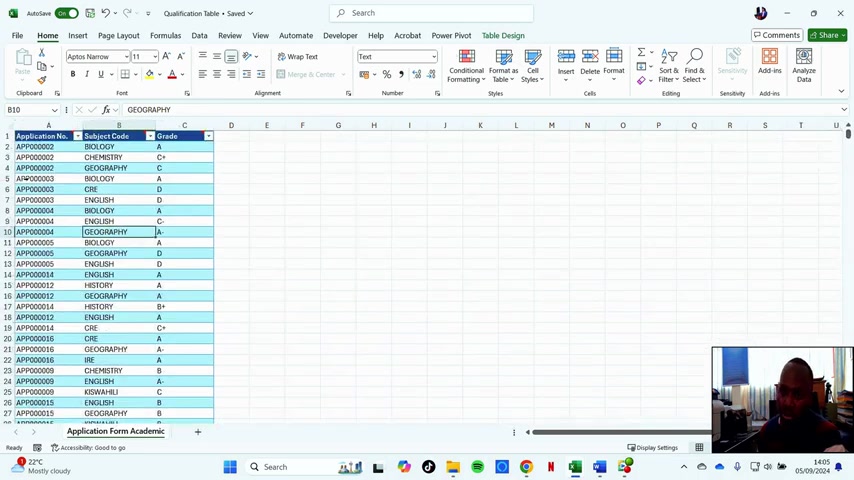
They enable you to reorganize and summarize selected columns and rows of data in a spreadsheet to obtain a desired report. Pivot tables are incredibly useful for identifying trends, Patterns, and insights that might be difficult to spot in raw data. They help you transform data into actionable information, making them indispensable for data analysis and decision-making.
They allow you to answer questions like:
- What are our top-selling products by region?
- Which marketing campaigns are the most effective?
- What is the average customer satisfaction score by demographic?
Essentially, they provide a flexible and dynamic way to explore data without altering the source data itself, making it a safe and efficient method for data manipulation and reporting. For many analysts, pivot tables are the first line of attack when trying to understand a new data set.
The benefits of using pivot tables include:
- Data Summarization: Quickly summarize large datasets.
- Trend Identification: Easily spot trends and patterns.
- Custom Reporting: Create custom reports tailored to specific needs.
- Interactive Analysis: Dynamically explore data without altering the source.
- Efficiency: Perform complex analysis more efficiently than with manual methods.
- Accessibility: User-friendly interface makes them accessible to users with varying skill levels.
The Character Limit Challenge in Excel
While incredibly powerful, Excel does have its limitations, especially when dealing with very large datasets or complex calculations. One common issue is the character limit within a cell or formula. Excel imposes restrictions on the number of characters that a cell can contain, which can be a significant obstacle when you're trying to consolidate or analyze data with lengthy text strings or complex DAX formulas. This limitation can manifest as an error message stating that the pivot table field isn't available because it exceeds the total number of characters a cell can contain.
This character limit becomes particularly problematic when you need to perform calculations that involve concatenating text, creating complex criteria for filtering, or using advanced formulas. For instance, when working with large datasets, you might need to create measures that combine multiple fields or perform conditional calculations based on complex criteria. If these calculations result in a formula that exceeds Excel's character limit, you will encounter errors and be unable to proceed with your analysis.
Specifically, you might encounter this issue when:
- Concatenating multiple text fields to create a unique identifier.
- Using complex IF statements or nested functions.
- Working with DAX formulas that perform intricate calculations.
To overcome this limitation, you often need to find workarounds, such as breaking down the calculation into smaller steps, using Helper columns, or exploring alternative data analysis tools that don't impose such restrictions. The key is to understand the character limit's impact and plan your approach accordingly to ensure you can effectively analyze your data.
Solutions for Overcoming Excel's Limitations
Leveraging DAX Functions to Bypass Character Limits
DAX (Data Analysis Expressions) functions can often provide a workaround for Excel's character limits.
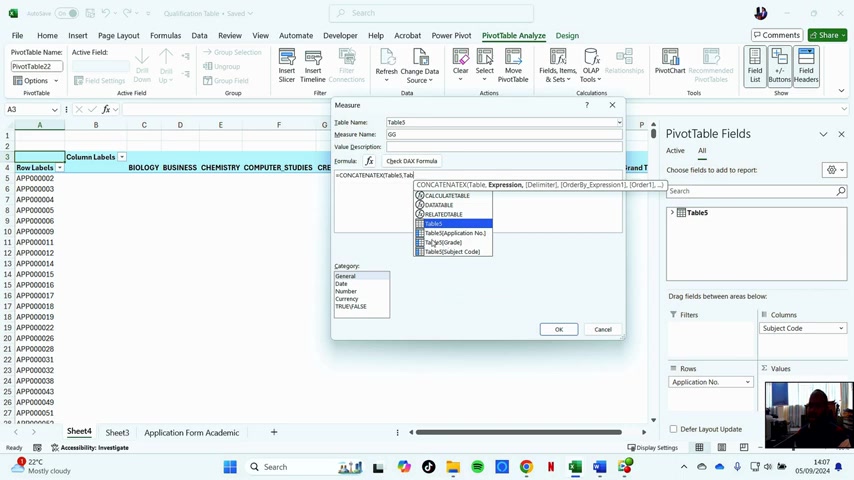
DAX is a formula language used in Power BI, Power Pivot in Excel, and SQL Server Analysis Services. While Excel has a character limit, DAX, when used in Power Pivot, can handle more complex calculations and larger data volumes. This allows you to create measures and calculated columns that bypass the limitations of standard Excel formulas.
The video explains the use of CONCATENATEX, a DAX function, which is particularly useful in overcoming character limits when concatenating text. This function allows you to combine text from multiple rows or columns into a single STRING. When you encounter character limitations with normal pivot table operations, this is a very important solution. Standard pivot tables count unique column entries in a set of rows. This can be useful, but it doesn't let you do calculations.
Here's how CONCATENATEX works and why it's beneficial:
- Concatenation: It combines text from multiple sources.
- Flexibility: It works with tables and columns.
- Character Limit Bypass: It avoids the limitations of Excel's cell character limit.
The general structure of the CONCATENATEX function is as follows:
CONCATENATEX(
    <table>,  -- The table containing the values to concatenate
    <expression>,  -- The expression (column or measure) whose values will be concatenated
    [<delimiter>],  -- (Optional) The delimiter to separate the concatenated values
    [<orderBy_expression>],  -- (Optional) An expression to order the concatenation
    [<order>]  -- (Optional) The order (ASC or DESC)
)
To implement this, you need to open Power Pivot. In the Excel ribbon, go to the Power Pivot tab and click Manage. This opens the Power Pivot window, where you can create measures and calculated columns using DAX.
-
Create a Measure: In the Power Pivot window, go to Calculations Area (the GRID at the bottom). Click in a cell and enter your DAX formula using
CONCATENATEX. -
Use
CONCATENATEX: Write your DAX formula to concatenate the required fields.For example:
MeasureName := CONCATENATEX(
    TableName,
    TableName[ColumnName],
    ", "
)
Where:
MeasureNameis the name you give to your measure.TableNameis the name of your table.TableName[ColumnName]is the column you want to concatenate.
-
Add Measure to Pivot Table: Once the measure is created, you can add it to your pivot table just like any other field. Drag the measure from the Power Pivot field list to the Values area of your pivot table.
By creating this DAX measure, you can perform complex text concatenations without hitting Excel’s character limit, thus enabling more advanced data analysis.
Combining Excel with AI for Enhanced Data Analysis
Integrating AI Tools with Excel can significantly enhance data analysis capabilities, especially when dealing with complex or large datasets. AI can automate tasks, provide predictive insights, and perform analyses that would be impractical or impossible with Excel alone.
Here are several ways to combine Excel with AI:
- AI-Powered Add-ins: Use Excel add-ins that incorporate AI functionality. Several add-ins are available that bring AI-driven features like sentiment analysis, predictive modeling, and anomaly detection directly into Excel.
- Azure Machine Learning: Connect Excel to Azure Machine Learning services. This allows you to build and deploy machine learning models in Azure and then use them to analyze data in Excel.
- Python Integration: Utilize Python for data analysis and AI tasks, then import the results into Excel. Python has extensive libraries for data analysis (e.g., pandas, scikit-learn) that can be used to pre-process data and perform AI tasks.
- Google Sheets AI: If you are a Google Sheets user, leverage its built-in AI capabilities. Google Sheets offers features like Explore, which uses AI to provide automated insights and analysis of your data. While not Excel, it is another spreadsheet option.
- ChatGPT for Formula Generation: Use ChatGPT to assist in generating complex Excel formulas. By describing what you want to achieve, ChatGPT can provide the necessary formulas, saving time and reducing errors.
Using AI offers several advantages:
- Automated Analysis: AI can automate repetitive tasks, reducing manual effort.
- Predictive Insights: AI can provide predictive insights to help you make better decisions.
- Complex Analysis: AI can perform analyses that are too complex for Excel alone.
One innovative method involves using ChatGPT to assist in crafting complex Excel formulas. ChatGPT, an AI language model, can generate intricate formulas based on your descriptive input. This is particularly useful when you're unsure of the exact syntax or logic required for a specific calculation.
To integrate ChatGPT, follow these steps:
- Describe Your Goal: Clearly describe the calculation or analysis you want to perform in Excel.
- Input to ChatGPT: Enter your description into ChatGPT, asking it to generate the corresponding Excel formula.
- Implement in Excel: Copy the formula provided by ChatGPT and paste it into the appropriate cell in Excel.
- Verify the Results: Ensure the formula produces the desired results by testing it with sample data.
By integrating AI in this manner, you not only enhance your analytical capabilities but also streamline your workflow, making data analysis more accessible and efficient.
Step-by-Step Guide to Creating a DAX Measure in Power Pivot
Open and Manage Power Pivot
Open Power Pivot through the Excel ribbon.
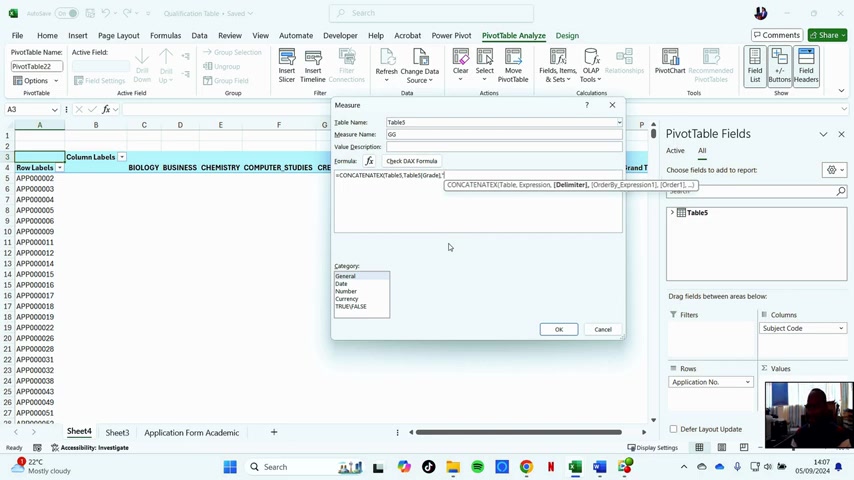
Click manage button so that it opens. Power Pivot opens a brand new window.
Create a Measure
Go to calculations Area. Click a cell and then input the DAX formula
Use CONCATENATEX to build your formula
Make use of CONCATENATEX formula to concatenate the required fields.
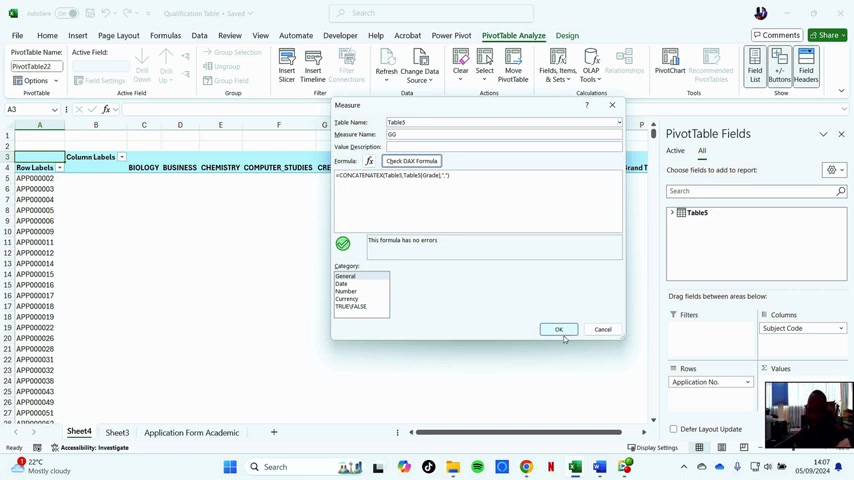
Add your measure to the Pivot Table in the values section.


Most people like



































Report
Please select a reason for reporting
- 13 Reasons to Switch from Snapchat to Text Messaging
- 7 Powerful Speech to Text Apps to Boost Productivity
- 10 Best Speech to Text Tools for Effortless Transcription
- 13 Free Tools to Easily Transcribe Audio to Text
- 15 Surprising Ways Google's Speech-to-Text Boosts Productivity
- 7 Best Free Online Audio to Text Transcription Tools
- 9 Tips to Transcribe Speech to Text Faster and Better
- 13 Best Speech to Text Software for Windows 10 in 2023
- 7 Tips for Choosing the Best Transcriber for Audio to Text
- 11 Reasons Why Dragon Speech-to-Text Apps are Game-Changers
- 6 Secrets to Enhance Your Speech to Text Transcription
- 6 Brilliant Ways to Boost Productivity with Talk-to-Text on Your MacBook
- 6 Ways Transcription Software Converts Audio to Text
- 8 Tips to Transcribe Speech to Text Like a Pro
- 6 Reasons IBM Watson Speech to Text is a Game-Changer
- 14 Powerful Ways Talk-to-Text Improves Your Workflow
- 12 Top Windows Speech-to-Text Software for Efficient Transcription
- 12 Game-Changing Benefits of Apple's Speech to Text Technology
- 9 Powerful Use Cases for AWS Speech to Text Technology
- 10 Easy Steps to Transcribe YouTube Videos to Text
- transcription audio en texte
- online audio transcription
- free audio file transcription
- free ai audio transcription
- audio transcription service
- audio transcription online free
- audio transcription free online
- audio to transcription software
- audio and transcript
- ai audio transcription free
- voice recording to text converter
- translate voice recording to text
- record voice to text
- audio recording to text converter
- voice recording and transcription
- chatgpt voice to text
- gmail voice to text
- speech to text reader
- speech to text ai free
- speech to talk
- ChatGPT Knows Ford. It Just Doesn't Quote Ford
- Meshy AI: How to Create 3D Models from Text and Images
- How SEO and Marketing Dashboards Empower Agencies to Drive Results
- How to Use AI Tools to Find Internal Linking Opportunities Across a Business Website
- Discover Your Perfect Haircut with AI Hairstyle Apps
- Free Reputation Calculator Tools: How They're Adapting to Score AI Visibility, Not Just Rankings
- Design Professional Flyers for Free on Your Phone
- Best Free Flyer Maker Apps for Android: Design Like a Pro
- How to Know If Your Business Is Ready for an AI Customer Service Agent
- Revolutionizing Storytelling: From Novels to Screenplays with AI
- AI Video Editor Review: A Hands-On Look at Prompt-Based Video Editing
- Keep Characters Consistent Across Scenes With Image-to-Video AI
- How to Convert BTC to HNT
- ProxyWing DuckDuckGo Proxy Review: Plans, Setup and Who It Is For
- ChatGPT Knows Ford. It Just Doesn't Quote Ford
- Automate Lead Generation: A Comprehensive Guide with AI Agents
- Revideo.io: The Future of Reverse Video Search Technology
- Revolutionizing Email Marketing Agency with AI
- Breaking the Character Drift Dilemma: A Practical Test of Smart Shot
- Meshy AI: How to Create 3D Models from Text and Images

Copyright ©2026 toolify