































Table of Contents
- Key Points
- Understanding the Excel Copilot Function
- Practical Use Cases and Examples of Excel Copilot
- Maximizing the Value of Excel Copilot: Tips and Tricks
- Excel Copilot: Weighing the Pros and Cons
- FAQ
- Related Questions


Understanding the Excel Copilot Function
What is Excel Copilot?

The Excel Copilot function is a new feature added by Microsoft that allows users to type a question or instruction directly into a cell. The function then uses artificial intelligence (AI) to analyze the input and provide an answer. This aims to streamline processes and make data analysis more accessible, particularly for complex tasks. It uses AI to provide answers and is intended to function as an assistant within Excel, offering solutions and insights based on user queries.
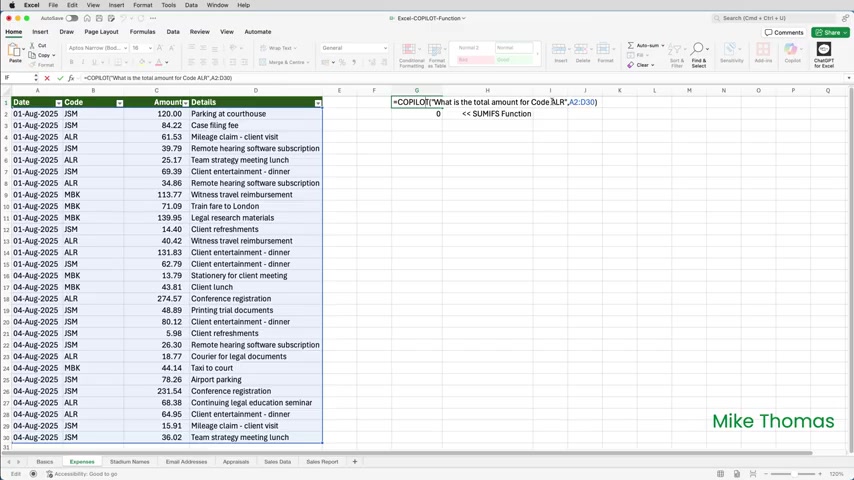
To use the Copilot function, you simply type your question or request into a cell, following the format =COPILOT(“[Your question or instruction]”). Excel then processes your input and generates a dynamic array or a spill array, which presents the answer directly within the spreadsheet.
However, there are limitations. As of now, the Copilot function is only available to users who are part of the Microsoft 365 Beta Insiders Channel and have a paid Copilot license, costing $20 per month. Also, to ensure the tool works, the Prompt should specify the column and row for the function.
The functionality has limited usage. It is more important than ever to make sure to stay aware of what Microsoft is adding to Excel, even if the features are not directly relevant.
How to Use the Copilot Function in Excel: A Step-by-Step Guide
Let’s walk through a practical example to illustrate how the Copilot function operates within Excel:
Scenario: You need a list of Mac operating systems since 2007.
Step 1: In cell A1, type the formula =COPILOT(“[Your question or instruction]”)
Step 2: Enter the prompt. Double click the field for the text and then type, “I need a list of the names of the Mac Operating Systems since 2007”.

Press enter.
Step 3: Review the results. A list of names are dynamically generated down column A. Each cell indicates “AI-generated”.
When you select a cell that the Copilot function generated, a pop-up that the value in that cell has been generated by AI shows in the lower-right corner.
You can provide feedback to Microsoft, tweaking and improving the tool for other users.
It's worth noting that when this demo was tested, the function only produced a list of names. Because of this, a second demo was required:
Step 1: Change the formula. To improve the output, edit the formula and add, “include the year of release”, to produce =COPILOT(“I need a list of the names of the Mac Operating Systems since 2007 include the year of release”).
As a result, the function alters what was in column A. This illustrates the ever-changing and slightly unstable nature of AI and the Copilot function.
However, to keep the original result, it is recommended to copy and paste values, rather than formulas. As functions recalculate when edited, use copy and paste > values to replace the formulas with static values.
Practical Use Cases and Examples of Excel Copilot
Analyzing and Summarizing Sales Data
Imagine you have a large dataset of sales records and need to quickly derive key insights. The Copilot function can help identify trends, patterns, and anomalies.
It is important to note that while the average result might be correct, it is more important than ever to acknowledge the limitations.
You can use a prompt like this:
=COPILOT(“I need 5 key insights from this data to give to the CEO”,’Sales Data’!A1:H51)This will look at the range in the 'Sales Data' sheet, and put those insights in separate cells. To then present them to the CEO, you can combine the text with a few line breaks:
=TEXTJOIN(CHAR(10)&CHAR(10),TRUE,COPILOT(“I need 5 key insights from this data to give to the CEO”,’Sales Data’!A1:H51)) It is important to note that because you used AI, there is no guarantee that it will give appropriate feedback. Make sure to use the thumbs up or thumbs down to give feedback to Microsoft.
Extracting Information from Unstructured Data
Consider having a list of client contact details where the information is inconsistent, but you are looking to get contact emails. [t: 577]Instead of getting information through VLOOKUP, consider using this function:
=COPILOT(“Extract the email address”,A1:A20)Copilot will then analyze the email address, extract it and display it.
Determining Sentiment in Performance Reviews
Copilot can help with providing employee performance reports by analyzing employee sentiments:
=COPILOT(“Is the review Positive, Negative or Neutral”,B2:B11)Copilot will then analyze their strengths and weaknesses, and put positive or negative or neutral depending on the response.



Most people like
































Report
Please select a reason for reporting
- 13 Reasons to Switch from Snapchat to Text Messaging
- 7 Powerful Speech to Text Apps to Boost Productivity
- 10 Best Speech to Text Tools for Effortless Transcription
- 13 Free Tools to Easily Transcribe Audio to Text
- 15 Surprising Ways Google's Speech-to-Text Boosts Productivity
- 7 Best Free Online Audio to Text Transcription Tools
- 9 Tips to Transcribe Speech to Text Faster and Better
- 13 Best Speech to Text Software for Windows 10 in 2023
- 7 Tips for Choosing the Best Transcriber for Audio to Text
- 11 Reasons Why Dragon Speech-to-Text Apps are Game-Changers
- 6 Secrets to Enhance Your Speech to Text Transcription
- 6 Brilliant Ways to Boost Productivity with Talk-to-Text on Your MacBook
- 6 Ways Transcription Software Converts Audio to Text
- 8 Tips to Transcribe Speech to Text Like a Pro
- 6 Reasons IBM Watson Speech to Text is a Game-Changer
- 14 Powerful Ways Talk-to-Text Improves Your Workflow
- 12 Top Windows Speech-to-Text Software for Efficient Transcription
- 12 Game-Changing Benefits of Apple's Speech to Text Technology
- 9 Powerful Use Cases for AWS Speech to Text Technology
- 10 Easy Steps to Transcribe YouTube Videos to Text
- transcription audio en texte
- online audio transcription
- free audio file transcription
- free ai audio transcription
- audio transcription service
- audio transcription online free
- audio transcription free online
- audio to transcription software
- audio and transcript
- ai audio transcription free
- voice recording to text converter
- translate voice recording to text
- record voice to text
- audio recording to text converter
- voice recording and transcription
- chatgpt voice to text
- gmail voice to text
- speech to text reader
- speech to text ai free
- speech to talk
- Meshy AI: How to Create 3D Models from Text and Images
- How SEO and Marketing Dashboards Empower Agencies to Drive Results
- How to Use AI Tools to Find Internal Linking Opportunities Across a Business Website
- Discover Your Perfect Haircut with AI Hairstyle Apps
- Free Reputation Calculator Tools: How They're Adapting to Score AI Visibility, Not Just Rankings
- Design Professional Flyers for Free on Your Phone
- Best Free Flyer Maker Apps for Android: Design Like a Pro
- How to Know If Your Business Is Ready for an AI Customer Service Agent
- Revolutionizing Storytelling: From Novels to Screenplays with AI
- Create Engaging Animated Explainer Videos with a Free AI Tool
- Meshy AI: How to Create 3D Models from Text and Images
- ASOMobile Helps Teams Benchmark App Store Screenshots Against Competitors
- How to Match LMS Software With Your Organization's Training Plan
- Revolutionizing Email Marketing Agency with AI
- How to Convert BTC to HNT
- Unleashing the Power of AI: Cognizant's Roadmap for Transformation
- Frame to Video Review: A Practical Look at Turning Two Still Frames Into Motion
- NVIDIA NIM: Revolutionizing Supply Chain Data Analysis with AI
- Top AI Tools That Help Brands Stand Out Offline (Not Just Online)
- Top 5 Cold Email Software: Maximize Your Outreach in 2025

Copyright ©2026 toolify