































Table of Contents
- Key Points
- Understanding Face Swap Methods in Fooocus
- Comparing the Face Swap Methods: A Detailed Analysis
- A Step-by-Step Tutorial: Using the Top Methods
- Text Prompt Method: Weighing the Pros and Cons
- FAQ
- Related Questions



Understanding Face Swap Methods in Fooocus
An Overview of Fooocus
For those diving into the world of Stable Diffusion, Fooocus distinguishes itself as a notably user-friendly interface. It simplifies the process of creating and manipulating images using the power of AI. Among its many capabilities, face swapping stands out as a popular and intriguing feature. Fooocus provides several methods to achieve this, but this variety can lead to confusion about which technique provides the optimal balance of quality and efficiency.
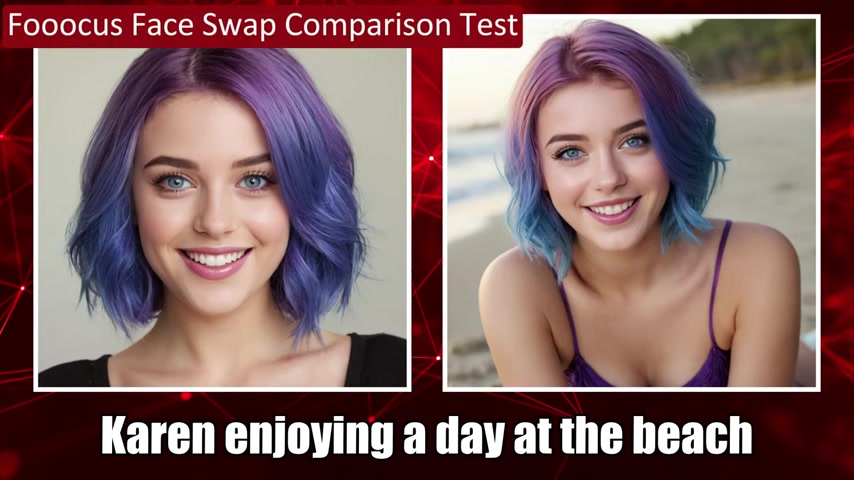
This article focuses on comparing the results of these various face swap methods to help users make informed decisions. We aim to guide you in navigating these options, so you can choose the right face swap approach for your specific project.
The Four Primary Face Swap Methods
Fooocus offers four distinct ways to perform face swaps:
- Text Prompt: This method utilizes text descriptions to guide the AI in generating a new image with the desired face.
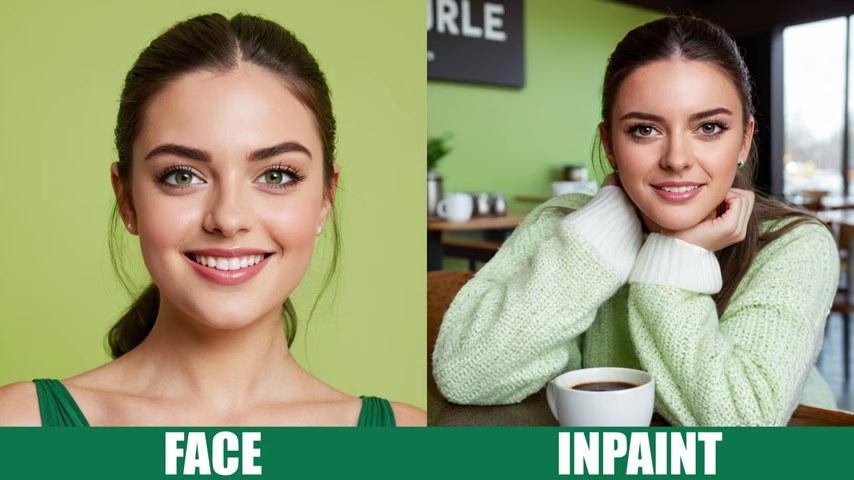
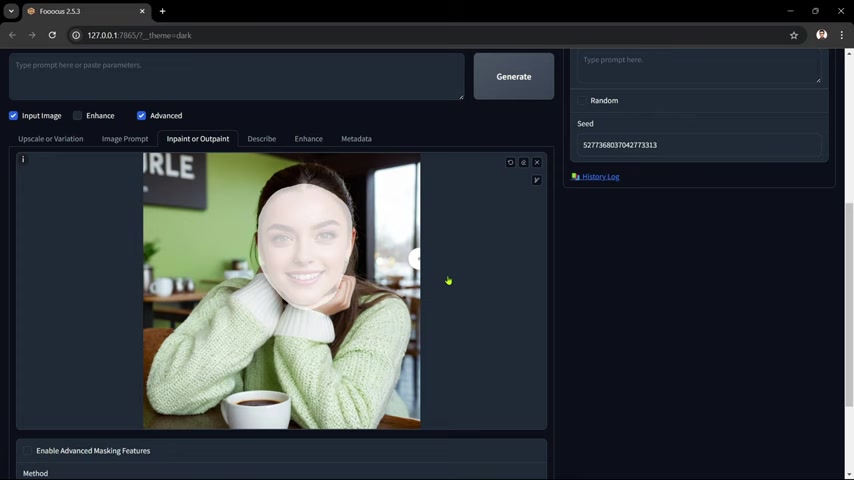
- Inpaint: Inpainting involves masking a portion of an existing image (in this case, the face) and instructing the AI to regenerate that area with a new face.
- Image Variation: This technique takes an existing image and generates variations of it, incorporating a new face into the process.
-
ControlNet PyraCanny: ControlNet offers more control over image generation by using edge detection to guide the AI, allowing for precise face placement and integration.
Each method offers unique benefits and drawbacks, which we’ll analyze in the sections below. Understanding these nuances will empower you to select the face swap technique that best suits your desired outcome.
Comparing the Face Swap Methods: A Detailed Analysis
Testing Methodology and Face Image Selection
To determine the best face swap method in Fooocus, a consistent approach is applied. This comparison test uses a single 'face image' to test each of the four different methodologies available in Fooocus. Using the same face provides a baseline for comparison.
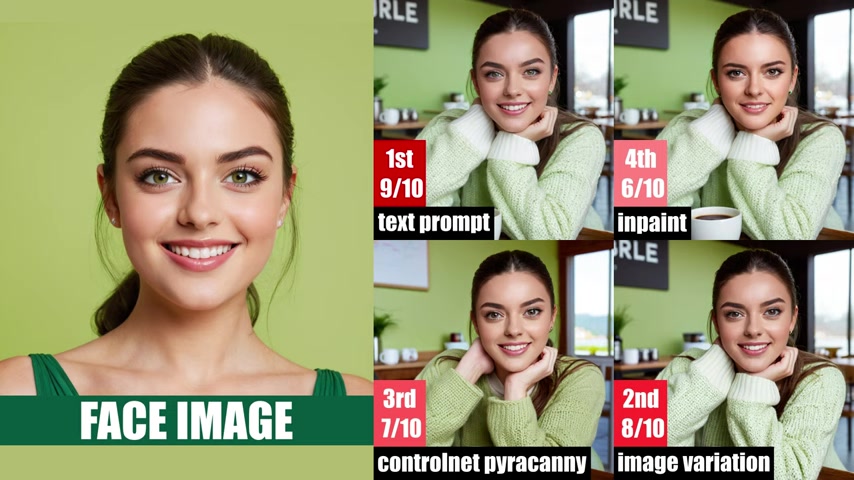
This consistent setup ensures a fair assessment, highlighting the strengths and weaknesses inherent in each approach. By using one localized install for the testing it can be insured the results are accurate. It is important to consider that various tests are not very limited as each image creates different results when swapping the faces and therefore is difficult to accurately test each process. Different images may produce different results.
Here's an overview of the core components of the testing setup:
- Operating System: Windows 11 PC
- Stable Diffusion UI: Fooocus
- Source Images: AI-generated images (due to their consistency and compatibility with Fooocus).
- Performance: Quality at 1024x1024 Resolution
- Settings: 1:1 Aspect Ratio
This configuration ensures a standardized environment, allowing for accurate comparison of face swap methods. While this approach provides valuable insight, there are a few important disclaimers. These disclaimers should be considered when evaluating the comparative results:
This was a very limited test. Additional text prompts could have been added to the later methods to make sure they had as much support as the frontrunner. Results will vary based on case. A1 images were exclusively used for the comparison test. *Different images may produce very different results.
Ranking the Face Swap Methods
After comparing each method it has been determined which options are best, ok, and downright unusable. While results will vary per the previous disclaimer it is important to note:
In order to determine the placement of the tested AI software it is important to lay out the ranking:
-
1st Place: The Text Prompt Method is the winner, receiving a rating of 9/10.
-
2nd Place: Image Variation comes in second, with a solid 8/10.
-
3rd Place: ControlNet PyraCanny gets a 7/10.
-
4th Place: Inpaint is the worst performer with a score of 6/10.
These results are based on the specified testing setup. Some believe that Inpaint has excellent output at the hands of a skilled technician. It may be beneficial to find secondary sources regarding output quality for Inpaint. Also, it is important to note that the end user can and should adjust these methods as they see fit. It is possible to create very unique results based on skill, patience, and personal taste. The only way to master the methods is to test them out yourself!
A Step-by-Step Tutorial: Using the Top Methods
Generating a Base Face Image
It is important to get the base image right before swapping faces. The quality of an image will largely rely on if these setting are correct.
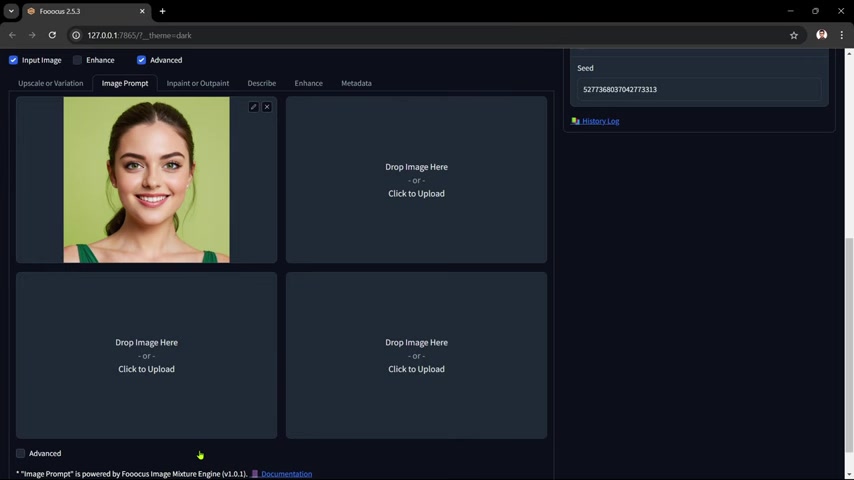
This section will serve as a Tutorial on how to generate a base image and what setting to use. Follow these steps:
- Open Fooocus.
- Ensure the Advanced checkbox is selected to reveal the advanced settings.
- Use a 1024x1024 Aspect Ratio: This square aspect ratio is one of the more commonly used ratios for AI generation.
- Ensure you add the Metadata from the image file by pasting it into the Text Prompt Box: Select load parameters to ensure it is properly populated with data. This way the metadata will be kept, therefore, creating the best possible recreation and limiting errors.
- Settings: Make sure you change the settings to the appropriate models. Use Juggernaut Excel model and the SDXL offset LoRA at the default settings.
- Set Styles and click generate.
Method 1: Text Prompt Face Swap - A Step-by-Step Guide
The Text Prompt method is powerful and provides some great creative opportunities. As noted before it is the front runner when it comes to base creation and swapping faces. Follow these steps:
-
Ensure that the Basic Text Prompt from the base image remains in the Text Prompt Box.
-
Ensure that Input Image has been selected in the bottom left of the prompt box.
-
On the Input Image bar select “Image Promp” to add a pose image. This can be any generated image, but should maintain a good pose and have no distortion.
-
Under the “Image prompt box” you will now need to enable the advanced settings at the bottom. To the bottom right ensure you have selected the “Face Swap Option” to properly engage that functionality.
It may be helpful to play with the stop at and weight functions. It has been found that if you set “Stop at” to 1.0, but keep “Weights” between 0.9 and 1.0 then it tends to work best.
-
Ensure on the advance tab you have clicked the Developer Debug Mode.
-
Lastly, navigate to the ‘Control Tab” and select the mixing image and inpaint box.
-
Set styles and generate your image.
Method 2: Image Variation Face Swap - A Step-by-Step Guide
While this technique has it’s problems, here are the recommended setting and step-by-step breakdown:
- Clear “Text Prompt Box” and “Load Parameters”.
- Under the “Input Image Box” make sure you have selected “Upscale or Variation”.
- Drop the same base image into this section.
- Select “Variation Subtitle” in the upscale or Variation Box. This will now make your images to the variation of the dropped photograph.
- Drop pose-image into the second “image prompt box”.
- Ensure on the advance tab you have clicked the Developer Debug Mode.
- Select the Control Tab” and make sure you click the box that says: ‘mixing image prompt and vary/upscale”
- Set styles and generate your image. This will vary the base image and pose image together. This is to combine characteristics.








Most people like






























Report
Please select a reason for reporting
- 13 Reasons to Switch from Snapchat to Text Messaging
- 7 Powerful Speech to Text Apps to Boost Productivity
- 10 Best Speech to Text Tools for Effortless Transcription
- 13 Free Tools to Easily Transcribe Audio to Text
- 15 Surprising Ways Google's Speech-to-Text Boosts Productivity
- 7 Best Free Online Audio to Text Transcription Tools
- 9 Tips to Transcribe Speech to Text Faster and Better
- 13 Best Speech to Text Software for Windows 10 in 2023
- 7 Tips for Choosing the Best Transcriber for Audio to Text
- 11 Reasons Why Dragon Speech-to-Text Apps are Game-Changers
- 6 Secrets to Enhance Your Speech to Text Transcription
- 6 Brilliant Ways to Boost Productivity with Talk-to-Text on Your MacBook
- 6 Ways Transcription Software Converts Audio to Text
- 8 Tips to Transcribe Speech to Text Like a Pro
- 6 Reasons IBM Watson Speech to Text is a Game-Changer
- 14 Powerful Ways Talk-to-Text Improves Your Workflow
- 12 Top Windows Speech-to-Text Software for Efficient Transcription
- 12 Game-Changing Benefits of Apple's Speech to Text Technology
- 9 Powerful Use Cases for AWS Speech to Text Technology
- 10 Easy Steps to Transcribe YouTube Videos to Text
- transcription audio en texte
- online audio transcription
- free audio file transcription
- free ai audio transcription
- audio transcription service
- audio transcription online free
- audio transcription free online
- audio to transcription software
- audio and transcript
- ai audio transcription free
- voice recording to text converter
- translate voice recording to text
- record voice to text
- audio recording to text converter
- voice recording and transcription
- chatgpt voice to text
- gmail voice to text
- speech to text reader
- speech to text ai free
- speech to talk
- How SEO and Marketing Dashboards Empower Agencies to Drive Results
- How to Use AI Tools to Find Internal Linking Opportunities Across a Business Website
- Discover Your Perfect Haircut with AI Hairstyle Apps
- Free Reputation Calculator Tools: How They're Adapting to Score AI Visibility, Not Just Rankings
- Design Professional Flyers for Free on Your Phone
- Best Free Flyer Maker Apps for Android: Design Like a Pro
- How to Know If Your Business Is Ready for an AI Customer Service Agent
- Revolutionizing Storytelling: From Novels to Screenplays with AI
- Create Engaging Animated Explainer Videos with a Free AI Tool
- Stop Multi-Subscribing: Benchmark Top AI Visual Models in One Canvas
- ASOMobile Helps Teams Benchmark App Store Screenshots Against Competitors
- How to Match LMS Software With Your Organization's Training Plan
- Revolutionizing Email Marketing Agency with AI
- How to Convert BTC to HNT
- Unleashing the Power of AI: Cognizant's Roadmap for Transformation
- Frame to Video Review: A Practical Look at Turning Two Still Frames Into Motion
- NVIDIA NIM: Revolutionizing Supply Chain Data Analysis with AI
- Top AI Tools That Help Brands Stand Out Offline (Not Just Online)
- Top 5 Cold Email Software: Maximize Your Outreach in 2025
- Magic School AI: Revolutionizing Quiz & Assessment Generation

Copyright ©2026 toolify