































Table of Contents
- Key Points
- Understanding the Basics of Git Checkout
- Advanced Techniques and Considerations
- Step-by-Step Guide to Using Git Checkout
- Advantages and Disadvantages of Using Git Checkout
- FAQ
- Related Questions



Understanding the Basics of Git Checkout
What is Git Checkout?
The git checkout command is primarily used to switch branches or restore working tree files. It’s a versatile command that can be employed to:
- Switch to a different branch for development.
- Revert changes in your working directory.
- View a specific commit, essentially taking your entire project back to a point in time.
However, it’s vital to distinguish its behavior based on the provided arguments. Checking out a branch moves your working directory to that branch, allowing you to work on the latest version of the code. Checking out a commit puts your project in a 'detached HEAD' state, where you're no longer on a branch and any new commits will not be part of any branch unless explicitly created. Understanding this distinction is paramount to prevent accidental data loss. Let's dive into its specifics and applications.
Differentiating Between Git Checkout Branch and Git Checkout Commit
Understanding the nuance between checking out a branch and checking out a specific commit is the bedrock of efficient Git workflow. Here’s the breakdown:
- Git Checkout Branch: When you execute git checkout
, you are seamlessly transitioning your working directory to the specified branch. This action pulls the latest state of that branch into your local environment, enabling you to contribute, modify, and commit changes directly to that branch. - Git Checkout Commit: Conversely, running git checkout
transports your project to a detached HEAD state. In this state, you're essentially time-traveling to a historical snapshot of your codebase. While in detached HEAD, you can inspect the code, run it, and even make modifications. However, it's crucial to realize that these changes are not automatically associated with any branch, so committing them requires extra steps to create a new branch or grafting them onto an existing one. 
Knowing when to use each form of checkout depends entirely on your objective. Use checkout branch when you want to contribute to ongoing development. Employ checkout commit when you merely need to examine or potentially resurrect an old state of your application. Neglecting this differentiation invites unnecessary complications in managing your code and risks obscuring your modifications.
Step-by-Step Guide to Using Git Checkout
Step 1: List Available Branches
Before you can checkout a branch, you need to know which branches are available. Use the following command to list all local branches:
git branchThis command will display all your local branches, with the currently active branch highlighted.
Step 2: Switch to an Existing Branch
To switch to an existing branch, use the git checkout command followed by the branch name:
git checkout <branch_name>Replace <branch_name> with the name of the branch you want to switch to. For example, to switch to a branch named 'develop', you would use:
git checkout developStep 3: Checkout a Specific Commit
To checkout a specific commit, you need the commit hash. You can find this using the git log command. Once you have the commit hash, use the following command:
git checkout <commit_hash>Replace <commit_hash> with the actual commit hash. For example:
git checkout 6586c13115bda9996ec1983f5b2daf6235cb06dbThis will put your project in a 'detached HEAD' state, showing the code as it was at that specific commit.
Step 4: Create a New Branch from a Commit (Optional)
If you make changes while in a 'detached HEAD' state, you'll likely want to save those changes. Create a new branch using:
git checkout -b <new_branch_name>Replace <new_branch_name> with the name you want to give your new branch. This will create a new branch at the current commit and switch to that branch.
How to Get Old Versions of your Project
This involves obtaining specific versions of your project from the repository, and it might differ from what you'd expect. When considering the scenario of needing to revert to a previous state because of changes introduced by a colleague that compromised project stability, here’s what to do:
- Avoid Deletion: It's generally undesirable to outright delete project milestones or commits. Instead, recognize that each commit represents a point in time you may need to revisit.
- Reverting Linearly: Rather than eliminating more recent commits, acquire a copy of the desired older commit and integrate it back into the project flow.
- Using Git Log
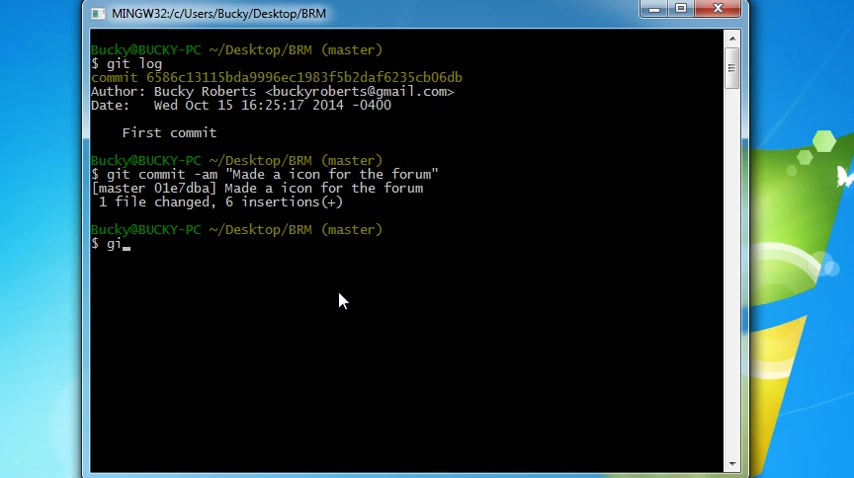
: To revert you must list all the commits using
git log. - Using Get Checkout : Get a copy of one commit with
git checkout O1e7dba -- index.html.


Most people like





































Report
Please select a reason for reporting
- 13 Reasons to Switch from Snapchat to Text Messaging
- 7 Powerful Speech to Text Apps to Boost Productivity
- 10 Best Speech to Text Tools for Effortless Transcription
- 13 Free Tools to Easily Transcribe Audio to Text
- 15 Surprising Ways Google's Speech-to-Text Boosts Productivity
- 7 Best Free Online Audio to Text Transcription Tools
- 9 Tips to Transcribe Speech to Text Faster and Better
- 13 Best Speech to Text Software for Windows 10 in 2023
- 7 Tips for Choosing the Best Transcriber for Audio to Text
- 11 Reasons Why Dragon Speech-to-Text Apps are Game-Changers
- 6 Secrets to Enhance Your Speech to Text Transcription
- 6 Brilliant Ways to Boost Productivity with Talk-to-Text on Your MacBook
- 6 Ways Transcription Software Converts Audio to Text
- 8 Tips to Transcribe Speech to Text Like a Pro
- 6 Reasons IBM Watson Speech to Text is a Game-Changer
- 14 Powerful Ways Talk-to-Text Improves Your Workflow
- 12 Top Windows Speech-to-Text Software for Efficient Transcription
- 12 Game-Changing Benefits of Apple's Speech to Text Technology
- 9 Powerful Use Cases for AWS Speech to Text Technology
- 10 Easy Steps to Transcribe YouTube Videos to Text
- transcription audio en texte
- online audio transcription
- free audio file transcription
- free ai audio transcription
- audio transcription service
- audio transcription online free
- audio transcription free online
- audio to transcription software
- audio and transcript
- ai audio transcription free
- voice recording to text converter
- translate voice recording to text
- record voice to text
- audio recording to text converter
- voice recording and transcription
- chatgpt voice to text
- gmail voice to text
- speech to text reader
- speech to text ai free
- speech to talk
- ChatGPT Knows Ford. It Just Doesn't Quote Ford
- Meshy AI: How to Create 3D Models from Text and Images
- How SEO and Marketing Dashboards Empower Agencies to Drive Results
- How to Use AI Tools to Find Internal Linking Opportunities Across a Business Website
- Discover Your Perfect Haircut with AI Hairstyle Apps
- Free Reputation Calculator Tools: How They're Adapting to Score AI Visibility, Not Just Rankings
- Design Professional Flyers for Free on Your Phone
- Best Free Flyer Maker Apps for Android: Design Like a Pro
- How to Know If Your Business Is Ready for an AI Customer Service Agent
- Revolutionizing Storytelling: From Novels to Screenplays with AI
- Your Business Data Could Be Worth Up to $4M. Find Out Without Uploading a Single File.
- Can an eSIM Plan Save You Time During Travel Setup?
- AI Video Editor Review: A Hands-On Look at Prompt-Based Video Editing
- Keep Characters Consistent Across Scenes With Image-to-Video AI
- How to Convert BTC to HNT
- ProxyWing DuckDuckGo Proxy Review: Plans, Setup and Who It Is For
- ChatGPT Knows Ford. It Just Doesn't Quote Ford
- Automate Lead Generation: A Comprehensive Guide with AI Agents
- Revideo.io: The Future of Reverse Video Search Technology
- Revolutionizing Email Marketing Agency with AI

Copyright ©2026 toolify