































Table of Contents
- Key Points
- Setting Up Your Local Git Repository
- Git Workflow Explained
- Frequently Asked Questions
- Related Questions



Setting Up Your Local Git Repository
What is Git Init?
The git init command is the cornerstone of any Git-managed project. It transforms a regular directory into a Git repository, creating a hidden .git folder that stores all the necessary metadata and object database for your project. Think of it as laying the foundation for version control. Without this step, Git won't track changes in your project's files.
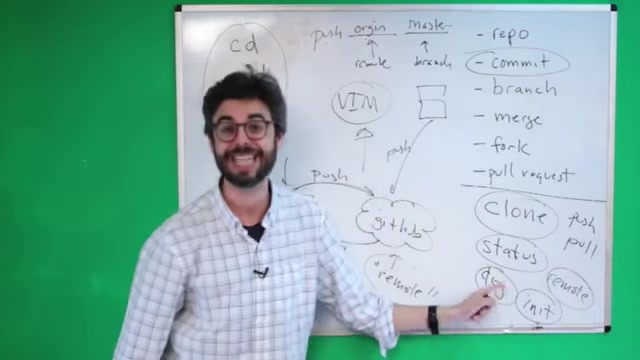
It's so easy to get going:
- Navigate to your project directory in the terminal.
- Type
git initand press Enter. - Congratulations! Your directory is now a Git repository.
For instance, if you're working on some Lyrics or song, you need to navigate to the relevant folder through the terminal, and run git init. This creates a repository where Git can work to track and log the changes that you are making as you write your masterpiece.
Running git init only needs to be done once per project. Even if you add new files later, you don't need to run git init again. It will keep tracking as long as the file or folder is in the root of the repository.
Understanding Git Add: Staging Your Changes
The git add command is used to stage changes within your Git repository. Staging is the process of preparing specific file modifications or new files for inclusion in your next commit. This gives you fine-grained control over what goes into each version of your project.
To add specific files:
- Type
git add <filename>to stage that individual file. - To add all changed or new files, use
git add .. - Be careful with
git add .. Make sure you haven't added files that shouldn't be there like.envor.DS_Store. - To review changes that have been staged, use
git status.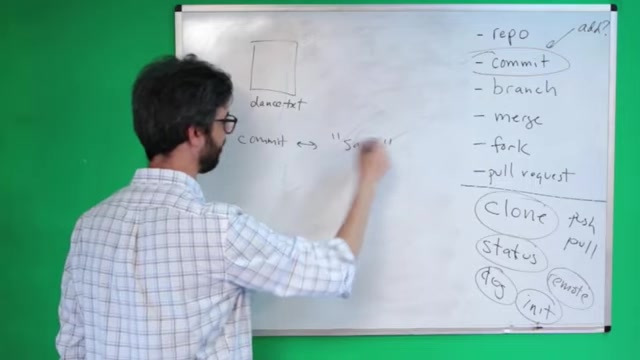
The staging area (sometimes called the “index”) acts as an intermediary between your working directory and the Git repository. It allows you to selectively choose which changes you want to include in the next snapshot of your project’s history (the commit). Without the staging area, every modification you've made would be automatically included in your commits, which might not always be desirable.
Git Workflow Explained
The Local Development Git Workflow
Understanding the Git workflow is essential to using it effectively. When working locally, the process usually involves:
- Save Changes: Use your text editor or IDE to save the changes.
- Add Files to the Staging Area (git add): Stage the changes you want to commit using the
git addcommand. This marks the modifications that you are intentionally tracking. - Commit the Staged Changes (git commit): Once the files are staged in Git, create a snapshot of the tracked version with the command
git commit -m "Your meaningful message here". This is a step to confirm and log changes to the Git repository.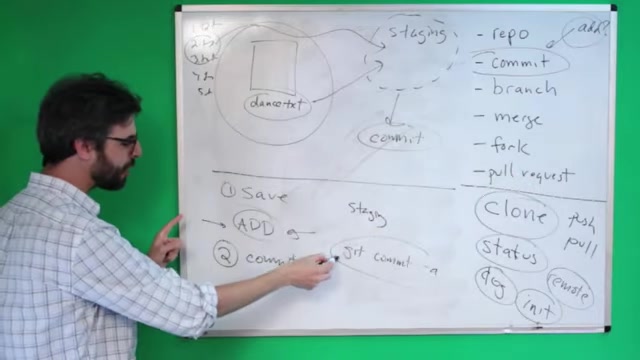
Unlike simple systems where saving automatically updates the latest version, Git requires this add/commit process to give users control and make Git so powerful.
Pushing To The Remote Repository
Of Course, one of the great features of Git is the ability to log what you are doing, but one of the things that separates it from more primitive version control is its collaboration functionality. That is why pushing files to a remote is so important, even if you are a solo developer.
In order to enable this to be functional you must also set the Github remote. Use git remote add origin <GitHub repo URL>. A common problem users will encounter if they don't set a Git remote is that the following will occur:
fatal: 'origin' does not appear to be a git repository
remote: Could not read from remote repository.
Please make sure you have the correct access rights
and the repository exists.
Once your GitHub remote has been set up, and you have committed your changes, you can push the files with the following command: git push origin master. A message will return that the files have been successfully written and transmitted to the cloud.





Most people like


































Report
Please select a reason for reporting
- 13 Reasons to Switch from Snapchat to Text Messaging
- 7 Powerful Speech to Text Apps to Boost Productivity
- 10 Best Speech to Text Tools for Effortless Transcription
- 13 Free Tools to Easily Transcribe Audio to Text
- 15 Surprising Ways Google's Speech-to-Text Boosts Productivity
- 7 Best Free Online Audio to Text Transcription Tools
- 9 Tips to Transcribe Speech to Text Faster and Better
- 13 Best Speech to Text Software for Windows 10 in 2023
- 7 Tips for Choosing the Best Transcriber for Audio to Text
- 11 Reasons Why Dragon Speech-to-Text Apps are Game-Changers
- 6 Secrets to Enhance Your Speech to Text Transcription
- 6 Brilliant Ways to Boost Productivity with Talk-to-Text on Your MacBook
- 6 Ways Transcription Software Converts Audio to Text
- 8 Tips to Transcribe Speech to Text Like a Pro
- 6 Reasons IBM Watson Speech to Text is a Game-Changer
- 14 Powerful Ways Talk-to-Text Improves Your Workflow
- 12 Top Windows Speech-to-Text Software for Efficient Transcription
- 12 Game-Changing Benefits of Apple's Speech to Text Technology
- 9 Powerful Use Cases for AWS Speech to Text Technology
- 10 Easy Steps to Transcribe YouTube Videos to Text
- transcription audio en texte
- online audio transcription
- free audio file transcription
- free ai audio transcription
- audio transcription service
- audio transcription online free
- audio transcription free online
- audio to transcription software
- audio and transcript
- ai audio transcription free
- voice recording to text converter
- translate voice recording to text
- record voice to text
- audio recording to text converter
- voice recording and transcription
- chatgpt voice to text
- gmail voice to text
- speech to text reader
- speech to text ai free
- speech to talk
- Meshy AI: How to Create 3D Models from Text and Images
- How SEO and Marketing Dashboards Empower Agencies to Drive Results
- How to Use AI Tools to Find Internal Linking Opportunities Across a Business Website
- Discover Your Perfect Haircut with AI Hairstyle Apps
- Free Reputation Calculator Tools: How They're Adapting to Score AI Visibility, Not Just Rankings
- Design Professional Flyers for Free on Your Phone
- Best Free Flyer Maker Apps for Android: Design Like a Pro
- How to Know If Your Business Is Ready for an AI Customer Service Agent
- Revolutionizing Storytelling: From Novels to Screenplays with AI
- Create Engaging Animated Explainer Videos with a Free AI Tool
- Automate Lead Generation: A Comprehensive Guide with AI Agents
- Revideo.io: The Future of Reverse Video Search Technology
- Revolutionizing Email Marketing Agency with AI
- Breaking the Character Drift Dilemma: A Practical Test of Smart Shot
- Meshy AI: How to Create 3D Models from Text and Images
- ASOMobile Helps Teams Benchmark App Store Screenshots Against Competitors
- How to Match LMS Software With Your Organization's Training Plan
- How to Convert BTC to HNT
- Unleashing the Power of AI: Cognizant's Roadmap for Transformation
- Frame to Video Review: A Practical Look at Turning Two Still Frames Into Motion

Copyright ©2026 toolify