































Table of Contents
- Key Points
- Unveiling GitHub Copilot CLI
- GitHub Copilot CLI Key Features & Benefits
- Getting Started: Installation and Basic Usage
- Pricing and Model Configuration
- GitHub Copilot CLI: Pros and Cons
- Frequently Asked Questions
- More Questions


Unveiling GitHub Copilot CLI
What is GitHub Copilot CLI?
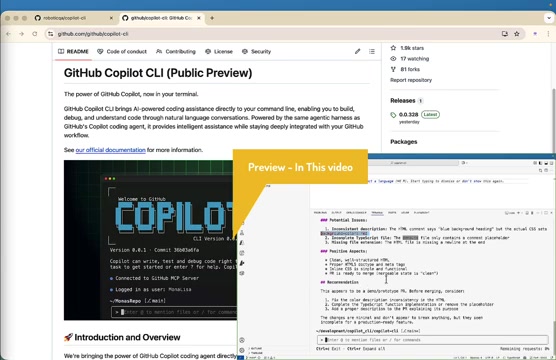
GitHub Copilot CLI is an AI-powered coding assistant designed for use directly within your terminal. Unlike traditional IDE plugins, this CLI tool brings AI assistance to your command line, enabling you to build, debug, and understand code through natural language conversations. Powered by the same agentic harness as GitHub's Copilot coding agent, it provides intelligent assistance while staying deeply integrated with your GitHub workflow. With GitHub Copilot CLI, you can streamline various development tasks, from initial code creation to managing complex GitHub pull requests, all with the power of AI. The aim of GitHub Copilot CLI is that instead of writing commands, you can describe what you want to do and the AI agent will work it out for you.
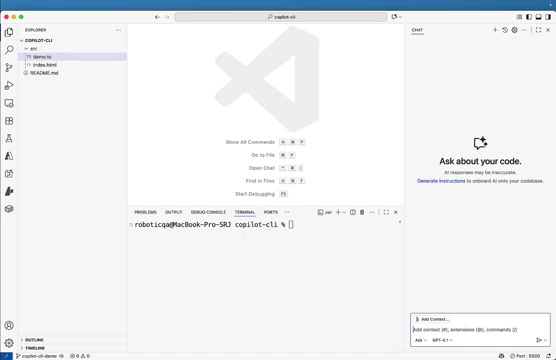
This tool uses AI to figure out git commands, asks for your approval, then executes those commands for you.
Interactive vs. Programmatic Modes
GitHub Copilot CLI offers two primary modes of operation: interactive and programmatic. In interactive mode, you engage in a conversational dialogue with the AI agent, describing tasks and refining results in real-time. This mode is perfect for exploratory coding and complex problem-solving.
In contrast, programmatic mode allows you to execute specific AI-driven tasks with single-line commands, ideal for automating repetitive workflows and incorporating AI into existing scripts. Choosing the right mode depends on the specific task at hand and your preferred style of interaction.
GitHub Copilot CLI Key Features & Benefits
Integration & GitHub MCP
GitHub Copilot CLI features are tightly integrated with the GitHub infrastructure, including what's called the MCP (Managed code platform) Server.
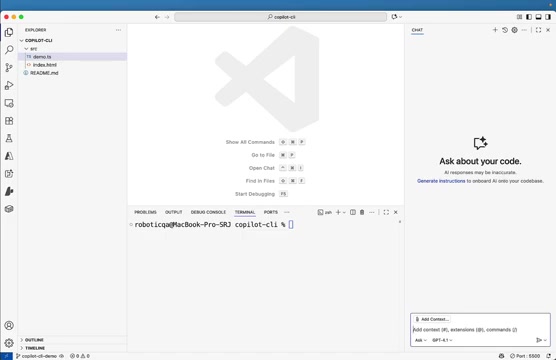
Key features:
- Provides seamless use of Copilot as your Coding agent.
- Lets you write, edit, review code all inside your terminal.
- Integrates directly into your command line, allowing you to build, debug and understand code through natural language conversations.
- Intelligent assistance while staying deeply integrated with your GitHub workflow.
Getting Started: Installation and Basic Usage
Installing GitHub Copilot CLI
Installing the GitHub Copilot CLI is straightforward, leveraging the npm package manager. Ensure Node.js version 22 or higher and NPM version 10 or higher are installed before proceeding. Open your terminal and run the following command:
npm install -g @github/copilot-cliThis command installs the CLI globally, making it accessible from any directory in your terminal.
Note: Power Shell support is experimental.
Starting GitHub Copilot CLI
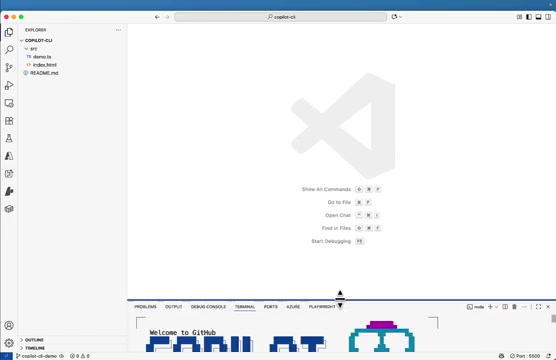
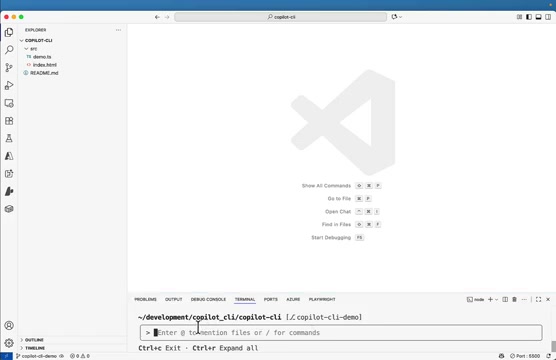
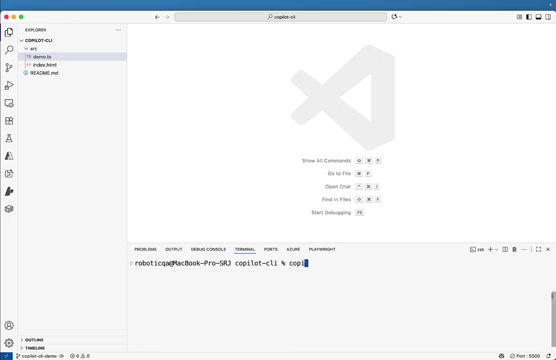
After installation, initiate the CLI by simply typing copilot in your terminal. This command starts the interactive session, presenting the Copilot CLI welcome message and logo. The user can enter 0 to mention files or for commands to start working.
Pricing and Model Configuration
Understanding Pricing and Model Configuration
GitHub Copilot CLI utilizes Large Language Models like Cloud A Sonnet 4 or, if configured, GPT-5, that you can configure to use.
Pricing plans vary, so it's best to check GitHub's official website for the most up-to-date details. Model selection is also configurable, allowing you to tailor the AI's capabilities to your specific needs.
To change this you'll need to export. In Mac you can export using the command:
export COPILOT_MODEL=gpt-5









Most people like



























Report
Please select a reason for reporting
- 13 Reasons to Switch from Snapchat to Text Messaging
- 7 Powerful Speech to Text Apps to Boost Productivity
- 10 Best Speech to Text Tools for Effortless Transcription
- 13 Free Tools to Easily Transcribe Audio to Text
- 15 Surprising Ways Google's Speech-to-Text Boosts Productivity
- 7 Best Free Online Audio to Text Transcription Tools
- 9 Tips to Transcribe Speech to Text Faster and Better
- 13 Best Speech to Text Software for Windows 10 in 2023
- 7 Tips for Choosing the Best Transcriber for Audio to Text
- 11 Reasons Why Dragon Speech-to-Text Apps are Game-Changers
- 6 Secrets to Enhance Your Speech to Text Transcription
- 6 Brilliant Ways to Boost Productivity with Talk-to-Text on Your MacBook
- 6 Ways Transcription Software Converts Audio to Text
- 8 Tips to Transcribe Speech to Text Like a Pro
- 6 Reasons IBM Watson Speech to Text is a Game-Changer
- 14 Powerful Ways Talk-to-Text Improves Your Workflow
- 12 Top Windows Speech-to-Text Software for Efficient Transcription
- 12 Game-Changing Benefits of Apple's Speech to Text Technology
- 9 Powerful Use Cases for AWS Speech to Text Technology
- 10 Easy Steps to Transcribe YouTube Videos to Text
- transcription audio en texte
- online audio transcription
- free audio file transcription
- free ai audio transcription
- audio transcription service
- audio transcription online free
- audio transcription free online
- audio to transcription software
- audio and transcript
- ai audio transcription free
- voice recording to text converter
- translate voice recording to text
- record voice to text
- audio recording to text converter
- voice recording and transcription
- chatgpt voice to text
- gmail voice to text
- speech to text reader
- speech to text ai free
- speech to talk
- Create Engaging Animated Explainer Videos with a Free AI Tool
- Stop Multi-Subscribing: Benchmark Top AI Visual Models in One Canvas
- Best Seedance 2.5 API Provider: Every Price on the Market, Checked at Source
- AI OnlyFans: How to Generate $30,000/Month (Legally)
- Transform Your Script into an Engaging Video with AI Video Maker!
- AI Marketing Automation: A Comprehensive Guide for Small Businesses
- Midjourney Alternative for Anime Art Creators: Why PixAI May Be Better for Character Workflows
- 10 Things Most People Get Wrong About AI Image Search
- AI Girlfriend Apps: Top Choices Redefining Relationships 2025
- How to Reduce Quoting Errors in Salesforce with AI-Assisted Quote Creation
- AI Resume Builders: EnhanceCV, ResumeNerd AI, & Teal Compared
- ResumeAI: Crafting ATS-Optimized Resumes with AI
- AI in Resume Writing: A New Era for Job Seekers
- AI Resume Tools: Streamline Your Job Search and Land Your Dream Role
- AI Resume Optimization: The Right Way to Land Interviews
- Crafting a Killer Resume with AI: A Step-by-Step Guide
- Crafting a Winning Resume: AI Tools and Expert Tips
- AI Job Search: Level Up Your Career with AI Automation
- Empower Your Career Journey: Dynamic Resumes with AI
- AI Resume Builder: Create Professional Resumes Effortlessly

Copyright ©2026 toolify