































Table of Contents
- Key Points
- Getting Started with Google Cloud Document AI
- Working With Vertex AI
- Step-by-Step Guide to Form Parsing Using Document AI
- Pros and Cons of Google Cloud Document AI
- FAQ
- Related Questions



Getting Started with Google Cloud Document AI
What is Google Cloud Document AI?
Google Cloud Document AI is a suite of AI-powered services designed to understand and process unstructured data within documents. This technology allows businesses to automate data extraction, improve document understanding, and streamline workflows. Whether you're dealing with invoices, contracts, or any other type of form, Document AI can help you extract insights and automate processes. It's a Game-changer for industries relying heavily on document processing, offering scalability and accuracy beyond traditional methods. Document AI uses a range of sophisticated techniques, including optical character recognition (OCR), natural language processing (NLP), and machine learning (ML), to accurately interpret and extract data from documents. Key to its functionality is the ability to recognize diverse document types, learn from previous processes, and adapt to variations in format, layout, and language.
By utilizing Document AI, organizations can significantly reduce manual data entry, decrease errors, and accelerate document-based workflows. This translates to substantial cost savings and improved efficiency, allowing employees to focus on more strategic tasks. Its scalability also makes it suitable for businesses of all sizes, from startups to large enterprises, handling everything from simple data capture to complex document analytics.
Document AI integrates seamlessly with other Google Cloud services, offering a comprehensive solution for managing and analyzing document data. As a result, you can effortlessly integrate Document AI insights with your existing applications and analytics tools, enhancing overall business intelligence and decision-making.
Prerequisites for Form Parsing
Before you begin parsing forms with Document AI, ensure that you meet the following prerequisites:
- A Google Cloud Platform (GCP) account with billing enabled.
- Familiarity with the Google Cloud Console.
- Basic understanding of AI and machine learning concepts.
- Access to Vertex AI Notebooks.
- Hands-on lab document AI.
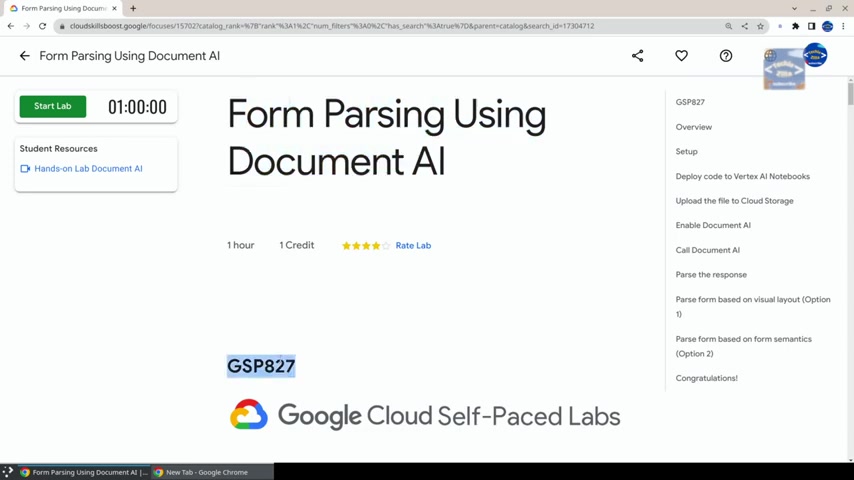
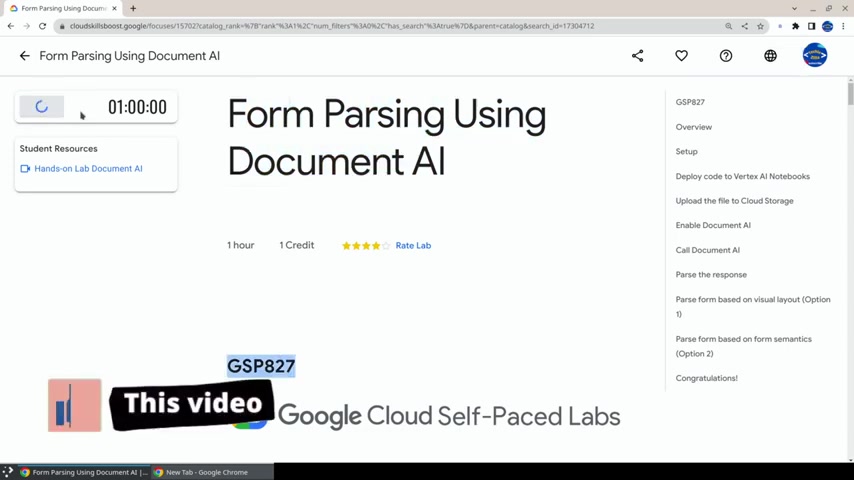
If you're new to Google Cloud, the provided Tutorial includes steps on how to set up your account and enable the necessary services. Make sure to pay close attention to the lab instructions to avoid any potential issues. Additionally, keep in mind that when working within the console, you should strictly adhere to the lab instructions to avoid blocking your account. This typically involves using the provided username, password, and project ID, which are essential for accessing the Google Cloud environment and completing the exercises successfully. For example, in this lab, the Google Cloud Self-Paced Labs provide you with the username, password, and the GCP Project ID to facilitate hands-on learning.
Step-by-Step Guide to Form Parsing Using Document AI
Step 1: Accessing the Google Cloud Console and Opening Vertex AI Notebooks
Start by opening the Google Cloud Console using the credentials provided by the self-paced lab environment.
Navigate to Vertex AI Notebooks to start the deployment process. This step involves accessing the Google Cloud Platform with the provided credentials. Follow the lab instructions carefully to prevent any deviation that could block your account. The Google Cloud Console serves as your central hub for managing all Google Cloud services, including Document AI and Vertex AI Notebooks. Remember to agree to Google Cloud Platform Terms of Service by clicking on 'Agree and Continue'.
- Open Google Cloud Console: Use the provided credentials.
- Navigate to Vertex AI Notebooks: Search for "Vertex AI" in the console search bar and select "Workbench" then click on Enable Notebooks API and wait to deploy it.
Step 2: Deploying the Code to Vertex AI Notebooks
Once you have access to Vertex AI Notebooks, the next step is to deploy the necessary code. Open the provided link in a new tab to deploy the code to Vertex AI Notebooks.
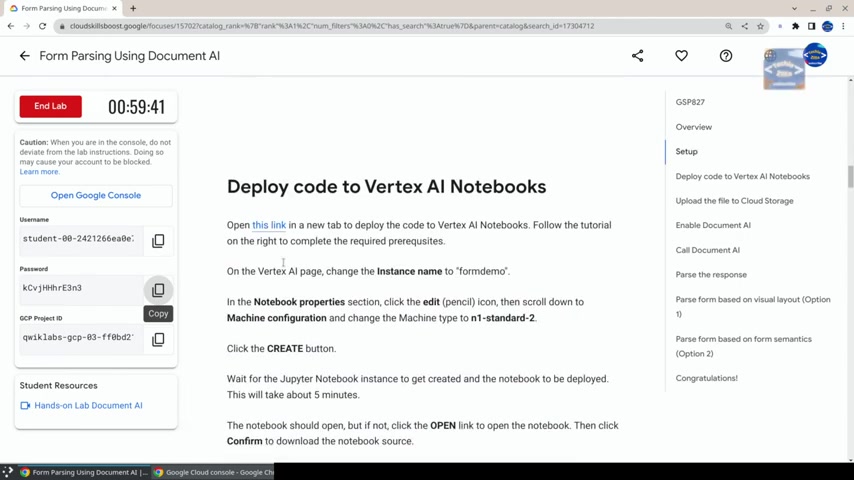
On the Vertex AI page, change the Instance name to 'formdemo'. In the Notebook properties section, click the edit (pencil) icon, scroll down to Machine configuration and change the Machine type to n1-standard-2. Click the Create button.
- Open the Deployment Link: Open "this link" in a new incognito tab.
- Change Instance Name: Set it to 'formdemo'.
- Machine Configuration: Set Machine type to
n1-standard-2(2 vCPUs, 7.5 GB RAM). - Create Instance: Click the "Create" button to launch the notebook instance.
Vertex AI Notebooks provide a managed environment for running Jupyter notebooks, making it easier to develop and deploy machine learning models. While the Jupyter Notebook instance is being created and the notebook being deployed (this will take about 5 minutes), click Confirm to download the Notebook source. Remember, you can specify a previous version of the environment if you are having trouble.
Step 3: Configuring the Jupyter Notebook
After the Vertex AI Notebook instance is up and running, open the JupyterLab environment and download the notebook source and open the 'formparsing.ipynb' file.
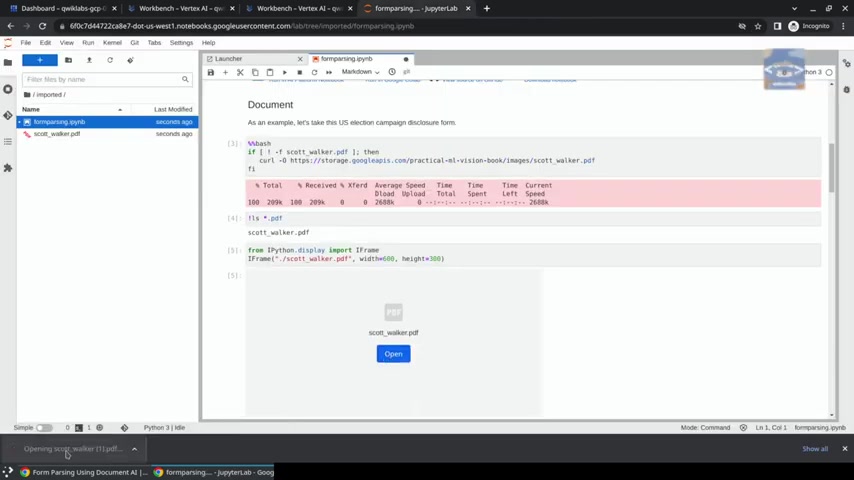
Build Recommended will be suggested, so choose Build. In the JupyterLab tab, click on Edit -> Clear All Outputs to clear all the cells in the notebook. From the left menu click on the PDF file to open it in the file browser of the Notebook.
- Open JupyterLab: Once the notebook instance is running click Open.
- Clear Notebook Outputs: Clear all outputs.
- Upload PDF: Download and ensure visibility in left hand panel.
- Select all cells and then run the 5 cells from the top or select each cell with the blue bar and press Shift+Enter.
Step 4: Setting Up Cloud Storage
To enable Document AI you need to set up Google Cloud Storage by creating a bucket and uploading the PDF file. Go back to the Google Cloud Console tab. In the Cloud Console, from the Navigation menu, go to Cloud Storage > Browser. Click on the Create Bucket button.
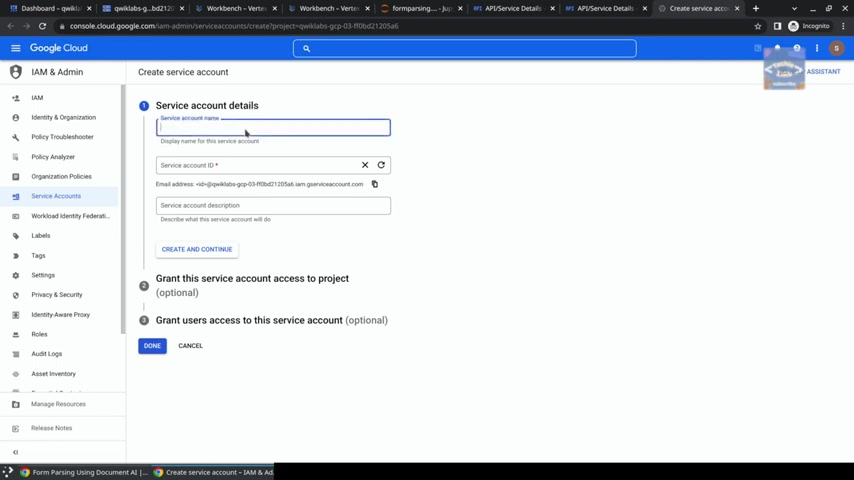
Change the BUCKET name to be the name of the Lab project ID (e.g. qwiklabs-gcp-03-...). Click Create.
- Navigate to Cloud Storage: Go to Cloud Storage Browser.
- Create a Bucket: Creating new bucket.
- Name the Bucket: Use your project ID as the bucket name.
Step 5: Enabling the Document AI API
In the first Call Document AI cell, change the PDF to point to the file in your bucket. Now you will need to enable the Document AI API. First enable Document AI in your project by visiting this URL: console.developers.google.com/apis/api/documentai.googleapis.com/overview
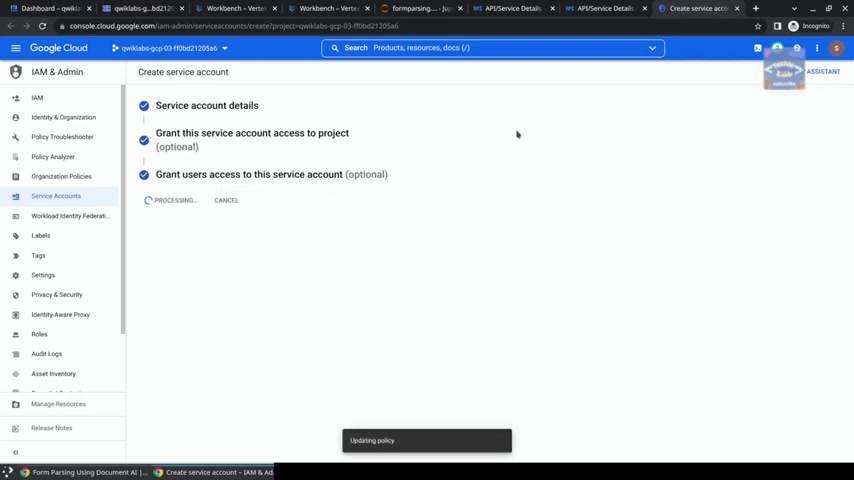
and clicking the Enable button. Give the service account details, give the service account the name 'formdemo'. Click the Create and Continue button.
- Enable Document AI API: Follow link and enable.
- Enable IAM User: Create a service account authorization by visiting this URL:
console.cloud.google.com/iam-admin/serviceaccounts/createand following instructions.







Most people like






























Report
Please select a reason for reporting
- 13 Reasons to Switch from Snapchat to Text Messaging
- 7 Powerful Speech to Text Apps to Boost Productivity
- 10 Best Speech to Text Tools for Effortless Transcription
- 13 Free Tools to Easily Transcribe Audio to Text
- 15 Surprising Ways Google's Speech-to-Text Boosts Productivity
- 7 Best Free Online Audio to Text Transcription Tools
- 9 Tips to Transcribe Speech to Text Faster and Better
- 13 Best Speech to Text Software for Windows 10 in 2023
- 7 Tips for Choosing the Best Transcriber for Audio to Text
- 11 Reasons Why Dragon Speech-to-Text Apps are Game-Changers
- 6 Secrets to Enhance Your Speech to Text Transcription
- 6 Brilliant Ways to Boost Productivity with Talk-to-Text on Your MacBook
- 6 Ways Transcription Software Converts Audio to Text
- 8 Tips to Transcribe Speech to Text Like a Pro
- 6 Reasons IBM Watson Speech to Text is a Game-Changer
- 14 Powerful Ways Talk-to-Text Improves Your Workflow
- 12 Top Windows Speech-to-Text Software for Efficient Transcription
- 12 Game-Changing Benefits of Apple's Speech to Text Technology
- 9 Powerful Use Cases for AWS Speech to Text Technology
- 10 Easy Steps to Transcribe YouTube Videos to Text
- transcription audio en texte
- online audio transcription
- free audio file transcription
- free ai audio transcription
- audio transcription service
- audio transcription online free
- audio transcription free online
- audio to transcription software
- audio and transcript
- ai audio transcription free
- voice recording to text converter
- translate voice recording to text
- record voice to text
- audio recording to text converter
- voice recording and transcription
- chatgpt voice to text
- gmail voice to text
- speech to text reader
- speech to text ai free
- speech to talk
- How SEO and Marketing Dashboards Empower Agencies to Drive Results
- How to Use AI Tools to Find Internal Linking Opportunities Across a Business Website
- Discover Your Perfect Haircut with AI Hairstyle Apps
- Free Reputation Calculator Tools: How They're Adapting to Score AI Visibility, Not Just Rankings
- Design Professional Flyers for Free on Your Phone
- Best Free Flyer Maker Apps for Android: Design Like a Pro
- How to Know If Your Business Is Ready for an AI Customer Service Agent
- Revolutionizing Storytelling: From Novels to Screenplays with AI
- Create Engaging Animated Explainer Videos with a Free AI Tool
- Stop Multi-Subscribing: Benchmark Top AI Visual Models in One Canvas
- Top 5 Cold Email Software: Maximize Your Outreach in 2025
- Magic School AI: Revolutionizing Quiz & Assessment Generation
- Create Your Own Email Bot and Automate Your Email Tasks
- Beyond Pure Prompts: Optimizing Production with 'Text With Reference' Generation
- Stop Using Boring TTS: My Honest Deep Dive Into VideoAI and the Hunt for the Perfect Custom Voices
- AI & Elections: Defending Democracy Against Misinformation
- Navigating Political Discourse: AI, Deepfakes, and Reality Checks
- Detecting Political Bias in News Articles: A Powerful AI Algorithm
- AI Bias Unveiled: Political Leanings in ChatGPT & Beyond
- Revolutionize Learning: Discover Quizzes AI for Engaging Interactive Quizzes

Copyright ©2026 toolify