































Table of Contents
- Key Points
- Introduction to Lightning AI
- Getting Started with Lightning AI
- Customizing Stable Diffusion with Lightning AI
- Lightning AI Pricing
- Evaluating Lightning AI
- Lightning AI Use Cases
- Frequently Asked Questions about Lightning AI
- Deep Dive into Stable Diffusion and Lightning AI


Introduction to Lightning AI
A New Era for AI Development
For those who've felt a void with Google Colab's restrictions, there’s excellent news.

A robust platform known as Lightning AI has emerged, providing a solid alternative for machine learning and AI projects. It offers an avenue to run Stable Diffusion WebUI without needing a local GPU, and best of all, it’s free and accessible online. This is not simply a workaround; it’s a fully-fledged environment built to empower developers and researchers.
Lightning AI stands as a powerful option. Developed by the creators of the PyTorch Lightning machine learning library, it is designed to address limitations you face with existing platforms, giving data scientists and AI developers more flexibility and control.
Key Benefits of Lightning AI
- Free GPU Access: 20 hours monthly.
- Powerful GPUs: NVIDIA Tesla L4.
- Data Science Features: Terminal, PyCharm.
With its new features and capabilities, Lightning AI seeks to facilitate machine learning processes, making complex tasks such as running Stable Diffusion more accessible.
Why Lightning AI Stands Out
While Google Colab has been a go-to for many, it has its drawbacks, particularly the permanent ban on WebUI and other Stable Diffusion interfaces.

Lightning AI emerges as a superior alternative due to its flexibility and powerful hardware. You can harness substantial computing power without being shackled by restrictive policies.
One of the foremost advantages is the provision of 16 monthly credits, which translates to approximately 20 hours of free GPU usage per month. This allocation comes without the need for a credit card or any hidden conditions, allowing easy access to resources you need.
Lightning AI’s hardware capabilities are also noteworthy. It offers access to the latest NVIDIA Tesla L4 GPUs, significantly faster than those available on Kaggle or Google Colab. This means that you experience reduced processing times, enabling you to iterate more quickly and efficiently.
In comparison to the regular Tesla T4, the L4 is twice as fast, a vital boost when dealing with computationally intensive tasks.
Getting Started with Lightning AI
Step-by-Step Guide
Now, let's walk through the process of setting up and running Stable Diffusion WebUI on Lightning AI. Here’s a comprehensive guide to get you started.
Step 1: Accessing Lightning AI
- Go to the Lightning AI Website: Begin by navigating to the Lightning AI Website.
It's the first step toward getting access to free GPU resources.
- Start Free: Look for the “Start Free” button to kick off the registration process. This will allow you to create a new account and get you closer to harnessing those GPU resources.
- Authentication: Authenticate using a Google account or other preferred methods. Note that authorizing your phone number might be necessary to ensure you get full access to all available GPU resources.
Step 2: Setting Up Your Studio
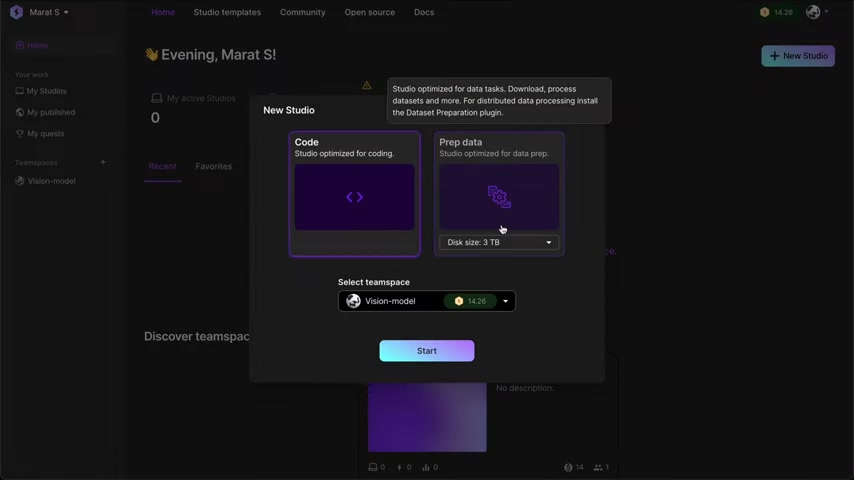
- Create New Studio: After authenticating, create a new studio to initiate your workspace. Studios are what Lightning AI calls their development environments.
- Choose Code Studio: Opt for the “Code” studio. It is optimized for coding and deploying applications.
- Select a Workspace: Choose a team space, which serves as a container for your studio. If you don’t have one, the default option works.
Step 3: Configuring the Environment
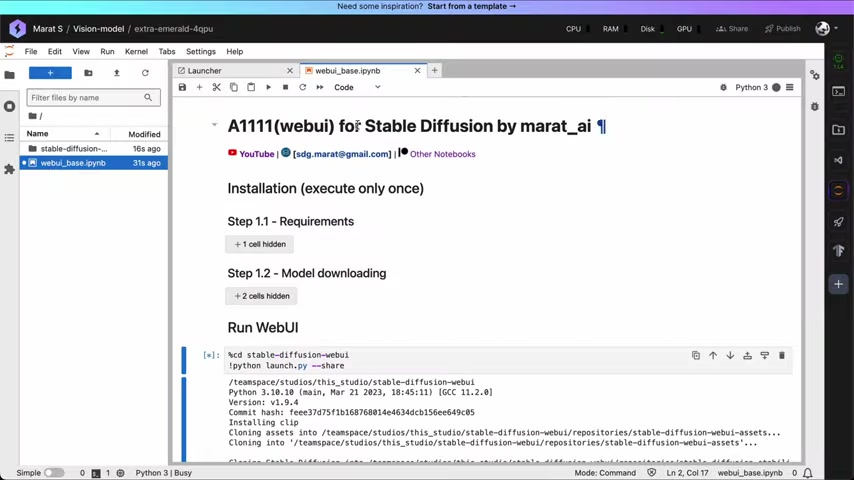
- Locate Jupyter Notebook: Within the studio interface, find and select the Jupyter Notebook option to start your coding environment. If it’s not immediately visible, look for it on the sidebar, where you’ll find the necessary tools.
- Upload your notebook: Press button to upload your ipynb file.
- Upload Configuration Files: To run Stable Diffusion WebUI, upload your configuration files.You can download basic version for free or the ultimate version after a suscription. Follow the link below for download.
- Run the notebook: Start step 1.1. Step 1.2 to download Stable Diffusion models. This will take from 2 min to 5 minutes. Make sure everything works correctly.
Step 4: Running Stable Diffusion
- Run WebUI: Run last cell.
- Make sure GPU working: Choose best GPU for the tasks. L4 is highly recommanded.
With these steps, you should be able to effectively set up and run Stable Diffusion WebUI on Lightning AI, leveraging its free GPU resources and data science capabilities.
Customizing Stable Diffusion with Lightning AI
Selecting the Right GPU
To get the most out of Lightning AI, select the right GPU for your specific needs. Lightning AI provides access to different GPU models, each with varying levels of performance. The NVIDIA Tesla L4 is an option for accelerating Stable Diffusion tasks, offering notably faster processing times compared to alternatives like Google Colab’s T4. Keep in mind it is important to be on GPU mode
.
Here is a summary of the GPU options:
| GPU Model | Speed (TFLOPS) | Memory (GB) | Cost (credits/hour) | Typical Use Case |
|---|---|---|---|---|
| Tesla T4 | 65 | 16 | 0.68 | Prototyping, smaller models |
| Tesla L4 | 121 | 24 | 0.70 | Inference, RTX optimizations |
| Tesla A10G | 125 | 24 | 1.80 | Large model training, RTX optimizations |
| Tesla A100 | 312 | 40 | 33.28 | Largest models, complex training tasks |
| Tesla H100 | 1979 | 80 | 99.50 | Cutting-edge research, massive data workloads |
Choosing the right GPU can significantly improve your AI projects.
Managing Resources Effectively
Lightning AI offers a number of resource management features to help you optimize your projects. One key setting is Auto Sleep, which automatically shuts down your studio after ten minutes of inactivity. You can disable it for longer workloads.

This helps prevent unnecessary usage of your free GPU credits.
Here's what to keep in mind for effective resource usage:
- Monitor Your Credits: Keep track of your monthly GPU credits to avoid unexpected costs.
- Enable Auto Sleep: Ensure this feature is turned on to automatically stop studios when they are not in use.
- Delete Unused Studios: Regularly delete any studio that are no longer needed to free up resources.
- Schedule tasks: Plan model training, data preparation, and run apps.
By effectively managing your resources, you maximize the utility of Lightning AI while staying within your budget or free tier constraints.








Most people like































Report
Please select a reason for reporting
- 13 Reasons to Switch from Snapchat to Text Messaging
- 7 Powerful Speech to Text Apps to Boost Productivity
- 10 Best Speech to Text Tools for Effortless Transcription
- 13 Free Tools to Easily Transcribe Audio to Text
- 15 Surprising Ways Google's Speech-to-Text Boosts Productivity
- 7 Best Free Online Audio to Text Transcription Tools
- 9 Tips to Transcribe Speech to Text Faster and Better
- 13 Best Speech to Text Software for Windows 10 in 2023
- 7 Tips for Choosing the Best Transcriber for Audio to Text
- 11 Reasons Why Dragon Speech-to-Text Apps are Game-Changers
- 6 Secrets to Enhance Your Speech to Text Transcription
- 6 Brilliant Ways to Boost Productivity with Talk-to-Text on Your MacBook
- 6 Ways Transcription Software Converts Audio to Text
- 8 Tips to Transcribe Speech to Text Like a Pro
- 6 Reasons IBM Watson Speech to Text is a Game-Changer
- 14 Powerful Ways Talk-to-Text Improves Your Workflow
- 12 Top Windows Speech-to-Text Software for Efficient Transcription
- 12 Game-Changing Benefits of Apple's Speech to Text Technology
- 9 Powerful Use Cases for AWS Speech to Text Technology
- 10 Easy Steps to Transcribe YouTube Videos to Text
- transcription audio en texte
- online audio transcription
- free audio file transcription
- free ai audio transcription
- audio transcription service
- audio transcription online free
- audio transcription free online
- audio to transcription software
- audio and transcript
- ai audio transcription free
- voice recording to text converter
- translate voice recording to text
- record voice to text
- audio recording to text converter
- voice recording and transcription
- chatgpt voice to text
- gmail voice to text
- speech to text reader
- speech to text ai free
- speech to talk
- Revolutionizing Storytelling: From Novels to Screenplays with AI
- Create Engaging Animated Explainer Videos with a Free AI Tool
- Stop Multi-Subscribing: Benchmark Top AI Visual Models in One Canvas
- Best Seedance 2.5 API Provider: Every Price on the Market, Checked at Source
- AI OnlyFans: How to Generate $30,000/Month (Legally)
- Transform Your Script into an Engaging Video with AI Video Maker!
- AI Marketing Automation: A Comprehensive Guide for Small Businesses
- Midjourney Alternative for Anime Art Creators: Why PixAI May Be Better for Character Workflows
- 10 Things Most People Get Wrong About AI Image Search
- AI Girlfriend Apps: Top Choices Redefining Relationships 2025
- Experience the Future of Virtual Assistants with F.R.I.D.A.Y. AI
- Learn How to Train an AI to Play Snake with Reinforcement Learning
- Creating a Unique AI Game Environment with Pygame
- Mastering the Classic Java Snake Game
- Discover the Power of Codex: Snake Game Created in Python
- Building an AI to Master Snake Game
- Revolutionize the Classic Snake Game with AI
- Websim AI: Create Games and Apps with Just a Few Prompts
- Reviving Childhood Memories: Snake Game Enhanced with AI
- Unleashing the Power of AI in the Snake Game

Copyright ©2026 toolify