































Table of Contents
- Key Points
- Understanding Excel Flash Fill
- Advanced Flash Fill Techniques and Tips
- Unlocking Flash Fill's Potential: Practical Examples
- Evaluating Flash Fill: Weighing the Advantages and Disadvantages
- Frequently Asked Questions about Flash Fill
- Related Questions and Further Exploration


Understanding Excel Flash Fill
What is Flash Fill?
Flash Fill is Excel's built-in artificial intelligence that learns from your data entry patterns.

It’s particularly useful when you need to separate names, combine data, or perform data transformations consistently across a large dataset. Flash Fill analyzes the surrounding data to deduce a pattern and automatically populate the rest of the column, saving you a significant amount of time and effort.
Imagine you have a column containing full names and need to separate them into 'First Name' and 'Last Name' columns. Without Flash Fill, you might resort to using functions like LEFT, RIGHT, and FIND, or manually typing each name. With Flash Fill, you simply provide a few examples of the desired output, and Excel automatically fills in the rest.
This powerful tool is an integral part of modern Excel and is designed to intelligently automate tasks involving repetitive data entry and transformation. Flash fill makes working in Excel more efficient and simple!
How Flash Fill Identifies Patterns
Flash Fill works by observing the relationship between the data in one column and the desired output in an adjacent column.

The algorithm identifies consistent patterns or transformations that you’re applying to the data. It then applies that same logic to the remaining rows, automatically filling in the values. The beauty of Flash Fill lies in its ability to recognize various types of patterns, such as:
- Separating Data: Splitting a single column into multiple columns based on delimiters like spaces, commas, or other characters.
- Combining Data: Merging data from multiple columns into a single column, potentially adding separators or other text.
- Transforming Data: Changing the case of text (uppercase, lowercase, proper case), extracting specific parts of a string (e.g., area code from a phone number), or reformatting data.
- Concatenating names: The name can be added to other details such as emails, website addresses. etc.
Flash Fill is exceptionally useful because of all these features, improving overall Excel efficiency!
Activating Flash Fill in Excel
There are a couple of ways to activate Flash Fill in Excel, depending on your preference:
-
Using the 'Data' Tab:
-
Select the first cell in the column where you want the Flash Fill to occur.
-
Manually type the first few values of the desired output, demonstrating the pattern you want Excel to learn.

-
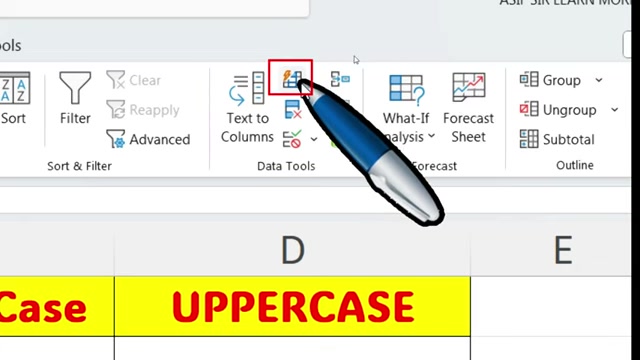
Go to the 'Data' tab on the Excel ribbon.
-
In the 'Data Tools' group, click 'Flash Fill'.
-
-
Using the Shortcut Key (Ctrl+E):
- Similar to the first method, start by providing a couple of examples in the target column.
- Select the cell below your example data.
- Press 'Ctrl+E' on your keyboard. This is the quickest and most efficient way to invoke Flash Fill. Control+E will be a constant command within your Excel Tool Belt.
Excel will then analyze your entries and automatically fill in the remaining cells based on the detected pattern. If Flash Fill doesn't produce the desired results, simply provide a few more examples to refine the pattern recognition.
Unlocking Flash Fill's Potential: Practical Examples
Separating First and Last Names
This is one of the most common and useful applications of Flash Fill.
-
Start with a column containing full names (e.g., "John Doe").
-
In the adjacent column, manually type the first name ("John") in the first row and the last name ("Doe") in the second row. This is important! You are showing excel what you desire to output.
-
Select the first name that you just typed and go to 'Data' > 'Flash Fill' or use 'Ctrl+E'. Excel should automatically populate the remaining first names.
-
Repeat the process for the last name column. Excel is extremely intelligent!
Combining First and Last Names
The opposite is also possible. If you have separate columns for 'First Name' and 'Last Name,' you can combine them.
- Create a new column where you want the combined name to appear.
- In the first row, manually type the full name as you want it to be formatted (e.g., "John Doe").
- Use 'Data' > 'Flash Fill' or 'Ctrl+E' to fill in the remaining full names. Amazing!
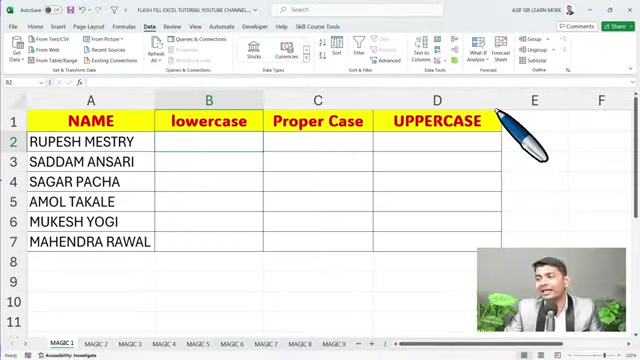
Changing Text Case
Need to change the text case (uppercase, lowercase, proper case) of a column of data?
- In the adjacent column, manually type the first value in the desired case (e.g., convert "john doe" to "John Doe").
- Use 'Data' > 'Flash Fill' or 'Ctrl+E' to apply the same case conversion to the rest of the column. Super Helpful!
Extracting Parts of a String
Flash Fill can also extract specific portions of a text string.
- For example, if you have a column of phone numbers in the format "(555) 123-4567", create an adjacent column to extract the area code.
- In the first row, manually type the extracted area code ("555").
- Use 'Data' > 'Flash Fill' or 'Ctrl+E' to extract area codes from the remaining phone numbers.


Most people like




































Report
Please select a reason for reporting
- 13 Reasons to Switch from Snapchat to Text Messaging
- 7 Powerful Speech to Text Apps to Boost Productivity
- 10 Best Speech to Text Tools for Effortless Transcription
- 13 Free Tools to Easily Transcribe Audio to Text
- 15 Surprising Ways Google's Speech-to-Text Boosts Productivity
- 7 Best Free Online Audio to Text Transcription Tools
- 9 Tips to Transcribe Speech to Text Faster and Better
- 13 Best Speech to Text Software for Windows 10 in 2023
- 7 Tips for Choosing the Best Transcriber for Audio to Text
- 11 Reasons Why Dragon Speech-to-Text Apps are Game-Changers
- 6 Secrets to Enhance Your Speech to Text Transcription
- 6 Brilliant Ways to Boost Productivity with Talk-to-Text on Your MacBook
- 6 Ways Transcription Software Converts Audio to Text
- 8 Tips to Transcribe Speech to Text Like a Pro
- 6 Reasons IBM Watson Speech to Text is a Game-Changer
- 14 Powerful Ways Talk-to-Text Improves Your Workflow
- 12 Top Windows Speech-to-Text Software for Efficient Transcription
- 12 Game-Changing Benefits of Apple's Speech to Text Technology
- 9 Powerful Use Cases for AWS Speech to Text Technology
- 10 Easy Steps to Transcribe YouTube Videos to Text
- transcription audio en texte
- online audio transcription
- free audio file transcription
- free ai audio transcription
- audio transcription service
- audio transcription online free
- audio transcription free online
- audio to transcription software
- audio and transcript
- ai audio transcription free
- voice recording to text converter
- translate voice recording to text
- record voice to text
- audio recording to text converter
- voice recording and transcription
- chatgpt voice to text
- gmail voice to text
- speech to text reader
- speech to text ai free
- speech to talk
- Meshy AI: How to Create 3D Models from Text and Images
- How SEO and Marketing Dashboards Empower Agencies to Drive Results
- How to Use AI Tools to Find Internal Linking Opportunities Across a Business Website
- Discover Your Perfect Haircut with AI Hairstyle Apps
- Free Reputation Calculator Tools: How They're Adapting to Score AI Visibility, Not Just Rankings
- Design Professional Flyers for Free on Your Phone
- Best Free Flyer Maker Apps for Android: Design Like a Pro
- How to Know If Your Business Is Ready for an AI Customer Service Agent
- Revolutionizing Storytelling: From Novels to Screenplays with AI
- Create Engaging Animated Explainer Videos with a Free AI Tool
- Automate Lead Generation: A Comprehensive Guide with AI Agents
- Revideo.io: The Future of Reverse Video Search Technology
- Revolutionizing Email Marketing Agency with AI
- Breaking the Character Drift Dilemma: A Practical Test of Smart Shot
- Meshy AI: How to Create 3D Models from Text and Images
- ASOMobile Helps Teams Benchmark App Store Screenshots Against Competitors
- How to Match LMS Software With Your Organization's Training Plan
- How to Convert BTC to HNT
- Unleashing the Power of AI: Cognizant's Roadmap for Transformation
- Frame to Video Review: A Practical Look at Turning Two Still Frames Into Motion

Copyright ©2026 toolify