































Table of Contents
- Key Points
- Unlocking Fooocus for Image Transformations
- Tips and Tricks for Better Results with Fooocus
- Step-by-Step Guide: Changing Clothes with Image Prompts
- Pros and Cons of Using Fooocus
- Frequently Asked Questions about Fooocus
- Related Questions for Fooocus


Unlocking Fooocus for Image Transformations
Understanding Fooocus and Its Capabilities
Fooocus presents a user-friendly gateway into the realm of image manipulation. With a suite of tools designed to cater to various editing needs, it stands out for its accessibility and impressive output quality. Fooocus empowers users to tweak image compositions, alter backgrounds, and, notably, modify clothing elements within pictures. The beauty of Fooocus lies in its ability to produce professional-looking edits without requiring extensive technical expertise.
From swapping outfits for a virtual makeover to testing different clothing options for e-commerce, Fooocus opens doors for creativity and utility. This guide will explore the core methods for changing clothes using Fooocus, along with tips to ensure stunning, realistic outcomes. Get ready to unleash your inner stylist and transform your visuals with just a few clicks.
Changing Clothes with Text Prompts: A Step-by-Step Guide
One of the most innovative features of Fooocus is the ability to alter clothing using simple text prompts. This method involves describing the desired clothing style, color, and details in a text box, and letting the AI engine generate the changes. It's like having a virtual stylist at your fingertips! Here’s how to do it:
-
Upload Your Image: Start by uploading the image you wish to modify into the Fooocus platform.

-
Activate Input Image: Ensure the “Input Image” option is active. This allows Fooocus to use the uploaded image as a starting point.
-
Navigate to Inpaint or Outpaint: Click on the “Inpaint or Outpaint” tab. This section focuses on modifying specific areas within the image.
-
Drag Your Image: Drag your chosen image to the designated area on the Fooocus interface.
-
Mask the Clothing Area: Using the brush tool, carefully mask the clothing area you want to change. Zoom in for precision by holding the 'Shift' key and scrolling with your mouse wheel. Remember, you can press 'R' to reset the zoom .
-
Select Modify Content: In the method selection area, choose 'Modify Content' this is important for adding objects, change background, etc..
-
Describe the New Clothing: In the 'Inpaint Additional Prompt', describe the clothing you desire. For example, “Yellow embroidered pearl dress.” The system will replace the masked area with your description. No need to write prompt in the above box.
-
Adjust Settings: Tailor the settings based on your specific needs. Fooocus V2 and Fooocus Photograph styles generally yield good results for realistic images. Avoid “Anime” style for real pictures.
-
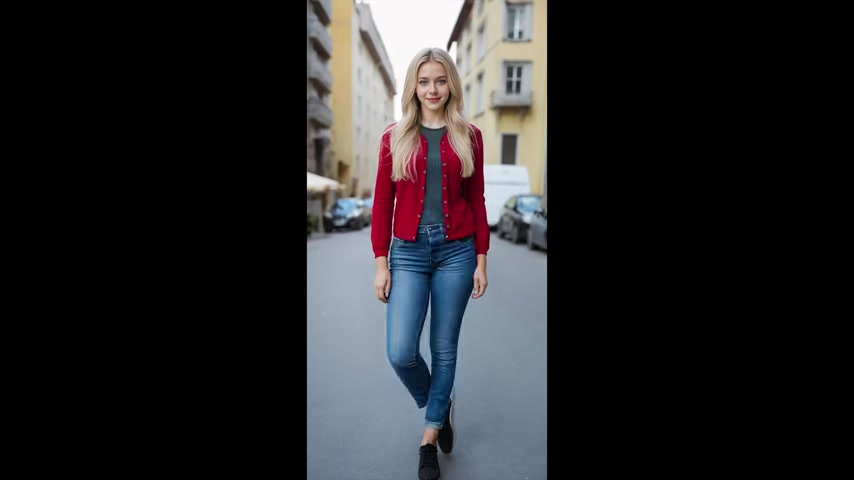
Aspect Ratio: Set the aspect ratio to match your source image. A full-body image will work best with a 1:2 aspect ratio to maintain proportions. This will ensure the full body is displayed.
-
Image Number: Increase the number of images generated to have more variations to choose from.
-
Generate: Click “Generate” and let Fooocus work its magic.
-
Choose the Best Result: Review the generated images and select the one that best matches your vision.
By following these steps, you can seamlessly transform the clothing in your images using only text prompts.
Changing Clothes with Image Prompts: A Visual Approach
Another powerful method in Fooocus involves using existing images of clothing as prompts to guide the transformation. This is particularly useful when you have a specific outfit in mind and want to replicate it on your subject. Here's the breakdown:
-
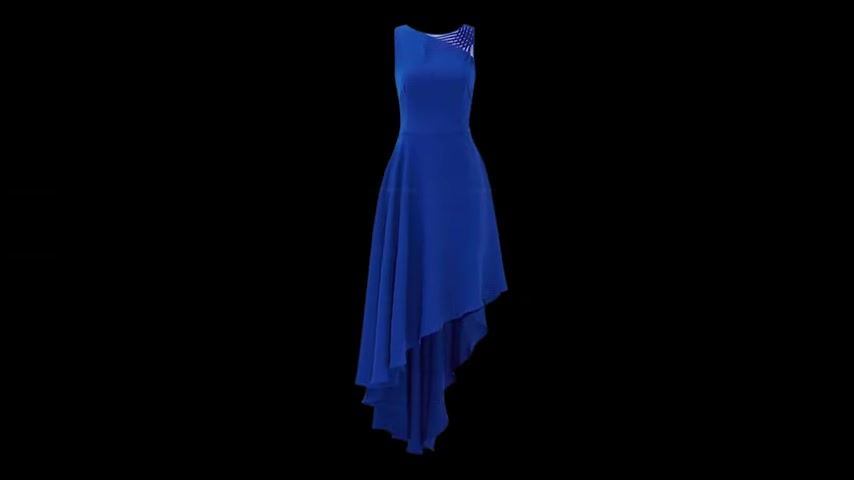
Prepare Your Images: You’ll need the image of the person you want to dress and a separate image of the clothing you want them to wear. It’s beneficial to remove the background from the clothing image for a cleaner result. A website such as remove.bg will remove the background.
-
Upload Images: In Fooocus, activate “Input Image” and navigate to the “Image Prompt” tab. Upload both the image of the person and the clothing image.
-
Advanced Settings: Click “Advanced” to reveal additional options.
-
Set Image Prompt Parameters: With Image Prompt activated, adjust the “Stop At” and “Weight” sliders. A “Stop At” value between 0.84 and 1 often yields better results.
-
Navigate to Inpaint or Outpaint Again: Return to the “Inpaint or Outpaint” tab and drag in your source image.
-
Mask the Clothing: Carefully mask the clothing area you want to replace with the new outfit.
-
Advanced Settings (Developer Debug Mode): Go to “Advanced” and select
Step-by-Step Guide: Changing Clothes with Image Prompts
Detailed Instructions and Settings for Fooocus
To make the process even clearer, let's walk through a detailed example of changing clothing using image prompts:
- Find a Suitable Clothing Image: Look for a clear image of the clothing you want to use. Remove the background using a tool like remove.bg.
- Upload Images to Fooocus: On the Fooocus “Image Prompt” page load the source and clothes image.
- Navigate to the Inpaint/Outpaint Tab: Drag the source image and make sure it is loaded correctly.
- Apply Mask:
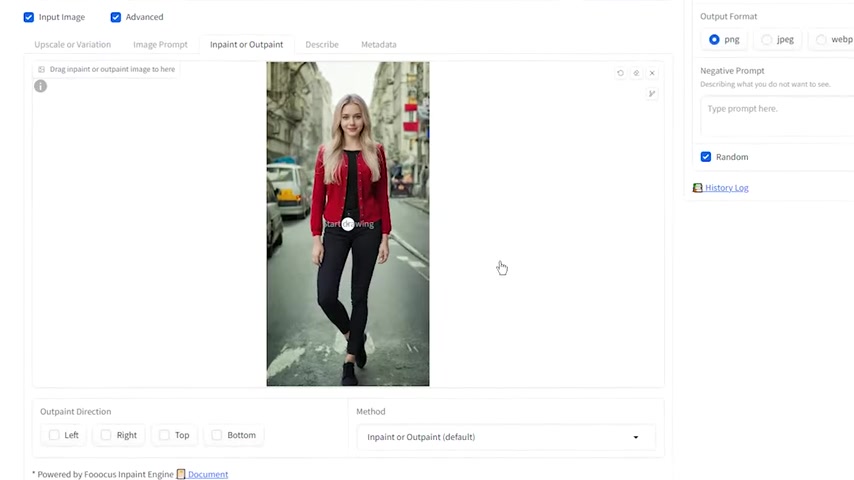
Use your mouse to carefully outline the clothing on the original image. Don't forget, holding shift and scrolling will zoom.
- Enable Developer Debug Mode: Activate the debug mode as this will let you select the control net option later .
- Remove additional objects (such as the handbag) With the source image on the Inpaint or Outpaint page, select the handbag, and enter a prompt on the main page. With that prompt and selected are, Fooocus knows that to fill that area by keeping everything else from the source image.
- Fine Tune Your new Hands. Because you added the clothes by image prompt you may find your hands still appear in the image. To fix that, on the inpaint or Outpaint page once again carefully select the hands, and write a clear prompt like young woman hand or nothing.
- Generate: Press generate!
By following these steps, you can make your images look professional without spending a lot of time!








Most people like





























Report
Please select a reason for reporting
- 13 Reasons to Switch from Snapchat to Text Messaging
- 7 Powerful Speech to Text Apps to Boost Productivity
- 10 Best Speech to Text Tools for Effortless Transcription
- 13 Free Tools to Easily Transcribe Audio to Text
- 15 Surprising Ways Google's Speech-to-Text Boosts Productivity
- 7 Best Free Online Audio to Text Transcription Tools
- 9 Tips to Transcribe Speech to Text Faster and Better
- 13 Best Speech to Text Software for Windows 10 in 2023
- 7 Tips for Choosing the Best Transcriber for Audio to Text
- 11 Reasons Why Dragon Speech-to-Text Apps are Game-Changers
- 6 Secrets to Enhance Your Speech to Text Transcription
- 6 Brilliant Ways to Boost Productivity with Talk-to-Text on Your MacBook
- 6 Ways Transcription Software Converts Audio to Text
- 8 Tips to Transcribe Speech to Text Like a Pro
- 6 Reasons IBM Watson Speech to Text is a Game-Changer
- 14 Powerful Ways Talk-to-Text Improves Your Workflow
- 12 Top Windows Speech-to-Text Software for Efficient Transcription
- 12 Game-Changing Benefits of Apple's Speech to Text Technology
- 9 Powerful Use Cases for AWS Speech to Text Technology
- 10 Easy Steps to Transcribe YouTube Videos to Text
- transcription audio en texte
- online audio transcription
- free audio file transcription
- free ai audio transcription
- audio transcription service
- audio transcription online free
- audio transcription free online
- audio to transcription software
- audio and transcript
- ai audio transcription free
- voice recording to text converter
- translate voice recording to text
- record voice to text
- audio recording to text converter
- voice recording and transcription
- chatgpt voice to text
- gmail voice to text
- speech to text reader
- speech to text ai free
- speech to talk
- Create Engaging Animated Explainer Videos with a Free AI Tool
- Stop Multi-Subscribing: Benchmark Top AI Visual Models in One Canvas
- Best Seedance 2.5 API Provider: Every Price on the Market, Checked at Source
- AI OnlyFans: How to Generate $30,000/Month (Legally)
- Transform Your Script into an Engaging Video with AI Video Maker!
- AI Marketing Automation: A Comprehensive Guide for Small Businesses
- Midjourney Alternative for Anime Art Creators: Why PixAI May Be Better for Character Workflows
- 10 Things Most People Get Wrong About AI Image Search
- AI Girlfriend Apps: Top Choices Redefining Relationships 2025
- How to Reduce Quoting Errors in Salesforce with AI-Assisted Quote Creation
- AI Resume Builders: EnhanceCV, ResumeNerd AI, & Teal Compared
- ResumeAI: Crafting ATS-Optimized Resumes with AI
- AI in Resume Writing: A New Era for Job Seekers
- AI Resume Tools: Streamline Your Job Search and Land Your Dream Role
- AI Resume Optimization: The Right Way to Land Interviews
- Crafting a Killer Resume with AI: A Step-by-Step Guide
- Crafting a Winning Resume: AI Tools and Expert Tips
- AI Job Search: Level Up Your Career with AI Automation
- Empower Your Career Journey: Dynamic Resumes with AI
- AI Resume Builder: Create Professional Resumes Effortlessly

Copyright ©2026 toolify