































Table of Contents
- Key Points
- Understanding OpenAI Vision OCR
- Setting Up and Using OpenAI Vision OCR with Python
- Diverse Use Cases for OpenAI Vision OCR


Understanding OpenAI Vision OCR
What is OpenAI Vision?
OpenAI's Vision capabilities
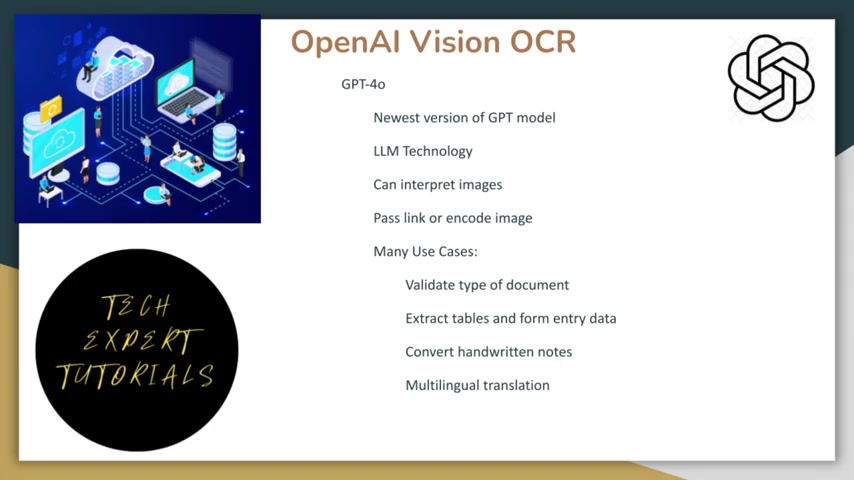
empower models like GPT-4o, GPT-4o Mini, and GPT-4 Turbo to 'see' and understand images. This means these models can take an image as input and answer questions about its content, structure, and meaning. This opens doors to a wide array of applications, from simple image description to complex document analysis. OpenAI Vision leverages both Optical Character Recognition (OCR) and Large Language Models (LLM) to provide comprehensive image understanding.
Optical Character Recognition (OCR) Explained
At its core, OCR
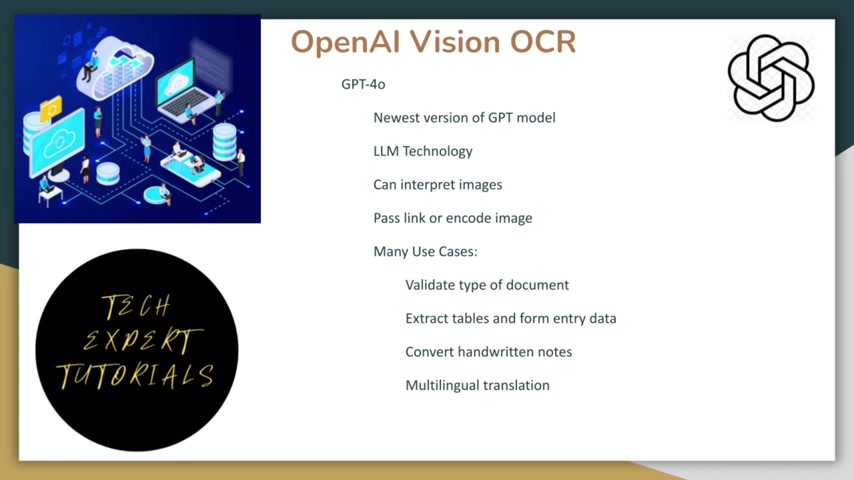
is the technology that enables computers to 'read' text within images. It analyzes the image, identifies individual characters, and transforms them into editable digital text. This is crucial for extracting information from scanned documents, PDFs, or images containing text. OCR allows you to convert printed words into data that can be searched, edited, and analyzed.
Leveraging LLM Technology for Image Recognition
Beyond text extraction, OpenAI Vision
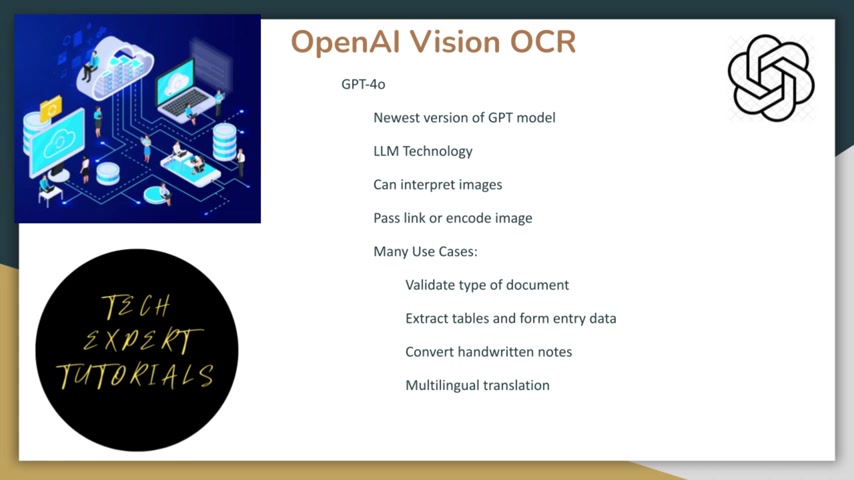
employs LLM technology for advanced Image Recognition and classification. LLMs can understand the context of an image, identify objects, and classify scenes. This is vital for tasks like image search, content moderation, and automated image tagging. The combination of OCR and LLM technology provides a holistic approach to image understanding.
Providing Images to OpenAI Vision: Links vs. Encoding
You can provide images to OpenAI Vision
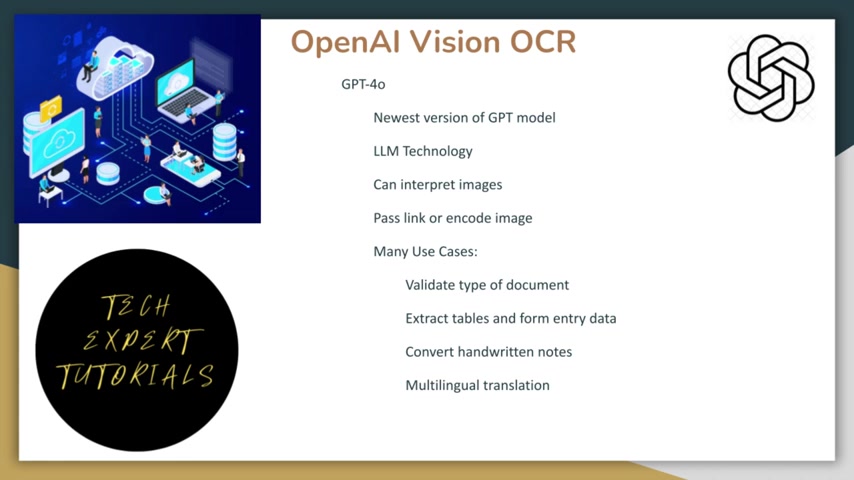
in two primary ways: by supplying a link to the image or by encoding the image data directly in your request. Using a link is often simpler, but encoding allows you to send local images without requiring them to be hosted online. This Tutorial will cover both methods, giving you flexibility in how you interact with the API.
Text Extraction Accuracy
The accuracy of text extraction is a key factor in many OCR applications. While it's never 100% guarantee,The model is able to accurately extract key data and accurately label it, such as correctly grouping address information with the correct zip code. Furthermore, the model is also able to interpret some abbreviations, such as “DOB,” “ISS”, but struggles to properly interpret all abbreviations, such as missing “DD.”
Setting Up and Using OpenAI Vision OCR with Python
Creating an OpenAI Account and API Key
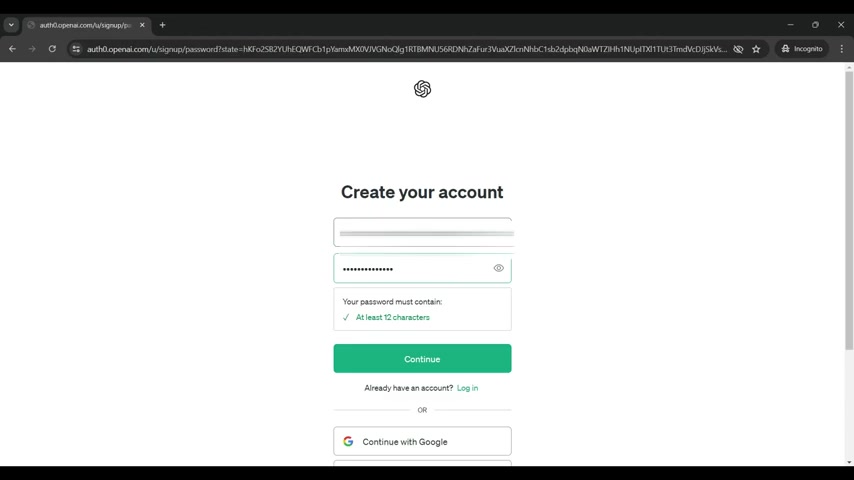
Before you can start using OpenAI Vision, you'll need to create an account
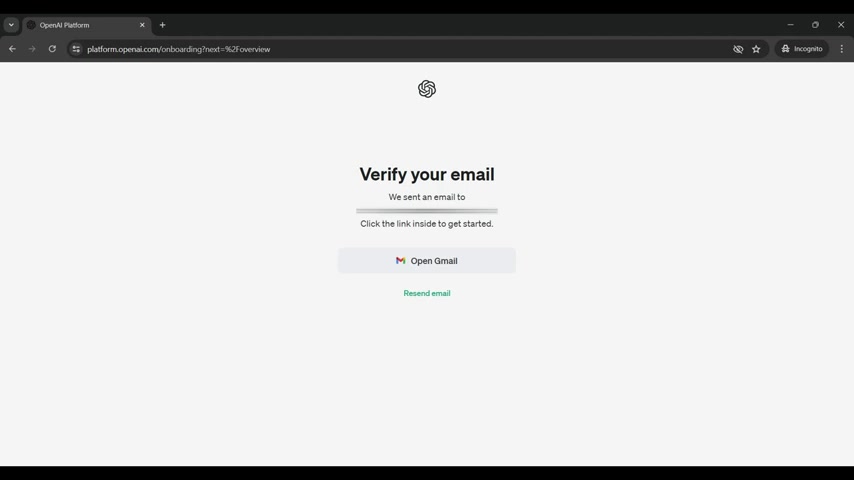
on the OpenAI platform and obtain an API key. An API key is essential for accessing the API from your Python scripts. Here's how to do it:
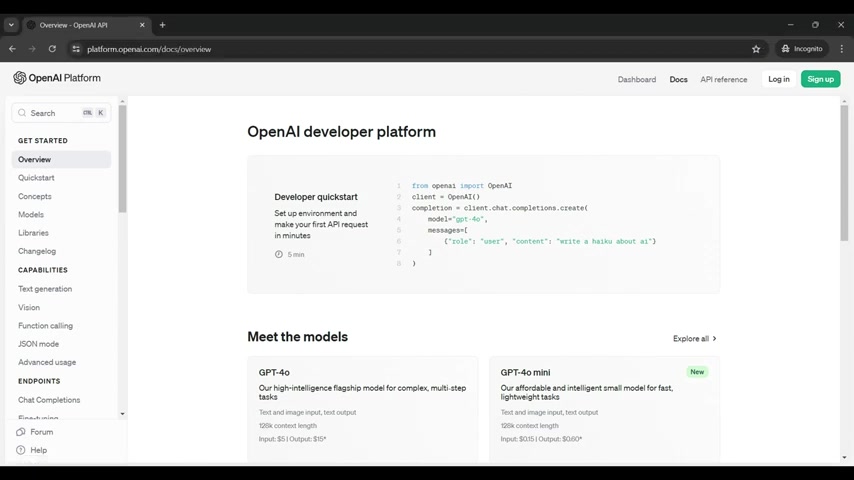
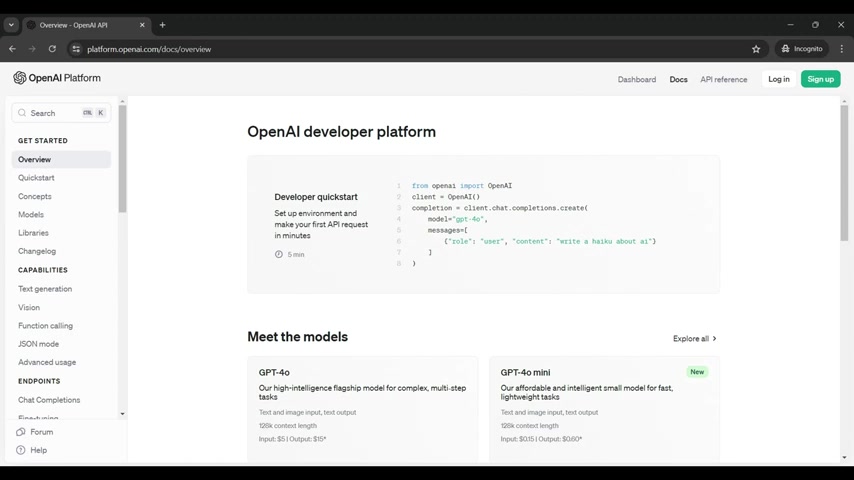
- Go to the OpenAI Platform: Navigate to
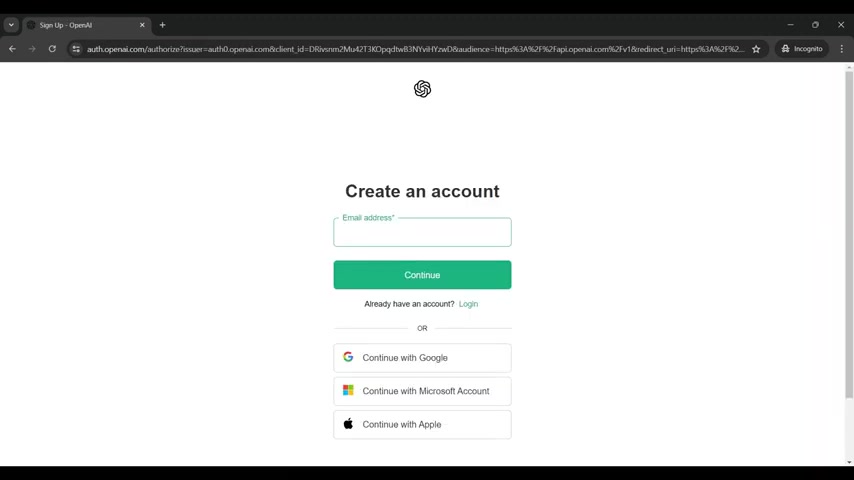
platform.openai.com. - Sign Up: Click on the 'Sign up' button. You can sign up with your email address, Google account, Microsoft account, or Apple ID.
- Verify Your Email: OpenAI will send a verification email to the address you provided. Follow the link in the email to verify your account.
- Provide Information: Fill out the required information about yourself, such as your name, organization, and birthday.
- Create a Secret Key: Once your account is set up, go to the 'API keys' section. Click on 'Create new secret key' . Enter an optional name for the key, and click 'Create secret key'.
- Save Your Key: Copy the generated API key and store it securely. You will need this key to access the OpenAI API in your code. Important: Treat your API key like a password. Do not share it publicly.
Make sure that read and write permissions are properly selected.
Setting Up Your Python Environment
To run the Python code, you'll need to set up a Python environment with the necessary packages. The recommended approach is to use Conda to create and manage your environment:
- Install Conda: If you don't have Conda installed, download and install it from the Anaconda website.
-
Create a Conda Environment: Open your terminal or Anaconda Prompt and run the following command to create a new environment:
conda create -n openai-cloud python=3.10 -
Activate the Environment: Activate the newly created environment:
conda activate openai-cloud -
Install Packages: Install the required packages using the following command:
conda install -c conda-forge openai jupyterlab notebook python=3.10
This command installs the openai library, jupyterlab for running Jupyter Notebooks, and specifies the Python version.
Making the Conda Environment Available as a Kernel
To use your Conda environment within a Jupyter Notebook , you need to make it available as a kernel:
-
Install ipykernel: In your activated Conda environment, run the following command:
python -m ipykernel install --user --name=openai-cloud - Reference Link: Check out helpful.openai.com/en/articles/5112595-best-practices-for-api-key-safety for best practices on API Key.
Importing Necessary Python Packages
Before you can start using the OpenAI API in your Python script , you need to import the required packages:
from openai import OpenAI
import base64
import json
import os
from urllib.parse import urlparse
These packages provide the necessary functionality for interacting with the OpenAI API, encoding images, handling JSON data, and working with URLs.
Encoding Images for the API
OpenAI Vision requires images to be encoded in Base64 format. The following function demonstrates how to encode an image:
def encode_image(image_path):
    with open(image_path, "rb") as image_file:
        return base64.b64encode(image_file.read()).decode('utf-8')
This function reads the image file and encodes it using Base64.
Processing the API Response
After sending your image to the OpenAI API, you'll receive a response containing the extracted information. The following function demonstrates how to process this response:
def process_response(response):
    json_string = response.choices[0].message.content
    json_string = json_string.replace('\\
c
c
f
f
r
r
p
p
Diverse Use Cases for OpenAI Vision OCR
Validating Document Types
OpenAI Vision can be used
to validate document types, ensuring that users upload the correct documentation for specific purposes. For example, it can verify if an uploaded image is indeed a proof of address or a valid form of identification.
Extracting Data from Tables and Forms
This technology
excels at extracting structured data from tables and forms. It can accurately pull information from invoices, receipts, and other formatted documents, streamlining data entry and analysis.
Converting Handwritten Notes
OpenAI Vision can even convert handwritten notes
into digital text, making it a valuable tool for digitizing handwritten records and notes.
Multilingual Translation
The ability
to handle multiple languages in a single image makes OpenAI Vision ideal for multilingual translation tasks, enabling you to extract and Translate text from documents containing various languages.


Most people like




































Report
Please select a reason for reporting
- 13 Reasons to Switch from Snapchat to Text Messaging
- 7 Powerful Speech to Text Apps to Boost Productivity
- 10 Best Speech to Text Tools for Effortless Transcription
- 13 Free Tools to Easily Transcribe Audio to Text
- 15 Surprising Ways Google's Speech-to-Text Boosts Productivity
- 7 Best Free Online Audio to Text Transcription Tools
- 9 Tips to Transcribe Speech to Text Faster and Better
- 13 Best Speech to Text Software for Windows 10 in 2023
- 7 Tips for Choosing the Best Transcriber for Audio to Text
- 11 Reasons Why Dragon Speech-to-Text Apps are Game-Changers
- 6 Secrets to Enhance Your Speech to Text Transcription
- 6 Brilliant Ways to Boost Productivity with Talk-to-Text on Your MacBook
- 6 Ways Transcription Software Converts Audio to Text
- 8 Tips to Transcribe Speech to Text Like a Pro
- 6 Reasons IBM Watson Speech to Text is a Game-Changer
- 14 Powerful Ways Talk-to-Text Improves Your Workflow
- 12 Top Windows Speech-to-Text Software for Efficient Transcription
- 12 Game-Changing Benefits of Apple's Speech to Text Technology
- 9 Powerful Use Cases for AWS Speech to Text Technology
- 10 Easy Steps to Transcribe YouTube Videos to Text
- transcription audio en texte
- online audio transcription
- free audio file transcription
- free ai audio transcription
- audio transcription service
- audio transcription online free
- audio transcription free online
- audio to transcription software
- audio and transcript
- ai audio transcription free
- voice recording to text converter
- translate voice recording to text
- record voice to text
- audio recording to text converter
- voice recording and transcription
- chatgpt voice to text
- gmail voice to text
- speech to text reader
- speech to text ai free
- speech to talk
- ChatGPT Knows Ford. It Just Doesn't Quote Ford
- Meshy AI: How to Create 3D Models from Text and Images
- How SEO and Marketing Dashboards Empower Agencies to Drive Results
- How to Use AI Tools to Find Internal Linking Opportunities Across a Business Website
- Discover Your Perfect Haircut with AI Hairstyle Apps
- Free Reputation Calculator Tools: How They're Adapting to Score AI Visibility, Not Just Rankings
- Design Professional Flyers for Free on Your Phone
- Best Free Flyer Maker Apps for Android: Design Like a Pro
- How to Know If Your Business Is Ready for an AI Customer Service Agent
- Revolutionizing Storytelling: From Novels to Screenplays with AI
- ChatGPT Knows Ford. It Just Doesn't Quote Ford
- Automate Lead Generation: A Comprehensive Guide with AI Agents
- Revideo.io: The Future of Reverse Video Search Technology
- Revolutionizing Email Marketing Agency with AI
- Breaking the Character Drift Dilemma: A Practical Test of Smart Shot
- Meshy AI: How to Create 3D Models from Text and Images
- ASOMobile Helps Teams Benchmark App Store Screenshots Against Competitors
- How to Match LMS Software With Your Organization's Training Plan
- How to Convert BTC to HNT
- Unleashing the Power of AI: Cognizant's Roadmap for Transformation

Copyright ©2026 toolify