































Table of Contents
- Key Points
- Setting Up Your Python Environment for QR Code Generation
- AI-Powered QR Code Generation: Leveraging Claude or ChatGPT
- Using the Python QR Code Generator
- Pros and Cons of AI-Assisted Python QR Code Generator
- FAQ
- Related Questions



Setting Up Your Python Environment for QR Code Generation
Creating a Project Folder
The first step to creating a QR Code Generator using Python is to set up your project environment. Begin by creating a new folder where all your project files will reside. This helps keep your project organized and prevents clutter on your desktop.
Press Ctrl+Shift+N to quickly create a new folder. Give it a descriptive name. In this case, the instructor names it matta, but you can pick any name you like. This folder will house all your project-related files, including the Python script and any generated QR codes.
Once you've created the folder, open it. Inside this folder, you'll create a new text document, which will eventually become your Python script. Right-click inside the folder, select 'New,' and then choose 'Text Document.' By default, it will create a new text document with the '.txt' extension.
Enabling File Name Extensions
Before renaming the file, it's important to ensure that file name extensions are visible. This allows you to change the extension from '.txt' to '.py,' which is crucial for Python scripts.
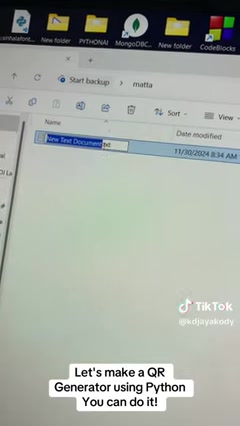
In Windows, this setting can be found under the 'View' tab in the File Explorer ribbon. Look for the 'Show' section and check the box labeled 'File name extensions.' Enabling this ensures that you see the '.txt' extension, allowing you to modify it.
Now, right-click the new text document and select 'Rename.' Erase the default name and extension, and rename the file to 'qrcode.py'. Note that naming your Python file 'qrcode.py' can lead to conflicts with the qrcode library. Best practice for a file name to be something else, like 'qr_generator.py'. When you change the extension, Windows will display a warning message stating that changing the extension might make the file unusable. Click 'Yes' to proceed. This converts the text document into a Python script file, ready for coding.
Installing the qrcode and Pillow Libraries
This section emphasizes the importance of installing the necessary Python packages for QR code generation. These libraries include:
- qrcode: This library is the core component for creating QR codes. It provides the functionality to encode data into a QR code image.
- Pillow: Pillow is an image processing library that allows you to work with images, including saving the generated QR code as a PNG file.
To install these packages, you'll use pip, the Python Package installer. Open the Command Prompt (CMD) by searching for it in the Windows search bar.
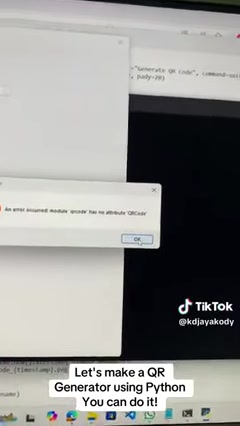
In the command prompt, type the following command and press Enter:
pip install qrcode
This command downloads and installs the qrcode library along with the required dependencies.
Next, install the Pillow library by typing the following command and pressing Enter:
pip install Pillow
With these libraries installed, your Python environment is now equipped to handle QR code generation and image manipulation.













Most people like































Report
Please select a reason for reporting
- 13 Reasons to Switch from Snapchat to Text Messaging
- 7 Powerful Speech to Text Apps to Boost Productivity
- 10 Best Speech to Text Tools for Effortless Transcription
- 13 Free Tools to Easily Transcribe Audio to Text
- 15 Surprising Ways Google's Speech-to-Text Boosts Productivity
- 7 Best Free Online Audio to Text Transcription Tools
- 9 Tips to Transcribe Speech to Text Faster and Better
- 13 Best Speech to Text Software for Windows 10 in 2023
- 7 Tips for Choosing the Best Transcriber for Audio to Text
- 11 Reasons Why Dragon Speech-to-Text Apps are Game-Changers
- 6 Secrets to Enhance Your Speech to Text Transcription
- 6 Brilliant Ways to Boost Productivity with Talk-to-Text on Your MacBook
- 6 Ways Transcription Software Converts Audio to Text
- 8 Tips to Transcribe Speech to Text Like a Pro
- 6 Reasons IBM Watson Speech to Text is a Game-Changer
- 14 Powerful Ways Talk-to-Text Improves Your Workflow
- 12 Top Windows Speech-to-Text Software for Efficient Transcription
- 12 Game-Changing Benefits of Apple's Speech to Text Technology
- 9 Powerful Use Cases for AWS Speech to Text Technology
- 10 Easy Steps to Transcribe YouTube Videos to Text
- transcription audio en texte
- online audio transcription
- free audio file transcription
- free ai audio transcription
- audio transcription service
- audio transcription online free
- audio transcription free online
- audio to transcription software
- audio and transcript
- ai audio transcription free
- voice recording to text converter
- translate voice recording to text
- record voice to text
- audio recording to text converter
- voice recording and transcription
- chatgpt voice to text
- gmail voice to text
- speech to text reader
- speech to text ai free
- speech to talk
- 2026别再为 Claude多花冤枉钱了,ClaudeAPI.com国内直连让我每月省下 ¥780
- 5 Best AI Chat Apps for Mac in 2026
- What Makes Happy Horse 1.0 Different from Basic AI Video Tools
- Key Features of Happy Horse 1.0 AI Video Generator You Should Know
- 爱翻译功能全面解析:核心优势及主要功能
- Best AI Humanizers for SEO Content Writers in 2026
- Seedance 2.0 Prompting 101: The 6 Parameters You Need to Master (by Topview)
- Top 5 AI Text-to-Video Generators: A 2025 Review
- Create Professional UGC Videos with AI: Introducing Magic Ads
- Top 5 Browsers for Managing Multiple Accounts in 2026: What Actually Works
- Mastering Meeting Minutes: A Comprehensive Guide for Efficiency
- The Dangers of Deepfake for K-Pop: From Idol to Porn Star
- Key Metrics Used in AI Benchmarking for Enterprise Systems
- Top Free AI Video Generators: Latest Tools Compared!
- Top 5 Free AI Video Generators: Unlimited Options in 2025
- Top AI Video Generators: Ranking the Best Tools for 2025
- Top AI Video Generators: Create Stunning Videos Effortlessly
- Top AI Video Generators for Stunning Animations in 2024
- Free AI Video Generators: Unlimited & No Watermarks in 2025
- Top AI Video Maker Tools: Create Videos Fast & Easily

Copyright ©2026 toolify