































Table of Contents
- Key Points
- Getting Started with QuickCreator AI
- Advanced Site Settings for Optimal Performance
- AI-Powered Landing Page Generation
- Frequently Asked Questions
- Related Questions



Getting Started with QuickCreator AI
Navigating the QuickCreator AI Dashboard
Once you've logged into QuickCreator AI, the dashboard provides a clear and intuitive overview of your site.
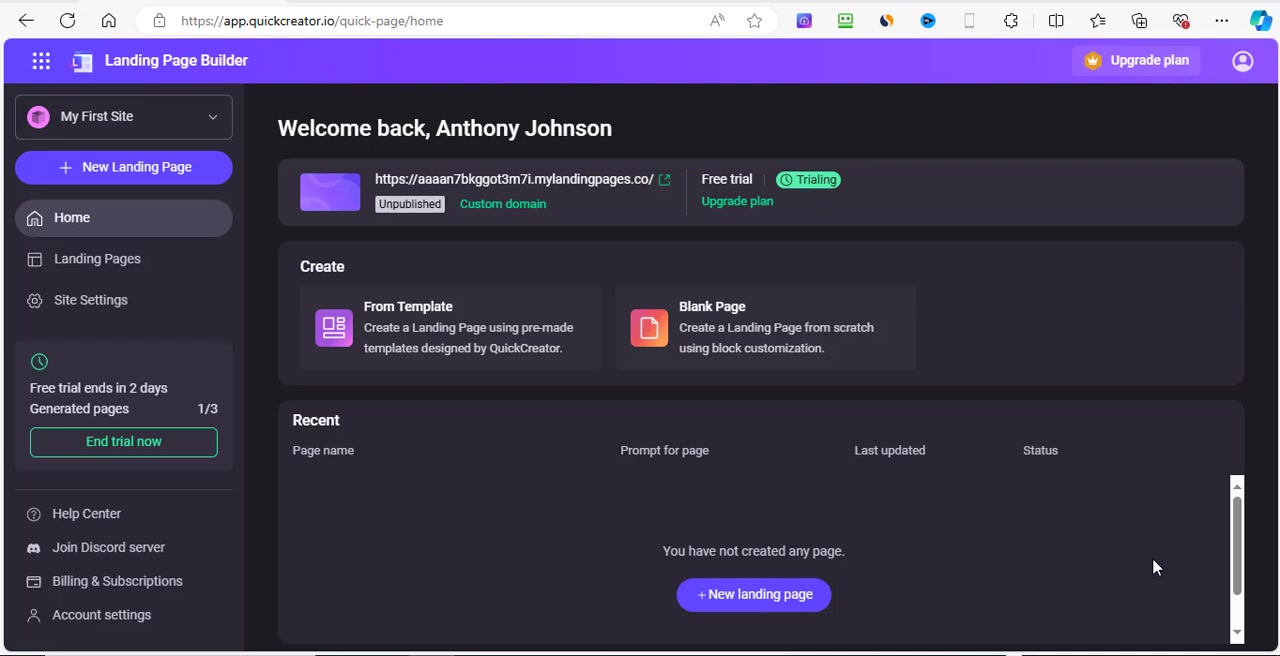
You'll find options to create landing pages, manage site settings, and access helpful resources. The dashboard's layout is designed for ease of navigation, making it simple to find the tools you need to build and optimize your landing pages. Understanding the layout is the first step towards efficient landing page creation. Key areas include the main menu on the left, the central content area displaying your current projects, and the top navigation bar for account settings and upgrades.
Key areas to note:
- Main Menu: Access all core features, including 'New Landing Page,' 'Home,' 'Landing Pages,' and 'Site Settings.'
- Content Area: Displays recent projects and provides options to create new pages from templates or from scratch.
- Top Navigation: Manage your account, upgrade your plan, and preview/publish your landing pages.
- Trial information and end trial notice: Notice when your trial is ending.
Creating a New Website on QuickCreator AI
The initial step is to create a website container for your landing pages. Think of this as the main 'folder' holding all your promotional efforts.
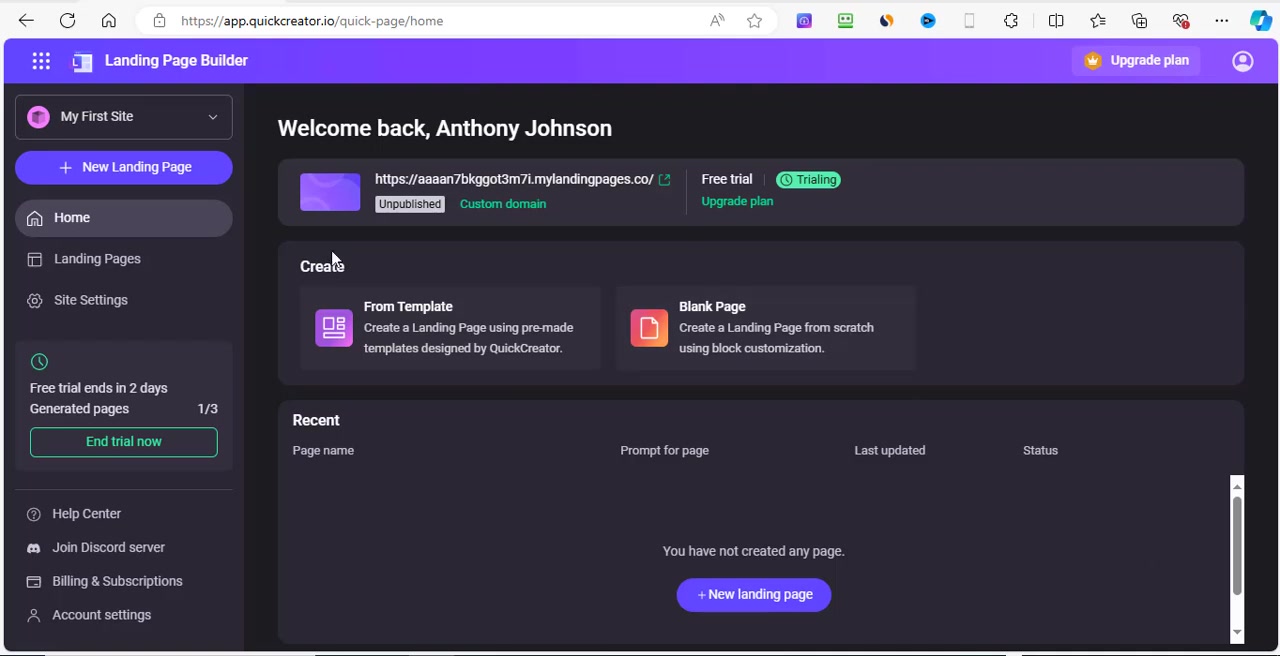
To start, locate the 'My First Site' button on the left-HAND menu. Clicking this reveals the option to create a 'New Website'. This will be the space where all your landing pages reside. The QuickCreator platform allows for easy website creation and management so you can focus on the content of your landing pages.
Once you create a 'New Website' you can start working on individual Landing pages to drive different campaigns.
Exploring Landing Page Creation Options
QuickCreator AI offers multiple ways to build your landing pages.
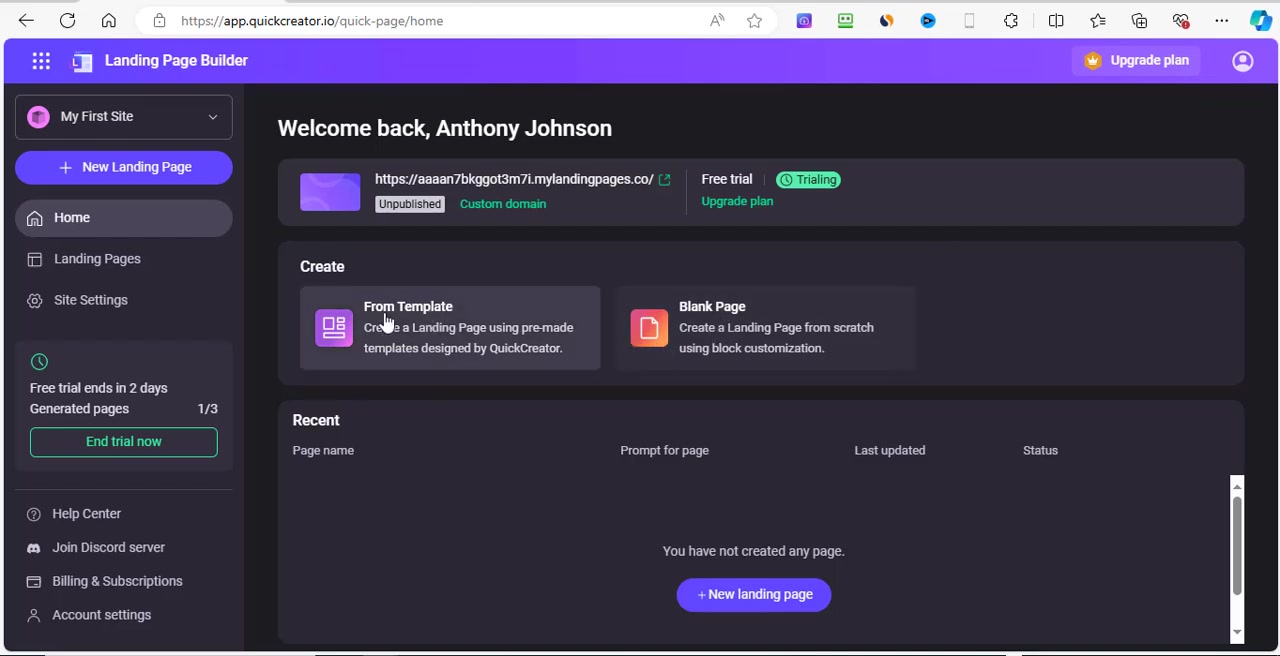
You can choose from pre-designed templates for a quick start or create a blank page for complete customization. The choice depends on your specific needs and design preferences. Templates provide a structure, while blank pages allow for boundless creativity. Pre-made templates allow non-designers to create functional and attractive pages quickly, without coding skills, while Blank pages offer total control over design elements, appealing to designers needing custom functionalities. Select what works best for your goals and skill set. It's also simple to create your own template and save it for later to help streamline future Landing Page creation.
Key Differences: Templates vs. Blank Pages
Deciding between using a pre-made template or starting with a blank page depends largely on your design skills, time constraints, and project requirements. Templates provide a quick and structured way to create a landing page, perfect for those who need a fast turnaround or have limited design experience. Blank pages, on the other hand, offer complete freedom and flexibility but demand a deeper understanding of design principles and page layout. Both options are available to suit different user needs and creative visions.
| Feature | Template | Blank Page |
|---|---|---|
| Time Efficiency | Faster; pre-designed elements save time. | Slower; requires building from the ground up. |
| Design Skill Level | Suitable for all skill levels. | Requires advanced design and layout skills. |
| Customization | Limited customization; focus on content editing. | Unlimited customization; full control over all aspects. |
| Coding | No coding required. | May require coding for advanced functionalities. |
| Ease of Use | Very easy to use; beginner-friendly. | Steeper learning curve; requires more technical knowledge. |
Advanced Site Settings for Optimal Performance
Customizing Your Domain
Having a custom domain is crucial for branding and establishing credibility.
QuickCreator AI allows you to use a custom domain, making your landing page more professional. Setting this up is relatively simple, and it significantly enhances the perceived value of your site.
Options include:
- Basic Domain: The default QuickCreator subdomain, quick for testing and initial setup.
- QuickCreator Subdomain: A free option that uses the QuickCreator brand, suitable for basic projects.
- Use My Subdomain: Connect an existing subdomain for a customized yet simple setup.
- Use My Domain Subdirectory: Publish to a domain subdirectory you own.
Choose the option that best aligns with your brand strategy and technical capabilities.
Understanding and Implementing Favicons
A favicon is a small icon that represents your website in browser tabs and bookmarks.
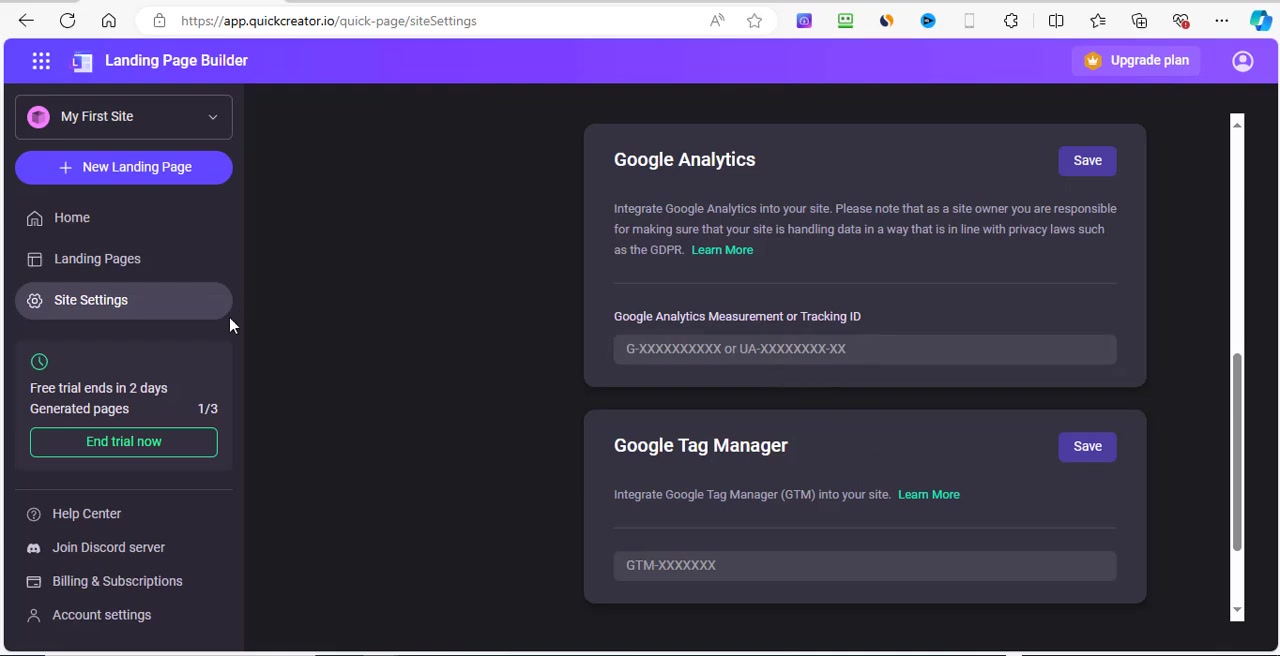
It's a subtle but effective way to reinforce your brand identity. QuickCreator AI makes it easy to upload your favicon, ensuring your site looks polished and professional. Don't underestimate the power of this tiny detail; it adds a layer of visual appeal and brand recognition.
To upload a Favicon to your site:
- Navigate to the 'Site Settings' Section .
- Scroll down to find the section labeled 'Site Images.'
- You will find an Upload Button beneath the 'Favicon' label.
- Select your desired favicon image from your computer and upload. Ensure that it meets the recommended size guidelines for best results.
Integrating Google Analytics for Data-Driven Decisions
Tracking your landing page's performance is essential for making informed decisions. QuickCreator AI allows seamless integration with Google Analytics, giving you valuable insights into user behavior.
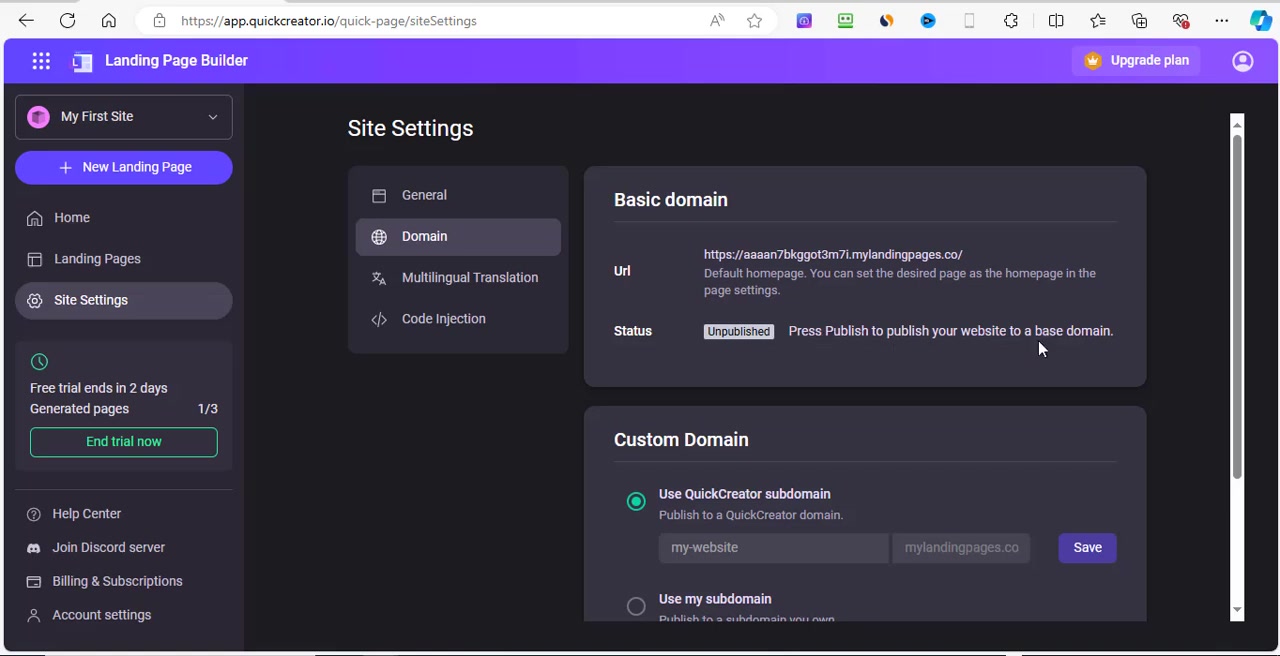
By understanding how visitors interact with your page, you can optimize your content and design to improve conversion rates. Integrating Google Analytics is key to making informed, data-driven decisions and continuously improving your landing page’s effectiveness.
To Integrate:
- Open 'Site Settings' panel.
- Locate and click on the 'Google Analytics' Section.
- Enter your Google Analytics Measurement ID/Tracking ID.
Multilingual Translation For Global Reach
QuickCreator AI offers Multilingual Translation options that allows you to create Landing Pages that appeal to a wider range of users.
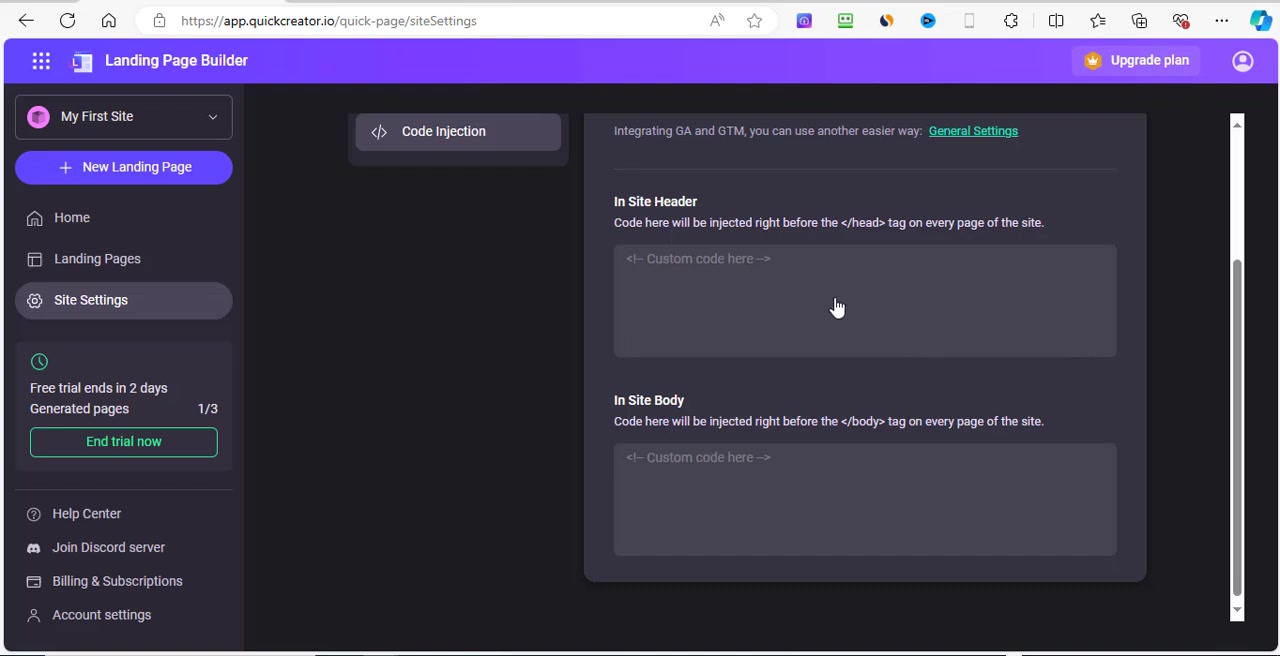
However, this feature is currently under development and not available for use.
Leveraging Code Injection for Advanced Customization
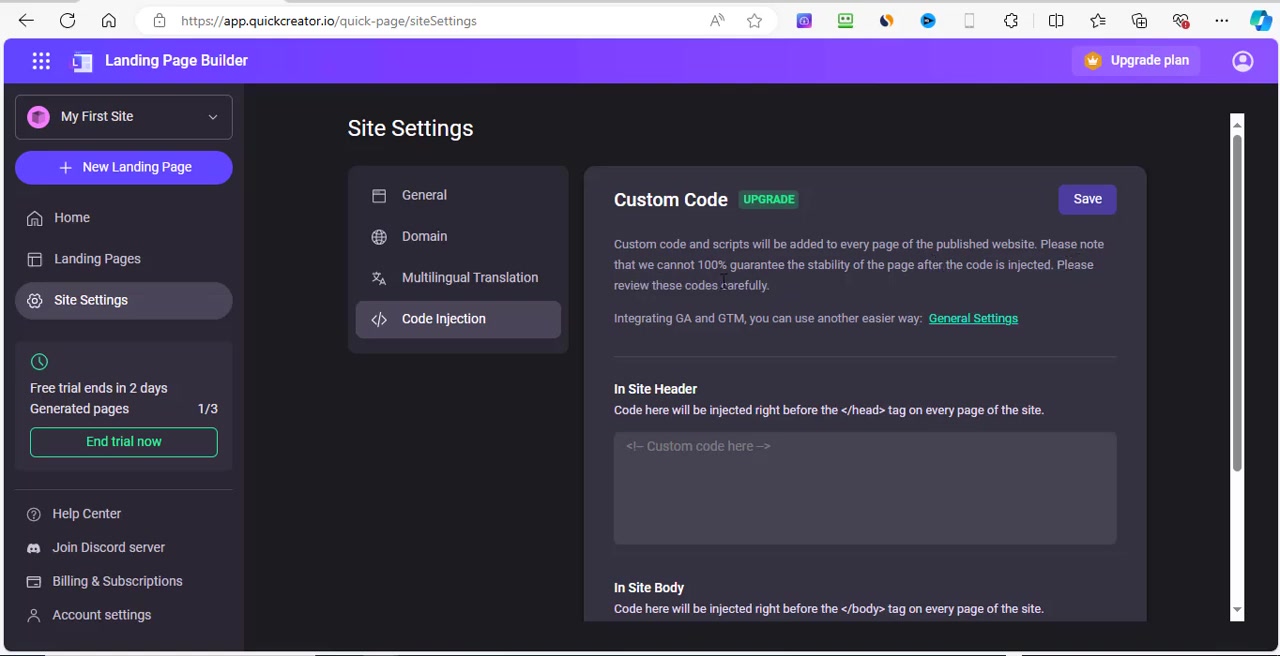
For advanced users, QuickCreator AI offers a code injection feature that enables you to add custom code and scripts to your landing pages.
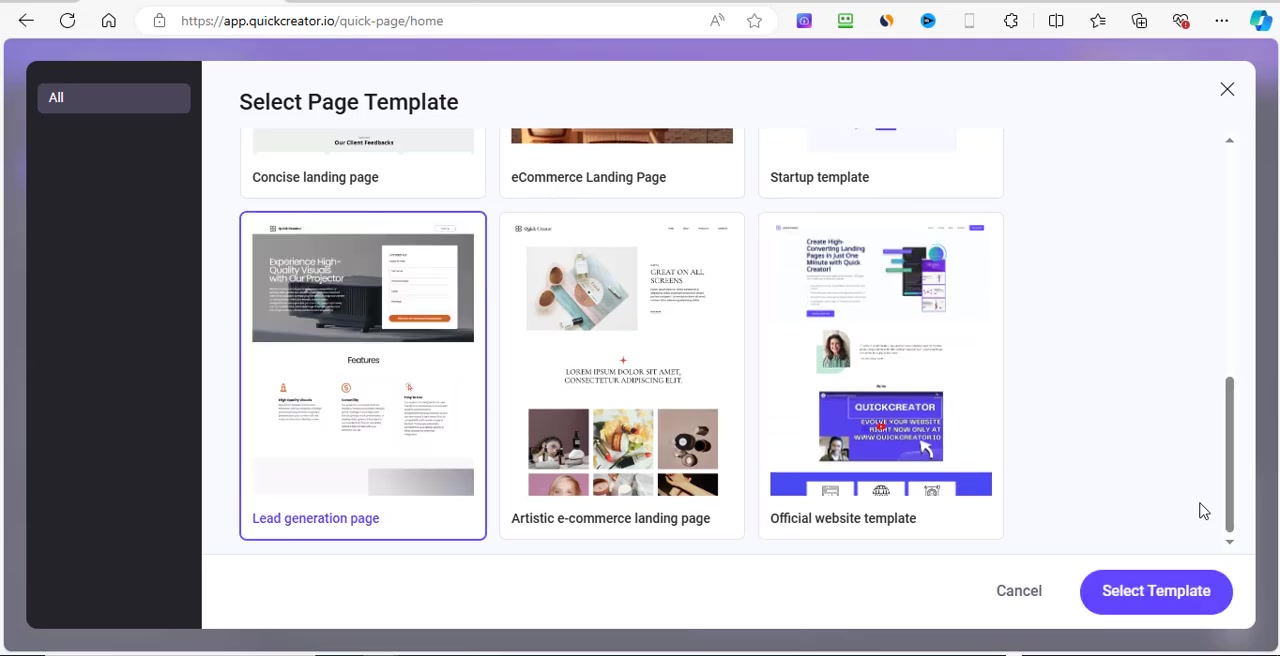
This is particularly useful for implementing tracking pixels, custom analytics, or third-party integrations. Code injection provides a level of flexibility that goes beyond the standard drag-and-drop interface, allowing you to tailor your pages to meet specific technical requirements.
Options for Custom Code Injection Include:
- Custom Code - Upgrade: requires an upgrade of your plan to use
- In Site Header: Code is injected right before the <\head> tag on every page of the site .
- In Site Body: Code will be injected right before the <\body> tag on every page of the site .
AI-Powered Landing Page Generation
Generating Content with AI Prompts
QuickCreator AI leverages artificial intelligence to generate content based on your inputs. After selecting your template, you'll be presented with a Prompt interface. Provide a clear description of your product or service, along with Relevant keywords, and let the AI create compelling copy for your landing page.
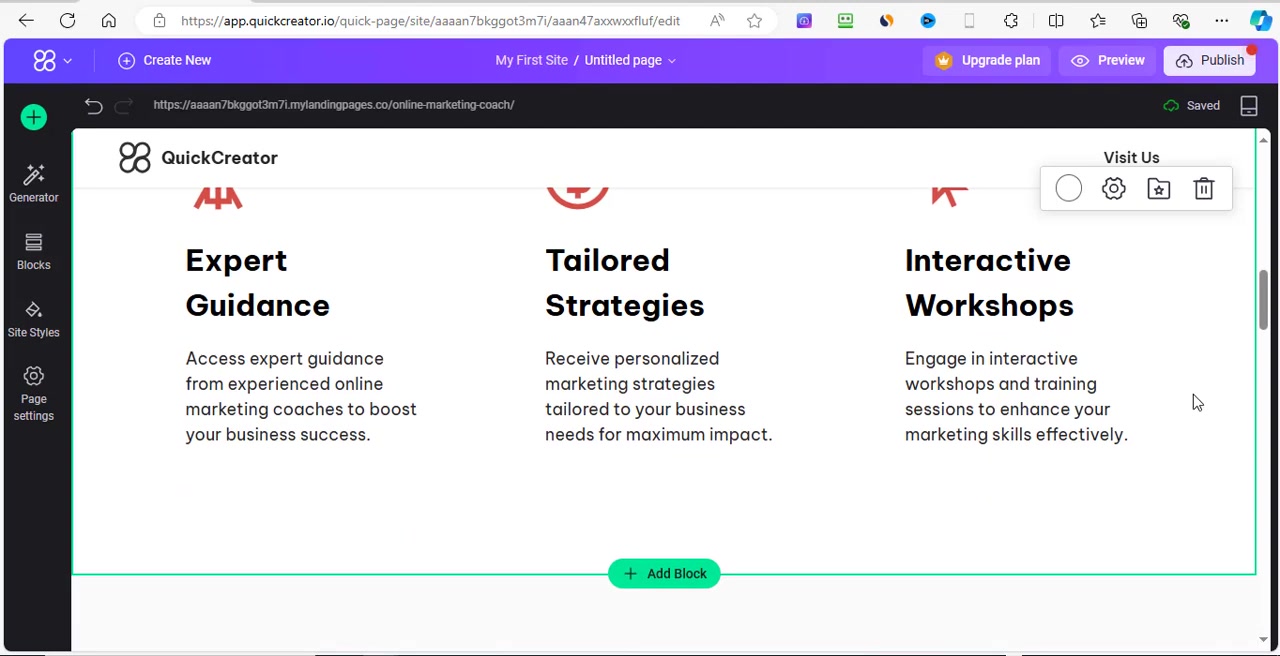
The AI-powered generator allows you to create targeted and persuasive copy quickly, freeing up your time to focus on other aspects of your marketing campaign. If you already have a website you can use it to summarize key points that the AI can use.
To generate content:
- Enter your product, service, or company name in the Service/Product/Business Name section.
- Enter relevant keywords in the SEO Keywords section.
- Provide a short description of the product in the Product or service feature description section.
- Click Generate






Most people like





























Report
Please select a reason for reporting
- 13 Reasons to Switch from Snapchat to Text Messaging
- 7 Powerful Speech to Text Apps to Boost Productivity
- 10 Best Speech to Text Tools for Effortless Transcription
- 13 Free Tools to Easily Transcribe Audio to Text
- 15 Surprising Ways Google's Speech-to-Text Boosts Productivity
- 7 Best Free Online Audio to Text Transcription Tools
- 9 Tips to Transcribe Speech to Text Faster and Better
- 13 Best Speech to Text Software for Windows 10 in 2023
- 7 Tips for Choosing the Best Transcriber for Audio to Text
- 11 Reasons Why Dragon Speech-to-Text Apps are Game-Changers
- 6 Secrets to Enhance Your Speech to Text Transcription
- 6 Brilliant Ways to Boost Productivity with Talk-to-Text on Your MacBook
- 6 Ways Transcription Software Converts Audio to Text
- 8 Tips to Transcribe Speech to Text Like a Pro
- 6 Reasons IBM Watson Speech to Text is a Game-Changer
- 14 Powerful Ways Talk-to-Text Improves Your Workflow
- 12 Top Windows Speech-to-Text Software for Efficient Transcription
- 12 Game-Changing Benefits of Apple's Speech to Text Technology
- 9 Powerful Use Cases for AWS Speech to Text Technology
- 10 Easy Steps to Transcribe YouTube Videos to Text
- transcription audio en texte
- online audio transcription
- free audio file transcription
- free ai audio transcription
- audio transcription service
- audio transcription online free
- audio transcription free online
- audio to transcription software
- audio and transcript
- ai audio transcription free
- voice recording to text converter
- translate voice recording to text
- record voice to text
- audio recording to text converter
- voice recording and transcription
- chatgpt voice to text
- gmail voice to text
- speech to text reader
- speech to text ai free
- speech to talk
- Meshy AI: How to Create 3D Models from Text and Images
- How SEO and Marketing Dashboards Empower Agencies to Drive Results
- How to Use AI Tools to Find Internal Linking Opportunities Across a Business Website
- Discover Your Perfect Haircut with AI Hairstyle Apps
- Free Reputation Calculator Tools: How They're Adapting to Score AI Visibility, Not Just Rankings
- Design Professional Flyers for Free on Your Phone
- Best Free Flyer Maker Apps for Android: Design Like a Pro
- How to Know If Your Business Is Ready for an AI Customer Service Agent
- Revolutionizing Storytelling: From Novels to Screenplays with AI
- Create Engaging Animated Explainer Videos with a Free AI Tool
- Meshy AI: How to Create 3D Models from Text and Images
- ASOMobile Helps Teams Benchmark App Store Screenshots Against Competitors
- How to Match LMS Software With Your Organization's Training Plan
- Revolutionizing Email Marketing Agency with AI
- How to Convert BTC to HNT
- Unleashing the Power of AI: Cognizant's Roadmap for Transformation
- Frame to Video Review: A Practical Look at Turning Two Still Frames Into Motion
- NVIDIA NIM: Revolutionizing Supply Chain Data Analysis with AI
- Top AI Tools That Help Brands Stand Out Offline (Not Just Online)
- Top 5 Cold Email Software: Maximize Your Outreach in 2025

Copyright ©2026 toolify