































Table of Contents
- Key Points
- Understanding the Realtime Voice Changer Client
- Downloading and Installing
- Setting Up and Using the Realtime Voice Changer Client
- Pricing
- Benefits and Drawbacks of Realtime Voice Changer Client
- Core Features of Realtime Voice Changer Client
- Versatile Use Cases for Realtime Voice Changer Client
- Frequently Asked Questions about Realtime Voice Changer Client
- Related Questions



Understanding the Realtime Voice Changer Client
What is a Realtime Voice Changer Client?
The Realtime Voice Changer Client is a powerful tool that allows you to modify your voice in real-time. This technology has numerous applications, ranging from entertainment to accessibility. Imagine transforming your voice to sound like your favorite character, adding a comedic element to your online streams, or protecting your anonymity during online interactions. With the Realtime Voice Changer Client, these scenarios become a reality.
This client leverages advanced algorithms to manipulate your voice, altering its pitch, tone, and even adding effects to create a completely new sound. It is designed to be user-friendly, with a graphical interface that allows you to easily select different voice models, adjust settings, and monitor the results. Whether you are a seasoned audio engineer or a complete novice, you'll find the Realtime Voice Changer Client to be accessible and intuitive.
Beyond entertainment, voice changing technology can also play a crucial role in accessibility. Individuals with speech impediments can use voice changers to communicate more clearly and confidently. Additionally, voice changers can be used to protect the identity of whistleblowers and activists, ensuring their safety and security.
The Realtime Voice Changer Client is more than just a fun toy; it's a versatile tool with the potential to enhance communication, creativity, and security in a variety of contexts. Its ability to transform voices in real time opens up a world of possibilities for individuals and organizations alike.
CPU vs. GPU: Choosing the Right Processor for Your Voice Changer
When it comes to running the Realtime Voice Changer Client, one of the first decisions you'll need to make is whether to utilize your CPU or GPU for processing.
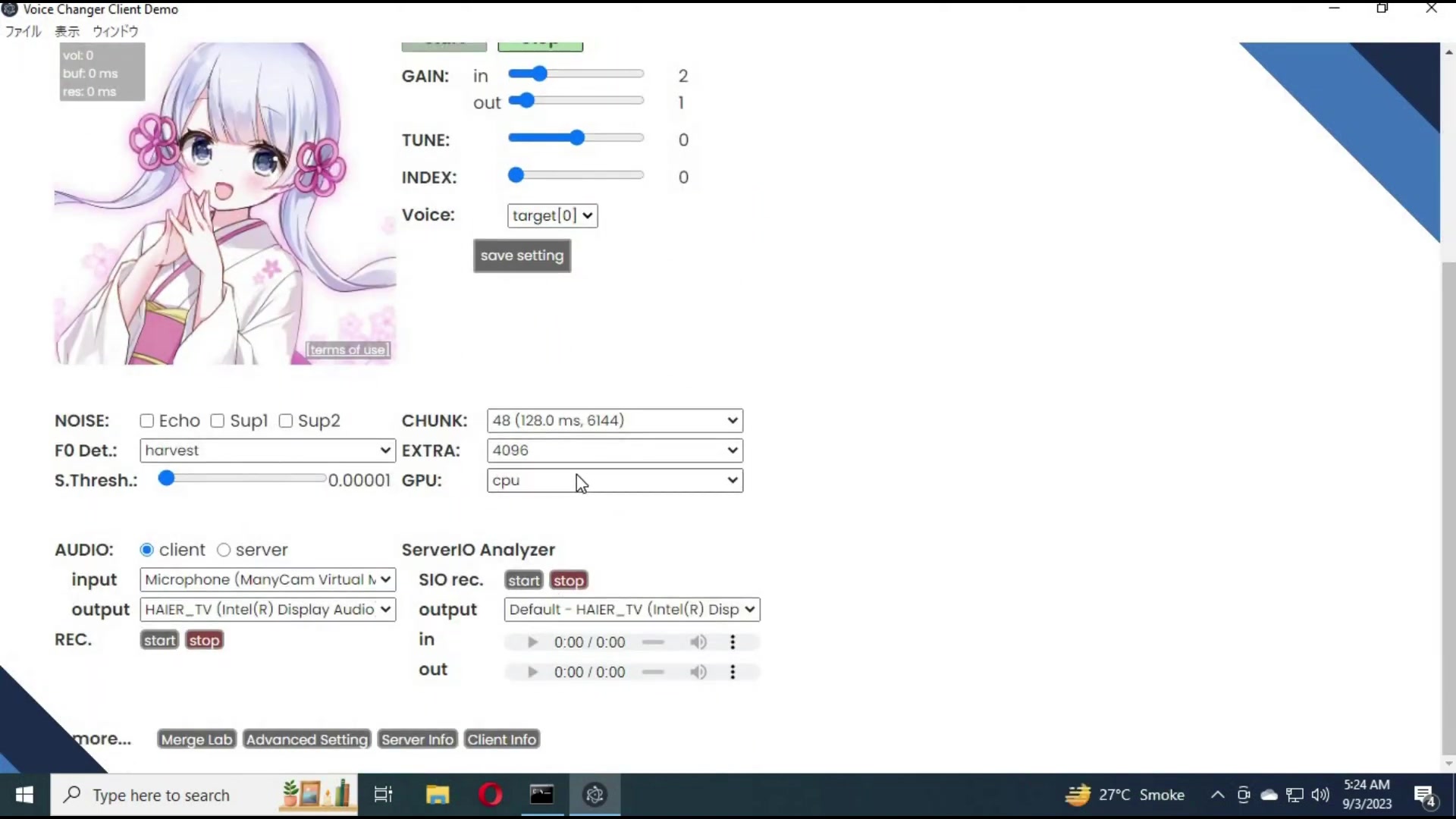
Both processors have their own strengths and weaknesses, and the optimal choice will depend on your specific hardware configuration and performance requirements.
CPU (Central Processing Unit): The CPU is the primary processor in your computer, responsible for handling a wide range of tasks. While it can handle voice changing, it may struggle with more complex models and real-time processing, especially on older or less powerful systems. The advantage of using the CPU is that it's readily available in every computer, so you don't need a dedicated graphics card to get started.
GPU (Graphics Processing Unit): The GPU is designed to handle graphics-intensive tasks, such as gaming and video editing. However, modern GPUs are also highly capable of performing general-purpose computations, including those required for voice changing. Using the GPU can significantly improve performance, allowing you to use more complex voice models and achieve lower latency.
Here is a table summarizing the comparison:
| Feature | CPU | GPU |
|---|---|---|
| Processing Power | Suitable for basic voice changing | Excellent for complex models and real-time processing |
| Availability | Available in all computers | Requires a dedicated graphics card |
| Performance | May struggle with complex models | Significantly improved performance |
| Power Consumption | Generally lower | Generally higher |
If you have a dedicated GPU, especially a newer model, it is highly recommended to use it for voice changing. This will provide a smoother and more responsive experience, allowing you to explore the full potential of the Realtime Voice Changer Client. If you only have an integrated graphics card or a very old GPU, the CPU may be your only option, but be prepared for potentially lower performance.
Downloading and Installing
Installation Guide
Let’s dive into how to install the Realtime Voice Changer Client.
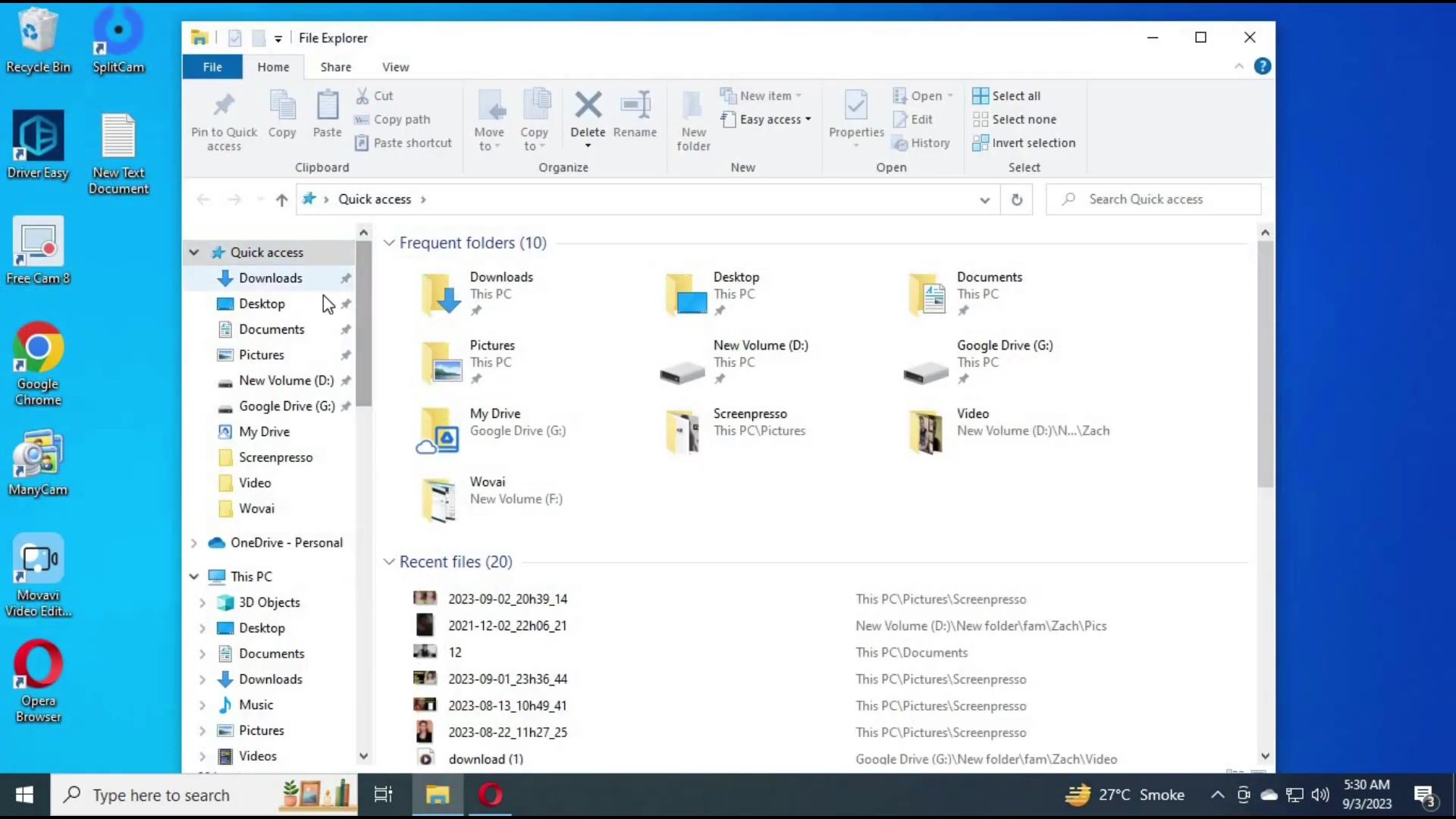
- You’re going to start by going to the main GitHub page. You can find the main Github page in the description.
- The next thing you are going to want to do is find the VC client. Scroll down and choose English.
- Once that loads you are going to want to find the hugging face link for windows and select the cuda version to download.
- After that, you are going to extract the file. Find where you have extracted the file and go to the main folder and click on the start HTTP batch file. It’ll take some time to download all the files and you want face any errors.
With these simple steps, you can easily download and install the real-time voice changer.
Setting Up and Using the Realtime Voice Changer Client
Selecting Input and Output Devices
The first step in using the Realtime Voice Changer Client is to configure your audio input and output devices.
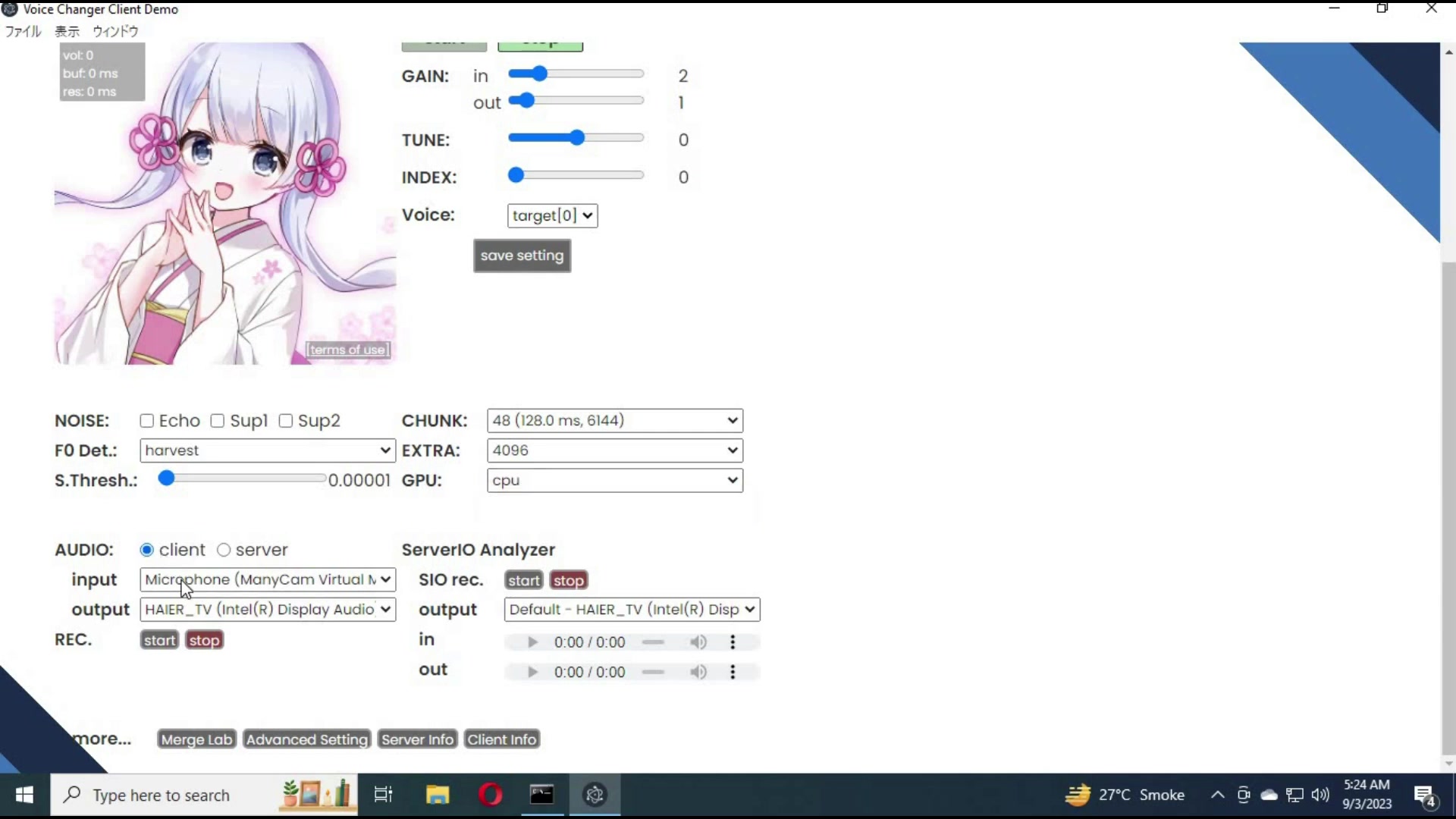
This will ensure that the client can properly capture your voice and output the modified audio to your speakers or headphones.
Input Device: The input device is the microphone that you will be using to capture your voice. The client supports a variety of microphones, including built-in microphones, USB microphones, and XLR microphones connected to an audio interface.
Output Device: The output device is the speakers or headphones that you will be using to hear the modified audio. The client supports a variety of output devices, including built-in speakers, USB headphones, and speakers connected to an audio interface.
To select your input and output devices, follow these steps:
- Open the Realtime Voice Changer Client.
- Navigate to the Audio section in the settings panel.
- In the Input dropdown menu, select your desired microphone.
- In the Output dropdown menu, select your desired speakers or headphones.
Once you have selected your input and output devices, you can test them by speaking into your microphone and listening for the audio output. Make sure that the volume levels are appropriate and that there is no distortion or feedback. If you encounter any issues, try restarting the client or checking your audio device settings in your operating system.
Choosing a Voice Model
One of the most exciting aspects of the Realtime Voice Changer Client is the ability to transform your voice into a variety of different characters and personas.
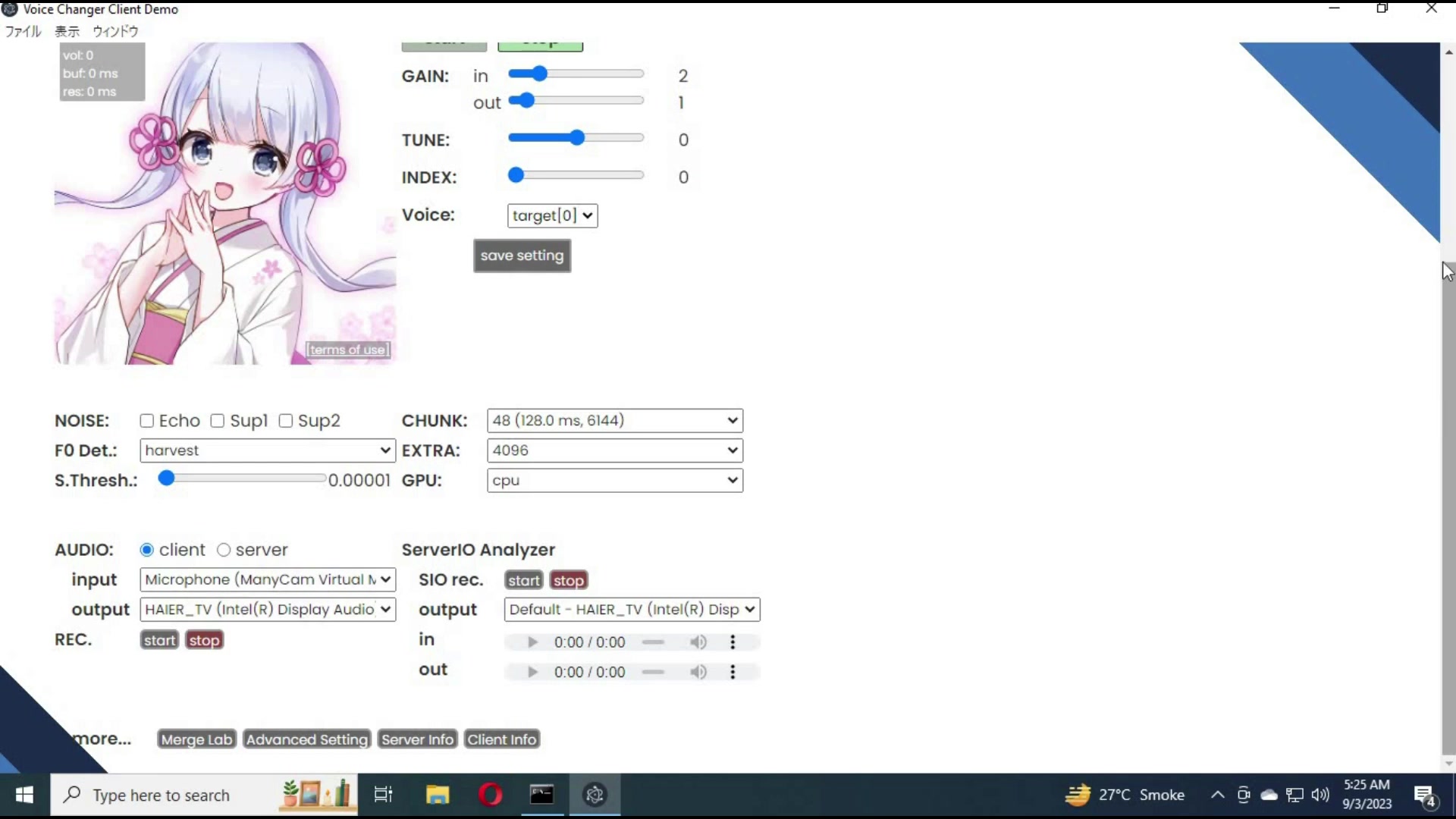
The client comes with a selection of pre-trained voice models that you can use to Instantly change your voice.
Accessing the Voice Model List:
- Locate the Voice section in the client’s main interface.
- You'll find a panel with several pre-trained voice models.
- Simply click on any of the available models to select it.
Applying a Voice Model:
- Once you've selected a model, click the Start button. The client initializes the selected voice model. This process may take a few seconds.
- Speak into your microphone, and your voice will be transformed in real time to match the selected model.
Experimenting with Different Models:
- The client offers a diverse set of voice models to explore.
- Try different models to find the ones that best suit your preferences and needs.
- You can easily switch between models while the client is running to achieve different effects.
Note: The quality and realism of the voice transformation will depend on the complexity of the selected model and your system's processing power.
Adjusting Voice Settings
The Realtime Voice Changer Client offers a variety of settings that you can use to fine-tune your voice transformation.
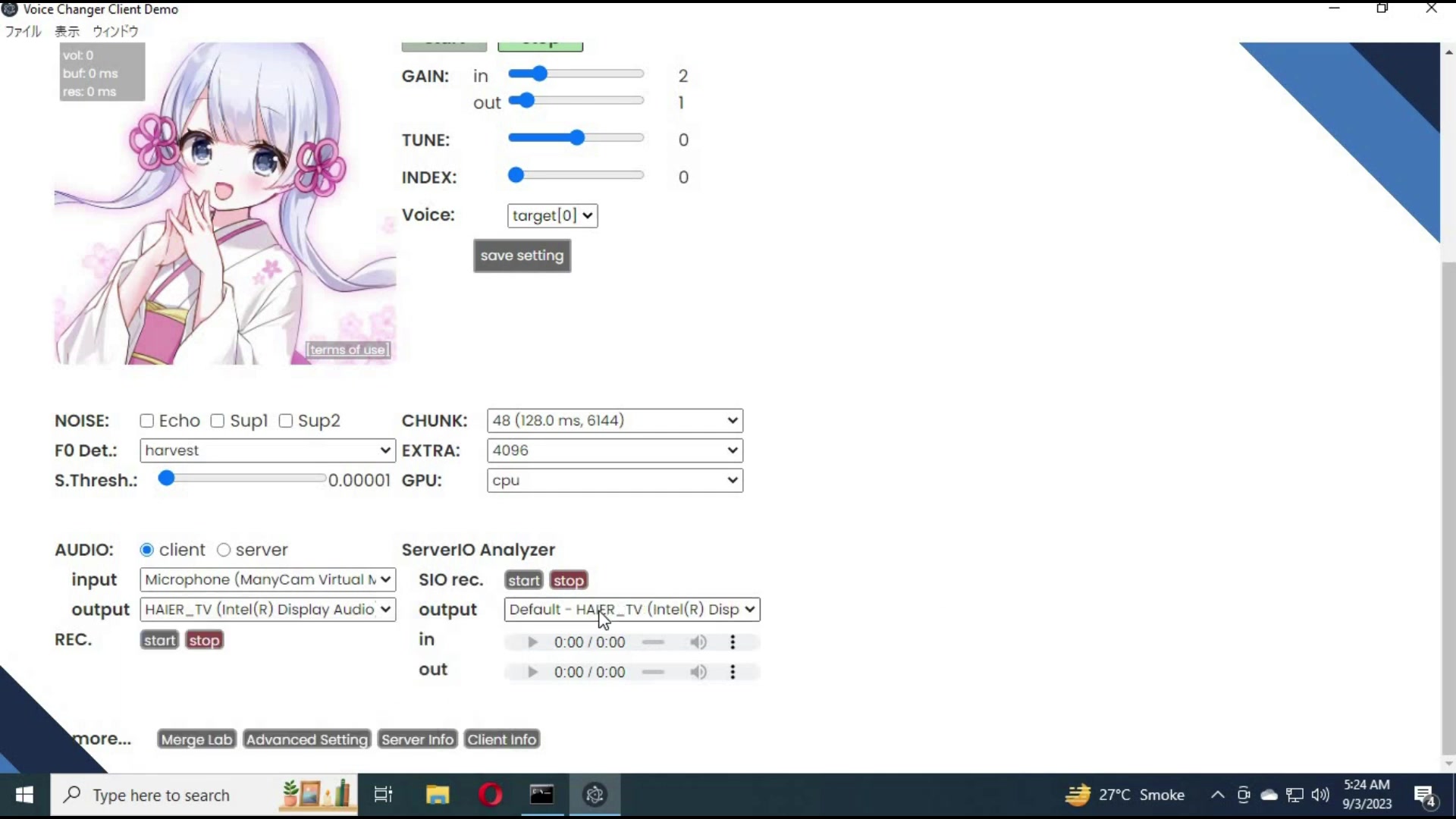
These settings allow you to adjust the pitch, tone, and other characteristics of your voice to create a truly unique sound.
Gain: This setting controls the input and output volume of your voice. You can increase the gain to make your voice louder or decrease it to make it quieter.
Tune: This setting adjusts the pitch of your voice. You can increase the tune to make your voice sound higher or decrease it to make it sound lower.
Index: This setting controls the intensity of the voice transformation. You can increase the index to make the transformation more pronounced or decrease it to make it more subtle.
To adjust these settings, simply use the sliders provided in the client's interface. Experiment with different values to find the settings that work best for you.
It's important to note that the optimal settings will vary depending on the voice model you are using and your own vocal characteristics. Don't be afraid to experiment and find what sounds best to you!
Creating Your Own Voice Model
For those who want to go beyond the pre-trained voice models, the Realtime Voice Changer Client offers the ability to create your own custom voice models.
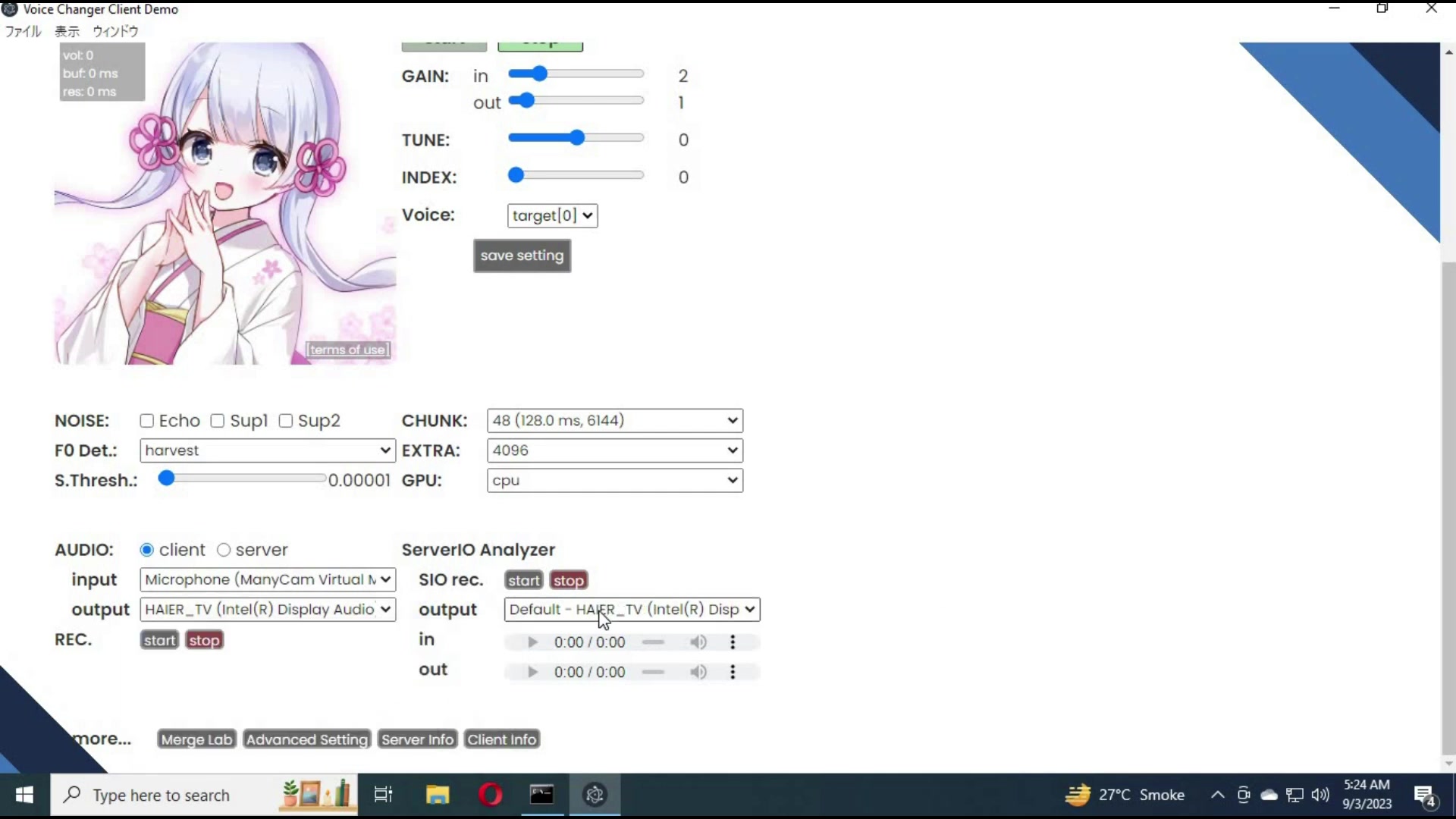
This allows you to create truly unique vocal personas that are tailored to your specific needs and preferences.
Accessing the Model Editor:
- In the main interface, click the Edit button.
- Select an empty slot to start creating your custom model.
- This slot will serve as the foundation for your new voice persona.
Customizing Model Parameters:
- In the model editor, adjust the pitch and other parameters.
- Fine-tune settings to achieve the desired vocal characteristics.
- Experiment with various settings to produce a voice model that meets your unique needs.
Saving Your Custom Model:
- Once you’re satisfied with the adjustments, click the Save Setting button.
- This ensures your custom model is stored for later use.
- You can now select and apply your custom voice model just like any of the pre-trained ones.
Creating your own voice model can be a time-consuming process, but it's well worth the effort if you're looking for a truly unique and personalized vocal persona. Take your time, experiment with different settings, and don't be afraid to get creative!





Most people like


































Report
Please select a reason for reporting
- 13 Reasons to Switch from Snapchat to Text Messaging
- 7 Powerful Speech to Text Apps to Boost Productivity
- 10 Best Speech to Text Tools for Effortless Transcription
- 13 Free Tools to Easily Transcribe Audio to Text
- 15 Surprising Ways Google's Speech-to-Text Boosts Productivity
- 7 Best Free Online Audio to Text Transcription Tools
- 9 Tips to Transcribe Speech to Text Faster and Better
- 13 Best Speech to Text Software for Windows 10 in 2023
- 7 Tips for Choosing the Best Transcriber for Audio to Text
- 11 Reasons Why Dragon Speech-to-Text Apps are Game-Changers
- 6 Secrets to Enhance Your Speech to Text Transcription
- 6 Brilliant Ways to Boost Productivity with Talk-to-Text on Your MacBook
- 6 Ways Transcription Software Converts Audio to Text
- 8 Tips to Transcribe Speech to Text Like a Pro
- 6 Reasons IBM Watson Speech to Text is a Game-Changer
- 14 Powerful Ways Talk-to-Text Improves Your Workflow
- 12 Top Windows Speech-to-Text Software for Efficient Transcription
- 12 Game-Changing Benefits of Apple's Speech to Text Technology
- 9 Powerful Use Cases for AWS Speech to Text Technology
- 10 Easy Steps to Transcribe YouTube Videos to Text
- transcription audio en texte
- online audio transcription
- free audio file transcription
- free ai audio transcription
- audio transcription service
- audio transcription online free
- audio transcription free online
- audio to transcription software
- audio and transcript
- ai audio transcription free
- voice recording to text converter
- translate voice recording to text
- record voice to text
- audio recording to text converter
- voice recording and transcription
- chatgpt voice to text
- gmail voice to text
- speech to text reader
- speech to text ai free
- speech to talk
- How SEO and Marketing Dashboards Empower Agencies to Drive Results
- How to Use AI Tools to Find Internal Linking Opportunities Across a Business Website
- Discover Your Perfect Haircut with AI Hairstyle Apps
- Free Reputation Calculator Tools: How They're Adapting to Score AI Visibility, Not Just Rankings
- Design Professional Flyers for Free on Your Phone
- Best Free Flyer Maker Apps for Android: Design Like a Pro
- How to Know If Your Business Is Ready for an AI Customer Service Agent
- Revolutionizing Storytelling: From Novels to Screenplays with AI
- Create Engaging Animated Explainer Videos with a Free AI Tool
- Stop Multi-Subscribing: Benchmark Top AI Visual Models in One Canvas
- Top 5 Cold Email Software: Maximize Your Outreach in 2025
- Magic School AI: Revolutionizing Quiz & Assessment Generation
- Create Your Own Email Bot and Automate Your Email Tasks
- Beyond Pure Prompts: Optimizing Production with 'Text With Reference' Generation
- Stop Using Boring TTS: My Honest Deep Dive Into VideoAI and the Hunt for the Perfect Custom Voices
- AI & Elections: Defending Democracy Against Misinformation
- Navigating Political Discourse: AI, Deepfakes, and Reality Checks
- Detecting Political Bias in News Articles: A Powerful AI Algorithm
- AI Bias Unveiled: Political Leanings in ChatGPT & Beyond
- Revolutionize Learning: Discover Quizzes AI for Engaging Interactive Quizzes

Copyright ©2026 toolify