































Table of Contents
- Key Points
- Understanding the Tools and Techniques
- Step-by-Step Guide: Object Removal Tutorial
- MotionVFX Plugins Pricing (Optional)
- Analyzing MTracker Surface
- Key Features of MTracker Surface (Optional)
- Use Cases for MotionVFX's MTracker Surface (Optional)
- Frequently Asked Questions
- Related Questions



Understanding the Tools and Techniques
Introduction to MTracker Surface
MotionVFX's MTracker Surface is a powerful plugin designed for Final Cut Pro, enabling users to perform planar tracking with ease. Planar tracking allows you to track flat surfaces, enabling you to replace screens, remove objects, and integrate visual elements with precision.
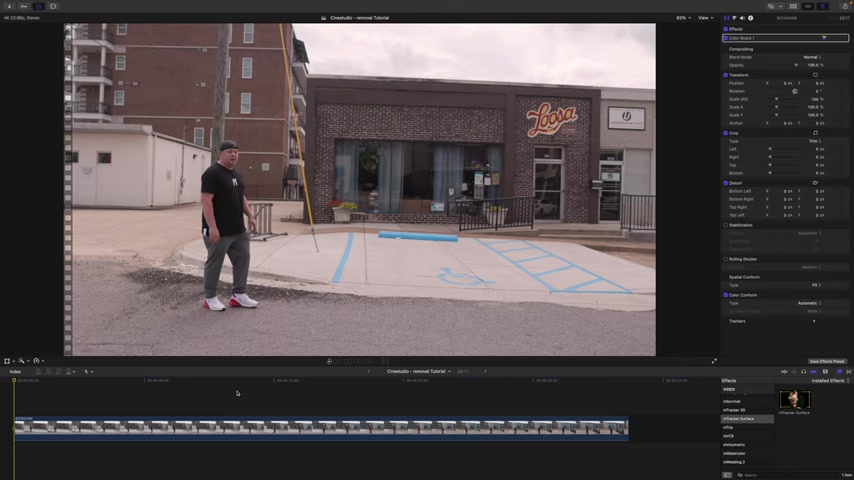
Before jumping into the tutorial, it's recommended that you familiarize yourself with MTracker Surface and its functionalities. MotionVFX provides tutorials on their website motionvfx.com, covering basic mesh tracking, planar screen replacement, and skin mesh tracking. These tutorials serve as a great foundation before tackling more advanced tasks.
Adobe Photoshop: The Content Replacement Powerhouse
Adobe Photoshop is essential for crafting seamless content replacements. Its generative fill feature and various selection tools enable you to remove unwanted elements from still frames, while maintaining realistic textures and lighting. The Tutorial leverages Photoshop to refine the results, ensuring a polished and professional look.
Emroto AI: AI-Powered Masking
Emroto AI assists in creating accurate masks in video editing, which can isolate particular parts for effect enhancement. This enables you to separate subjects from their backgrounds, allowing for detailed masking without manually drawing each frame. This AI-driven approach greatly accelerates the compositing process.
Step-by-Step Guide: Object Removal Tutorial
Preparation and Initial Setup
To start, import your video footage into Final Cut Pro.
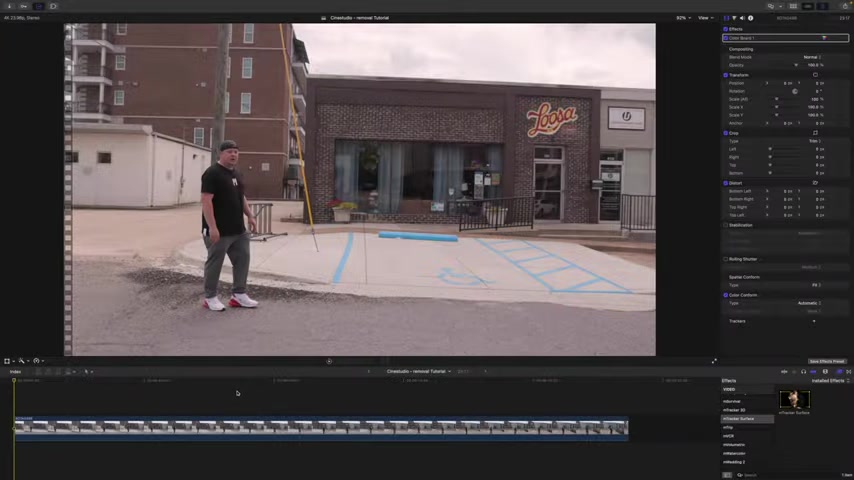
Begin by importing the necessary footage into Final Cut Pro. For this tutorial, three separate removals are demonstrated:
- Removing a sign from a brick wall
- Cleaning up a window and brick section
- Removing an awning
To streamline the process, make blade cuts around the specific areas needing adjustments. This minimizes the tracking time and enhances efficiency. Use shortcut 'B' and select the point where you want to separate the footage.
Applying MTracker Surface for Sign Removal
Apply the MTracker Surface effect to the first section of the clip. This tool is great because of its ability to track and map planar surfaces within the footage
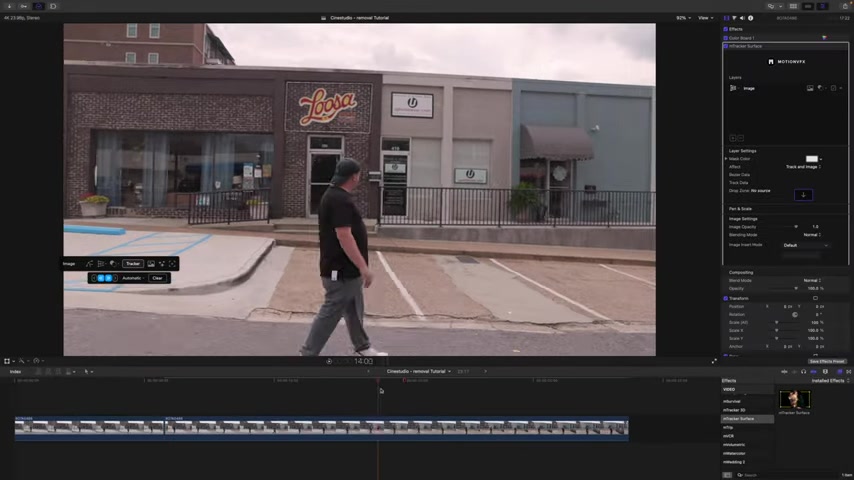
. With planar mode active, draw a mask around the object to be removed, in this case, the "Loosa" sign on the brick wall. Use the tracker controls to track the surface forward throughout the duration of the selected clip. This ensures that the mask remains aligned with the sign's movement.
Leveraging Photoshop for Seamless Replacement
Once you have tracked the section, it's time to create a clean plate for content replacement.
To do this, export a still frame from your tracked footage at the point where the sign is most visible. Open this frame in Adobe Photoshop. Use Photoshop’s generative fill feature and selection tools to eliminate the sign. This process maintains textures and lighting, making the replacement seamless. Export the cleaned frame as a PNG file.
Importing and Integrating the Clean Plate
Return to Final Cut Pro and import the cleaned PNG file. Place this image above the original video layer, aligning it precisely with the tracked mask. Set Image Insert Mode to “Fullscreen”.
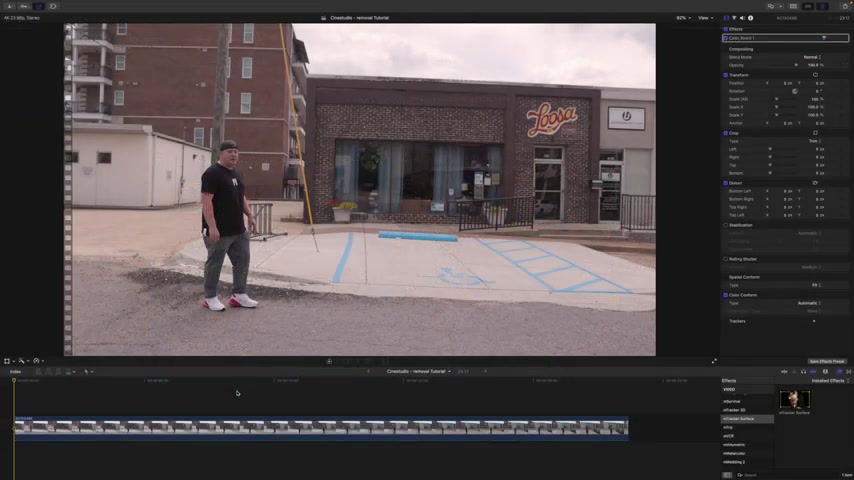
Since MTracker Surface is only happening inside of the mask, there will be a section when you disable “Loosa” that the brick remains. Drag what you removed in Photoshop into the track and link the data to the surface and select all the effects.
Masking the Window and Brick Sections
To remove the sign from window and remove the top of the brick sections using again MTracker Surface.
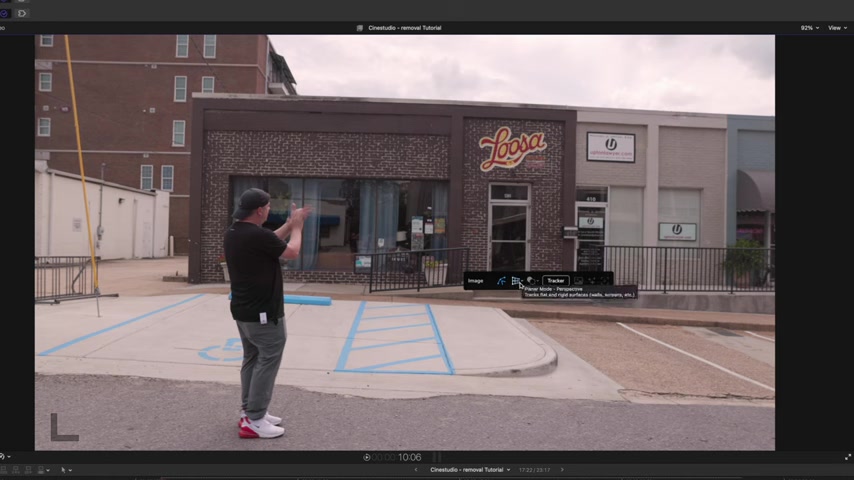
Select those two areas that you would like to clean in that section. Since the AI tracking is already on that top video track, you won’t need to copy it from the previous one. Using the pencil tool, you can add points above your hat and hand to refine the AI and help make that blend of two parts of the video as smooth as possible. With all that done, select the key framing again to continue that smooth track down to those parts. For the last section it is key to find what frame you made the effect on so that it transitions correctly.
Refining the MTracker with Emroto AI Integration
After all these steps, apply Emroto AI to finalize this clean track for the effect blend. The tool will add new lines to further track what’s going on. Once again, with Mtracker Surface, we find two different sets of tools
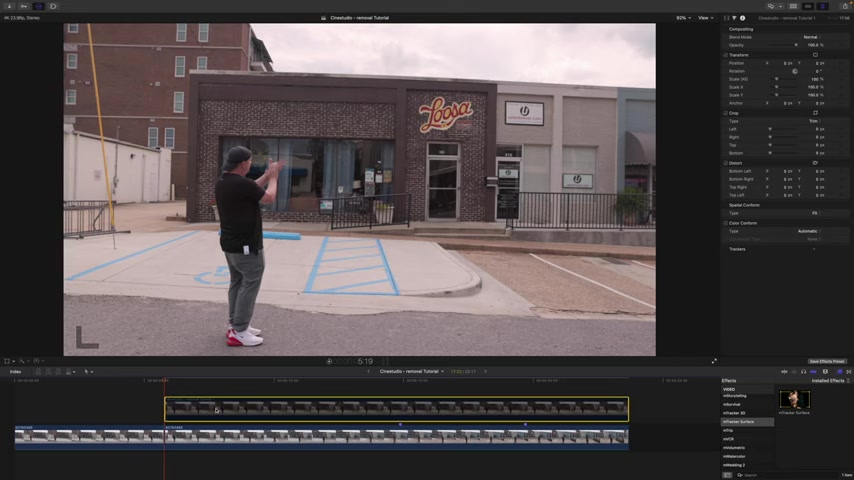
. If there are any additional errors, you can use those to help fill them in too.
Removing the Awning and Adding Some Final Touches
After all these steps, apply Emroto AI to finalize this clean track for the effect blend
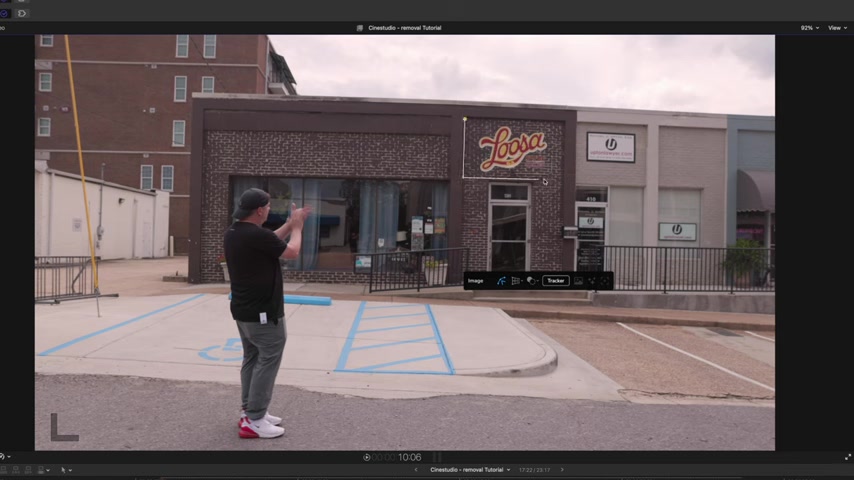
. To show this feature, we are selecting to use a surface from what’s right behind that awning. If there are any additional errors, you can use those to help fill them in too. Make sure to do some editing with these settings and the key frames, so that you do not come into the frame. Also using blending modes can be an interesting choice depending on the surface selected.


Most people like





































Report
Please select a reason for reporting
- 13 Reasons to Switch from Snapchat to Text Messaging
- 7 Powerful Speech to Text Apps to Boost Productivity
- 10 Best Speech to Text Tools for Effortless Transcription
- 13 Free Tools to Easily Transcribe Audio to Text
- 15 Surprising Ways Google's Speech-to-Text Boosts Productivity
- 7 Best Free Online Audio to Text Transcription Tools
- 9 Tips to Transcribe Speech to Text Faster and Better
- 13 Best Speech to Text Software for Windows 10 in 2023
- 7 Tips for Choosing the Best Transcriber for Audio to Text
- 11 Reasons Why Dragon Speech-to-Text Apps are Game-Changers
- 6 Secrets to Enhance Your Speech to Text Transcription
- 6 Brilliant Ways to Boost Productivity with Talk-to-Text on Your MacBook
- 6 Ways Transcription Software Converts Audio to Text
- 8 Tips to Transcribe Speech to Text Like a Pro
- 6 Reasons IBM Watson Speech to Text is a Game-Changer
- 14 Powerful Ways Talk-to-Text Improves Your Workflow
- 12 Top Windows Speech-to-Text Software for Efficient Transcription
- 12 Game-Changing Benefits of Apple's Speech to Text Technology
- 9 Powerful Use Cases for AWS Speech to Text Technology
- 10 Easy Steps to Transcribe YouTube Videos to Text
- transcription audio en texte
- online audio transcription
- free audio file transcription
- free ai audio transcription
- audio transcription service
- audio transcription online free
- audio transcription free online
- audio to transcription software
- audio and transcript
- ai audio transcription free
- voice recording to text converter
- translate voice recording to text
- record voice to text
- audio recording to text converter
- voice recording and transcription
- chatgpt voice to text
- gmail voice to text
- speech to text reader
- speech to text ai free
- speech to talk
- Meshy AI: How to Create 3D Models from Text and Images
- How SEO and Marketing Dashboards Empower Agencies to Drive Results
- How to Use AI Tools to Find Internal Linking Opportunities Across a Business Website
- Discover Your Perfect Haircut with AI Hairstyle Apps
- Free Reputation Calculator Tools: How They're Adapting to Score AI Visibility, Not Just Rankings
- Design Professional Flyers for Free on Your Phone
- Best Free Flyer Maker Apps for Android: Design Like a Pro
- How to Know If Your Business Is Ready for an AI Customer Service Agent
- Revolutionizing Storytelling: From Novels to Screenplays with AI
- Create Engaging Animated Explainer Videos with a Free AI Tool
- Automate Lead Generation: A Comprehensive Guide with AI Agents
- Revideo.io: The Future of Reverse Video Search Technology
- Revolutionizing Email Marketing Agency with AI
- Breaking the Character Drift Dilemma: A Practical Test of Smart Shot
- Meshy AI: How to Create 3D Models from Text and Images
- ASOMobile Helps Teams Benchmark App Store Screenshots Against Competitors
- How to Match LMS Software With Your Organization's Training Plan
- How to Convert BTC to HNT
- Unleashing the Power of AI: Cognizant's Roadmap for Transformation
- Frame to Video Review: A Practical Look at Turning Two Still Frames Into Motion

Copyright ©2026 toolify