































Table of Contents
- Key Points
- Understanding Realistic Image Generation with Stable Diffusion
- The Majestic Mix Realistic Model: An Overview
- Step-by-Step Image Generation Guide
- The Upsides and Downsides: Using Real-Life Models in Stable Diffusion
- Frequently Asked Questions
- Related Questions


Understanding Realistic Image Generation with Stable Diffusion
The Power of Real-Life Models in AI Art
Stable Diffusion is a powerful tool, but its true potential is unlocked when using real-life models. Real-life models are trained on vast datasets of real-world images, allowing them to generate images that are incredibly realistic and nuanced. This is a significant step up from more abstract or stylized AI art generators. These models capture subtle details, textures, and lighting effects that make the generated images feel authentic and believable. This article will explore how you can harness this power to create stunning visuals.
Key Benefits of Using Real-Life Models:
- Enhanced Realism: Achieve a level of detail and authenticity that's difficult to replicate with generic models.

The use of real-life models allows for the capture of nuances in skin texture, clothing folds, and environmental lighting that make the images feel more lifelike.
- Greater Control: Real-life models often offer better control over the final output, allowing you to guide the AI towards specific styles, poses, and compositions.
- Creative Flexibility: While realism is the focus, these models still provide ample room for creative exploration, enabling you to combine realistic elements with fantastical or surreal concepts.
By the end of this article, you will have a strong understanding of how to choose and utilize real-life models within Stable Diffusion to create high-quality, realistic images.
Essential Techniques for Using Real-Life Models
Generating realistic images with real-life models in Stable Diffusion requires a combination of technical knowledge and artistic insight. Here are some essential techniques:
1. Open Poses and Clear Commands:

Accurate image generation starts with providing the AI with clear and unambiguous instructions. Open poses, where the subject's limbs are clearly visible and not obscured, help the AI understand the desired body posture. Use specific and descriptive commands to define the subject's appearance, clothing, and environment. Vague prompts often lead to unexpected or unsatisfactory results.
2. Leveraging Reference Images: Reference images are invaluable tools for guiding the AI towards a specific artistic direction. By providing reference images with similar poses, styles, or compositions, you can influence the generated image's overall look and feel. Experiment with different reference images to see how they impact the final output. They also help the AI interpret the Prompt as intended and prevent unwanted image generation.
3. Understanding Stable Diffusion Versions: Stable Diffusion has evolved through several versions, each with its own strengths and weaknesses. It's crucial to verify which version of Stable Diffusion a model is designed for, and ensure that it's using the appropriate one. Some models are optimized for specific versions, and using an incompatible version can lead to poor-quality results.
4. Optimizing Settings: Stable Diffusion offers a wide array of settings that can affect the quality of the generated images. Experiment with parameters like sampling steps, CFG scale, and denoising strength to fine-tune the output and achieve the desired level of realism. Remember to carefully review the model’s version to optimize the steps involved.
By mastering these techniques, you'll be well-equipped to generate realistic images with Stable Diffusion and real-life models.
The Majestic Mix Realistic Model: An Overview
Exploring the Majestic Mix Realistic Model
Among the many models available for Stable Diffusion, the Majestic Mix Realistic model stands out for its ability to generate highly realistic images. This model is particularly well-suited for creating images of people, capturing fine details such as skin texture, hair strands, and facial expressions. Knowing what commands and sizing to use can make a big difference on a render so it is important to view the training data and learn more about the process.

The training data used to create it allows you to create various options, from simple every day wear to a Marvel Cinematic Universe hero. It has various styles that are not suitable for viewing at work, so the NSFW is implemented. This model is often used for those creating avatars.
Before we go any further, let's review a few key safety measures:
Safety Tips:
- Always add the NSFW negative command to prevent adult images.
- Ensure that you have set your models in accordance with any age restriction laws.
Verifying Stable Diffusion Version:
Before using the Majestic Mix Realistic model, it's essential to verify the version of Stable Diffusion that it is designed for. Check the model's documentation to determine the correct version number, and ensure that you are using a compatible installation of Stable Diffusion. This helps to avoid compatibility issues and ensure optimal performance. The video demonstrates using 1.4 as a baseline for the Majestic Mix Realistic model.
Here is the key data about the Stable Diffusion model in a table format:
| Parameter | Value |
|---|---|
| Model | Majestic Mix Realistic |
| Stable Diffusion Ver | 1.4 |
| Sampler | Euler |
| CFG Scale | 7 |
| Clip skip | 2 |
| Steps | 20 |
| NSFW filter | Yes |
By understanding these parameters, you can better control the image generation process and achieve the desired results.
Optimizing Workflow: Image Generation Techniques
Now that you have a foundational understanding of realistic image generation with Stable Diffusion and have chosen an AI model, the Majestic Mix Realistic, it’s time to learn some techniques to optimize your workflow. Here are some key concepts to keep in mind.
Command Prompt Engineering:
A well-crafted command prompt is essential for guiding the AI toward the desired outcome. Be descriptive with parameters and consider which style you want the image to be rendered in.
- Include the specific details (clothing, jewelry, etc.)
- The best quality rating to add to your render.
- Aspect ratio to render your image at.
ControlNet
With proper tuning ControlNet is a valuable way to allow you to control the result by applying details or faces.
-
It can transfer real model details to the image generation.

-
It helps you create the specific composition of the training data, but use with caution.
-
Tile blur and inpainting is recommended if you don't want to have the control effect, but this means the face can be changed and is no longer consistent
Remember to check that Colab is connected to get more consistent images and to help your workflow run without interruptions!
Step-by-Step Image Generation Guide
How To Make an Image Using Stable Diffusion
Following this step-by-step process will help to ensure you have the best picture possible!
Step 1 - Get the Base Image Using the training data and version as a baseline create a base image. There will be a lot of parameters you will want to set to make it as close to your vision as possible.
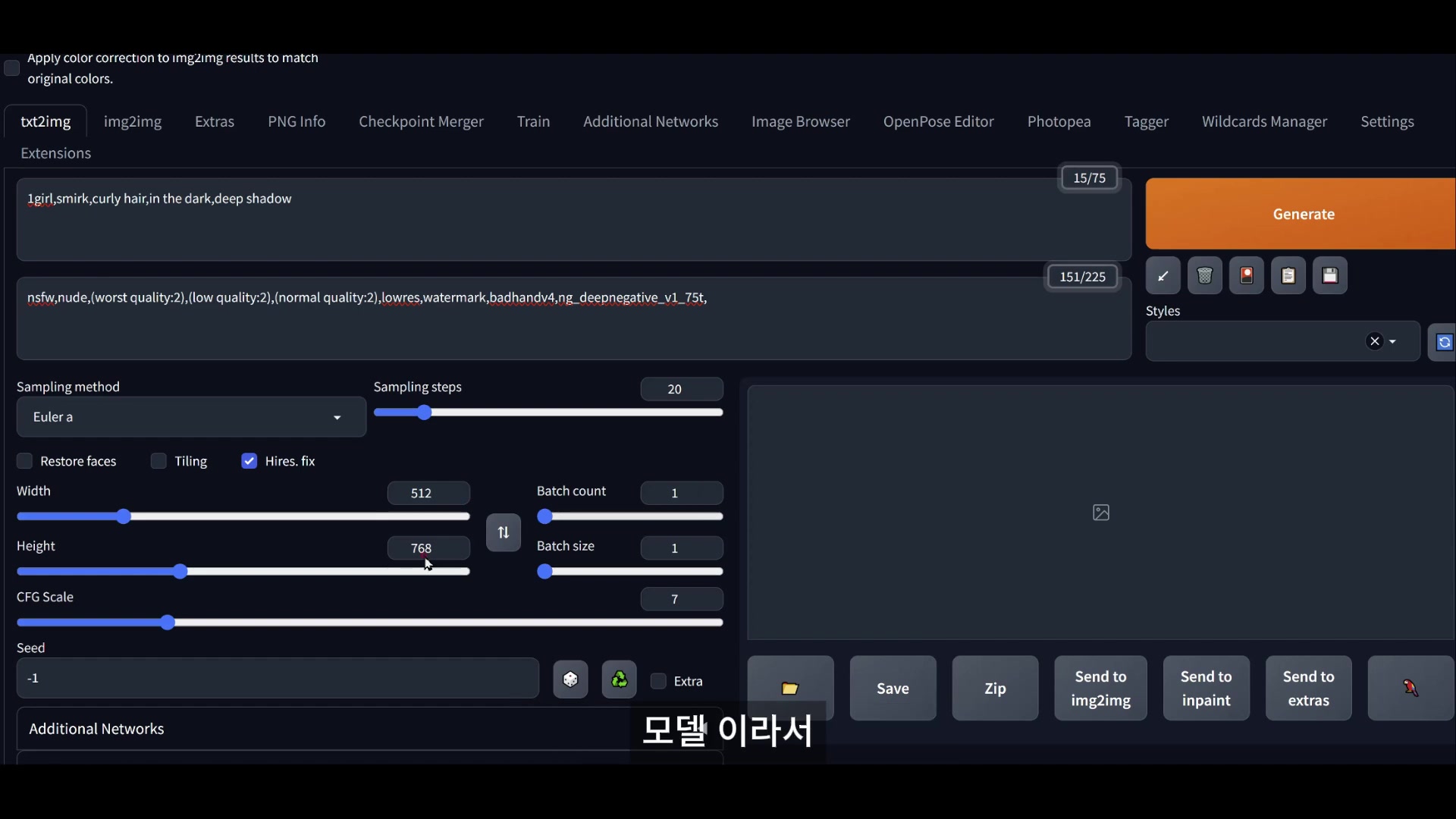
- Width - set the width of the image
- Height - set the height of the image
- CFG scale - The sweet spot is 7
- Sampling Step - set steps on the higher end It is important to know what versions the image you are using works for!
Step 2 - Image to Image Process It is important to note a face restoration option, for face integrity.
- A detailer is also something to think about with this kind of work.
- Change your denoise factor to zero to start and slowly add to 0.4 at most.
Step 3 - Add ControlNet for Pose Recognition. Pose recognition allows your characters to take on some of the same details you're aiming for. If it doesn’t look right then select edit to make it so the images match!
- It uses the basic framework and is trained for the models
- To make a photo video with real people and that’s how you can controlnet
Step 4 - Inpaint for Details. Inpainting is a tool used to fill details on a reference image, for a more consistent flow. It also allows for face fixes or changes if there are issues. A couple steps will give you the best results. This workflow is the suggested best result.





Most people like































Report
Please select a reason for reporting
- 13 Reasons to Switch from Snapchat to Text Messaging
- 7 Powerful Speech to Text Apps to Boost Productivity
- 10 Best Speech to Text Tools for Effortless Transcription
- 13 Free Tools to Easily Transcribe Audio to Text
- 15 Surprising Ways Google's Speech-to-Text Boosts Productivity
- 7 Best Free Online Audio to Text Transcription Tools
- 9 Tips to Transcribe Speech to Text Faster and Better
- 13 Best Speech to Text Software for Windows 10 in 2023
- 7 Tips for Choosing the Best Transcriber for Audio to Text
- 11 Reasons Why Dragon Speech-to-Text Apps are Game-Changers
- 6 Secrets to Enhance Your Speech to Text Transcription
- 6 Brilliant Ways to Boost Productivity with Talk-to-Text on Your MacBook
- 6 Ways Transcription Software Converts Audio to Text
- 8 Tips to Transcribe Speech to Text Like a Pro
- 6 Reasons IBM Watson Speech to Text is a Game-Changer
- 14 Powerful Ways Talk-to-Text Improves Your Workflow
- 12 Top Windows Speech-to-Text Software for Efficient Transcription
- 12 Game-Changing Benefits of Apple's Speech to Text Technology
- 9 Powerful Use Cases for AWS Speech to Text Technology
- 10 Easy Steps to Transcribe YouTube Videos to Text
- transcription audio en texte
- online audio transcription
- free audio file transcription
- free ai audio transcription
- audio transcription service
- audio transcription online free
- audio transcription free online
- audio to transcription software
- audio and transcript
- ai audio transcription free
- voice recording to text converter
- translate voice recording to text
- record voice to text
- audio recording to text converter
- voice recording and transcription
- chatgpt voice to text
- gmail voice to text
- speech to text reader
- speech to text ai free
- speech to talk
- Create Engaging Animated Explainer Videos with a Free AI Tool
- Stop Multi-Subscribing: Benchmark Top AI Visual Models in One Canvas
- Best Seedance 2.5 API Provider: Every Price on the Market, Checked at Source
- AI OnlyFans: How to Generate $30,000/Month (Legally)
- Transform Your Script into an Engaging Video with AI Video Maker!
- AI Marketing Automation: A Comprehensive Guide for Small Businesses
- Midjourney Alternative for Anime Art Creators: Why PixAI May Be Better for Character Workflows
- 10 Things Most People Get Wrong About AI Image Search
- AI Girlfriend Apps: Top Choices Redefining Relationships 2025
- How to Reduce Quoting Errors in Salesforce with AI-Assisted Quote Creation
- AI Resume Builders: EnhanceCV, ResumeNerd AI, & Teal Compared
- ResumeAI: Crafting ATS-Optimized Resumes with AI
- AI in Resume Writing: A New Era for Job Seekers
- AI Resume Tools: Streamline Your Job Search and Land Your Dream Role
- AI Resume Optimization: The Right Way to Land Interviews
- Crafting a Killer Resume with AI: A Step-by-Step Guide
- Crafting a Winning Resume: AI Tools and Expert Tips
- AI Job Search: Level Up Your Career with AI Automation
- Empower Your Career Journey: Dynamic Resumes with AI
- AI Resume Builder: Create Professional Resumes Effortlessly

Copyright ©2026 toolify