































Table of Contents
- Key Points
- Understanding Stable Diffusion's Attention Heatmap
- Advanced Prompt Engineering Techniques with Attention Heatmaps
- Generating and Interpreting Attention Heatmaps in Stable Diffusion
- Evaluating the Stable Diffusion Heatmap Plugin: Benefits and Drawbacks
- Frequently Asked Questions About Stable Diffusion Attention Heatmaps
- Advanced Stable Diffusion Concepts



Understanding Stable Diffusion's Attention Heatmap
What is Stable Diffusion Attention Heatmap?
The Stable Diffusion attention heatmap is a powerful tool that visualizes how each token (WORD or phrase) in your prompt influences the generated image. It creates a 'heat map' overlay on your image, highlighting areas where specific tokens have the strongest impact . By analyzing these heatmaps, you can fine-tune your prompts to achieve precise control over the final image composition, styles and details. The attention heatmap is incredibly valuable for Prompt engineering because you can now directly see the impact of each token instead of guessing at the influence. The basic goal is to create a process in which you learn to be more and more percise in your prompts, allowing to create more high quality images with less effort.
Installing the Attention Heatmap Plugin
Before harnessing the power of attention heatmaps, you'll need to install the necessary plugin. The presenter is using Automatic1111's Stable Diffusion web UI
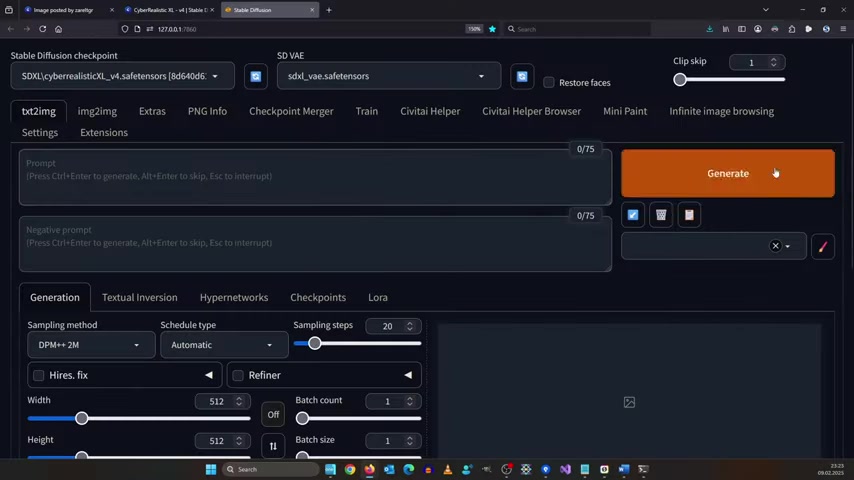
, which is a popular interface for Stable Diffusion. The plugin used in the demo is called DAAM (Diffusion Attentive Attribution Maps) and works with Automatic1111. There are other UI that use Automatic1111’s Stable Diffusion implementation.
Installation Steps:
- Launch your Automatic1111 Stable Diffusion web UI.
- Navigate to the 'Extensions' tab.
- Select 'Available' and click 'Load from'.
- In the filtering type box, type 'Heat'.
- Look for DAAM. And click 'Install' .
- Go to the 'Installed' Tab and click 'Apply and restart UI'.
This installation process only works with Automatic1111 and there are known compatibility issues with Forge, check the below link for more information on compatibility and updates.
https://github.com/kousw/stable-diffusion-webui-daam/issues/31
Important Note: As of this writing, the DAAM plugin is not fully compatible with the Forge UI but does work with older versions of the Forge UI.
Successfully installing the plugin makes Automatic1111 Stable Diffusion compatible with generating heatmaps and visualizing individual tokens' influence to the final images.
Once installed, attention heatmap will give you the following abilities:
- To render 4 images without doing anything .
- To use comma separated values to specify what should be included in the image.
- To view heatmap images .
Advanced Prompt Engineering Techniques with Attention Heatmaps
Leveraging Negative Prompts with Heatmaps
Negative prompts are crucial for preventing unwanted elements from appearing in your generated images. Attention heatmaps can help you optimize your negative prompts by revealing which tokens are most effective at suppressing specific features.
- Identify Unwanted Elements: Look for areas in your image where unwanted elements are appearing
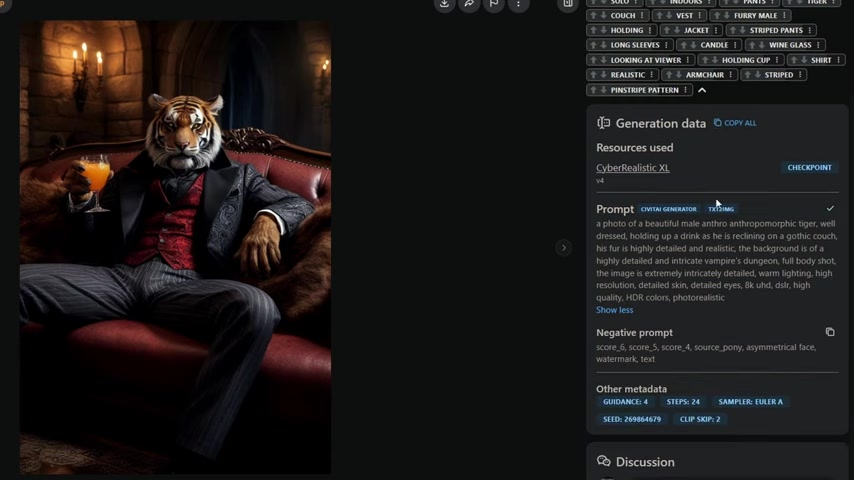
.
- Add Negative Tokens: Include tokens in your negative prompt that are related to the unwanted elements. For example, if you want to avoid blurry images, add 'blurry' or 'low quality' to your negative prompt.
- Analyze Heatmap Impact: Generate images with your negative prompts and analyze the heatmaps. Ensure that the negative tokens are effectively suppressing the unwanted elements without negatively affecting other parts of the image.
By using attention heatmaps to guide your negative prompt creation, you can achieve cleaner, more refined images.
Combining Multiple Prompts for Complex Scenes
Attention heatmaps can be especially helpful when generating complex scenes with multiple subjects and objects. By breaking down your scene into smaller prompts and analyzing their individual heatmaps, you can achieve greater control over the overall composition.
- Divide and Conquer: Separate your scene into smaller prompts, each focusing on a specific element or aspect. For example:
- Prompt 1: 'A futuristic city skyline'
- Prompt 2: 'A sleek, flying car'
- Prompt 3: 'Neon lights and holographic displays'
- Generate Individual Heatmaps: Generate images for each prompt separately and analyze their heatmaps. Make sure each prompt is influencing the intended areas.
- Combine and Refine: Combine the prompts into a single, comprehensive prompt and generate the final image. Use attention heatmaps to identify any areas where the prompts are conflicting or overlapping.
- Adjust and Iterate: Fine-tune the combined prompt by adjusting token strengths, placement, and wording until you achieve a balanced and harmonious composition.
Generating and Interpreting Attention Heatmaps in Stable Diffusion
Setting up the image for Heatmap visualization
With the DAAM plugin installed, you are now ready to begin generating and interpreting attention heatmaps. Follow these steps:
- Open Automatic1111 and paste your desired prompt into the prompt box.
- Paste the Negative prompt into the negative prompt box
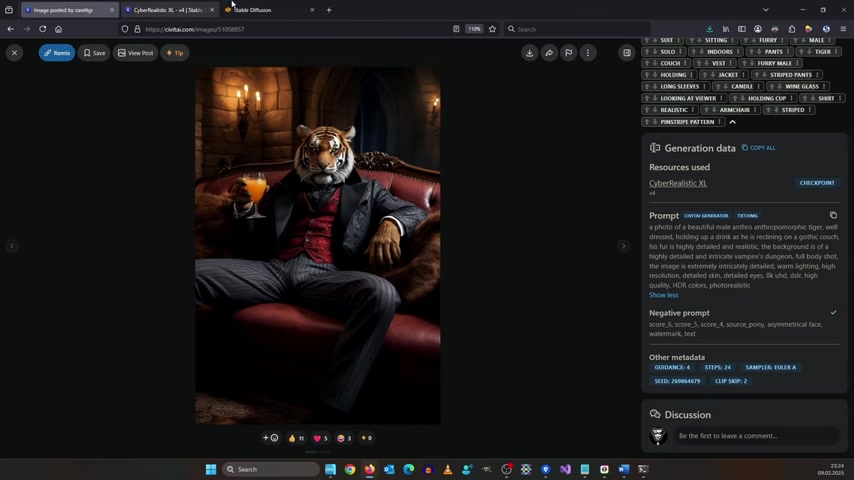
.
- Define the width and height of your image .
- Set up steps, a width of 768 and height of 1024 can work .
- Go to the section, called ‘Attention Heatmap’.
- Click on the Attention Heatmap section. This will open some parameters .
- Inside the attention Heatmap, insert the Attention texts for visualization . You need to specify comma separated values inside the attention text .
- To reuse an image, to render the same image, click the recycle icon .
- Reduce the batch count to 1 and then render the image again .
Important Points:
- The heatmaps show you what your prompts are affecting.
- Shorten your prompt to make more sense of the heatmaps.
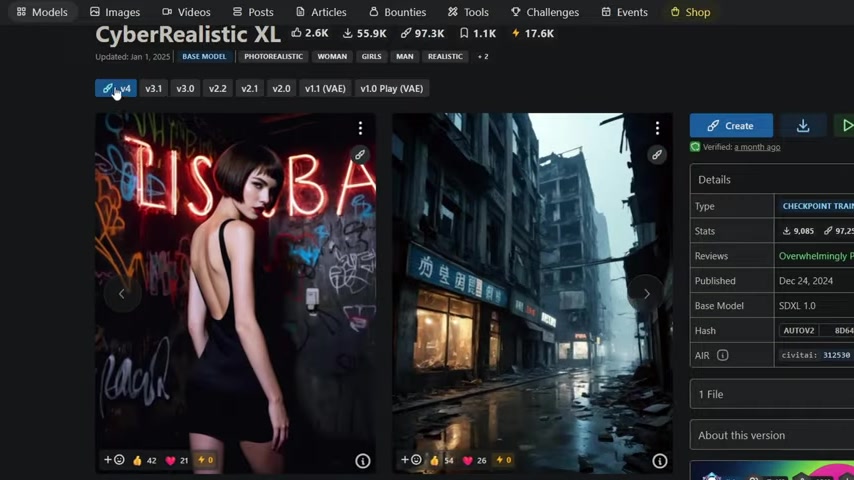
- Make sure you are using Stable Diffusion XL (SDXL) as your checkpoint .
Analyzing Heatmaps for Prompt Optimization
Once the image is generated with the attention heatmaps, it's time to analyze the results and refine your prompts. Here's how:
-
Focus on Key Areas: Examine the heatmaps for the tokens you want to control. Are they influencing the areas you intended?
-
Adjust Token Strength: If a token isn't having the desired impact, consider rephrasing it or adding emphasis. For example, use parentheses
()or brackets[]to increase or decrease the token's influence. -
Experiment with Token Placement: The order of tokens in your prompt can affect their influence. Try rearranging the order to see if it improves the results.
-
Iterate and Refine: Prompt engineering is an iterative process. Generate multiple images, analyze the heatmaps, and adjust your prompts until you achieve the desired outcome .
-
In general, the whole goal is to find what the tokens are actually affecting in your prompt. And this helps you to finetune and adjust your skills .





Most people like


































Report
Please select a reason for reporting
- 13 Reasons to Switch from Snapchat to Text Messaging
- 7 Powerful Speech to Text Apps to Boost Productivity
- 10 Best Speech to Text Tools for Effortless Transcription
- 13 Free Tools to Easily Transcribe Audio to Text
- 15 Surprising Ways Google's Speech-to-Text Boosts Productivity
- 7 Best Free Online Audio to Text Transcription Tools
- 9 Tips to Transcribe Speech to Text Faster and Better
- 13 Best Speech to Text Software for Windows 10 in 2023
- 7 Tips for Choosing the Best Transcriber for Audio to Text
- 11 Reasons Why Dragon Speech-to-Text Apps are Game-Changers
- 6 Secrets to Enhance Your Speech to Text Transcription
- 6 Brilliant Ways to Boost Productivity with Talk-to-Text on Your MacBook
- 6 Ways Transcription Software Converts Audio to Text
- 8 Tips to Transcribe Speech to Text Like a Pro
- 6 Reasons IBM Watson Speech to Text is a Game-Changer
- 14 Powerful Ways Talk-to-Text Improves Your Workflow
- 12 Top Windows Speech-to-Text Software for Efficient Transcription
- 12 Game-Changing Benefits of Apple's Speech to Text Technology
- 9 Powerful Use Cases for AWS Speech to Text Technology
- 10 Easy Steps to Transcribe YouTube Videos to Text
- transcription audio en texte
- online audio transcription
- free audio file transcription
- free ai audio transcription
- audio transcription service
- audio transcription online free
- audio transcription free online
- audio to transcription software
- audio and transcript
- ai audio transcription free
- voice recording to text converter
- translate voice recording to text
- record voice to text
- audio recording to text converter
- voice recording and transcription
- chatgpt voice to text
- gmail voice to text
- speech to text reader
- speech to text ai free
- speech to talk
- Meshy AI: How to Create 3D Models from Text and Images
- How SEO and Marketing Dashboards Empower Agencies to Drive Results
- How to Use AI Tools to Find Internal Linking Opportunities Across a Business Website
- Discover Your Perfect Haircut with AI Hairstyle Apps
- Free Reputation Calculator Tools: How They're Adapting to Score AI Visibility, Not Just Rankings
- Design Professional Flyers for Free on Your Phone
- Best Free Flyer Maker Apps for Android: Design Like a Pro
- How to Know If Your Business Is Ready for an AI Customer Service Agent
- Revolutionizing Storytelling: From Novels to Screenplays with AI
- Create Engaging Animated Explainer Videos with a Free AI Tool
- Automate Lead Generation: A Comprehensive Guide with AI Agents
- Revideo.io: The Future of Reverse Video Search Technology
- Revolutionizing Email Marketing Agency with AI
- Breaking the Character Drift Dilemma: A Practical Test of Smart Shot
- Meshy AI: How to Create 3D Models from Text and Images
- ASOMobile Helps Teams Benchmark App Store Screenshots Against Competitors
- How to Match LMS Software With Your Organization's Training Plan
- How to Convert BTC to HNT
- Unleashing the Power of AI: Cognizant's Roadmap for Transformation
- Frame to Video Review: A Practical Look at Turning Two Still Frames Into Motion

Copyright ©2026 toolify