































Table of Contents
- Key Points
- Understanding Surya OCR
- Preparing Your Environment for Surya OCR
- Step-by-Step Installation and Usage of Surya OCR
- Surya OCR Pricing
- Weighing the Benefits and Drawbacks of Surya OCR
- Key Features of Surya OCR
- Potential Use Cases for Surya OCR
- Frequently Asked Questions (FAQ)
- Related Questions


Understanding Surya OCR
What is Optical Character Recognition (OCR)?
Optical Character Recognition (OCR) transforms images of text into machine-readable text. Think about scanning a document and then being able to edit the text in a WORD processor. That's OCR at work. Generative AI has boosted OCR accuracy significantly, making it a more reliable technology than ever before. However, many OCR solutions struggle with multilingual documents, limiting their usability in a globalized world. Surya OCR is designed to address this challenge, offering a robust solution for handling documents in various languages.
Surya OCR: A Multilingual Solution
Surya OCR distinguishes itself by focusing on multilingual support.
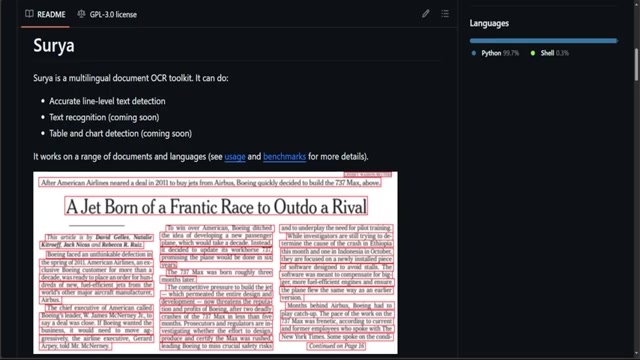
While many OCR tools exist, few natively handle multiple languages with high accuracy. Surya strives to deliver accurate line-level text detection across a range of languages. It is also important to note that more advanced features such as text recognition and table and Chart detection are coming soon. By offering these advanced capabilities, Surya OCR aims to become a comprehensive document processing toolkit suitable for various applications. Surya OCR strives to be an invaluable asset for businesses and researchers working with diverse datasets.
Why Choose Local Installation?
Cloud-based OCR services are readily available, but local installation offers distinct advantages. Processing data locally ensures:
- Data privacy: Sensitive documents remain within your environment.
- Offline accessibility: OCR is possible even without an internet connection.
- Cost efficiency: Avoid recurring fees associated with cloud services.
- Customization: Fine-tune the OCR engine to suit specific needs.
Local installation provides greater control and is ideal for scenarios where data security, reliability, and cost are paramount. While it might require more initial setup, the long-term benefits often outweigh the initial investment. It is also important to note that the development team is planning to add text recognition and also to add table and chart detection in the near future.
Step-by-Step Installation and Usage of Surya OCR
Step 1: Installing Surya OCR with Pip
Installation is straightforward using pip.

Open your terminal and run:
pip install surya-ocrThis command downloads and installs Surya OCR along with its dependencies. This may take a while depending on your internet connection and system speed.
Step 2: Verifying the Installation
To confirm successful installation, check the Surya OCR version:
pip show surya-ocrThis displays installed package details, including the version number. Verifying ensures the installation was successful and prepares you for the next steps.
Step 3: Performing OCR on an Image Using Python
Here’s a basic Python script for performing OCR on an image:
from PIL import Image
from surya.detection import batch_inference
from surya.model.seqformer import load_model, load_processor

image = Image.open('ga.png') # Replace 'ga.png' with your image file
model, processor = load_model(), load_processor()
predictions = batch_inference([image], model, processor)
print(predictions)
Replace 'ga.png' with the path to your image file. This code loads the image, model, and processor, then performs OCR and prints the detected text regions.
Step 4: Running Surya OCR from the Command Line
Surya OCR can also be used directly from the command line:
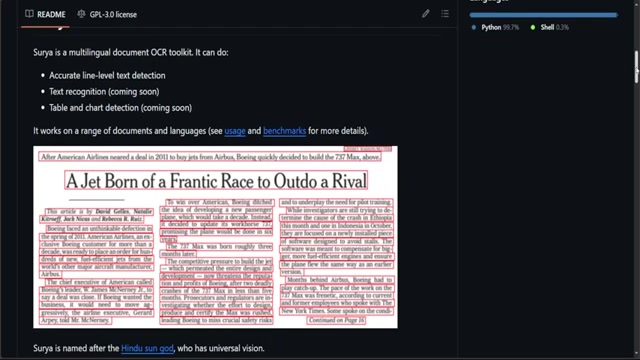
surya_detect 'ga.png' --imagesThis command processes the image and generates a JSON file containing the detected text region coordinates, as well as an image with bounding boxes around the detected text.







Most people like






























Report
Please select a reason for reporting
- 13 Reasons to Switch from Snapchat to Text Messaging
- 7 Powerful Speech to Text Apps to Boost Productivity
- 10 Best Speech to Text Tools for Effortless Transcription
- 13 Free Tools to Easily Transcribe Audio to Text
- 15 Surprising Ways Google's Speech-to-Text Boosts Productivity
- 7 Best Free Online Audio to Text Transcription Tools
- 9 Tips to Transcribe Speech to Text Faster and Better
- 13 Best Speech to Text Software for Windows 10 in 2023
- 7 Tips for Choosing the Best Transcriber for Audio to Text
- 11 Reasons Why Dragon Speech-to-Text Apps are Game-Changers
- 6 Secrets to Enhance Your Speech to Text Transcription
- 6 Brilliant Ways to Boost Productivity with Talk-to-Text on Your MacBook
- 6 Ways Transcription Software Converts Audio to Text
- 8 Tips to Transcribe Speech to Text Like a Pro
- 6 Reasons IBM Watson Speech to Text is a Game-Changer
- 14 Powerful Ways Talk-to-Text Improves Your Workflow
- 12 Top Windows Speech-to-Text Software for Efficient Transcription
- 12 Game-Changing Benefits of Apple's Speech to Text Technology
- 9 Powerful Use Cases for AWS Speech to Text Technology
- 10 Easy Steps to Transcribe YouTube Videos to Text
- transcription audio en texte
- online audio transcription
- free audio file transcription
- free ai audio transcription
- audio transcription service
- audio transcription online free
- audio transcription free online
- audio to transcription software
- audio and transcript
- ai audio transcription free
- voice recording to text converter
- translate voice recording to text
- record voice to text
- audio recording to text converter
- voice recording and transcription
- chatgpt voice to text
- gmail voice to text
- speech to text reader
- speech to text ai free
- speech to talk
- How SEO and Marketing Dashboards Empower Agencies to Drive Results
- How to Use AI Tools to Find Internal Linking Opportunities Across a Business Website
- Discover Your Perfect Haircut with AI Hairstyle Apps
- Free Reputation Calculator Tools: How They're Adapting to Score AI Visibility, Not Just Rankings
- Design Professional Flyers for Free on Your Phone
- Best Free Flyer Maker Apps for Android: Design Like a Pro
- How to Know If Your Business Is Ready for an AI Customer Service Agent
- Revolutionizing Storytelling: From Novels to Screenplays with AI
- Create Engaging Animated Explainer Videos with a Free AI Tool
- Stop Multi-Subscribing: Benchmark Top AI Visual Models in One Canvas
- Top 5 Cold Email Software: Maximize Your Outreach in 2025
- Magic School AI: Revolutionizing Quiz & Assessment Generation
- Create Your Own Email Bot and Automate Your Email Tasks
- Beyond Pure Prompts: Optimizing Production with 'Text With Reference' Generation
- Stop Using Boring TTS: My Honest Deep Dive Into VideoAI and the Hunt for the Perfect Custom Voices
- AI & Elections: Defending Democracy Against Misinformation
- Navigating Political Discourse: AI, Deepfakes, and Reality Checks
- Detecting Political Bias in News Articles: A Powerful AI Algorithm
- AI Bias Unveiled: Political Leanings in ChatGPT & Beyond
- Revolutionize Learning: Discover Quizzes AI for Engaging Interactive Quizzes

Copyright ©2026 toolify