































Table of Contents
- Key Points
- Getting Started with Text-to-Handwriting in Python
- Converting Text to Handwriting: Step-by-Step
- Pros and Cons of Using pywhatkit for Text-to-Handwriting
- Practical Applications of Text-to-Handwriting
- Frequently Asked Questions (FAQ)
- Related Questions


Getting Started with Text-to-Handwriting in Python
What is pywhatkit?
Pywhatkit is a Python library with various helpful features, including the ability to convert text into a simulated handwritten format. It leverages image processing techniques to generate realistic-looking Handwriting from digital text. This library is user-friendly and requires minimal coding, making it accessible even to beginners.
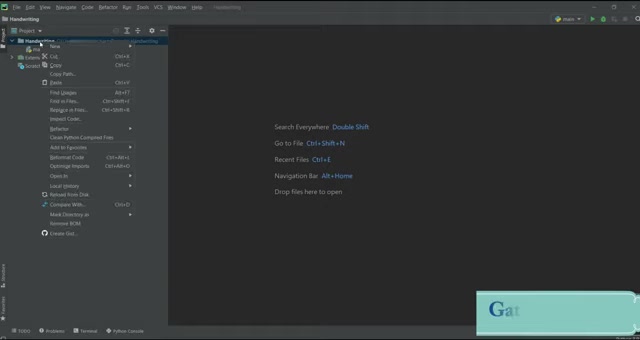
The pywhatkit module simplifies tasks like converting text to handwriting, sending WhatsApp messages, and even searching information on the web directly from your Python scripts. Its text-to-handwriting feature can be incredibly useful for creating personalized notes, generating unique content, or simply adding a creative touch to your projects.
This blog post will focus on utilizing pywhatkit for generating handwritten text, enabling you to automate the creation of personalized content with ease. Whether you're working on a school project, a marketing campaign, or a personal endeavor, pywhatkit can add a unique, human touch to your text.
By the end of this guide, you'll have a solid understanding of how to use pywhatkit to convert text to handwriting and how to customize the output to match your specific needs. With just a few lines of Python code, you can transform text to handwriting and create visually appealing content that stands out.
The possibilities are endless when it comes to using pywhatkit. From creating handwritten invitations to generating personalized letters, this library can help you add a touch of authenticity to your digital communications. So, let's dive in and explore the world of text-to-handwriting conversion with pywhatkit!
Installing pywhatkit
Before diving into the code, you'll need to install the pywhatkit library. This can be easily done using pip, the Python Package installer. Open your terminal or command Prompt and run the following command:
pip install pywhatkitThis command downloads and installs pywhatkit along with any necessary dependencies. Once the installation is complete, you can import the library into your Python script and start using its features.
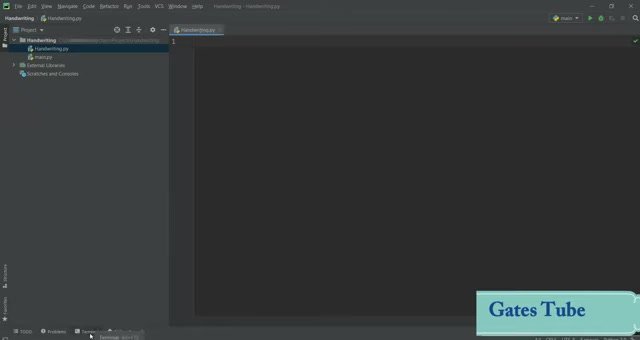
Verify the installation by checking the terminal after running the command.
If you encounter any issues during installation, make sure you have the latest version of pip. You can update pip by running:
pip install --upgrade pipAdditionally, ensure that you have Python installed on your system. Pywhatkit requires Python 3.6 or higher to function correctly. You can download the latest version of Python from the official Python website. Having the correct Python environment set up is crucial for a successful installation of pywhatkit.
Once pywhatkit is successfully installed, you can proceed to use it in your Python projects. The library offers a simple and intuitive interface for converting text to handwriting, making it easy to add a personal touch to your digital documents.
With pywhatkit installed, you're ready to transform any text into a beautiful, handwritten format. Let's move on to the next section to see how to use pywhatkit to achieve this.
Converting Text to Handwriting: Step-by-Step
Basic Syntax
The core function for converting text to handwriting in pywhatkit is text_to_handwriting(). Here's the basic syntax:
import pywhatkit

pywhatkit.text_to_handwriting("Your text here", save_to="output.png")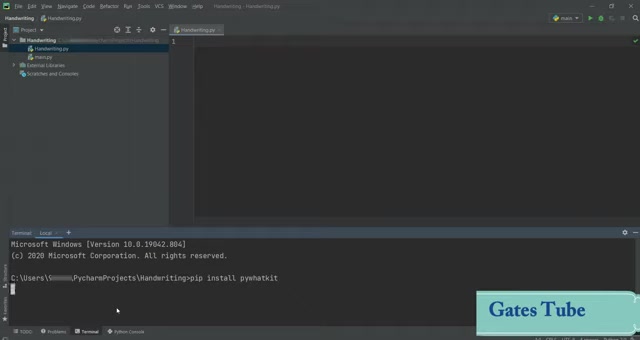
This code snippet imports the pywhatkit library and calls the text_to_handwriting() function with two arguments:
- The text you want to convert to handwriting ("Your text here").
- The name of the output image file (save_to="output.png").
Replace "Your text here" with the actual text you want to transform and "output.png" with your desired file name. This will generate an image file named output.png containing the handwritten version of your text.
By default, pywhatkit uses a specific Font and color scheme for the handwriting. However, you can customize these settings to achieve the desired look. The next section will explore the various customization options available.
The text_to_handwriting() function is designed to be simple and easy to use, making it ideal for both beginners and experienced Python developers. With just a single line of code, you can convert any text into a visually appealing, handwritten format. Ensure you have pywhatkit installed and imported correctly before running the code to avoid any errors.
Now, let's move on to a more practical example to see how to use this function in a real-world Scenario.
Example Code
Here’s an example that converts the text "I love you Python Darling" to handwriting and saves it as pythontest.png:
import pywhatkit

pywhatkit.text_to_handwriting("I love you Python Darling", save_to="pythontest.png")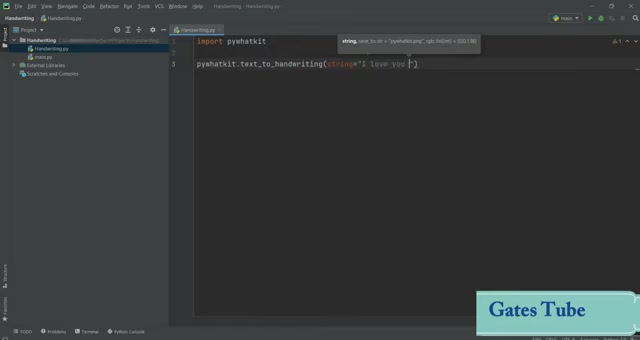
Add this code to your script after installing pywhatkit. To run this code, simply save your Python file and execute it from your terminal. Once the code is executed successfully, you will find the pythontest.png image in the same directory as your Python script.
This image will contain the handwritten version of the text "I love you Python Darling”. You can then use this image in your projects, share it with others, or simply save it for personal use.
By modifying the text argument, you can convert any text into a handwritten format. This makes pywhatkit incredibly versatile and useful for various applications, such as generating personalized notes, creating unique digital art, or adding a human touch to your digital documents.
The save_to argument allows you to specify the file name and location of the output image. You can choose any file name you like, but make sure to include the ".png" extension to ensure the image is saved in the correct format. With this simple code, you can transform any text into beautiful handwriting and add a personal touch to your digital communications.
Next, we'll explore how to customize the appearance of the generated handwriting to match your specific needs.
Customizing the Handwriting Appearance
Pywhatkit provides options to customize the appearance of the generated handwriting. You can modify the RGB color using the rgb parameter.
import pywhatkit

pywhatkit.text_to_handwriting("I love you Python Darling", save_to="pythontest.png", rgb=[0, 0, 225])
This code will generate handwriting with a blue color. The rgb parameter accepts a list of three integers representing the red, green, and blue components of the color. Each component should be in the range of 0 to 255. By adjusting these values, you can create handwriting with any color you desire.
Experiment with different RGB values to find the perfect color for your handwriting. You can use online color pickers to find the RGB values of specific colors. This allows you to precisely control the appearance of the generated handwriting and match it to your project's aesthetic.
In addition to color, you can also explore other customization options, such as font style and size. While pywhatkit does not directly support changing the font, you can use image processing techniques to modify the generated image and achieve the desired look. This may involve using libraries like Pillow or OpenCV to manipulate the image and add additional effects.
By combining color customization with image processing techniques, you can create handwriting that is truly unique and personalized. This opens up a world of possibilities for creating visually appealing content that stands out from the crowd. The flexibility of pywhatkit allows you to tailor the handwriting appearance to match your specific needs and preferences.
Now that you know how to customize the handwriting appearance, let's move on to some practical applications of text-to-handwriting conversion.



Most people like


































Report
Please select a reason for reporting
- 13 Reasons to Switch from Snapchat to Text Messaging
- 7 Powerful Speech to Text Apps to Boost Productivity
- 10 Best Speech to Text Tools for Effortless Transcription
- 13 Free Tools to Easily Transcribe Audio to Text
- 15 Surprising Ways Google's Speech-to-Text Boosts Productivity
- 7 Best Free Online Audio to Text Transcription Tools
- 9 Tips to Transcribe Speech to Text Faster and Better
- 13 Best Speech to Text Software for Windows 10 in 2023
- 7 Tips for Choosing the Best Transcriber for Audio to Text
- 11 Reasons Why Dragon Speech-to-Text Apps are Game-Changers
- 6 Secrets to Enhance Your Speech to Text Transcription
- 6 Brilliant Ways to Boost Productivity with Talk-to-Text on Your MacBook
- 6 Ways Transcription Software Converts Audio to Text
- 8 Tips to Transcribe Speech to Text Like a Pro
- 6 Reasons IBM Watson Speech to Text is a Game-Changer
- 14 Powerful Ways Talk-to-Text Improves Your Workflow
- 12 Top Windows Speech-to-Text Software for Efficient Transcription
- 12 Game-Changing Benefits of Apple's Speech to Text Technology
- 9 Powerful Use Cases for AWS Speech to Text Technology
- 10 Easy Steps to Transcribe YouTube Videos to Text
- transcription audio en texte
- online audio transcription
- free audio file transcription
- free ai audio transcription
- audio transcription service
- audio transcription online free
- audio transcription free online
- audio to transcription software
- audio and transcript
- ai audio transcription free
- voice recording to text converter
- translate voice recording to text
- record voice to text
- audio recording to text converter
- voice recording and transcription
- chatgpt voice to text
- gmail voice to text
- speech to text reader
- speech to text ai free
- speech to talk
- Meshy AI: How to Create 3D Models from Text and Images
- How SEO and Marketing Dashboards Empower Agencies to Drive Results
- How to Use AI Tools to Find Internal Linking Opportunities Across a Business Website
- Discover Your Perfect Haircut with AI Hairstyle Apps
- Free Reputation Calculator Tools: How They're Adapting to Score AI Visibility, Not Just Rankings
- Design Professional Flyers for Free on Your Phone
- Best Free Flyer Maker Apps for Android: Design Like a Pro
- How to Know If Your Business Is Ready for an AI Customer Service Agent
- Revolutionizing Storytelling: From Novels to Screenplays with AI
- Create Engaging Animated Explainer Videos with a Free AI Tool
- Automate Lead Generation: A Comprehensive Guide with AI Agents
- Revideo.io: The Future of Reverse Video Search Technology
- Revolutionizing Email Marketing Agency with AI
- Breaking the Character Drift Dilemma: A Practical Test of Smart Shot
- Meshy AI: How to Create 3D Models from Text and Images
- ASOMobile Helps Teams Benchmark App Store Screenshots Against Competitors
- How to Match LMS Software With Your Organization's Training Plan
- How to Convert BTC to HNT
- Unleashing the Power of AI: Cognizant's Roadmap for Transformation
- Frame to Video Review: A Practical Look at Turning Two Still Frames Into Motion

Copyright ©2026 toolify