































Table of Contents
- Key Points
- Introduction to Document AI and Form Parsing
- Step-by-Step Guide to Form Parsing with Document AI and Python
- How to Use Your Form Data (Python)
- Benefits and Drawbacks of DocAI
- Frequently Asked Questions
- Related Questions


Introduction to Document AI and Form Parsing
What is Document AI?
Document AI is a document understanding solution designed to handle unstructured data like documents, emails, invoices, and forms
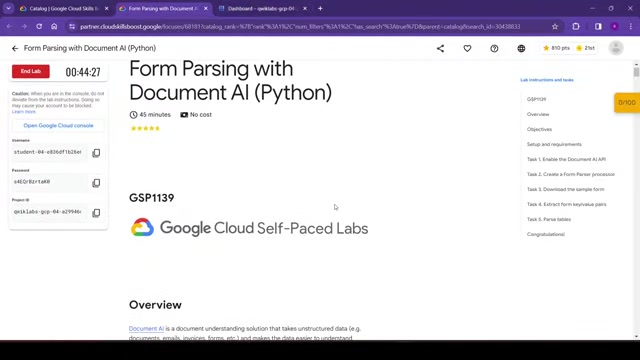
. It leverages artificial intelligence (AI) to automatically categorize, extract entities, classify content, and provide advanced search capabilities. This allows businesses to automate processes, reduce manual data entry, improve accuracy, and gain valuable insights from their documents. Using the API makes data simpler to understand, analyze, and consume.
One of the core features of Document AI is its ability to perform form parsing, which is the automated extraction of data from structured or semi-structured forms, even handwritten ones. When combined with the versatility of Python, Document AI can transform your data processing workflows.
Form Parsing with Document AI and Python
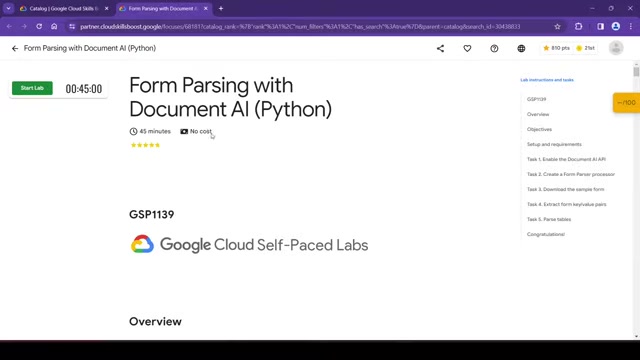
This blog focuses on using Document AI's Form Parser with Python to process handwritten forms
. Python is a versatile and powerful language, making it a perfect fit for interacting with Google Cloud services like Document AI. We'll guide you through the process of setting up the environment, enabling the necessary APIs, creating a Form Parser processor, and writing Python code to extract the desired data from a sample medical intake form. This process will work with any generalized form supported by Document AI.
By the end of this detailed guide, you will be able to leverage Google Cloud and DocAI to streamline form processing and automate data entry tasks, resulting in increased efficiency and accuracy. You can use Python and document AI to extract key-value pairs and export that key value pair to a CSV using document AI's Form Parser.
Benefits of Using Document AI and Python
Why choose Document AI with Python for form parsing? Here are some key benefits:
- Automation: Automate tedious manual data entry tasks, freeing up resources for more strategic initiatives.
- Accuracy: Reduce human error and improve the accuracy of data extraction.
- Efficiency: Process forms faster and more efficiently than manual methods.
- Scalability: Easily scale your form processing capabilities to handle increasing volumes of data.
- Cost Savings: Lower operational costs by automating tasks that were previously performed manually.
- Advanced Searching: Use the API provides structure to content classification, extraction, advanced searching and more.
Step-by-Step Guide to Form Parsing with Document AI and Python
Setting Up Your Google Cloud Environment
Before diving into the code, you need to set up your Google Cloud environment. This involves creating a Google Cloud project, enabling the Document AI API, and setting up authentication.
Here's how to start:
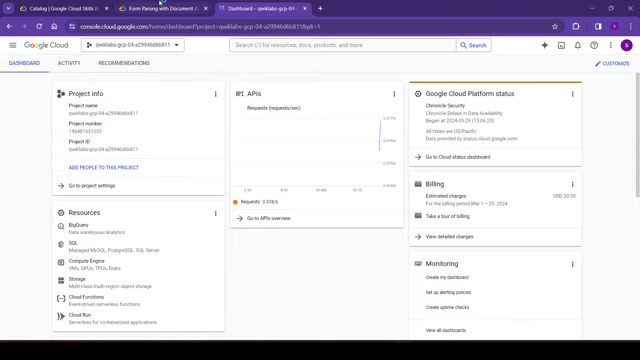
- Create a Google Cloud Project: If you don't already have one, create a new project in the Google Cloud Console
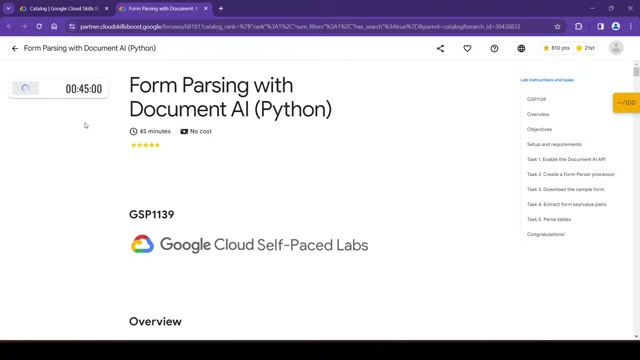
. Note your project ID; you'll need it later.
- Enable the Document AI API: Go to the API Library in the Google Cloud Console and enable the Document AI API . This allows your project to access Document AI's services.
- Activate Cloud Shell: Activate Cloud Shell in the Google Cloud Console . Cloud Shell provides a command-line environment with pre-installed tools, making it easy to interact with Google Cloud services.
- Authenticate Your Account: Use the command
gcloud auth listand thengcloud config set project [YOUR_PROJECT_ID]to authorize your Cloud Shell session and connect it to your Google Cloud project . Make sure to replace[YOUR_PROJECT_ID]with your actual project ID.
By completing these steps, you'll have the necessary environment configured to start working with Document AI and Python.
Creating a Form Parser Processor
A Form Parser processor is the core component responsible for extracting data from your forms
. Here's how to create one:
- Navigate to Document AI: In the Google Cloud Console, navigate to the Document AI section. You can search for it in the search bar.
- Explore Processors: Click on “Explore Processors” to see the available processor types.
- Create Processor: Locate the "Form Parser" processor and click “Create Processor” . This will open the processor creation dialogue.
- Name Your Processor: Give your processor a descriptive name, like “lab-form-parser”.
- Choose a Region: Select the region closest to you from the list. US (United States) is often a good option. Document AI will then parse your handwritten document and classify entity and content types.
- Click Create: Click “Create” to initiate the processor creation process . This may take a few minutes.
Downloading the Sample Form
To get started, download the sample medical intake form provided in the Tutorial. You can download by right-clicking on the image in the test processor section or by using the command line from the cloud shell
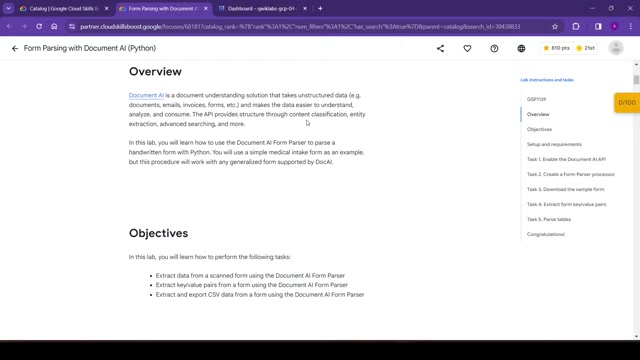
. This command will download a sample document which contains a simple medical intake form which you can then upload into your python environment to enable testing.
Now that you have a processor, you have to follow the process of implementing a document from your system into the document AI so you can get the best key/value pairs.
Extracting Form Key-Value Pairs with Python
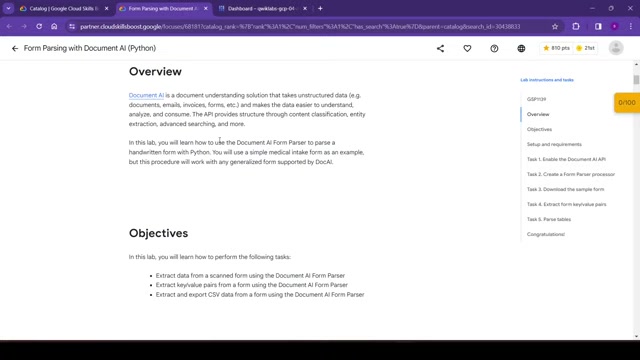
Here's where the Python code comes into play. You'll need to create a Python script to interact with the Document AI API and extract the data from your form. You will need to extract data from scanned files for the document AI form parser. This can be done in the python code
.
Below is all you need to do the parsing, so create a new file called form_parser.py and paste in the following code, and replace the various YOUR_PROJECT_ID, YOUR_PROJECT_LOCATION and FORM_PARSER_ID attributes
- This code imports libraries: os, splittext, and Sequence.
- This code also extracts the tables and data in the document.
After completing the necessary edits, you can then run the file to see how the values present themselves.
With the Python and document AI combined, you can:
- Extract Key-Value Pairs and export them.
- The API is a structure to content classification, entity extraction, advanced searching, and more. This is because it will work with any generalized form supported by Doc AI. This includes simple forms for handwritten letters, emails, and invoices. API provides structure through content classification and more!
How To View CSV in Excel and Google Sheets
After running the script you will now see a data frame in place to print the values in tabular format. Data is stored in the pages [] tables [] field.
Then, to show the output data you will need to view the tables in a number of CSV formats:
- Download and install the plugin from Microsoft AppSource (Only for Microsoft Excel).
- To open the downloaded CSV files in Google sheets, upload the CSV file. Then, select “Open with” Google Sheets.
With this new plugin and CSV setup, data is far more accessible to the common user.
If this is completed properly, then you will have a medical exam form and extracted key-value pairs.
How to Use Your Form Data (Python)
Customize the Code for other Form Types
While this blog uses a medical intake form as an example, the code can be adapted to work with other types of forms
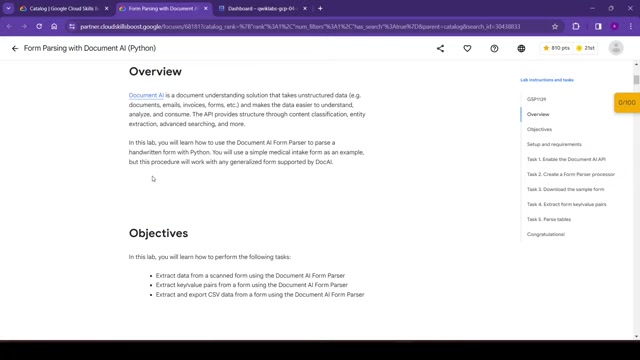
. The key is to adjust the regular expressions to match the specific fields you want to extract. Document AI’s form parser and DocAI will work with any general form. API providers structure through content classification.







Most people like


































Report
Please select a reason for reporting
- 13 Reasons to Switch from Snapchat to Text Messaging
- 7 Powerful Speech to Text Apps to Boost Productivity
- 10 Best Speech to Text Tools for Effortless Transcription
- 13 Free Tools to Easily Transcribe Audio to Text
- 15 Surprising Ways Google's Speech-to-Text Boosts Productivity
- 7 Best Free Online Audio to Text Transcription Tools
- 9 Tips to Transcribe Speech to Text Faster and Better
- 13 Best Speech to Text Software for Windows 10 in 2023
- 7 Tips for Choosing the Best Transcriber for Audio to Text
- 11 Reasons Why Dragon Speech-to-Text Apps are Game-Changers
- 6 Secrets to Enhance Your Speech to Text Transcription
- 6 Brilliant Ways to Boost Productivity with Talk-to-Text on Your MacBook
- 6 Ways Transcription Software Converts Audio to Text
- 8 Tips to Transcribe Speech to Text Like a Pro
- 6 Reasons IBM Watson Speech to Text is a Game-Changer
- 14 Powerful Ways Talk-to-Text Improves Your Workflow
- 12 Top Windows Speech-to-Text Software for Efficient Transcription
- 12 Game-Changing Benefits of Apple's Speech to Text Technology
- 9 Powerful Use Cases for AWS Speech to Text Technology
- 10 Easy Steps to Transcribe YouTube Videos to Text
- transcription audio en texte
- online audio transcription
- free audio file transcription
- free ai audio transcription
- audio transcription service
- audio transcription online free
- audio transcription free online
- audio to transcription software
- audio and transcript
- ai audio transcription free
- voice recording to text converter
- translate voice recording to text
- record voice to text
- audio recording to text converter
- voice recording and transcription
- chatgpt voice to text
- gmail voice to text
- speech to text reader
- speech to text ai free
- speech to talk
- How SEO and Marketing Dashboards Empower Agencies to Drive Results
- How to Use AI Tools to Find Internal Linking Opportunities Across a Business Website
- Discover Your Perfect Haircut with AI Hairstyle Apps
- Free Reputation Calculator Tools: How They're Adapting to Score AI Visibility, Not Just Rankings
- Design Professional Flyers for Free on Your Phone
- Best Free Flyer Maker Apps for Android: Design Like a Pro
- How to Know If Your Business Is Ready for an AI Customer Service Agent
- Revolutionizing Storytelling: From Novels to Screenplays with AI
- Create Engaging Animated Explainer Videos with a Free AI Tool
- Stop Multi-Subscribing: Benchmark Top AI Visual Models in One Canvas
- My Honest Experience with VideoAI: The Secret Weapon for Creators Who Need Character Voices
- 5 Data Problems That Stall AI Projects in Financial Compliance
- Master Storyboard Drawing: Expert Tips for Non-artists
- The Future of Smart Glasses: Explained & Assembling Guide
- DeepL Translator: The AI-Powered Translation Tool
- AI Video Upscaling: Top Tools Compared for Enhanced Quality
- Bridging the Gap: How One Indie Developer Solved the "Art Asset Nightmare" Using AI Style Transfer
- How I Direct Consistent AI Clips: A Hands-On Guide to Multi-Model Generation
- My Honest Review of VideoAI: The Ultimate Character Voice Generator I've Been Using Lately
- Why do so many AI tools underdeliver for online stores?

Copyright ©2026 toolify