































Table of Contents
- Key Points
- Introduction to Image Upscaling with Python
- Setting Up Your Python Environment for Image Upscaling
- Step-by-Step Guide to Upscaling Images with Python
- Pricing of Real-ESRGAN
- Advantages and Disadvantages of Using Real-ESRGAN
- Core Features of Real-ESRGAN
- Practical Use Cases for Image Upscaling
- Frequently Asked Questions (FAQ)
- Related Questions


Introduction to Image Upscaling with Python
What is Image Upscaling?
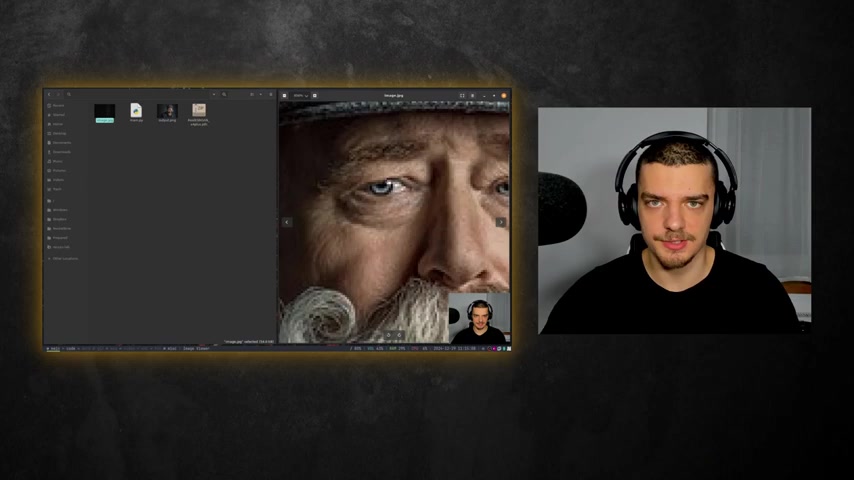
Image upscaling is the process of increasing the resolution of an image, effectively making it larger. This is particularly useful when you have a low-resolution image that you need to display on a larger screen or use in a high-quality print. Without upscaling, simply enlarging a low-resolution image results in pixelation and a loss of detail. Several techniques exist for image upscaling, ranging from basic interpolation methods to more advanced algorithms that use machine learning to infer missing details.
Why is Image Upscaling Important?
- Improved Visual Quality: Upscaling enhances the clarity and detail of images, making them more visually appealing.
- Compatibility with Modern Displays: Modern displays have higher resolutions, requiring images to be upscaled to avoid pixelation.
- Enhanced Printing Quality: Upscaling improves the quality of printed images, ensuring crisp details.
- Restoration of Old Images: Upscaling can be used to restore old or damaged images, bringing them back to life.
Traditional methods of image upscaling often rely on interpolation, where new pixels are created based on the colors of surrounding pixels. While these methods are fast, they often result in blurry or artificial-looking images. More advanced techniques, such as those based on deep learning, can produce significantly better results by learning to generate realistic details that are not present in the original image.
In this guide, we'll explore using Python and a powerful model called Real-ESRGAN to achieve high-quality image upscaling.
Why Use Python for Image Upscaling?
Python is a popular choice for image processing tasks due to its ease of use and extensive libraries. It provides a rich ecosystem of tools that make it easy to manipulate images, apply complex algorithms, and work with machine learning models.
Key Advantages of Using Python for Image Upscaling:
- Extensive Libraries: Python offers libraries like Pillow, NumPy, and PyTorch, which provide powerful image processing and numerical computation capabilities.
- Machine Learning Support: Python is the go-to language for machine learning, making it easy to integrate advanced upscaling models like Real-ESRGAN.
- Cross-Platform Compatibility: Python code can run on various operating systems, making it a versatile choice for image upscaling.
- Large Community Support: A vast community of developers supports Python, providing ample resources, tutorials, and solutions to common problems.
The combination of these factors makes Python an ideal environment for experimenting with and implementing image upscaling algorithms. Whether you're a beginner or an experienced programmer, Python offers the tools and support you need to achieve impressive results.
Setting Up Your Python Environment for Image Upscaling
Installing Required Packages
Before you can start upscaling images, you need to install several Python packages. These packages provide the necessary tools and libraries for image processing, numerical computation, and machine learning. Here's how to install them using pip, the Python package installer.
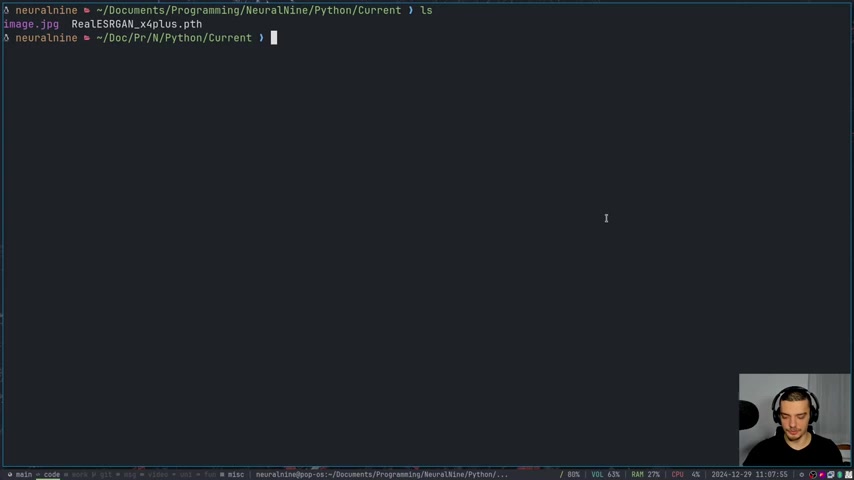
Open your terminal or command Prompt and run the following command:
pip3 install basicsr Real-ESRGAN pillow numpy torchLet's break down what each of these packages does:
- basicsr: Provides basic super-resolution functionalities.
- Real-ESRGAN: Implements the Real-ESRGAN model for high-quality image upscaling.
- Pillow: A powerful image processing library that supports a wide variety of image formats.
- NumPy: A fundamental package for numerical computation in Python.
- PyTorch: An open-source machine learning framework, crucial for working with the Real-ESRGAN model.
Once you've installed these packages, you're ready to move on to setting up the Real-ESRGAN model.
Downloading the Real-ESRGAN Model Weights
Real-ESRGAN is a deep learning model, requiring pre-trained model weights to function. These weights are stored in a ".pth" file and need to be downloaded separately.
You can download the Real-ESRGAN model weights from the official GitHub repository.
- Visit the Real-ESRGAN Releases page.
- Look for the RealESRGAN_x4plus.pth file. This file contains the model weights for upscaling images by a factor of 4.
- Download the file and place it in your project directory.
By having these model weights, your Python script can load and use the pre-trained model to enhance image resolution effectively.
Step-by-Step Guide to Upscaling Images with Python
Writing the Python Script
Now that you have all the necessary packages and the model weights, you can start writing the Python script to upscale images. Here's a step-by-step guide to help you get started.
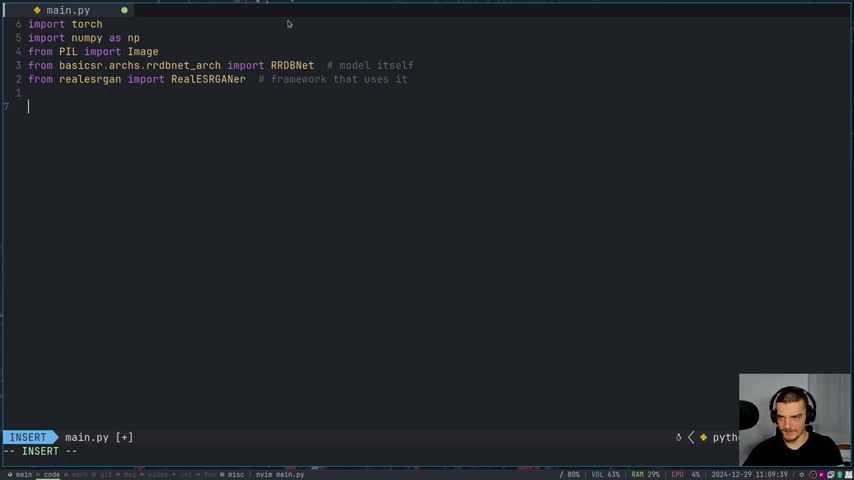
1. Import the Required Libraries
Start by importing the required libraries:
import torch
import numpy as np
from PIL import Image
from basicsr.archs.rrdnet_arch import RRDBNet
from realesrgan import RealESRGANer
import warnings
warnings.filterwarnings('ignore')torch: Used for loading and using the PyTorch model.numpy: Used for numerical operations, especially for image data.PIL (Pillow): Used for opening, manipulating, and saving images.basicsr.archs.rrdnet_arch: Imports the RRDBNet architecture, which is used by Real-ESRGAN.realesrgan: Imports the RealESRGANer class, a framework that simplifies using the model.warnings: Used to filter out warning messages for cleaner output.
2. Load the Model Weights
Specify the path to the model weights file and load the model:
model_path = 'RealESRGAN_x4plus.pth'
state_dict = torch.load(model_path, map_location=torch.device('cpu'))['params_ema']model_path: Specifies the path to the RealESRGAN model weights file.state_dict: Loads the model weights into a state dictionary, mapping it to the CPU to avoid GPU dependency. You can modify it to ‘cuda’ if you want to use your GPU
3. Configure the Upscaler
Create an instance of the RealESRGAN upscaler.
model = RRDBNet(num_in_ch=3, num_out_ch=3, num_feat=64, num_block=23, num_grow_ch=32, scale=4)
model.load_state_dict(state_dict)
model.eval()
upsampler = RealESRGANer(scale=4,model_path=model_path,model=model,tile=0,tile_pad=10,pre_pad=0,half=False)- RRDBNet: Creates the model object
- model.load_state_dict: load the previously loaded parameters.
- model.eval(): Puts the model into evaluation mode, which turns off gradients
RealESRGANer: Sets up the upscaler with the specified parameters.
4. Load and Process the Image
Load the image you want to upscale and convert it to the correct format:
img = Image.open('image.jpg').convert('RGB')
img = np.array(img)Image.open(): Opens the image file..convert('RGB'): Converts the image to the RGB color space.np.array(): Converts the image to a NumPy array.
5. Upscale the Image
Use the RealESRGAN model to upscale the image:
output, _ = upsampler.enhance(img, outscale=4)upsampler.enhance(): Applies the RealESRGAN model to the image, upscaling it by a factor of 4.
6. Save the Upscaled Image
Save the upscaled image to a file:
output_img = Image.fromarray(output)
output_img.save('new_image.jpg')Image.fromarray(): Converts the NumPy array back to an image..save(): Saves the upscaled image to a file.
Complete Python Script:
import torch
import numpy as np
from PIL import Image
from basicsr.archs.rrdnet_arch import RRDBNet
from realesrgan import RealESRGANer
import warnings
warnings.filterwarnings('ignore')

# Load the model weights
model_path = 'RealESRGAN_x4plus.pth'
state_dict = torch.load(model_path, map_location=torch.device('cpu'))['params_ema']

# Configure the upscaler
model = RRDBNet(num_in_ch=3, num_out_ch=3, num_feat=64, num_block=23, num_grow_ch=32, scale=4)
model.load_state_dict(state_dict)
model.eval()
upsampler = RealESRGANer(scale=4,model_path=model_path,model=model,tile=0,tile_pad=10,pre_pad=0,half=False)

# Load and process the image
img = Image.open('image.jpg').convert('RGB')
img = np.array(img)

# Upscale the image
output, _ = upsampler.enhance(img, outscale=4)

# Save the upscaled image
output_img = Image.fromarray(output)
output_img.save('new_image.jpg')
Explanation
- The script imports required libraries and classes.
- The
model_pathvariable saves a string for where the.pthis located - The script has some configurations for running correctly, and applies
upsampler.enhancetooutputto run the upscaling. - This script combines the necessary steps to upscale an image using Real-ESRGAN, providing a clear and effective solution for image enhancement.










Most people like

























Report
Please select a reason for reporting
- 13 Reasons to Switch from Snapchat to Text Messaging
- 7 Powerful Speech to Text Apps to Boost Productivity
- 10 Best Speech to Text Tools for Effortless Transcription
- 13 Free Tools to Easily Transcribe Audio to Text
- 15 Surprising Ways Google's Speech-to-Text Boosts Productivity
- 7 Best Free Online Audio to Text Transcription Tools
- 9 Tips to Transcribe Speech to Text Faster and Better
- 13 Best Speech to Text Software for Windows 10 in 2023
- 7 Tips for Choosing the Best Transcriber for Audio to Text
- 11 Reasons Why Dragon Speech-to-Text Apps are Game-Changers
- 6 Secrets to Enhance Your Speech to Text Transcription
- 6 Brilliant Ways to Boost Productivity with Talk-to-Text on Your MacBook
- 6 Ways Transcription Software Converts Audio to Text
- 8 Tips to Transcribe Speech to Text Like a Pro
- 6 Reasons IBM Watson Speech to Text is a Game-Changer
- 14 Powerful Ways Talk-to-Text Improves Your Workflow
- 12 Top Windows Speech-to-Text Software for Efficient Transcription
- 12 Game-Changing Benefits of Apple's Speech to Text Technology
- 9 Powerful Use Cases for AWS Speech to Text Technology
- 10 Easy Steps to Transcribe YouTube Videos to Text
- transcription audio en texte
- online audio transcription
- free audio file transcription
- free ai audio transcription
- audio transcription service
- audio transcription online free
- audio transcription free online
- audio to transcription software
- audio and transcript
- ai audio transcription free
- voice recording to text converter
- translate voice recording to text
- record voice to text
- audio recording to text converter
- voice recording and transcription
- chatgpt voice to text
- gmail voice to text
- speech to text reader
- speech to text ai free
- speech to talk
- Revolutionizing Storytelling: From Novels to Screenplays with AI
- Create Engaging Animated Explainer Videos with a Free AI Tool
- Stop Multi-Subscribing: Benchmark Top AI Visual Models in One Canvas
- Best Seedance 2.5 API Provider: Every Price on the Market, Checked at Source
- AI OnlyFans: How to Generate $30,000/Month (Legally)
- Transform Your Script into an Engaging Video with AI Video Maker!
- AI Marketing Automation: A Comprehensive Guide for Small Businesses
- Midjourney Alternative for Anime Art Creators: Why PixAI May Be Better for Character Workflows
- 10 Things Most People Get Wrong About AI Image Search
- AI Girlfriend Apps: Top Choices Redefining Relationships 2025
- Python Random Name Generator Tutorial
- Generate Unique Names with Python Random Name Generator
- Code a JavaScript Name Generator
- Create a Fun Name Generator App - Easy JavaScript Project!
- Experience Roblox's Avatar Creation for Karl Jacobs!
- May TBR Game: How a Letter Generator Chooses My Reads
- AI Celebrity Chat: Hilarious Pick-Up Lines & Chatbot Chaos!
- Embrace Chaos with the Random Makeup Challenge
- Boost Audience Engagement with the Wheel of Names
- Engage Your Audience with the Wheel of Names!

Copyright ©2026 toolify