































Table of Contents
- Key Points
- Vectorizing Masquerades: A Step-by-Step Guide
- How to Use This Vectorized Mask
- Pros and Cons of Vectorization
- FAQ
- Related Questions



Vectorizing Masquerades: A Step-by-Step Guide
What is Vectorization?
Vectorization is the process of converting raster graphics (pixel-based images) into vector graphics (mathematically defined shapes).
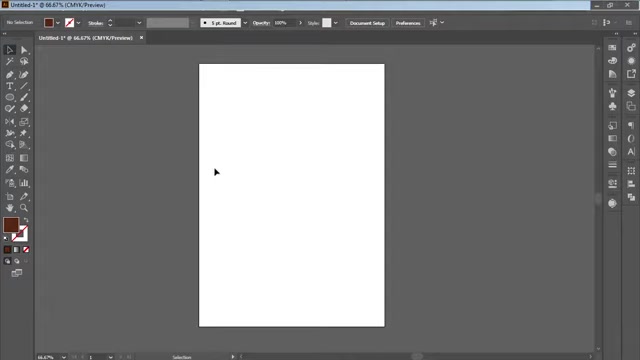
Unlike raster images, vector graphics are scalable without losing quality, making them ideal for logos, illustrations, and designs that need to be resized for various applications, including t-shirts. By understanding vectorization, designers can ensure their artwork remains crisp and clear across all mediums. Replicating a design through vectorization involves tracing its original form and converting it into mathematically defined shapes. This ensures clarity and scalability. A vector graphic offers crispness and scalability without pixelation.
Key benefits of vectorization:
- Scalability: Resize designs without loss of quality.
- Editability: Easily modify shapes and colors.
- Cleanliness: Achieve crisp lines and sharp details.
- Versatility: Suitable for logos, illustrations, and various design projects.
Importing the Image into Adobe Illustrator
First, import the African mask image into Adobe Illustrator.
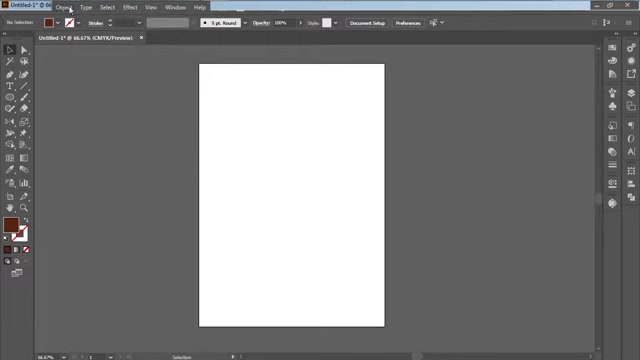
Go to File > Place and select your image. Ensure the image is placed within your workspace and is readily accessible. In this Tutorial, the starting image is a hand-drawn, pixelated African sculpture. The goal is to transform this into a clean, scalable vector graphic. This process requires you to look for the file to begin with, So we go to file, then we go to place. Once imported, the image serves as a visual guide for the vectorization process.
Here's a quick breakdown of the steps:
- Open Adobe Illustrator.
- Go to File > Place.
- Select the image you want to vectorize.
- Position the image on the artboard.
- Prepare the image for tracing.
- Ensure all settings are optimal for vectorizing your design. Now the real magic can begin.
Tracing with the Pen Tool
The Pen Tool is an indispensable asset for graphic designers. The Pen Tool (P) allows you to create precise paths by defining anchor points and curves. It's particularly useful for tracing complex shapes, such as the intricate details of an African mask. Start by selecting the Pen Tool from the toolbar and carefully trace the outline of the mask.
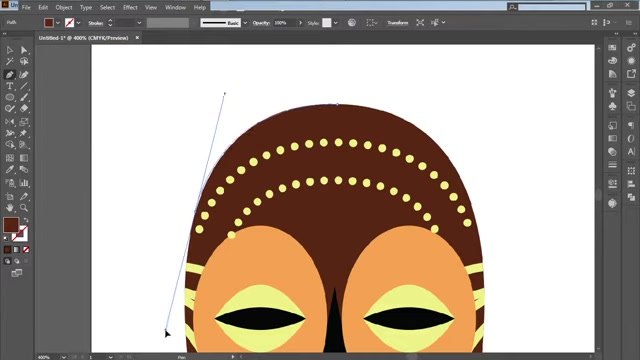
Creating an African masquerade visual is not too far from reach now.
How to trace effectively:
- Select the Pen Tool (P) from the toolbar.
- Click to create anchor points along the outline of the shape.
- Click and drag to create curves. This allows the creation of very smooth shapes within your design process. Curve and manipulate to replicate the designs you want.
- Use as few anchor points as possible to maintain smoothness.
- Adjust the paths with the Direct Selection Tool (A) to refine the design. The Direct Selection Tool can be very useful to adjust designs for a high degree of refinement.
Replicating Other Design Elements
For elements like the circles adorning the mask, the Ellipse Tool (L) offers a quick and efficient method to create perfect circles and ovals.
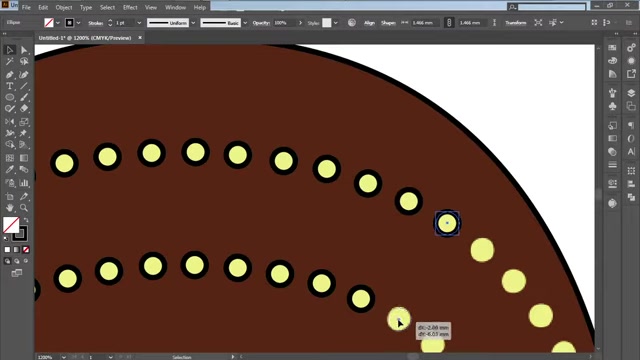
Hold Shift while dragging to create perfect circles, and use the Direct Selection Tool (A) to position them accurately within the design. Then take our zoom, we appreciate it, you have to understand the concept.
Steps for using the Ellipse Tool:
- Select the Ellipse Tool (L).
- Hold Shift to create perfect circles.
- Click and drag to create the circle.
- Use the Selection Tool (V) to position the circles accurately.
- Hold Alt to drag across a duplicated form of your shape. You can easily begin the steps to replicate an African sculpture!
This can be easily employed to a number of images you may wish to add to your designs, and is not limited to just replicating an African sculpture.
Fine-Tuning and Colorization
Once all elements are traced, fine-tune the paths and adjust the colors to match the original design. Illustrator's color palette allows precise color selection, and adjusting the stroke weight can enhance the visual appeal. Using the Eyedropper Tool (I) and taking into account a color of your target shape is the first step to creating your final design.
Key colorization techniques:
- Select elements with the Selection Tool (V).
- Use the Eyedropper Tool (I) to sample colors from the original image.
- Adjust stroke weights and colors as needed.
- Ensure color selections are consistent throughout the design for a unified and appealing look.
| Color Options | Hexadecimal Code |
|---|---|
| Light Green | #C0FF3E |
| Orange | #FFA500 |
When this is taken into account, you can deliver the right look and feel to your design, enhancing its impact for your audience.
Exporting the Vectorized Image
With the African mask now fully vectorized and colored, export the design in a scalable vector format, such as SVG or EPS. This ensures the artwork can be resized without any loss in quality, making it suitable for various digital and print applications. Key to creating this African masquerade is using a great color and Font.
Export instructions:
- Go to File > Export > Export As.
- Choose a vector format like SVG or EPS.
- Select a location to save your file.
- Ensure that options are suited to your intended output.
- Click export. Now your scalable vector is ready to be integrated into any project!
When the appropriate output has been selected, this helps to increase the chances that what is sent will be what the user desires.








Most people like

































Report
Please select a reason for reporting
- 13 Reasons to Switch from Snapchat to Text Messaging
- 7 Powerful Speech to Text Apps to Boost Productivity
- 10 Best Speech to Text Tools for Effortless Transcription
- 13 Free Tools to Easily Transcribe Audio to Text
- 15 Surprising Ways Google's Speech-to-Text Boosts Productivity
- 7 Best Free Online Audio to Text Transcription Tools
- 9 Tips to Transcribe Speech to Text Faster and Better
- 13 Best Speech to Text Software for Windows 10 in 2023
- 7 Tips for Choosing the Best Transcriber for Audio to Text
- 11 Reasons Why Dragon Speech-to-Text Apps are Game-Changers
- 6 Secrets to Enhance Your Speech to Text Transcription
- 6 Brilliant Ways to Boost Productivity with Talk-to-Text on Your MacBook
- 6 Ways Transcription Software Converts Audio to Text
- 8 Tips to Transcribe Speech to Text Like a Pro
- 6 Reasons IBM Watson Speech to Text is a Game-Changer
- 14 Powerful Ways Talk-to-Text Improves Your Workflow
- 12 Top Windows Speech-to-Text Software for Efficient Transcription
- 12 Game-Changing Benefits of Apple's Speech to Text Technology
- 9 Powerful Use Cases for AWS Speech to Text Technology
- 10 Easy Steps to Transcribe YouTube Videos to Text
- transcription audio en texte
- online audio transcription
- free audio file transcription
- free ai audio transcription
- audio transcription service
- audio transcription online free
- audio transcription free online
- audio to transcription software
- audio and transcript
- ai audio transcription free
- voice recording to text converter
- translate voice recording to text
- record voice to text
- audio recording to text converter
- voice recording and transcription
- chatgpt voice to text
- gmail voice to text
- speech to text reader
- speech to text ai free
- speech to talk
- How SEO and Marketing Dashboards Empower Agencies to Drive Results
- How to Use AI Tools to Find Internal Linking Opportunities Across a Business Website
- Discover Your Perfect Haircut with AI Hairstyle Apps
- Free Reputation Calculator Tools: How They're Adapting to Score AI Visibility, Not Just Rankings
- Design Professional Flyers for Free on Your Phone
- Best Free Flyer Maker Apps for Android: Design Like a Pro
- How to Know If Your Business Is Ready for an AI Customer Service Agent
- Revolutionizing Storytelling: From Novels to Screenplays with AI
- Create Engaging Animated Explainer Videos with a Free AI Tool
- Stop Multi-Subscribing: Benchmark Top AI Visual Models in One Canvas
- AI & Elections: Defending Democracy Against Misinformation
- Navigating Political Discourse: AI, Deepfakes, and Reality Checks
- Detecting Political Bias in News Articles: A Powerful AI Algorithm
- AI Bias Unveiled: Political Leanings in ChatGPT & Beyond
- Revolutionize Learning: Discover Quizzes AI for Engaging Interactive Quizzes
- From AI-Generated to Audience-Ready: How Quillbot Humanize AI Is Changing the Content Editing Process
- Building an AI Writing Stack in 2026: LLMs, Detectors, and Humanizers
- 7 Top AI-Powered Database Assistant Platforms
- An Objective Look at Modern Web-Based Visual Modifications
- My Honest Experience with VideoAI: The Secret Weapon for Creators Who Need Character Voices

Copyright ©2026 toolify