































Install Intel Rapid Storage Technology for Smooth Windows Installation


Table of Contents
- Introduction
- Enabling RAID in BIOS
- Windows Installation Issue
- Downloading the Intel IRST Driver
- Extracting the IRST Driver
- Copying the Driver to the Windows Setup Flash Drive
- Finalizing Windows Installation
- Benefits of Intel Rapid Storage Technology
- Conclusion
- Frequently Asked Questions (FAQs)
Introduction
In this article, we will learn how to install Intel Rapid Storage technology or VMD controller driver. We will go through the process step by step, from enabling RAID in the BIOS to resolving the Windows installation issue and downloading the necessary drivers. By the end of this article, you will be able to install Windows smoothly and enjoy the benefits of Intel Rapid Storage technology.
Enabling RAID in BIOS
Before installing Windows, we need to enable the VMD controller or IRST controller in the BIOS. We will restart the PC and enter the BIOS setup. From there, we will change the SATA operation mode to RAID and apply the changes. This will configure the storage devices to support RAID functions with the VMD controller.
Windows Installation Issue
After enabling RAID in the BIOS, you may encounter a common issue during Windows installation. The installer may not be able to find any drives, leaving you stuck at a screen with a yellow exclamation mark. This problem occurs because the Intel Rapid Storage technology driver is not integrated into the Windows installation media.
Downloading the Intel IRST Driver
To resolve the Windows installation issue, we need to download the Intel IRST driver from the Intel website. We will open a browser, go to the Intel website, navigate to the support section, and select the appropriate driver for Windows 11. Make sure to select the driver for your processor generation and download the IRST driver setup.
Extracting the IRST Driver
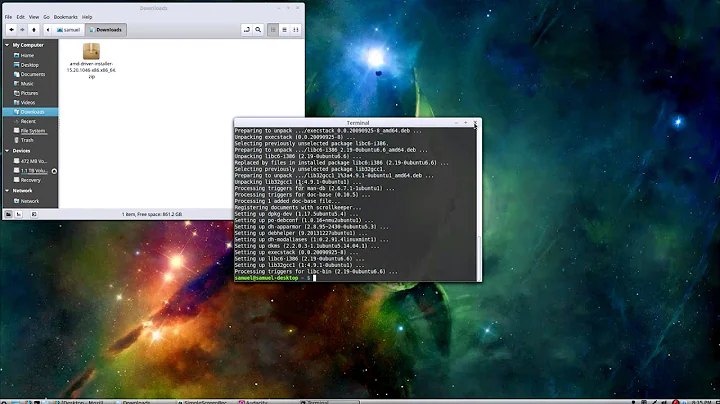
Once the IRST driver setup is downloaded, we need to extract it. Create a folder on your desktop and paste the downloaded file into it. Open the command Prompt, navigate to the folder containing the driver setup, and run a command to extract the files. Alternatively, you can find the command in the description box of the video or in a text file provided.
Copying the Driver to the Windows Setup Flash Drive
After extracting the IRST driver files, we need to copy them to the Windows setup flash drive. It is recommended to download the drivers from the manufacturer's website for your specific PC or motherboard. Copy the driver files to a folder on the flash drive that you can easily access during the Windows installation process.
Finalizing Windows Installation
Connect the flash drive to the computer and safely remove it. Browse to the Intel rapid storage technology folder on the flash drive and navigate to the drivers folder. Select either the VMD driver or the Intel driver, depending on your preference. The Windows installation will load the driver into memory and detect the storage device, allowing you to install Windows smoothly.
Benefits of Intel Rapid Storage Technology
By installing the Intel Rapid Storage technology driver and enabling RAID, you can enjoy several benefits. These include improved performance, increased data protection, faster data access, and the ability to create RAID arrays for mirroring or striping.
Conclusion
In conclusion, installing the Intel Rapid Storage technology or VMD controller driver is essential for enabling RAID and resolving Windows installation issues. By following the steps outlined in this article, you can successfully install Windows and enjoy the benefits of Intel Rapid Storage technology. Thank you for reading, and don't forget to subscribe to our Channel for more educational content.
Frequently Asked Questions (FAQs)
Q: What is Intel Rapid Storage technology? A: Intel Rapid Storage technology is a feature that enables RAID functionality and improves storage performance on supported systems.
Q: Why is the Intel IRST driver not included in the Windows installation media? A: The Intel IRST driver is not integrated into the Windows installation media due to licensing and compatibility reasons.
Q: Can I choose between the manufacturer's driver and the Intel driver during installation? A: Yes, you can choose either the manufacturer's driver or the Intel driver during the Windows installation process.
Q: What are the benefits of Intel Rapid Storage technology? A: The benefits of Intel Rapid Storage technology include improved performance, increased data protection, faster data access, and the ability to create RAID arrays.
Q: Where can I download the Intel IRST driver for my PC? A: It is recommended to download the Intel IRST driver from the manufacturer's website for your specific PC or motherboard.
Q: Can I use Intel Rapid Storage technology on Windows 10? A: Yes, Intel Rapid Storage technology is compatible with both Windows 10 and Windows 11.







Most people like






























Report
Please select a reason for reporting
- 13 Reasons to Switch from Snapchat to Text Messaging
- 7 Powerful Speech to Text Apps to Boost Productivity
- 10 Best Speech to Text Tools for Effortless Transcription
- 13 Free Tools to Easily Transcribe Audio to Text
- 15 Surprising Ways Google's Speech-to-Text Boosts Productivity
- 7 Best Free Online Audio to Text Transcription Tools
- 9 Tips to Transcribe Speech to Text Faster and Better
- 13 Best Speech to Text Software for Windows 10 in 2023
- 7 Tips for Choosing the Best Transcriber for Audio to Text
- 11 Reasons Why Dragon Speech-to-Text Apps are Game-Changers
- 6 Secrets to Enhance Your Speech to Text Transcription
- 6 Brilliant Ways to Boost Productivity with Talk-to-Text on Your MacBook
- 6 Ways Transcription Software Converts Audio to Text
- 8 Tips to Transcribe Speech to Text Like a Pro
- 6 Reasons IBM Watson Speech to Text is a Game-Changer
- 14 Powerful Ways Talk-to-Text Improves Your Workflow
- 12 Top Windows Speech-to-Text Software for Efficient Transcription
- 12 Game-Changing Benefits of Apple's Speech to Text Technology
- 9 Powerful Use Cases for AWS Speech to Text Technology
- 10 Easy Steps to Transcribe YouTube Videos to Text
- transcription audio en texte
- online audio transcription
- free audio file transcription
- free ai audio transcription
- audio transcription service
- audio transcription online free
- audio transcription free online
- audio to transcription software
- audio and transcript
- ai audio transcription free
- voice recording to text converter
- translate voice recording to text
- record voice to text
- audio recording to text converter
- voice recording and transcription
- chatgpt voice to text
- gmail voice to text
- speech to text reader
- speech to text ai free
- speech to talk
- Create Engaging Animated Explainer Videos with a Free AI Tool
- Stop Multi-Subscribing: Benchmark Top AI Visual Models in One Canvas
- Best Seedance 2.5 API Provider: Every Price on the Market, Checked at Source
- AI OnlyFans: How to Generate $30,000/Month (Legally)
- Transform Your Script into an Engaging Video with AI Video Maker!
- AI Marketing Automation: A Comprehensive Guide for Small Businesses
- Midjourney Alternative for Anime Art Creators: Why PixAI May Be Better for Character Workflows
- 10 Things Most People Get Wrong About AI Image Search
- AI Girlfriend Apps: Top Choices Redefining Relationships 2025
- How to Reduce Quoting Errors in Salesforce with AI-Assisted Quote Creation
- Convert PDF to Audio: Free Urdu Text-to-Speech Tool
- Automatically Transcribe and Subtitle Audio and Video with Descript
- Revolutionize your video editing with AI-generated transcripts
- Mastering Wordpad: Essential Tips for Windows 10 Users
- AfirstSoft PDF Editor: The Ultimate PDF Solution of 2025
- UPDF: The Ultimate PDF Editor for iPadOS and macOS
- Translate PDF Documents: A Comprehensive Guide with OnlineDocTranslator
- Tenorshare PDNob PDF Editor: Smarter AI-Powered Editing
- uPDF Pro Review: AI-Powered PDF Editing for Professionals
- Master the Art of Wrapping Text in Illustrator CC

Copyright ©2026 toolify