































Table of Contents
- Key Points
- Introduction to Adobe Illustrator Automation
- Three Must-Have Adobe Illustrator Scripts
- How to Use Adobe Illustrator Scripts
- Pricing
- Pros and Cons of Using Adobe Illustrator Scripts
- Core Features
- Use Cases
- Frequently Asked Questions
- Related Questions



Introduction to Adobe Illustrator Automation
The Icon Designer's Dilemma
Icon designers often grapple with the sheer volume of files involved in their projects. Projects can easily span hundreds, if not thousands, of individual files, each requiring meticulous attention to detail. While Adobe Illustrator is a powerful tool, the manual handling of these files can become an exercise in tedium. This introduces the need for automation, reducing repetitive strain and allowing designers to focus on the creative aspects of their work.

These Adobe Illustrator scripts allow designers to avoid tedious tasks.
JavaScript Extensions to the Rescue
JavaScript extensions offer a viable solution by providing the means to automate various tasks within Adobe Illustrator. By creating custom scripts, designers can delegate repetitive actions to the software, freeing up their time and mental bandwidth. These scripts address specific workflow challenges, turning time-consuming chores into quick automated processes. Key Adobe Illustrator scripts include AI Sessions, SVG Merge and SVG Contact Sheet.
Three Must-Have Adobe Illustrator Scripts
AI Sessions: Saving and Restoring Your Illustrator Workspace
The AI Sessions script is designed to streamline the workflow of managing multiple Adobe Illustrator files. It addresses the common problem of having numerous files open across different folders, and the challenge of resuming work after a break or system interruption. This script saves the file paths of all open documents into a JSON file, creating a snapshot of your current workspace.

When you want to return to the project, the script reopens all the files from that session with a single command.
SVG Merge: Consolidating Multiple SVG Files
Adobe Illustrator 2015.3 introduced the 'Export for Screens' feature, allowing users to save assets or artboards in various formats. However, sometimes, designers need to merge multiple SVG files into a single document, especially for tasks like batch editing or client delivery. The SVG Merge script automates this process. It imports SVG files from a folder and arranges them on individual artboards within a single AI document.
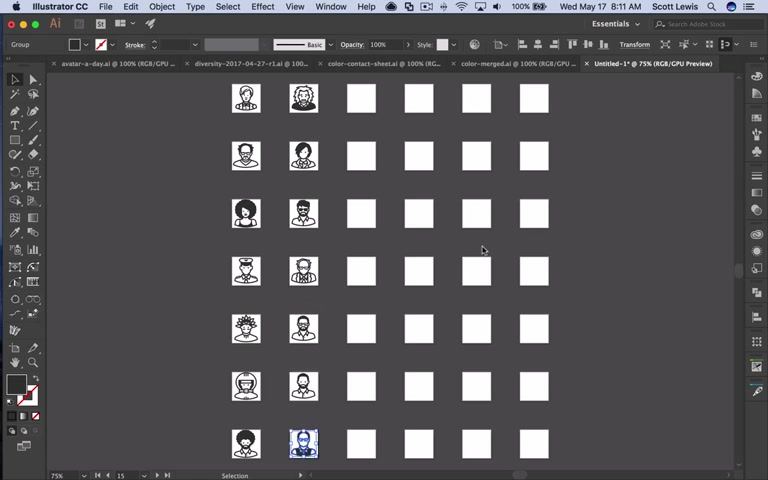
Each artboard is named according to its corresponding file (without the extension), offering an organized way to handle multiple assets.
SVG Contact Sheet: Creating Visual Overviews
Creating preview sheets for icons in various marketplaces often involves tedious, repetitive tasks. Different marketplaces have distinct image size requirements, and icons must be arranged in neat rows and columns. The SVG Contact Sheet script automates the creation of these preview sheets. It arranges icons into a customizable GRID, allowing designers to specify the page width, Height, column count, row count, and Scale of the icons.
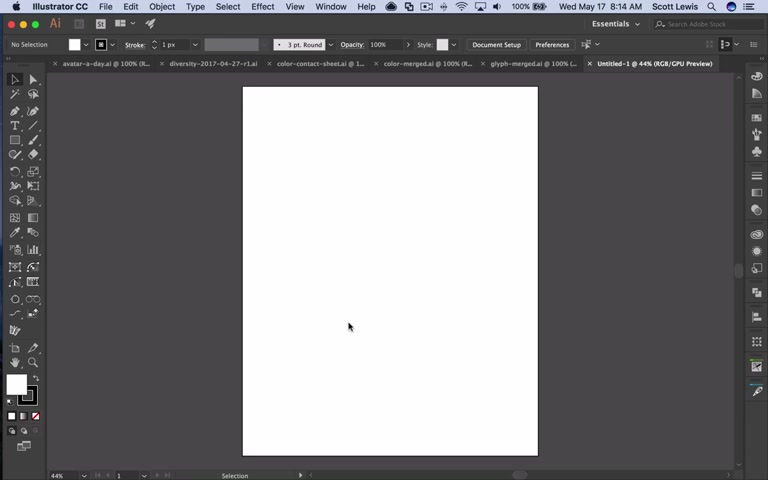
The script can also generate multiple pages if the number of icons exceeds a single sheet’s capacity.
How to Use Adobe Illustrator Scripts
How to Use AI Sessions
-
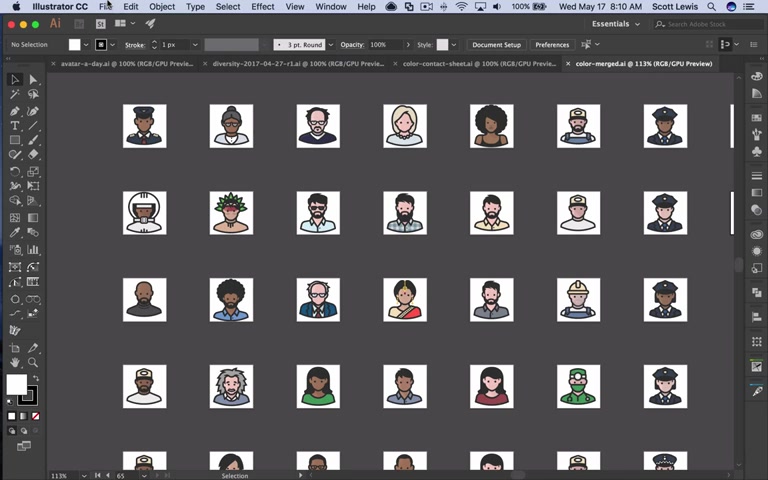
Saving a Session: To save your current session, navigate to File > Scripts > AI Sessions, and select the 'Save' option. This creates a JSON file containing the paths of all currently open Illustrator documents.
-
Restoring a Session: To restore a session, go to File > Scripts > AI Sessions, choose the desired JSON file from the list, and select 'Open'. The script will then reopen all the files that were part of that session.
The AI Sessions script is invaluable for users needing to switch between projects frequently or those who want a reliable way to restore their work environment quickly. It acts as a safety net, ensuring minimal disruption to your workflow, and maximizes productive design time.
How to Use SVG Merge
-
Access the Script: Navigate to File > Scripts > Merge SVG Docs. This opens the settings dialog.
-
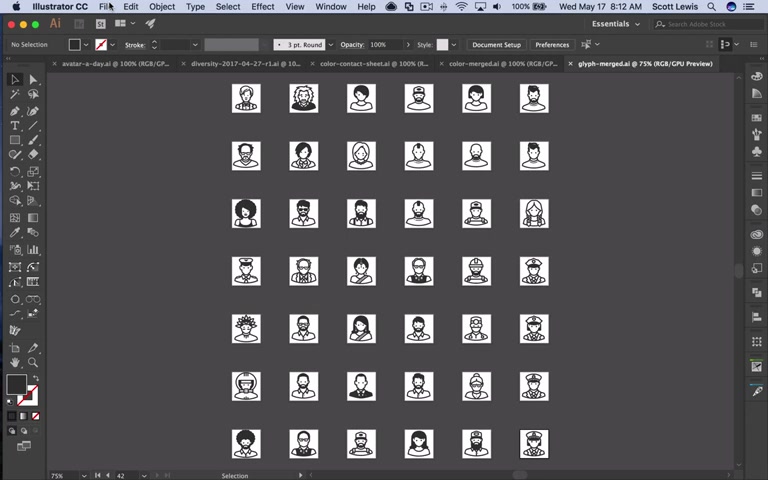
Adjust Settings: In the Merge SVG Files dialog, set the artboard width, artboard height, artboard spacing, number of columns and the scale, to fit your needs.
-
Choose Folder: Click on the 'Choose Folder' button to select the directory containing your SVG files.
-
Set a File Name: Pick a file name for your Illustrator file.
-
Run the Script: With settings configured, click 'OK' to start. This process will create a new Illustrator document, where each SVG file is placed on its own artboard, efficiently structured and ready for batch edits or streamlined client distribution.
The SVG Merge script is perfect for designers working on comprehensive icon sets or those consolidating assets for a large project. It removes the need to manually place each icon, saving a significant amount of time while maintaining organization.
How to Use SVG Contact Sheet
- Run Script: Start by selecting File > Scripts > Contact Sheet in Adobe Illustrator. This opens the script's dialog window, allowing you to configure its parameters.
- Configure Settings: Within the Contact Sheet Settings, define:
- Page Width and Height: These Dimensions set the overall size of your contact sheet. They dictate how much content you can fit on each page.
- Column Count and Row Count: Here, you specify the grid's arrangement. More columns and rows mean smaller individual icon representations but allow more icons per sheet.
- Scale: Adjust this setting to determine the size of the icons within the cells of your contact sheet. This affects the icon's Clarity and how much of each cell it occupies.
- Select a folder: Select a directory for your SVG files.
- Name the File: Pick the name of your file to export to.
- Save as Preset: All settings can be saved as a preset to reuse again. This can drastically speed up workflow.
- Run the Script: Clicking ‘Ok’ starts the process. The script efficiently arranges each icon onto the sheet, resizing and scaling as defined, and spanning across multiple pages if necessary.
The SVG Contact Sheet script is an excellent time-saver for anyone needing to generate quick, visually organized overviews of icon sets, such as for client presentations or marketplace submissions.





Most people like
































Report
Please select a reason for reporting
- 13 Reasons to Switch from Snapchat to Text Messaging
- 7 Powerful Speech to Text Apps to Boost Productivity
- 10 Best Speech to Text Tools for Effortless Transcription
- 13 Free Tools to Easily Transcribe Audio to Text
- 15 Surprising Ways Google's Speech-to-Text Boosts Productivity
- 7 Best Free Online Audio to Text Transcription Tools
- 9 Tips to Transcribe Speech to Text Faster and Better
- 13 Best Speech to Text Software for Windows 10 in 2023
- 7 Tips for Choosing the Best Transcriber for Audio to Text
- 11 Reasons Why Dragon Speech-to-Text Apps are Game-Changers
- 6 Secrets to Enhance Your Speech to Text Transcription
- 6 Brilliant Ways to Boost Productivity with Talk-to-Text on Your MacBook
- 6 Ways Transcription Software Converts Audio to Text
- 8 Tips to Transcribe Speech to Text Like a Pro
- 6 Reasons IBM Watson Speech to Text is a Game-Changer
- 14 Powerful Ways Talk-to-Text Improves Your Workflow
- 12 Top Windows Speech-to-Text Software for Efficient Transcription
- 12 Game-Changing Benefits of Apple's Speech to Text Technology
- 9 Powerful Use Cases for AWS Speech to Text Technology
- 10 Easy Steps to Transcribe YouTube Videos to Text
- transcription audio en texte
- online audio transcription
- free audio file transcription
- free ai audio transcription
- audio transcription service
- audio transcription online free
- audio transcription free online
- audio to transcription software
- audio and transcript
- ai audio transcription free
- voice recording to text converter
- translate voice recording to text
- record voice to text
- audio recording to text converter
- voice recording and transcription
- chatgpt voice to text
- gmail voice to text
- speech to text reader
- speech to text ai free
- speech to talk
- How to Use AI Tools to Find Internal Linking Opportunities Across a Business Website
- Discover Your Perfect Haircut with AI Hairstyle Apps
- Free Reputation Calculator Tools: How They're Adapting to Score AI Visibility, Not Just Rankings
- Design Professional Flyers for Free on Your Phone
- Best Free Flyer Maker Apps for Android: Design Like a Pro
- How to Know If Your Business Is Ready for an AI Customer Service Agent
- Revolutionizing Storytelling: From Novels to Screenplays with AI
- Create Engaging Animated Explainer Videos with a Free AI Tool
- Stop Multi-Subscribing: Benchmark Top AI Visual Models in One Canvas
- Best Seedance 2.5 API Provider: Every Price on the Market, Checked at Source
- Top AI Social Media Management Tools: Automate Your Content Strategy
- Free AI Text to Video Generator: Create Stunning Videos from Text
- Discover 17 ChatGPT Alternatives: A Comprehensive Comparison
- Character.AI vs. Janitor AI: Which AI Chat Platform Reigns Supreme?
- Top Virtual Assistant Companies in 2026: Reviews, Pricing, and Plans Compared
- Unveiling FaceCheck.ID: Revolutionizing Reverse Image Searches with AI
- 11 Best AI Dialers in 2026: Features, Pricing, Pros and Cons
- How I Direct Consistent AI Clips: A Hands-On Guide to Multi-Model Generation
- A Realistic Review of the Photo Generator Image Tool
- Playwright MCP Server: Automated Web Testing with Agent Mode

Copyright ©2026 toolify