































Table of Contents
- Key Points
- Generating Images Using AI
- Detailed Steps in Discord
- Using Photopea for Selective Swapping
- Pricing of Tools
- Core Features of AI Face Swapping Tools
- Common Use Cases for AI Face Swapping
- FAQ
- Related Questions


Generating Images Using AI
InsightFaceSwap Bot in Discord
One of the primary tools needed for this process is the InsightFaceSwap bot, which is installed on Discord. This AI Tool automates the creation of the necessary image variations for successful face swapping. To start, ensure the InsightFaceSwap bot is added to your Discord server. If you haven't done this yet, find the link in the comments section below for detailed installation instructions.
You may also want to check the channel 'AI My Lifestyle' for the instructions on how to set up the FaceSwap bot.
Before starting swapping the faces you want, you should determine how many faces are registered by typing /listid in the Discord channel.
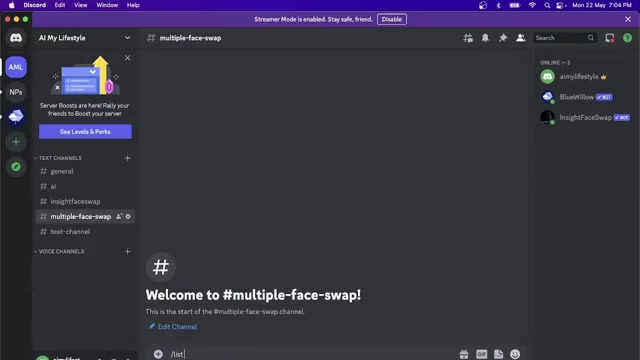
You can have a maximum of 10 IDs registered. You can remove certain IDs that you do not plan on using. If you are running out of space, you can delete IDs you don't want to use. You can type /delid and the id name and that will remove it. You can also type /delall to clear out all of the IDs.
After the IDs have been cleared out, you need to register the three faces to be swapped. This is done by typing /saveid, and then uploading the picture and putting in the id name. By creating multiple versions, the bot is able to swap out all of the faces later in the process.
Using Photopea for Selective Swapping
Step-by-Step Instructions
- Access Photopea: Go to Photopea.com.
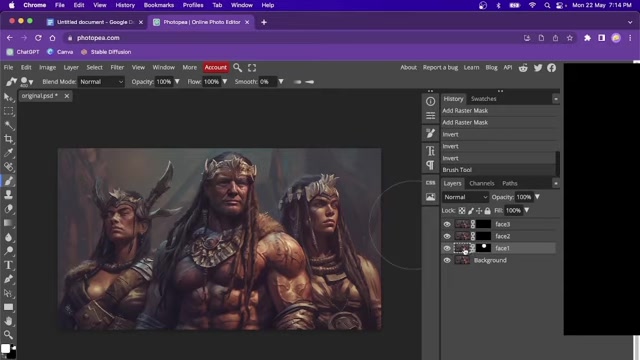
This online app will allow for selective swapping for multiple faces. It is essential to use Photopea if you want to select specific faces to swap.
- Open Original Image: In Photopea, open the original image with all the faces. This will be the source image you'll manipulate.
- Add Face-Swapped Images as Layers: Add the face-swapped images as new layers on top of the original. To do this, click on file, then open, then select. You can drag and drop the pictures from your file explorer if you want. Each layer should correspond to a different face swap you generated earlier in Discord.
- Rasterize Layers: Rasterize each of the new face swap layers. This step is crucial for enabling further edits. Right click on each layer and select rasterize.
- Add Mask to each Layer: You have to add a raster mask to each picture. Press the square with the circle in the middle of it to create the mask.
- Invert the Mask: Set the color to black. If you do not invert the mask and just set the color to black, then a black layer will cover the picture. Then you click on properties, and you can invert the raster mask.
- Select Brush Tool: This tool is found on the left hand tool bar.
- Select the mask on face number one: The next step involves changing the picture with white. This will unmask the individual face with the individual picture we selected before. Be sure to select the mask next to the layer, and not the picture itself.
- Repeat Steps: Repeat these steps for the remaining faces, selectively unmasking each face to achieve the desired arrangement. It is essential to do the same process for each mask for each face. This will give you selective face swapping.











Most people like




























Report
Please select a reason for reporting
- 13 Reasons to Switch from Snapchat to Text Messaging
- 7 Powerful Speech to Text Apps to Boost Productivity
- 10 Best Speech to Text Tools for Effortless Transcription
- 13 Free Tools to Easily Transcribe Audio to Text
- 15 Surprising Ways Google's Speech-to-Text Boosts Productivity
- 7 Best Free Online Audio to Text Transcription Tools
- 9 Tips to Transcribe Speech to Text Faster and Better
- 13 Best Speech to Text Software for Windows 10 in 2023
- 7 Tips for Choosing the Best Transcriber for Audio to Text
- 11 Reasons Why Dragon Speech-to-Text Apps are Game-Changers
- 6 Secrets to Enhance Your Speech to Text Transcription
- 6 Brilliant Ways to Boost Productivity with Talk-to-Text on Your MacBook
- 6 Ways Transcription Software Converts Audio to Text
- 8 Tips to Transcribe Speech to Text Like a Pro
- 6 Reasons IBM Watson Speech to Text is a Game-Changer
- 14 Powerful Ways Talk-to-Text Improves Your Workflow
- 12 Top Windows Speech-to-Text Software for Efficient Transcription
- 12 Game-Changing Benefits of Apple's Speech to Text Technology
- 9 Powerful Use Cases for AWS Speech to Text Technology
- 10 Easy Steps to Transcribe YouTube Videos to Text
- transcription audio en texte
- online audio transcription
- free audio file transcription
- free ai audio transcription
- audio transcription service
- audio transcription online free
- audio transcription free online
- audio to transcription software
- audio and transcript
- ai audio transcription free
- voice recording to text converter
- translate voice recording to text
- record voice to text
- audio recording to text converter
- voice recording and transcription
- chatgpt voice to text
- gmail voice to text
- speech to text reader
- speech to text ai free
- speech to talk
- Revolutionizing Storytelling: From Novels to Screenplays with AI
- Create Engaging Animated Explainer Videos with a Free AI Tool
- Stop Multi-Subscribing: Benchmark Top AI Visual Models in One Canvas
- Best Seedance 2.5 API Provider: Every Price on the Market, Checked at Source
- AI OnlyFans: How to Generate $30,000/Month (Legally)
- Transform Your Script into an Engaging Video with AI Video Maker!
- AI Marketing Automation: A Comprehensive Guide for Small Businesses
- Midjourney Alternative for Anime Art Creators: Why PixAI May Be Better for Character Workflows
- 10 Things Most People Get Wrong About AI Image Search
- AI Girlfriend Apps: Top Choices Redefining Relationships 2025
- Experience the Future of Virtual Assistants with F.R.I.D.A.Y. AI
- Learn How to Train an AI to Play Snake with Reinforcement Learning
- Creating a Unique AI Game Environment with Pygame
- Mastering the Classic Java Snake Game
- Discover the Power of Codex: Snake Game Created in Python
- Building an AI to Master Snake Game
- Revolutionize the Classic Snake Game with AI
- Websim AI: Create Games and Apps with Just a Few Prompts
- Reviving Childhood Memories: Snake Game Enhanced with AI
- Unleashing the Power of AI in the Snake Game

Copyright ©2026 toolify