































Table of Contents
- Key Points
- Getting Started with AI Image Recognition in .NET
- Harnessing Ollama and Vision Models for Image Recognition
- Step-by-Step Guide to Image Recognition Implementation
- Advantages and Limitations of AI-Powered Image Recognition in .NET
- Frequently Asked Questions
- Related Questions


Getting Started with AI Image Recognition in .NET
Setting Up Your .NET Environment
Let's embark on creating an AI-powered Image Recognition application using .NET. Our starting point involves setting up a console application.
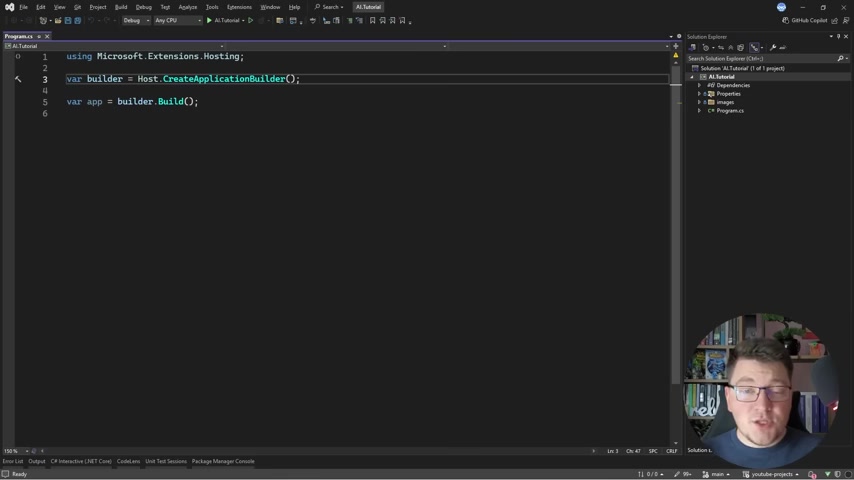
The first step is to install Microsoft.Extensions.Hosting. This package provides the necessary hosting infrastructure to configure services and leverage dependency injection containers effectively, streamlining the development process. Make sure you've installed this package to make your AI adventure smooth and stable. This will be the foundation for building intelligent applications using .NET and AI. By including pre-release versions, you gain access to the latest features and improvements, ensuring your application is on the cutting edge of AI technology.
Integrating Microsoft.Extensions.AI
The core of our image recognition system relies on the Microsoft.Extensions.AI library. Since it's currently in preview, enabling pre-release versions is essential. The library provides a range of tools and utilities for working with generative AI components.
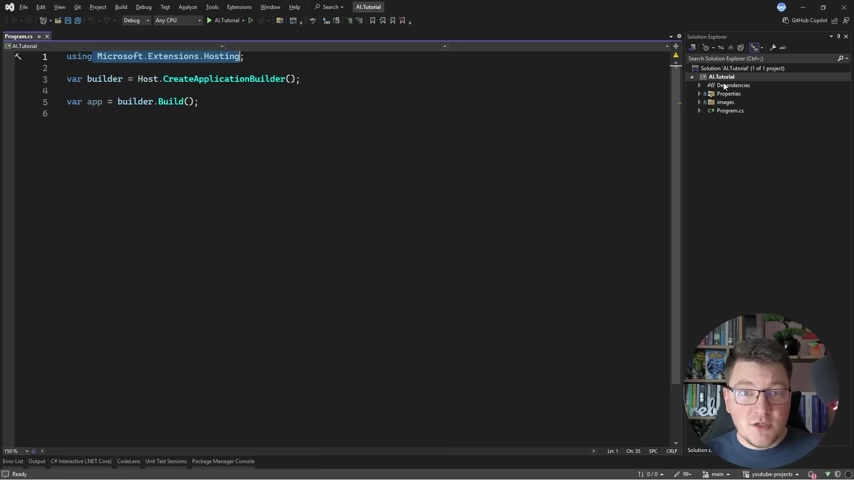
To install, use the NuGet Package Manager, and make sure that the 'Include prerelease' box is checked, so that the correct package can be located. It simplifies interaction with AI models by offering abstractions for common tasks, like interacting with local Ollama models and other generative AI components.
Here's a breakdown of the NuGet packages we'll need to install:
| Package Name | Description |
|---|---|
| Microsoft.Extensions.AI | Utilities for working with generative AI components. |
| Microsoft.Extensions.AI.Ollama | Implementation of generative AI abstractions for Ollama, which supports local LLM interactions. |
Make sure the versions you are using are the latest available pre-release versions to take advantage of the most recent bug fixes and features!
Configuring Dependency Injection for AI Services
With the necessary libraries installed, the next step is to configure dependency injection.
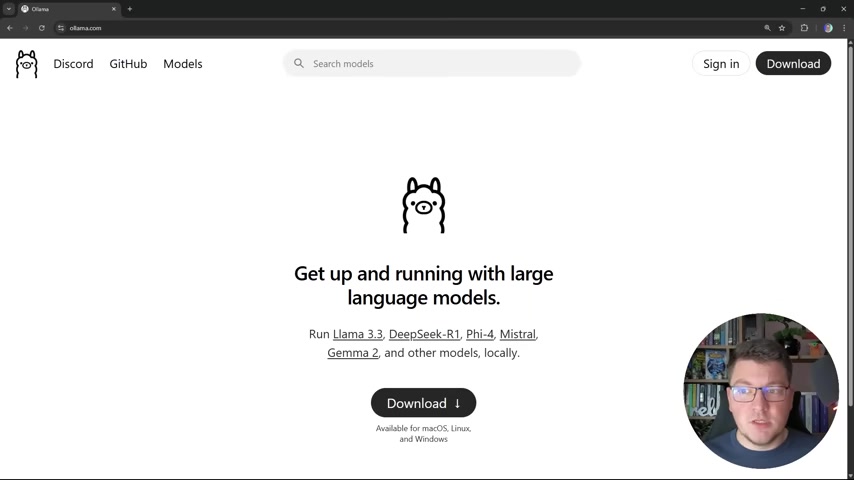
Here's how you can incorporate AI services into your .NET application:
using Microsoft.Extensions.Hosting;
using Microsoft.Extensions.DependencyInjection;
using Microsoft.Extensions.AI.ChatClient;

var builder = Host.CreateApplicationBuilder();

builder.Services.AddChatClient(new OllamaChatClient(new Uri("http://localhost:11434"), "llava:7b"));

var app = builder.Build();
This code snippet configures your application to use an Ollama chat client, which will allow us to process images. The URL specifies where the Ollama service is hosted (in this case, locally), and 'llava:7b' denotes the specific large language model to be used. LLaVA is a large multimodal model. By adding these configurations, your application can smoothly interact with generative AI. By setting up the DI container this way, your application is primed to perform AI-driven tasks, including image recognition and analysis.
Harnessing Ollama and Vision Models for Image Recognition
Leveraging Ollama for Local LLM Hosting
Ollama presents a streamlined, lightweight framework that enables you to run significant language models directly on your local machine. This eliminates reliance on external servers or cloud services, providing benefits for development and experimentation.
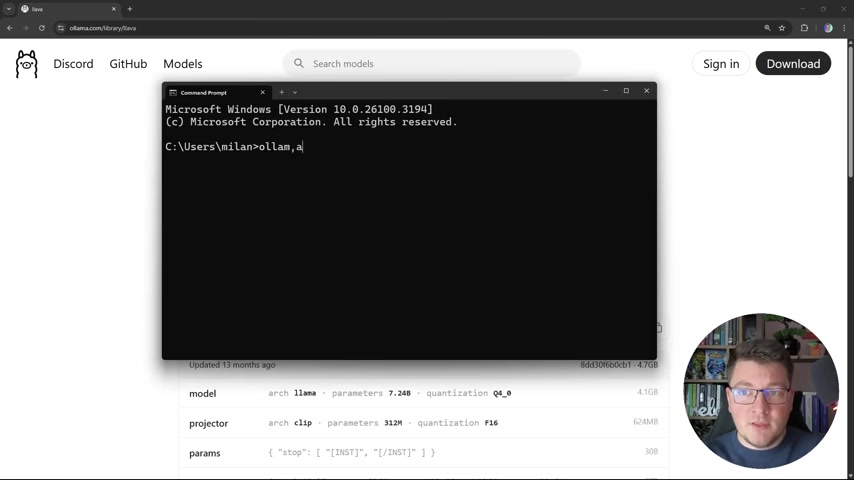
You can access a comprehensive selection of available models that you can implement, including vision models like llava, by visiting the Ollama website. Selecting a smaller vision model, like the 7b version of llava, balances between precision and computational efficiency.
Before incorporating any of this code into your .NET application, first ensure that Ollama has been properly installed on your system. Now, let's get this 7b model running:
ollama run llava:7bAfter executing this command, Ollama will download (if necessary) and launch the 'llava:7b' vision model. At this stage, you can immediately begin interacting with this model via the command line interface. This direct interaction is invaluable for both testing the model and validating the configuration of your setup before incorporating it into the .NET project.
Crafting Prompts for Image Recognition
Here’s how to formulate prompts, and send your first request with a data URL:
-
Open the command line for ollama
-
Run the following command:
/path/to/your/image.png -
Then, type your request
-
Type the following command:
Explain what can be seen in the image.For those familiar with AI prompts, it can be that simple.


Most people like




































Report
Please select a reason for reporting
- 13 Reasons to Switch from Snapchat to Text Messaging
- 7 Powerful Speech to Text Apps to Boost Productivity
- 10 Best Speech to Text Tools for Effortless Transcription
- 13 Free Tools to Easily Transcribe Audio to Text
- 15 Surprising Ways Google's Speech-to-Text Boosts Productivity
- 7 Best Free Online Audio to Text Transcription Tools
- 9 Tips to Transcribe Speech to Text Faster and Better
- 13 Best Speech to Text Software for Windows 10 in 2023
- 7 Tips for Choosing the Best Transcriber for Audio to Text
- 11 Reasons Why Dragon Speech-to-Text Apps are Game-Changers
- 6 Secrets to Enhance Your Speech to Text Transcription
- 6 Brilliant Ways to Boost Productivity with Talk-to-Text on Your MacBook
- 6 Ways Transcription Software Converts Audio to Text
- 8 Tips to Transcribe Speech to Text Like a Pro
- 6 Reasons IBM Watson Speech to Text is a Game-Changer
- 14 Powerful Ways Talk-to-Text Improves Your Workflow
- 12 Top Windows Speech-to-Text Software for Efficient Transcription
- 12 Game-Changing Benefits of Apple's Speech to Text Technology
- 9 Powerful Use Cases for AWS Speech to Text Technology
- 10 Easy Steps to Transcribe YouTube Videos to Text
- transcription audio en texte
- online audio transcription
- free audio file transcription
- free ai audio transcription
- audio transcription service
- audio transcription online free
- audio transcription free online
- audio to transcription software
- audio and transcript
- ai audio transcription free
- voice recording to text converter
- translate voice recording to text
- record voice to text
- audio recording to text converter
- voice recording and transcription
- chatgpt voice to text
- gmail voice to text
- speech to text reader
- speech to text ai free
- speech to talk
- Meshy AI: How to Create 3D Models from Text and Images
- How SEO and Marketing Dashboards Empower Agencies to Drive Results
- How to Use AI Tools to Find Internal Linking Opportunities Across a Business Website
- Discover Your Perfect Haircut with AI Hairstyle Apps
- Free Reputation Calculator Tools: How They're Adapting to Score AI Visibility, Not Just Rankings
- Design Professional Flyers for Free on Your Phone
- Best Free Flyer Maker Apps for Android: Design Like a Pro
- How to Know If Your Business Is Ready for an AI Customer Service Agent
- Revolutionizing Storytelling: From Novels to Screenplays with AI
- Create Engaging Animated Explainer Videos with a Free AI Tool
- Automate Lead Generation: A Comprehensive Guide with AI Agents
- Revideo.io: The Future of Reverse Video Search Technology
- Revolutionizing Email Marketing Agency with AI
- Breaking the Character Drift Dilemma: A Practical Test of Smart Shot
- Meshy AI: How to Create 3D Models from Text and Images
- ASOMobile Helps Teams Benchmark App Store Screenshots Against Competitors
- How to Match LMS Software With Your Organization's Training Plan
- How to Convert BTC to HNT
- Unleashing the Power of AI: Cognizant's Roadmap for Transformation
- Frame to Video Review: A Practical Look at Turning Two Still Frames Into Motion

Copyright ©2026 toolify