































Table of Contents
- Key Points
- Building Your Excel Data Entry System
- Automating Data Transfer Using AI and VBA Code
- How to use (Optional)
- Pricing (Optional)
- Weighing the Options: Pros and Cons of AI-Assisted Excel Automation
- Core Features (Optional)
- Use Cases (Optional)
- Frequently Asked Questions
- Related Questions



Building Your Excel Data Entry System
Setting Up the Foundation: Excel Data Entry Form
The initial step in creating an automated data entry system is setting up a well-organized data entry form within Excel.
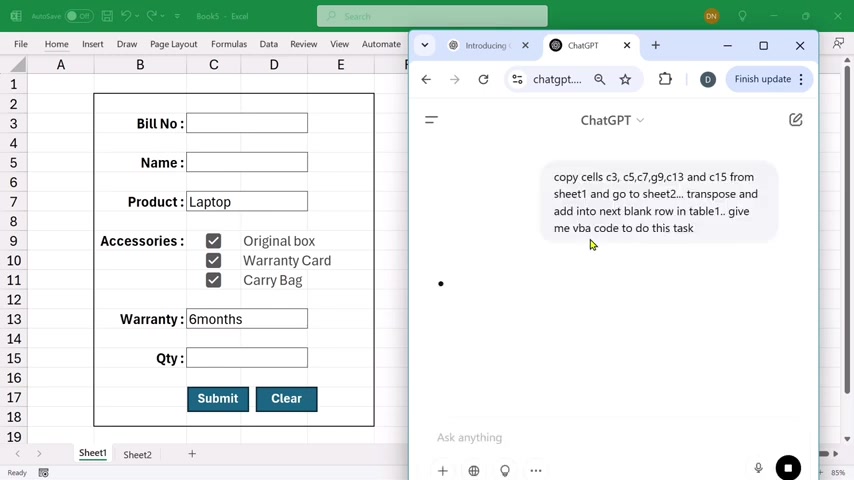
Begin by opening Microsoft Excel and creating a new sheet. Identify the key fields needed for your data entry process. These might include fields like 'Bill Number', 'Name', 'Product', 'Accessories', 'Warranty', and 'Quantity'. Enter these as headers in your Excel sheet. Format these headings using bold text (Ctrl + B) to make them easily recognizable. Then you can set all borders on the range where you are entering data. This establishes a clear structure that will make entering data smooth and error-free.
Setting Up a Structured Database
A well-structured database is crucial for organizing and analyzing the data entered through your form. To create this:
-
Create a new sheet in your Excel workbook (e.g., 'Sheet2').
-
In the first row, enter the same headers you used in your data entry form (Bill Number, Name, Product, Accessories, Warranty, Quantity). These headers will serve as the columns for your database.
-
Select the range you just specified. After this press Ctrl+T to convert to a table. Confirm 'My table has headers' is checked. This range of cells will now act as a database, ready to receive data entries.
| Header | Description |
|---|---|
| Bill Number | Unique identifier for each transaction |
| Name | Customer's name |
| Product | Name of the product sold |
| Accessories | Additional items included with the product |
| Warranty | Duration of the product's warranty |
| Quantity | Number of units sold |
Automating Data Transfer Using AI and VBA Code
Generating VBA Code Using ChatGPT
Now, let's integrate the data entry form with the database using VBA code generated by AI. This section provides an overview of how to get started:
-
Head over to the Chat GPT website and log in
-
Compose a detailed Prompt that clearly explains your requirements.
-
Copy this VBA to paste in excel: copy cells c3, c5, c7, g9, c13 and c15 from sheet1 and go to sheet2, transpose and add into next blank row in table 1
-
Paste to Excel with ALT+ F11 keys: Click “Insert” > “Module”. The Module window opens to enter a program.
-
To copy the code, click in the gray area immediately to the left of the code to select all of the lines and press
+ . Paste it into the code window.
To be certain of what to paste into Chat GPT, be sure to use proper references.
For Example:
- The source cells in 'Sheet1' (e.g., C3, C5, C7)
- The table in 'Sheet2' where data should be added
It is imperative to keep those considerations in mind!
Integrating the VBA Code into Excel
To integrate the generated VBA code into Excel and link it to your submit button follow these steps:
- Press 'Alt + F11' to open the VBA editor in Excel. This opens the Visual Basic for Applications window.
- Right-click on any object in the “Project Explorer” window, and click “Insert > Module”. A code window opens.
- Paste the VBA code copied from ChatGPT into the module code window.
Next you want to assign it to your button:
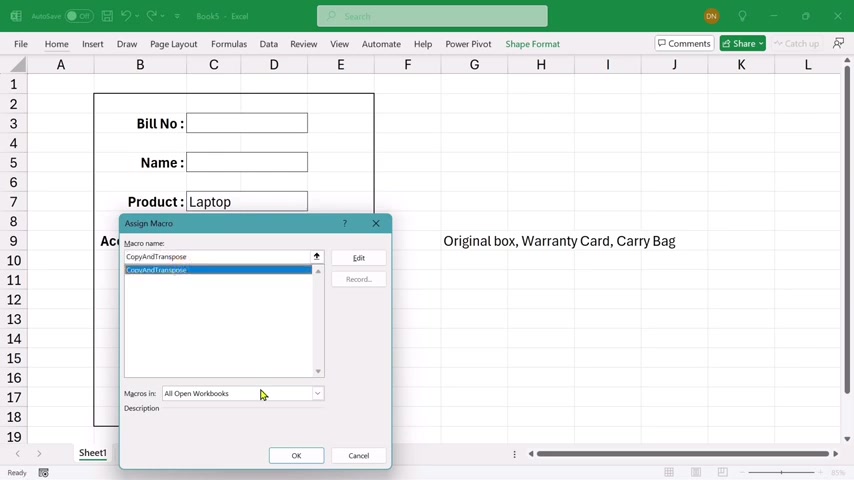
- Close the VBA editor. Right-click the 'Submit' button you created earlier, and select 'Assign Macro'.
- In the 'Assign Macro' dialog box, select the macro you pasted (e.g., 'CopyAndTranspose').
- Click 'OK'.
This links the macro to the 'Submit' button. When you click the button, the VBA code will execute, transferring data from the form to the database.
Add More and Customize the Project
- Create a “Clear” button:
You can add other customizations or functions to the AI excel data entry, for example, adding a clear button:
- If you have a similar format sheet for the new data, click the “Clear” button to activate it.
- Select “Assign Macro”, then assign the code to the “Clear” button.
- Customize:
For the project, you can make changes on Font colour, header styles, and table references. To improve readability, use the clear and uniform look.








Most people like





































Report
Please select a reason for reporting
- 13 Reasons to Switch from Snapchat to Text Messaging
- 7 Powerful Speech to Text Apps to Boost Productivity
- 10 Best Speech to Text Tools for Effortless Transcription
- 13 Free Tools to Easily Transcribe Audio to Text
- 15 Surprising Ways Google's Speech-to-Text Boosts Productivity
- 7 Best Free Online Audio to Text Transcription Tools
- 9 Tips to Transcribe Speech to Text Faster and Better
- 13 Best Speech to Text Software for Windows 10 in 2023
- 7 Tips for Choosing the Best Transcriber for Audio to Text
- 11 Reasons Why Dragon Speech-to-Text Apps are Game-Changers
- 6 Secrets to Enhance Your Speech to Text Transcription
- 6 Brilliant Ways to Boost Productivity with Talk-to-Text on Your MacBook
- 6 Ways Transcription Software Converts Audio to Text
- 8 Tips to Transcribe Speech to Text Like a Pro
- 6 Reasons IBM Watson Speech to Text is a Game-Changer
- 14 Powerful Ways Talk-to-Text Improves Your Workflow
- 12 Top Windows Speech-to-Text Software for Efficient Transcription
- 12 Game-Changing Benefits of Apple's Speech to Text Technology
- 9 Powerful Use Cases for AWS Speech to Text Technology
- 10 Easy Steps to Transcribe YouTube Videos to Text
- transcription audio en texte
- online audio transcription
- free audio file transcription
- free ai audio transcription
- audio transcription service
- audio transcription online free
- audio transcription free online
- audio to transcription software
- audio and transcript
- ai audio transcription free
- voice recording to text converter
- translate voice recording to text
- record voice to text
- audio recording to text converter
- voice recording and transcription
- chatgpt voice to text
- gmail voice to text
- speech to text reader
- speech to text ai free
- speech to talk
- How SEO and Marketing Dashboards Empower Agencies to Drive Results
- How to Use AI Tools to Find Internal Linking Opportunities Across a Business Website
- Discover Your Perfect Haircut with AI Hairstyle Apps
- Free Reputation Calculator Tools: How They're Adapting to Score AI Visibility, Not Just Rankings
- Design Professional Flyers for Free on Your Phone
- Best Free Flyer Maker Apps for Android: Design Like a Pro
- How to Know If Your Business Is Ready for an AI Customer Service Agent
- Revolutionizing Storytelling: From Novels to Screenplays with AI
- Create Engaging Animated Explainer Videos with a Free AI Tool
- Stop Multi-Subscribing: Benchmark Top AI Visual Models in One Canvas
- 5 Data Problems That Stall AI Projects in Financial Compliance
- Master Storyboard Drawing: Expert Tips for Non-artists
- The Future of Smart Glasses: Explained & Assembling Guide
- DeepL Translator: The AI-Powered Translation Tool
- AI Video Upscaling: Top Tools Compared for Enhanced Quality
- Bridging the Gap: How One Indie Developer Solved the "Art Asset Nightmare" Using AI Style Transfer
- How I Direct Consistent AI Clips: A Hands-On Guide to Multi-Model Generation
- My Honest Review of VideoAI: The Ultimate Character Voice Generator I've Been Using Lately
- Why do so many AI tools underdeliver for online stores?
- My Brand New Logo: AI-Powered Logo Design for Startups

Copyright ©2026 toolify