































Table of Contents
- Key Points
- AI-Powered Quiz Generation Techniques
- Advanced Quiz Generation Techniques
- Step-by-Step Guide to AI-Powered Quiz Generation with ClueLabs
- ClueLabs Pricing
- ClueLabs: Weighing the Pros and Cons
- ClueLabs Core Features
- ClueLabs Use Cases
- Frequently Asked Questions
- Related Questions


AI-Powered Quiz Generation Techniques
Generating Quizzes from Existing Knowledge Bases
One of the most efficient ways to create quizzes is to leverage your existing Knowledge Base. If you already have learning content in a text format, such as documents, articles, or transcripts, you can use AI to automatically generate quiz questions. This approach saves significant time and effort compared to manually creating Quizzes from scratch.
First, navigate to the quiz generation interface within your eLearning platform.
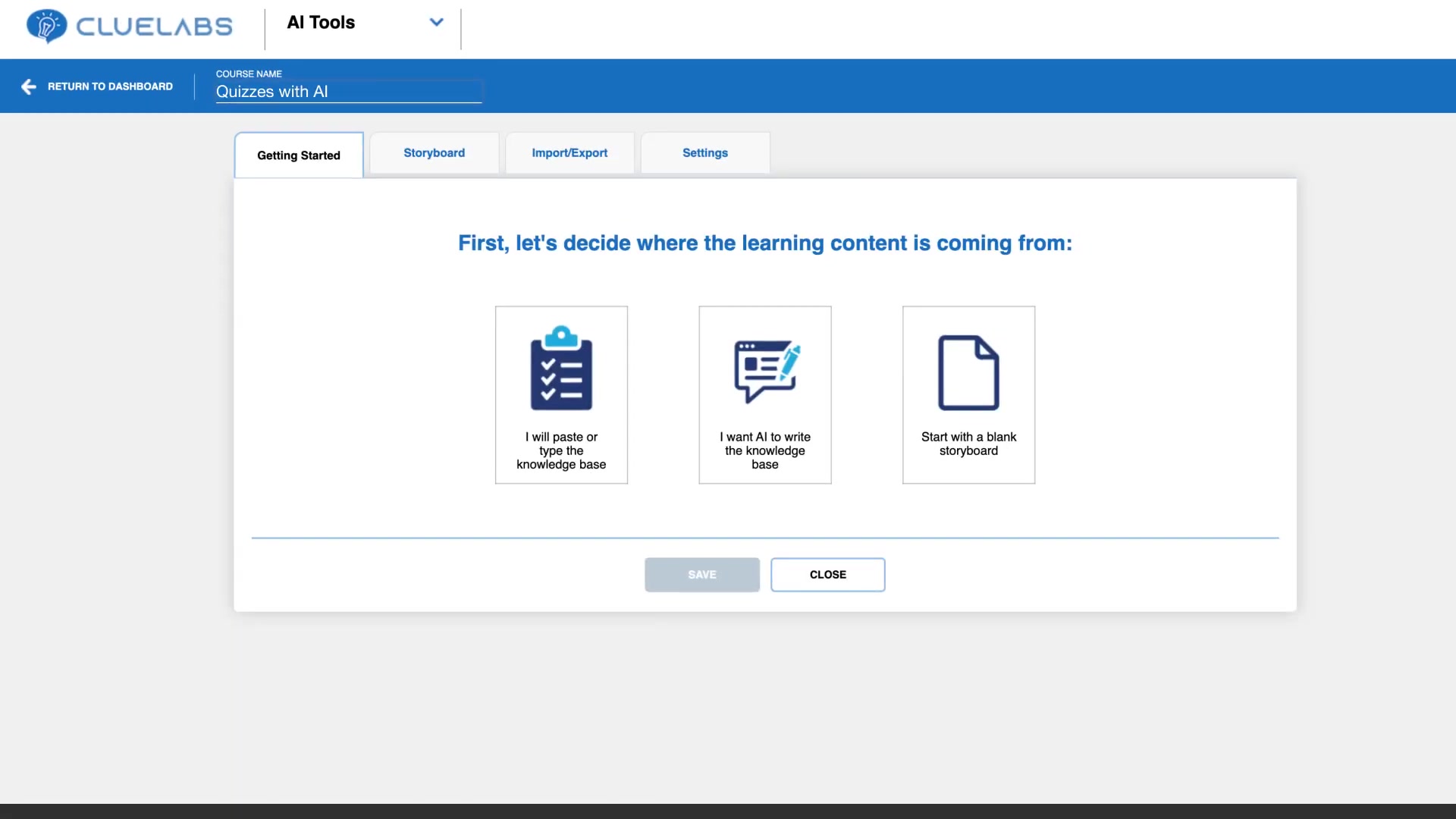
Look for an option that allows you to 'paste or type' your knowledge base. This will typically open a text editor where you can input your learning content.
Once you've pasted your text , the AI will analyze the content and identify key concepts and facts. Based on this analysis, the AI will generate a variety of quiz questions, such as multiple-choice, true/false, and fill-in-the-blank.
To refine the quiz generation process, ensure that the 'questions' option is selected. Specify the desired number of questions. For instance, if you want to generate five questions , enter '5' in the designated field. You can then select where the quizzes will be placed in the storyboard. Typically, placing them 'at the end of the storyboard' is an effective method. The AI will add the quiz at the end.
Key Benefits:
- Saves time and effort by automating quiz creation.
- Ensures that quizzes are aligned with the learning content.
- Allows for the rapid generation of quizzes for large volumes of content.
AI-Driven Knowledge Base and Quiz Creation
If you don't have an existing knowledge base, don't worry! AI can also help you create one.
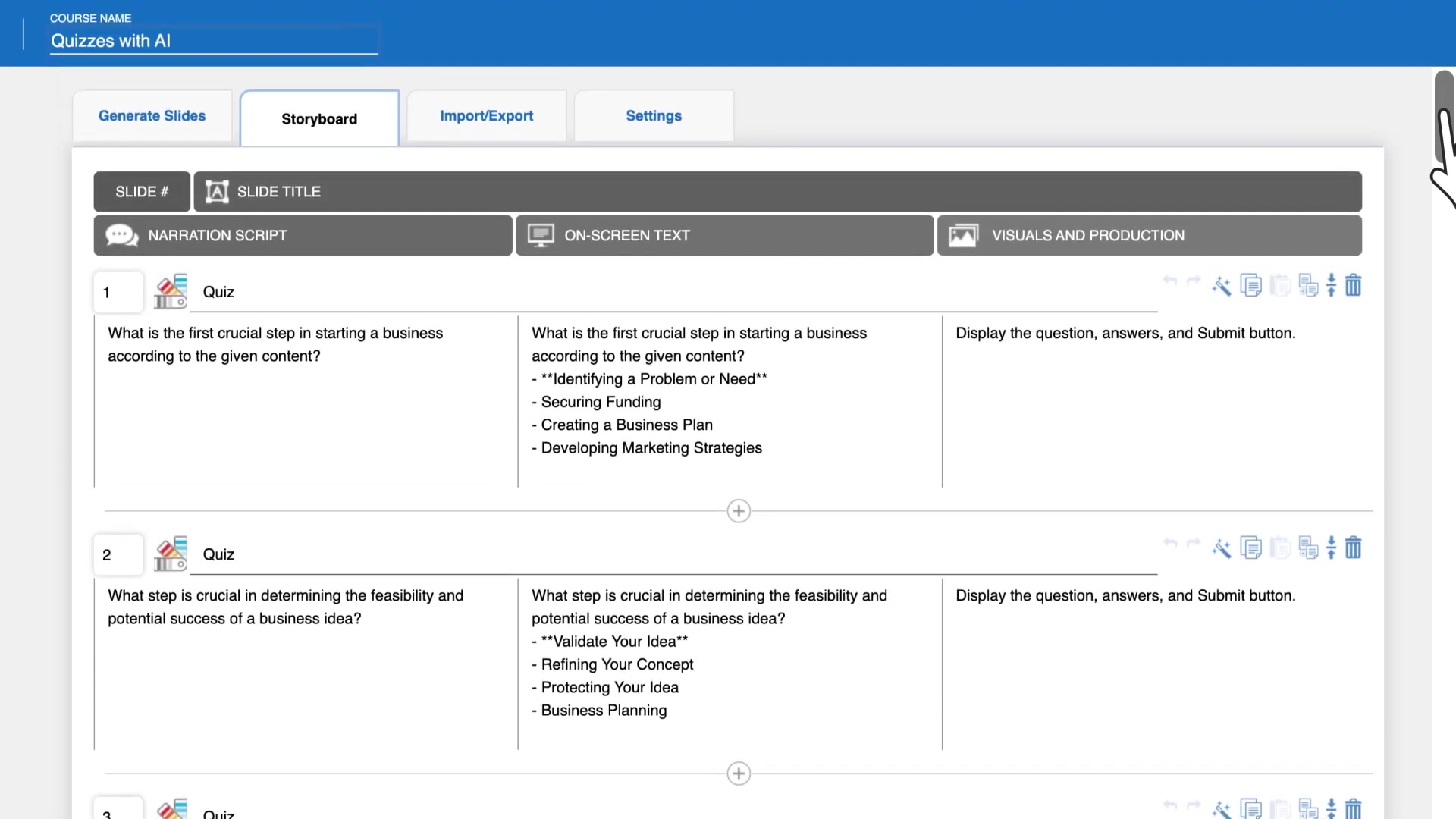
This method is particularly useful when you have a general topic in mind but need help developing the actual learning content.
To begin, select the option 'I want AI to write the knowledge base.' You will then be prompted to enter a general topic for your Course or content . For example, you might enter 'Performing pre-business launch market research and competitive analysis.'
Next, specify the desired length of the content . The longer the duration, the more content the AI will generate. You can then edit the Outline generated. This is helpful to ensure the learning content is appropriate to the learner's needs and skillsets .
Review the generated knowledge base and make any necessary edits. You can delete sections that are not Relevant or add more information as needed. Once you are satisfied with the knowledge base, you can generate a quiz based on the created material. Select 'questions' and enter the number of questions you would like the AI to generate . The AI will create the quiz and add it to the end of the storyboard.
Key Benefits:
- Helps to generate content when an existing knowledge base is not available.
- Allows for the creation of tailored learning content based on specific topics.
- Provides a starting point for further refinement and customization.
Advanced Quiz Generation Techniques
Creating Targeted Quizzes within Storyboards
For a more granular approach, you can generate quiz questions directly within your eLearning storyboard.
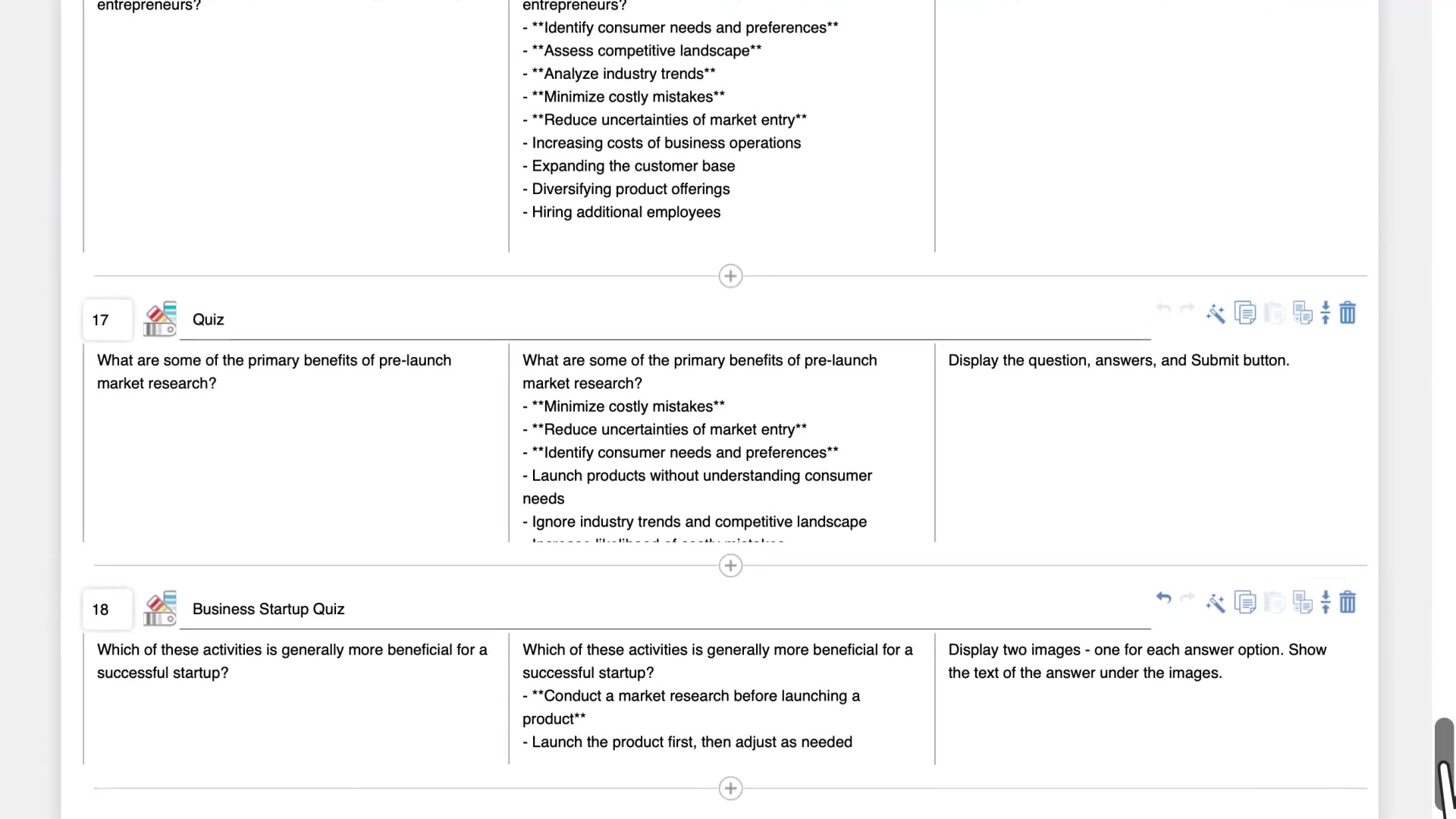
This method is ideal when you want to create quizzes that focus on specific sections of your content.
To generate a quiz, open the COPILOT within the storyboard interface. Type a backslash ('\') or click the backslash icon. Select 'quiz' and specify the number of questions you want to generate and the source slides. The AI will then generate quiz questions based on those slides.
Key Benefits:
- Allows for the creation of quizzes tailored to specific sections of content.
- Provides a more focused assessment of learning outcomes.
- Enables the integration of quizzes directly within the learning flow.
Replicating Quiz Structures for Consistency
Consistency in quiz design can enhance the learning experience. If you have a quiz structure that you find particularly effective, you can use AI to replicate it .
Open the copilot and provide instructions to replicate the structure of a specific slide. For example, you can tell the AI to 'create three more slides similar to number 18, but use different activities.' By using the existing content , you can enhance your content effectively.
Key Benefits:
- Maintains consistency in quiz design.
- Saves time by reusing proven quiz structures.
- Allows for the rapid creation of multiple quizzes with a consistent look and feel.
Step-by-Step Guide to AI-Powered Quiz Generation with ClueLabs
Step 1: Accessing the Quiz Generation Tool
First, log in to your ClueLabs account and navigate to the dashboard . Select the 'Storyboarding' option under 'AI Tools'. This will take you to the Project Management page.
Step 2: Start a New Storyboard Project
Click on '+ New Storyboard' to start a new project.
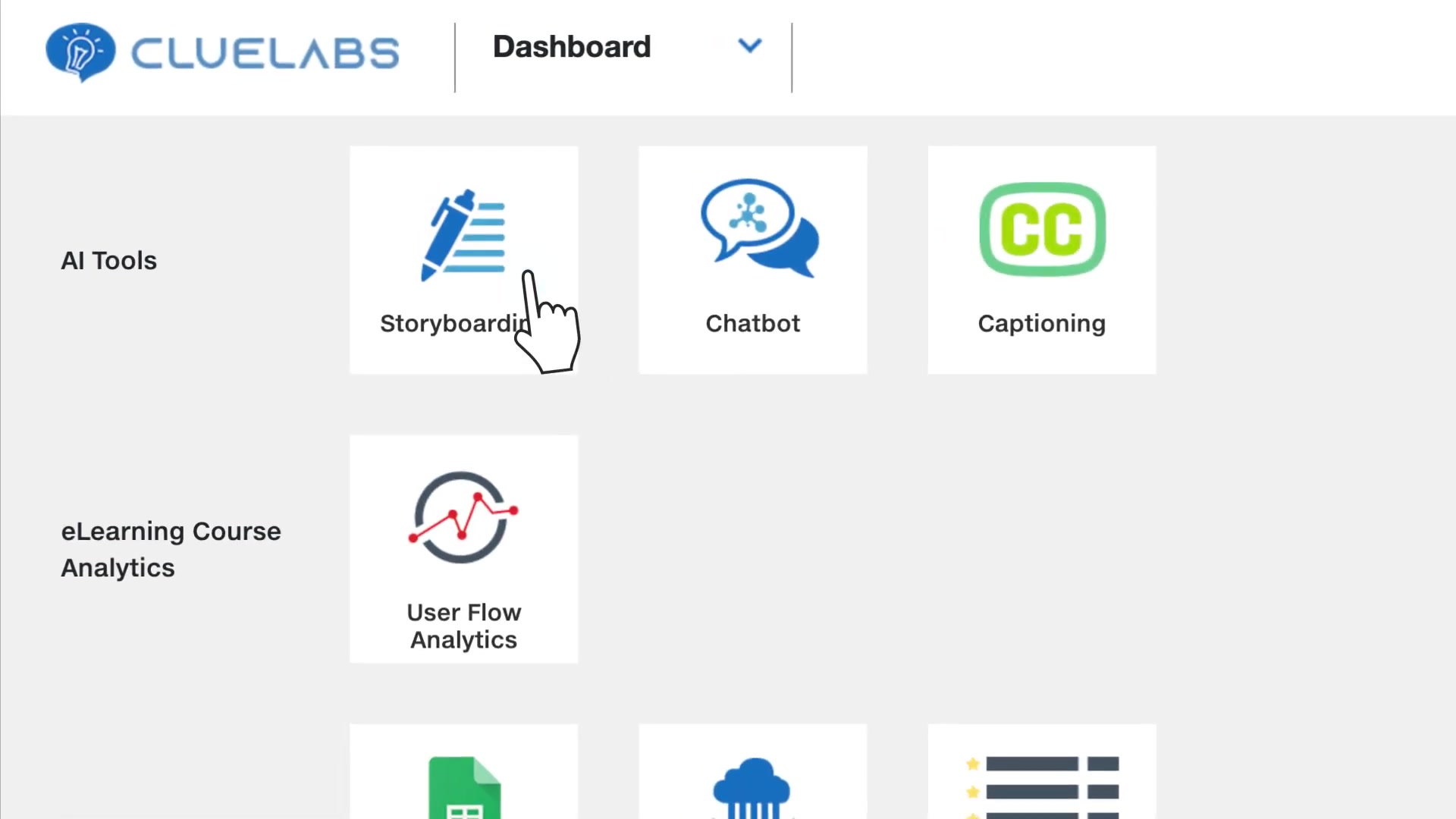
You will be prompted to enter a course name, such as 'Quizzes with AI'. Then choose how you'd like to proceed.
Step 3: Select a Knowledge Base Option
Choose either 'I will paste or type the knowledge base' or 'I want AI to write the knowledge base', based on whether you have pre-existing learning content.
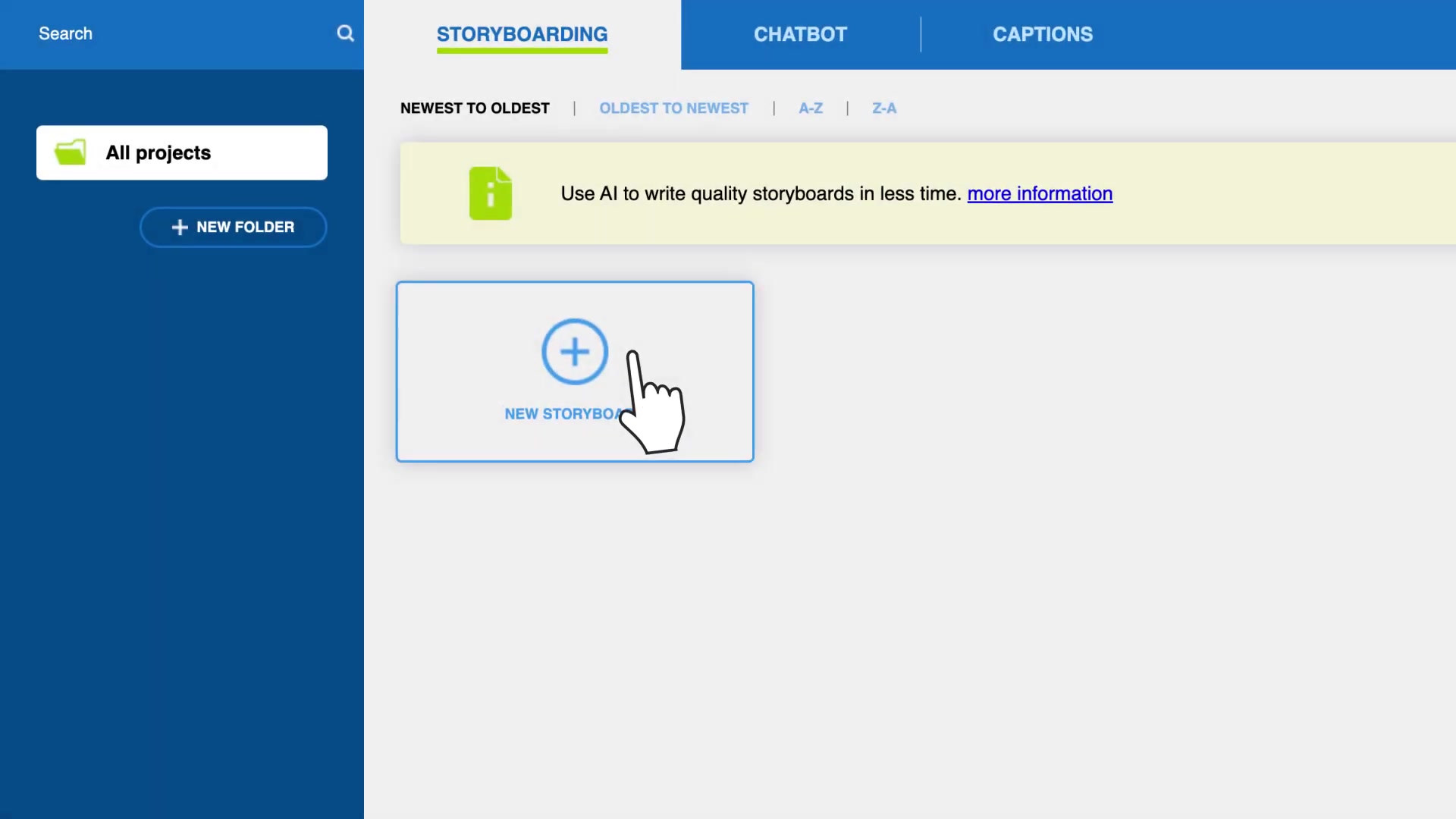
If you choose to have the AI write the knowledge base you will be prompted to enter a brief description of the topic. From there, the AI will create a basic outline and knowledge base, to which you can edit.
Step 4: Generate Quiz Questions
If you've pasted content,
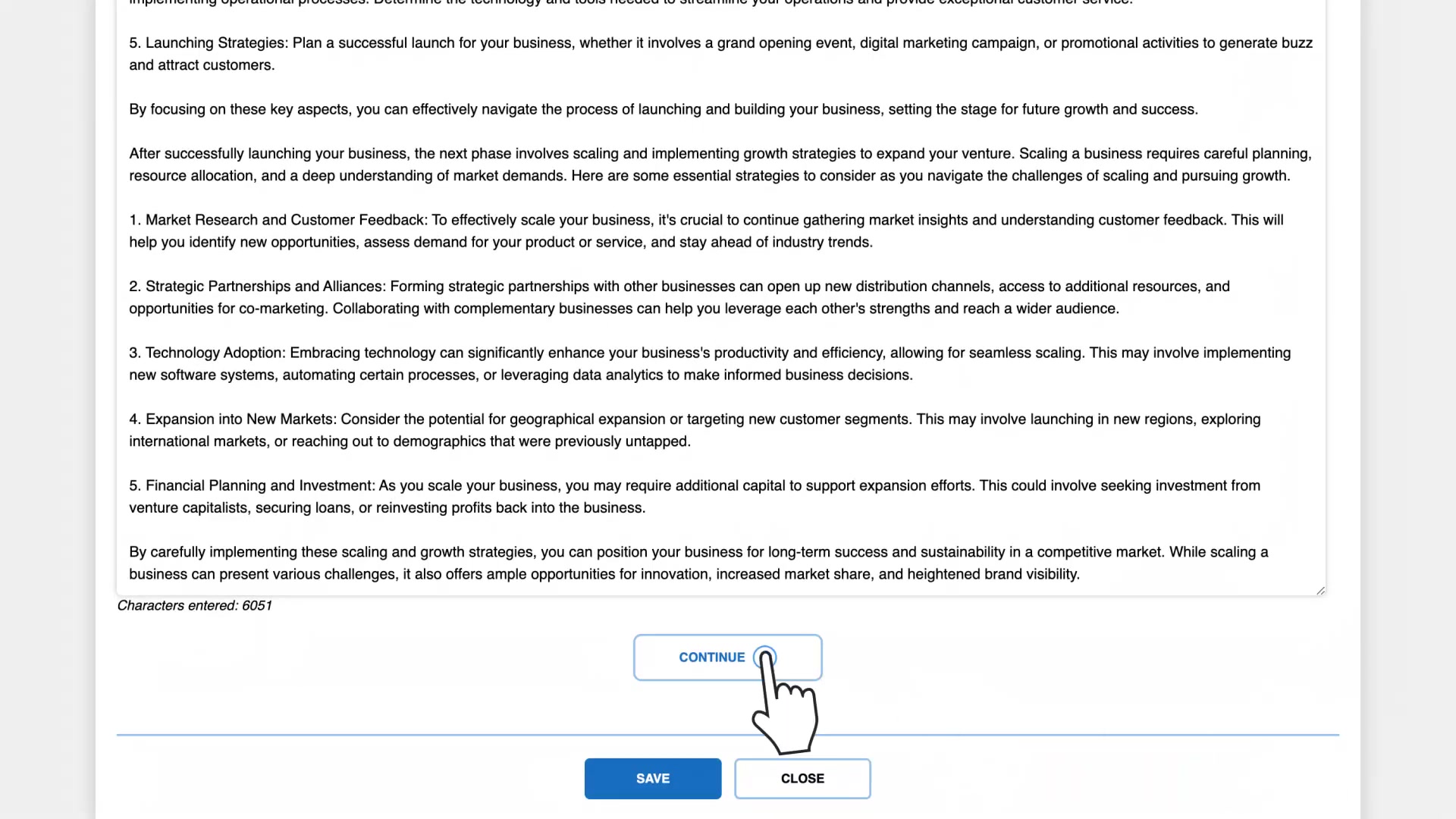
ensure that the 'Questions' option is selected. Type in the number of questions needed, and click 'Continue'. Choose Where To place the quiz questions (e.g., 'At the end of the storyboard'), then click 'Create Slides'. If you've let the AI create the knowledge base , first press 'continue' to get to the knowledge base review page, then proceed with the quiz question settings.
Step 5: Review and Edit the Generated Quiz
Review the generated quiz questions. If necessary, edit the questions or answers to ensure accuracy and Clarity. You can adjust the wording, add distractors, or modify the difficulty level. All the automatically generated answers are formatted to be drag-and-drop.
Step 6: Incorporate the Quiz into Your eLearning Module
Once you are satisfied with the quiz, incorporate it into your eLearning module. You can integrate the quiz into a lesson, a chapter, or a standalone assessment. Ensure that the quiz is appropriately placed within the learning flow to maximize its impact.
Step 7: Enhance Quizzes Directly in the Storyboard
To enhance quizzes
, open the copilot within the storyboard interface. Type a backslash ('\') or click the backslash icon. Select 'quiz' and specify the number of questions you want to generate and the source slides. The AI will then generate quiz questions based on those slides.










Most people like



























Report
Please select a reason for reporting
- 13 Reasons to Switch from Snapchat to Text Messaging
- 7 Powerful Speech to Text Apps to Boost Productivity
- 10 Best Speech to Text Tools for Effortless Transcription
- 13 Free Tools to Easily Transcribe Audio to Text
- 15 Surprising Ways Google's Speech-to-Text Boosts Productivity
- 7 Best Free Online Audio to Text Transcription Tools
- 9 Tips to Transcribe Speech to Text Faster and Better
- 13 Best Speech to Text Software for Windows 10 in 2023
- 7 Tips for Choosing the Best Transcriber for Audio to Text
- 11 Reasons Why Dragon Speech-to-Text Apps are Game-Changers
- 6 Secrets to Enhance Your Speech to Text Transcription
- 6 Brilliant Ways to Boost Productivity with Talk-to-Text on Your MacBook
- 6 Ways Transcription Software Converts Audio to Text
- 8 Tips to Transcribe Speech to Text Like a Pro
- 6 Reasons IBM Watson Speech to Text is a Game-Changer
- 14 Powerful Ways Talk-to-Text Improves Your Workflow
- 12 Top Windows Speech-to-Text Software for Efficient Transcription
- 12 Game-Changing Benefits of Apple's Speech to Text Technology
- 9 Powerful Use Cases for AWS Speech to Text Technology
- 10 Easy Steps to Transcribe YouTube Videos to Text
- transcription audio en texte
- online audio transcription
- free audio file transcription
- free ai audio transcription
- audio transcription service
- audio transcription online free
- audio transcription free online
- audio to transcription software
- audio and transcript
- ai audio transcription free
- voice recording to text converter
- translate voice recording to text
- record voice to text
- audio recording to text converter
- voice recording and transcription
- chatgpt voice to text
- gmail voice to text
- speech to text reader
- speech to text ai free
- speech to talk
- Create Engaging Animated Explainer Videos with a Free AI Tool
- Stop Multi-Subscribing: Benchmark Top AI Visual Models in One Canvas
- Best Seedance 2.5 API Provider: Every Price on the Market, Checked at Source
- AI OnlyFans: How to Generate $30,000/Month (Legally)
- Transform Your Script into an Engaging Video with AI Video Maker!
- AI Marketing Automation: A Comprehensive Guide for Small Businesses
- Midjourney Alternative for Anime Art Creators: Why PixAI May Be Better for Character Workflows
- 10 Things Most People Get Wrong About AI Image Search
- AI Girlfriend Apps: Top Choices Redefining Relationships 2025
- How to Reduce Quoting Errors in Salesforce with AI-Assisted Quote Creation
- Top AI Image Generators: Photo-Realistic Results in 2025
- Top 5 AI Image Generators: Create Stunning Visuals Easily
- Mastering Camera Angle Control: Top 4 AI Image & Video Generators for Cinematic Precision
- Top 4 AI Tools to Generate Flawless Digital Personas in 2026
- Why AI Language Tutors Underperform in Low-Resource Languages (And How to Work Around It)
- Top 5 AI Detector Tools: Ensuring Originality in Your Content
- How to Tell If an AI Study Tool Is Actually Helping You Learn (6 Checks for 2026)
- From Auto-Cuts to Generative Clips: Top 4 AI Video Editor Platforms Tested
- AI Resume Builders: EnhanceCV, ResumeNerd AI, & Teal Compared
- ResumeAI: Crafting ATS-Optimized Resumes with AI

Copyright ©2026 toolify